Showroom hardware for Shopify POS: iPads, stands, printers and the device requirements
Start with the iPads your team uses, then build the counter and roaming setup around the work. A compatible printer and dependable connection matter more than a crowded hardware list.
The OrderPilot team·
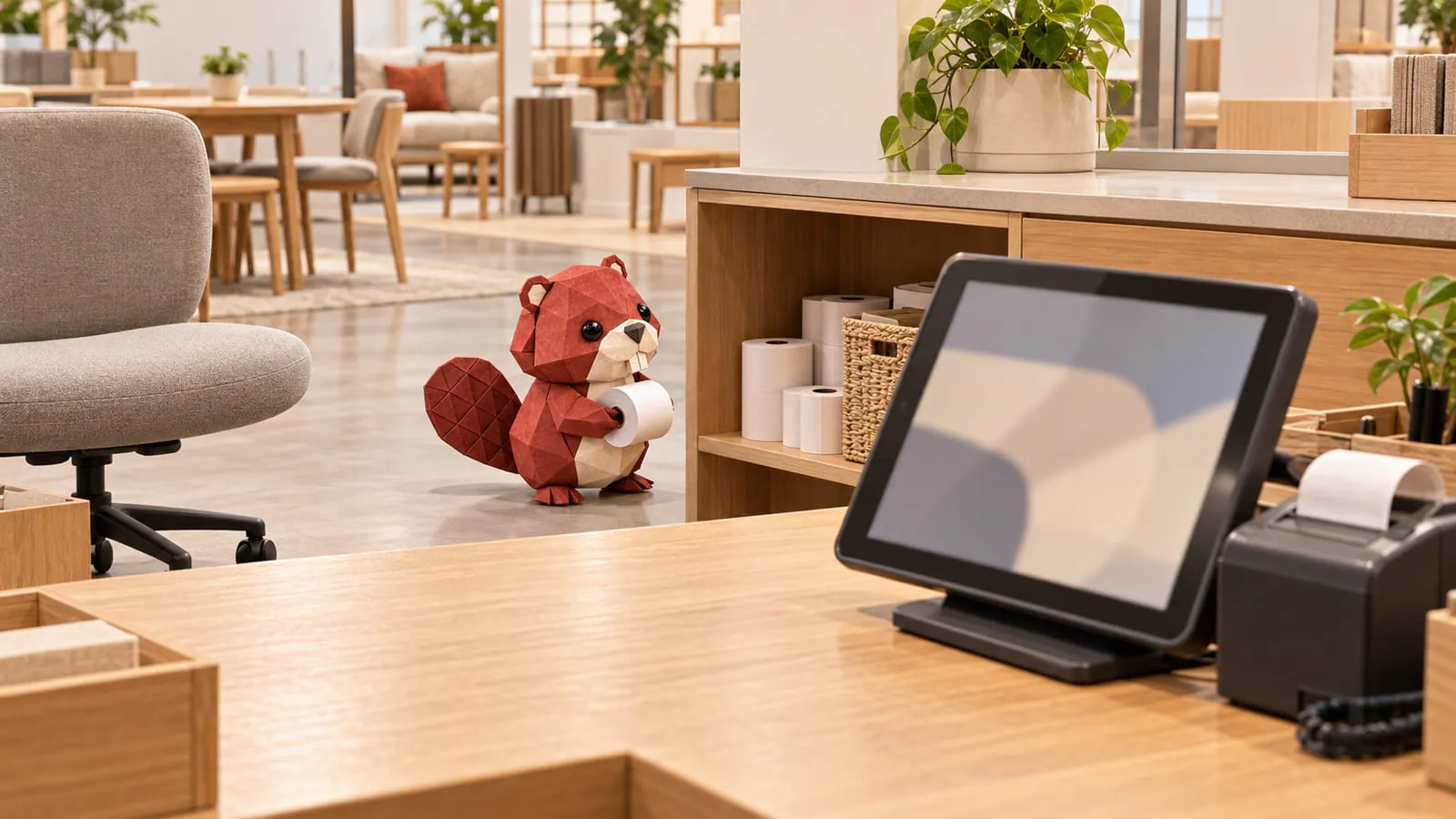
The iPad on the sales desk still looks perfectly respectable. Its battery, operating system, or charging port may have a different opinion. Before buying a fitted stand, establish whether that exact device can keep running your register.
A furniture showroom needs a dependable counter setup and, where associates configure beside the sofa, a practical roaming setup. Buy for those jobs. Shopify’s device compatibility guidance should be part of the purchase decision, alongside the accessories you intend to connect.
Check the model before the stand
Record each tablet’s model, operating-system version, battery condition, and assigned location. On an iPad, the device’s About screen gives the model information; compare it with Shopify’s supported-device list and the updates available for that model.
“An iPad” is not a complete purchasing specification. Neither is “it ran POS last year.” A device must support both the operating system and the POS app you need.
For a purchase meant to last several years, compare the model’s supported updates with Shopify’s live compatibility guidance. An iPad that works today is not proof of support two years from now. Make that compatibility review part of the replacement plan before buying a fitted accessory.
Keep the review separate from POS Pro versus included POS. A subscription upgrade does not make an unsupported tablet compatible.
Give the counter and the floor different jobs
The counter tablet needs a stable stand, reliable charging, and easy access to the payment device. The roaming tablet needs to be comfortable to carry between the sofa, swatch wall, and consultation table.
For an illustrative small showroom, begin with a fixed checkout tablet and a roaming iPad. Add devices only when the team’s actual overlap requires them. A tablet that spends its day waiting for a charger is not useful spare capacity.
Check a stand against the exact tablet size, case, connector, and intended mounting. Shopify’s hardware range includes tablet stands, payment hardware, printers, and scanners. The Eddy stand is one listed option; compatibility with your chosen tablet still decides the purchase.
Set the screen where staff and customers can read it without balancing it against a vase. The vase has other responsibilities.
Buy a payment setup supported in your region
Choose a supported card reader, POS Terminal, or a compatible Tap to Pay device according to the country and hardware you use. Tap to Pay availability should not be assumed across every tablet or phone.
Run a real test transaction through the intended route, then verify the receipt and order record. A paired reader icon is helpful, but the whole checkout needs to work.
Keep a clear place for the payment device and its cable. Staff should not have to unplug the receipt printer to charge the reader during a busy afternoon.
Use POS Hub when wired peripherals solve your problem
POS Hub connects supported checkout peripherals through USB and provides device status inside POS. Shopify announced general availability on March 2, 2026.
You do not need a hub merely because the store sells furniture. Consider it where a fixed counter needs several compatible peripherals or unreliable wireless connections are interrupting work.
List the exact reader, printer, scanner, and other accessories before buying. Confirm each supported connection. A hub organizes compatible hardware; it does not make every peripheral compatible.
Test the receipt and the far corner
For OrderPilot’s receipt format, plan around a supported 80 mm printer and inspect an actual print. Check that the text is legible and the terms QR code scans from the paper, not only from a screen preview.
A barcode scanner helps with tagged floor pieces, but the test must use your actual tag. The scanned product should resolve to the intended piece or variant.
Walk the roaming iPad through the whole showroom while using the intended workflow. Include the back room, the fabric library, and the upholstered corner where the Wi-Fi signal tends to become philosophical. Fix weak coverage before staff rely on that spot to finish an order.
Keep the opening check short
Label devices by location and purpose. Keep a charged spare available for busy periods, with the required apps and permissions already checked. Use individual staff PINs and a clear process for locking shared devices.
OrderPilot runs as tiles inside Shopify POS on the same iPad. Associates can scan a product tag, configure a piece, and let the customer sign on that iPad. The receipt carries short terms and a QR code linking to the full terms. Before buying or replacing hardware:
- Record device models, supported updates, and battery condition.
- Match stands and cases to the chosen tablets.
- Verify regional payment-device support.
- Test the 80 mm receipt and actual floor tags.
- Walk the full Wi-Fi coverage area.
- Assign charging, updates, and the fallback device.
Continue with setting up the showroom iPad. The showroom POS guide and made-to-order Shopify guide connect the hardware with the sale it needs to support.
Sources
- Shopify POS FAQ — Shopify Help Center.
- POS hardware — Shopify.
- Shopify POS Hub now available — Shopify Changelog, March 2, 2026.
Test the whole checkout, not only the paired-device icon.













