Buy for stock
Related guides
- Create purchase orders in the PO WorkbenchPurchasing · 6 min
- Stock: what receiving and custom pieces do in ShopifyInventory and costs · 5 min
- Order a new unit or sell from stockInventory and costs · 6 min
- Receive a deliveryPurchasing · 5 min
- How templates sync to Shopify productsCatalog · 5 min
Buy pieces for your showroom or warehouse without a customer order. You can also add extra stock to a customer's PO or purchase an exact template configuration for later sale.
Before you start
Is the receiving location ready?
Choose a subscribed physical location. Standalone POs use store delivery.
Are the vendors active?
Set up vendors before adding their cards.
Can you add products?
Prepare purchase orders covers the PO. Manage the catalog is needed for new products and template configurations.
Can you enter amounts?
Enter costs and charges controls Unit Cost. Change catalog selling prices controls the retail price.
Use the PO Workbench guide for customer-order selection. This guide focuses on the quantities you want to keep in stock.
Create a standalone purchase order
Step 1: Open standalone purchasing
Open Purchase Orders and click Create standalone PO. You can also tick Standalone PO in a new workbench.
Choose Fulfillment Location before adding vendors. The chosen location receives the stock.
Warning
Switching purchasing modes discards unsaved vendor selections and edits. Removing a standalone vendor card has no confirmation.
Step 2: Add the vendor
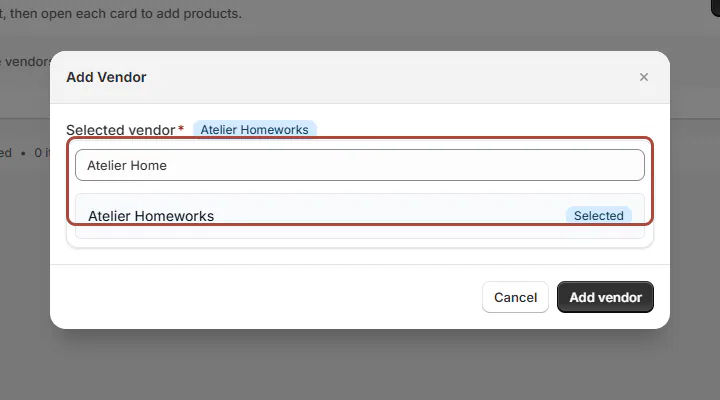
Click Add vendor, search for an active vendor and choose it. The vendor card opens in Edit.
Each vendor can appear only once in the standalone workbench. Add another vendor card for goods bought from a different vendor.
Step 3: Add an existing product
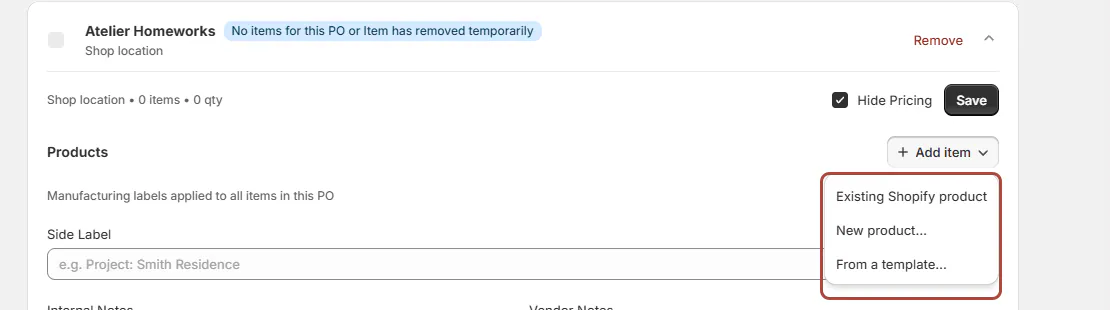
Choose Add item, then Existing Shopify product. Select the product and set Quantity and Unit Cost.
The picker excludes templates, and its retail price is not copied into cost. Check the cost independently before creating the PO.
Step 4: Review and create
Check notes, delivery details and Requested Delivery Date, then click Save. Tick the vendor card and choose Create POs.
Confirm the draft creation. The resulting PO shows Stock replenishment as its purpose.
Screen reference
Add a product not yet in Shopify
Step 1: Open New product
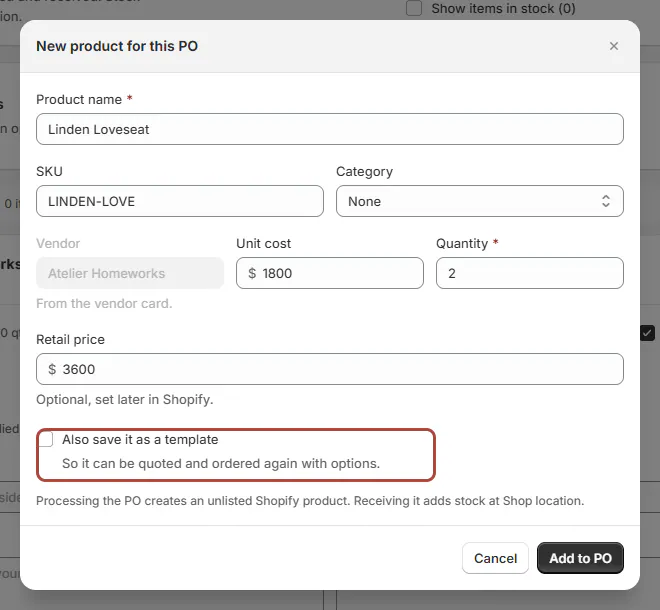
On a new vendor card, choose Add item > New product…. Enter Product name, Quantity and the optional SKU, category and retail price.
Enter Unit cost if known. The vendor comes from the card, and quantity must be at least 1.
Step 2: Choose whether to save a template
Tick Also save it as a template when the piece should be quoted again with options. Click Add to PO.
The line joins the purchasing card. Processing the PO creates an unlisted Shopify product; receiving later adds its inventory.
New product entry is available on new standalone and customer-linked POs. Editing a saved PO offers existing products instead.
Buy an exact template configuration
Step 1: Choose the template
Choose Add item > From a template… and use Search templates. Click Choose beside the template.
The configuration form opens. Only active templates available at the location appear.
Step 2: Choose every option
Select the exact configuration you want to stock. Enter Quantity and review Unit cost, which starts from the template and chosen options.
Enter a SKU if you use one, then click Add to PO. The form notes that the configuration is stocked at the PO's location when it is received. Missing required choices keep Add to PO unavailable.
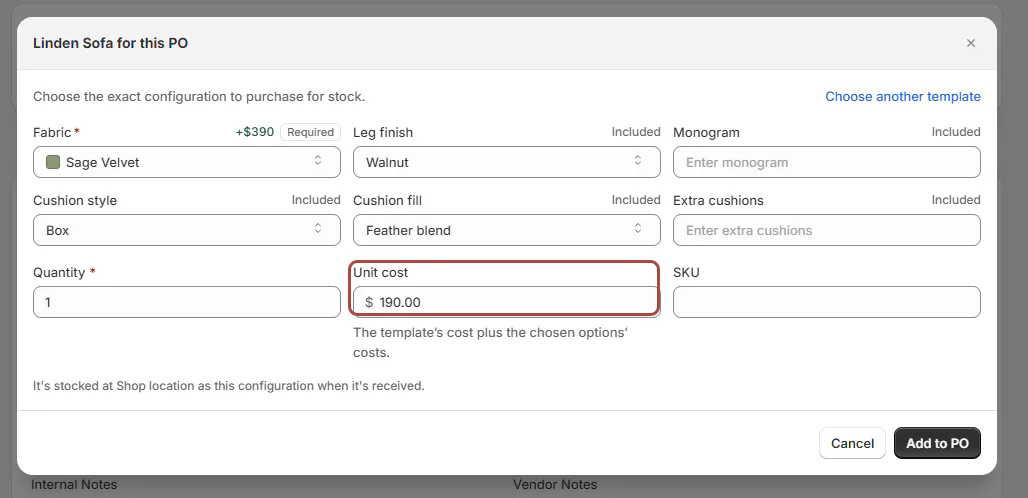
Choose the exact options before buying a configuration. If Already stocked as appears, receiving adds units to that existing configuration. The configuration is a Stock unit variant of the template's own Shopify product.
Order extra units on a customer PO
Step 1: Raise the quantity
Open the customer PO's vendor card in Edit. Raise Quantity above the customer's remaining need.
The help separates the amount as 1 for this order · 1 for stock, for example. Check that split before proceeding.
Step 2: Create the purchase order
Save the card and create the draft. For a template parent, the note explains that received units become stock of that exact configuration.
Units needed by the customer are held for the order; the surplus stays available for sale.
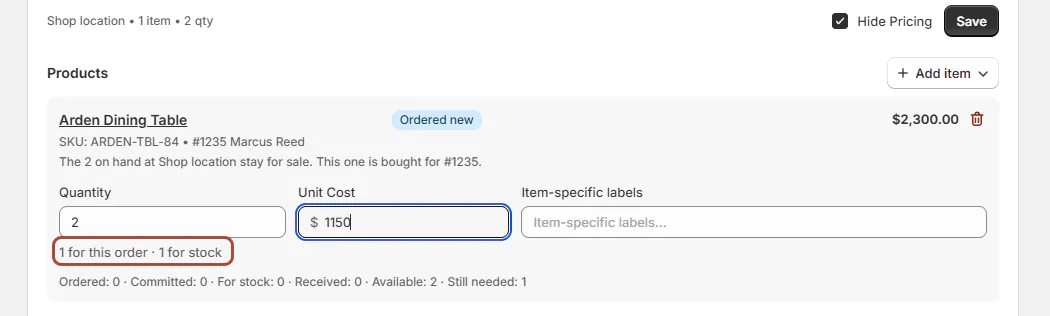
Extra units can remain available after the customer's allocation.
What happens next
Receive the delivery when the goods arrive. A new Shopify product must finish being created before its receipt can be posted.
Template units become sellable stock of the chosen configuration. Use Use stock unit when selling one later.
Example: a showroom sofa and spare stock
Example · Harlow & Finch Interiors
Stock the Sage Velvet configuration
Jo Park prepares new floor stock for Harlow & Finch Interiors.
- Open a standalone PO for Atelier Homeworks at the showroom.
- Add 2 Linden Sofas through From a template.
- Choose Sage Velvet and Feather Blend on both.
- Create the draft and follow the normal sending and receiving process.
- On Marcus Reed's separate customer PO, order 2 sofas: 1 for Marcus and 1 for stock.
If something goes wrong
New product or From a template is missing
Check Manage the catalog and whether you are editing an existing PO.
The template cannot be added
Choose every required option; the PO buys a single exact configuration.
The product is still being created
Wait, then use Check again on the receiving page.
Shopify did not create it
Read the displayed reason and use Try again after correcting it.
Extra units cannot be committed to the order
Keep only the customer's remaining need committed and put the rest into stock.
An older line refuses extra units
Follow the quantity limit shown; that line's old product cannot sell surplus configuration stock.
Was this guide helpful?
Thanks. Tell us what was missing at support@meetorderpilot.com.