How customers sign and pay online
Related guides
- The customer portalCustomers and portal · 5 min
- Help a customer who can’t open, sign or payCustomers and portal · 5 min
- Get a quote signedPayments and signatures · 5 min
- Collect a paymentPayments and signatures · 6 min
- Take a depositPayments and signatures · 5 min
Help customers finish a quote from their phone or computer. They can read the document, sign electronically, and pay through Shopify checkout without creating a store account.
The signing page and customer portal offer different views of the same sale. The available payment action depends on the signature, deposit, unresolved requests, and your payment settings.
How it works
A signature request leads the customer to the signing page. A portal link opens the quote in the customer portal. Both ask the customer to agree before signing.
- 1OpenThe customer follows the email link.
- 2ReviewThey read the quote and agreement.
- 3SignThey confirm their signature.
- 4Keep a copyThey download the signed PDF.
- 5PayThey continue to Shopify checkout.
- 6Check the orderThe payment appears against the sale.
A payment link checks what the customer can do when they open it. It opens Shopify checkout when payment is ready. It takes them to signing first when a signature is required.
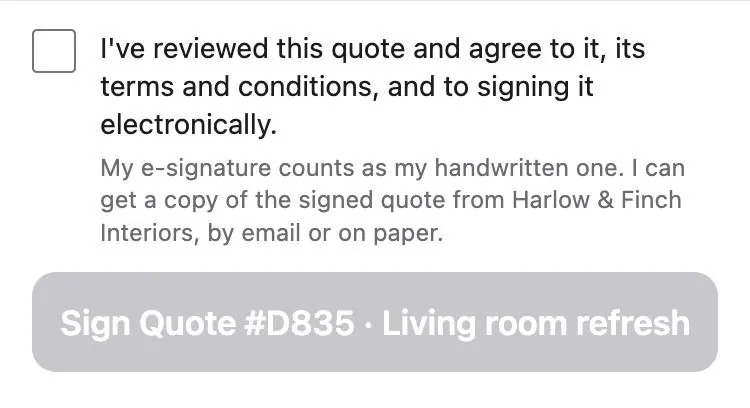
Your store's agreement appears before the electronic-signature consent. Customers agree to the quote, its terms and conditions, and signing electronically. They are also told they can obtain a signed copy by email or on paper.
Where you'll see it
The signing page
The signing page shows the quote as pages of the sales order document. The customer reads those pages and ticks the agreement. The Sign Quote button includes the quote number.
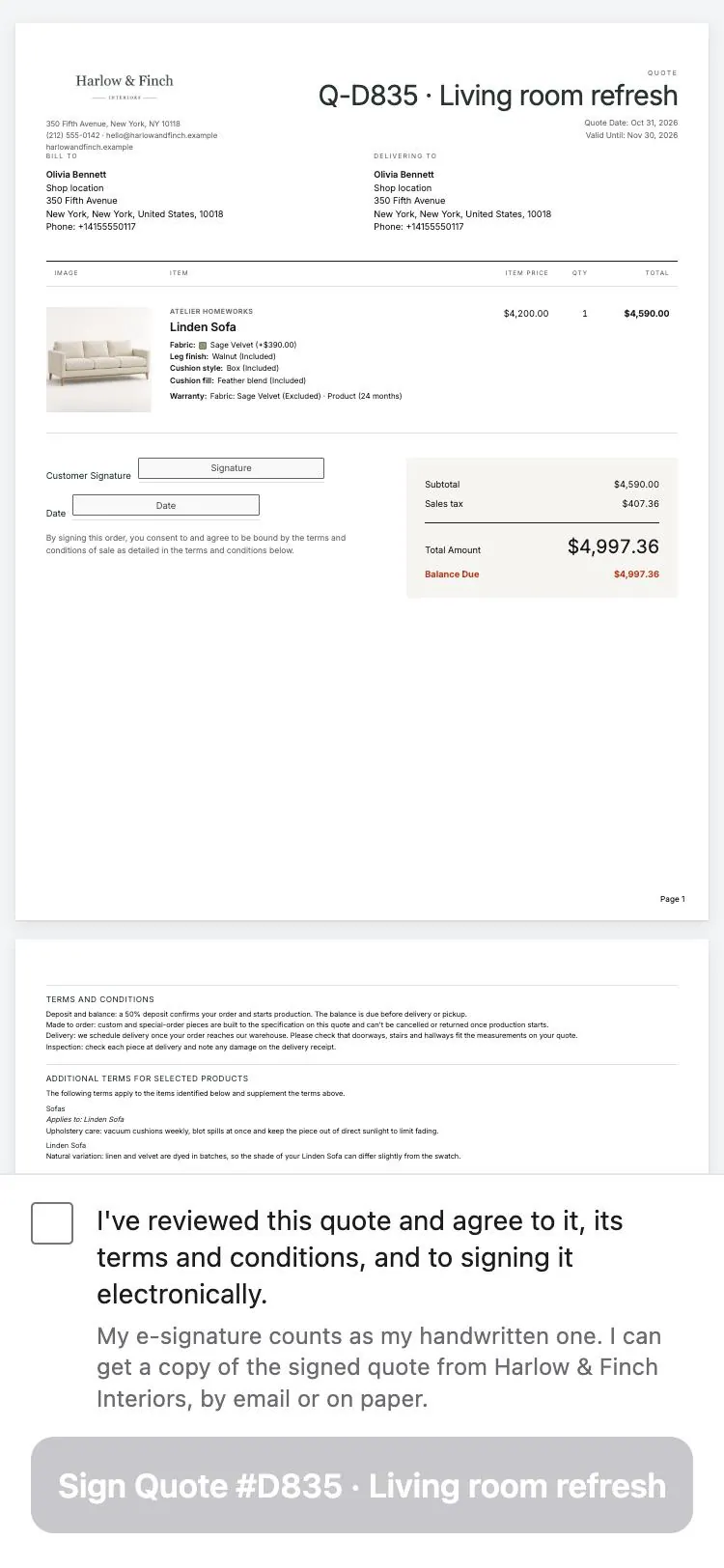
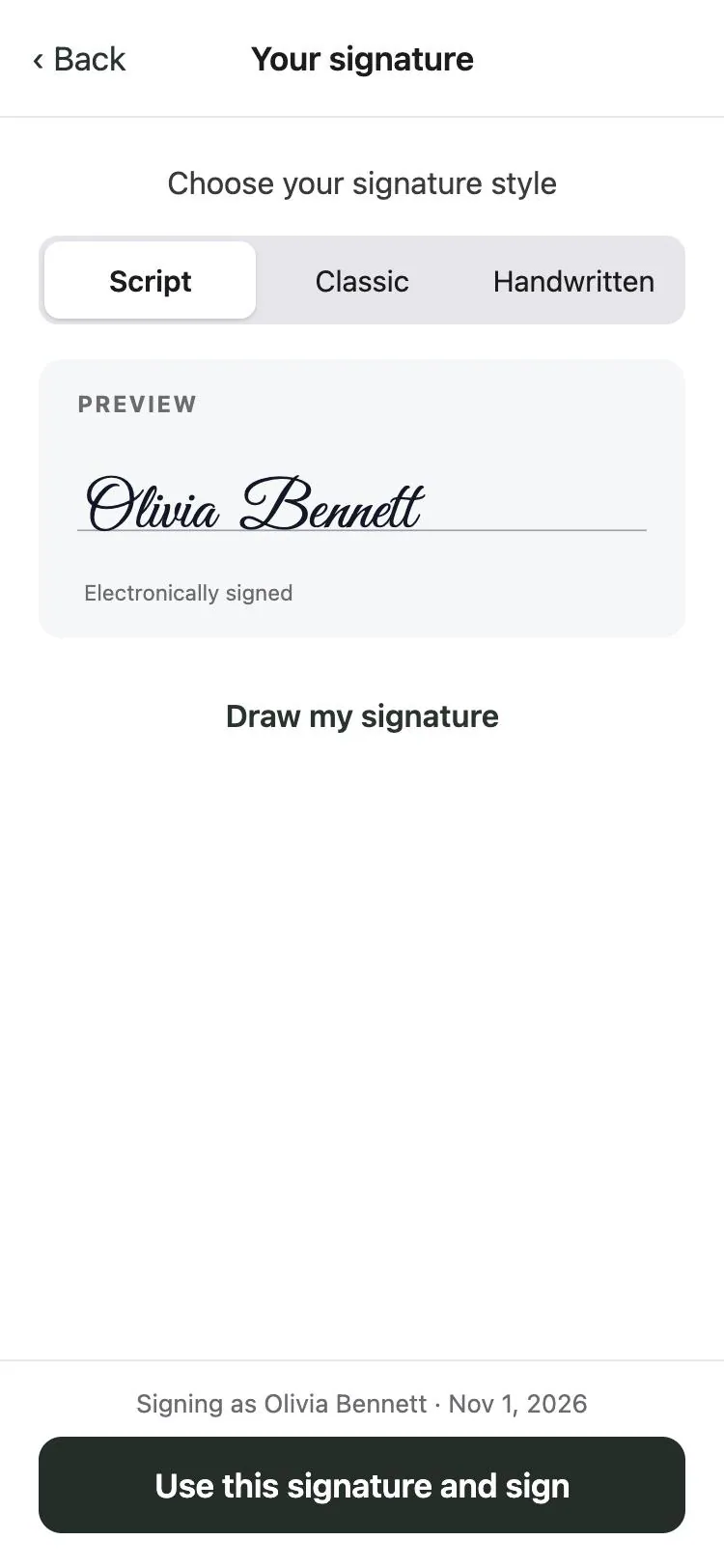
Your signature offers Script, Classic, and Handwritten styles. Script is the initial choice. Draw my signature opens a drawing area with Clear and Use a style instead.
The page identifies who is signing and the date. Use this signature and sign completes the signature. The customer then sees the thank-you message and Download signed copy (PDF).
An open signing page checks for changes every 30 seconds. If you change the quote, the customer is prompted to reload and review the current totals. Ask them to read the updated document before signing again.
Signing in the portal
In the portal, the customer ticks I agree, enters their full name, and draws a signature or uses the typed name. The Sign button remains unavailable until the required information is complete.
An unresolved question or change request can stop signing. Resolve the customer's concern before asking them to repeat the signature attempt. See customer change requests for the staff response.
Paying a deposit or balance
After signing, the signing page can offer Pay Deposit or Pay with the remaining balance. The portal shows Pay deposit with the amount or Pay with the balance.
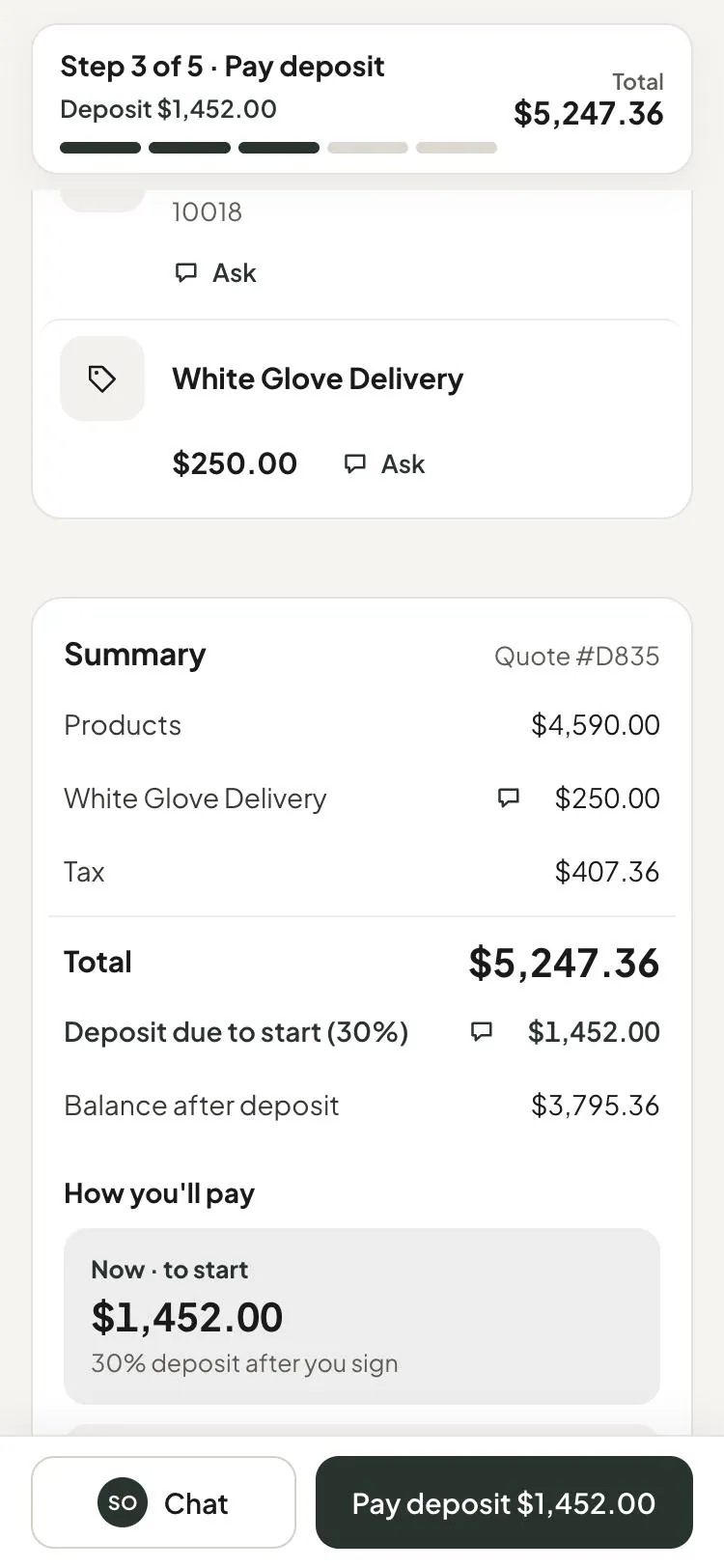
Email and document links can read Pay now, View invoice, or Proceed to Payment. On My orders and Track your order, customers may see Pay Remaining Balance.
Those pages can instead show Contact store to pay or Payment received. Read the message before directing a customer to another payment route. The absence of a button doesn't establish that money is owed.
For a split order, Due now lists each part separately. Pickup and delivery are taxed separately, and customers can pay the parts in either order.
The choices you have
| Your choice | What the customer experiences |
|---|---|
| Require a signature | Signing comes before payment. |
| Waive the signature requirement | Payment can proceed without signing. |
| Set deposit terms | The payment action requests the deposit. |
| Hold customer payment | The customer waits until you enable payment. |
| Email the signed copy | The customer receives the signed-copy email. |
| Set an agreement line | Your wording appears before the consent. |
Manage signature and deposit requirements for the sale. A waived signature displays No signature is needed to pay. You can still sign above.
Use deposit settings to decide the requested amount. Don't confuse a deposit with the remaining balance; the page names which payment the customer is making.
With the customer payment gate holding payment, the signing page says Thanks. We'll let you know when this is ready for payment. Staff use the payment controls when the quote is ready.
Email customers their signed copy is under SettingsMessages & notificationsSending settingsEmail & SMS rules. The download remains the customer's direct way to keep the signed document.
The agreement line is under SettingsBrandingSigning page. See customer page styling before changing that wording.
When payment is unavailable
Payment can wait for a required signature, unresolved customer requests, your payment gate, or a quote still being priced. A checkout still being prepared can show Preparing your payment. Refresh shortly.
A signing link that can no longer sign can still display the document and payment. Use customer troubleshooting to identify the actual blocker.
Example: Olivia Bennett signs and pays
Olivia receives the Linden Sofa signature request from Harlow & Finch Interiors. She reads the Sage Velvet and Feather Blend specification, checks the agreement, and chooses Script.
After signing, she downloads the signed copy. Pay Deposit takes her to Shopify checkout for the requested deposit. Before delivery, she uses Pay Remaining Balance to settle the rest.
Marcus Reed's Mira Dining Chairs and Arden Dining Table are split between pickup and delivery. He sees a separate payment action for each part and pays both amounts due.
Do it
Prepare the request with Get a quote signed. Use Sign in the showroom for in-person options, and signature records for the retained evidence.
Was this guide helpful?
Thanks. Tell us what was missing at support@meetorderpilot.com.