Handle a customer's change request
Related guides
- The customer portalCustomers and portal · 5 min
- Reply to customers from the InboxEmails and messages · 5 min
- Email a quote or orderQuotes and orders · 5 min
- Get a quote signedPayments and signatures · 5 min
- Edit a quote or orderQuotes and orders · 5 min
Review the customer's request, make or decline the change, and check whether the updated quote still needs sending. Signing waits while questions or change requests remain open.
A saved edit and a settled request are different states. Read the request's chip after changing the sale.
Before you start
Check portal access
The customer asks through the customer portal.
Check permissions
Decisions need Handle customer messages and change requests. Applying edits also needs Create and edit quotes and orders.
Check the agreement
A signed quote stays unchanged until the store accepts the requested change.
Check sending access
Sending the updated quote needs the relevant email permission and working delivery setup.
On an unsigned, unpaid quote, a change request can move the sale to Changes Requested automatically. Signed or placed records wait for staff acceptance.
- 1Customer asksA question or requested change appears against the sale.
- 2Staff reviewsAccept, offer another value, decline or answer.
- 3Staff savesCheck the resulting line and request state.
- 4Customer receives the updateSend any changes still marked Saved, not sent.
- 5Customer signsSigning resumes once the open items are settled.
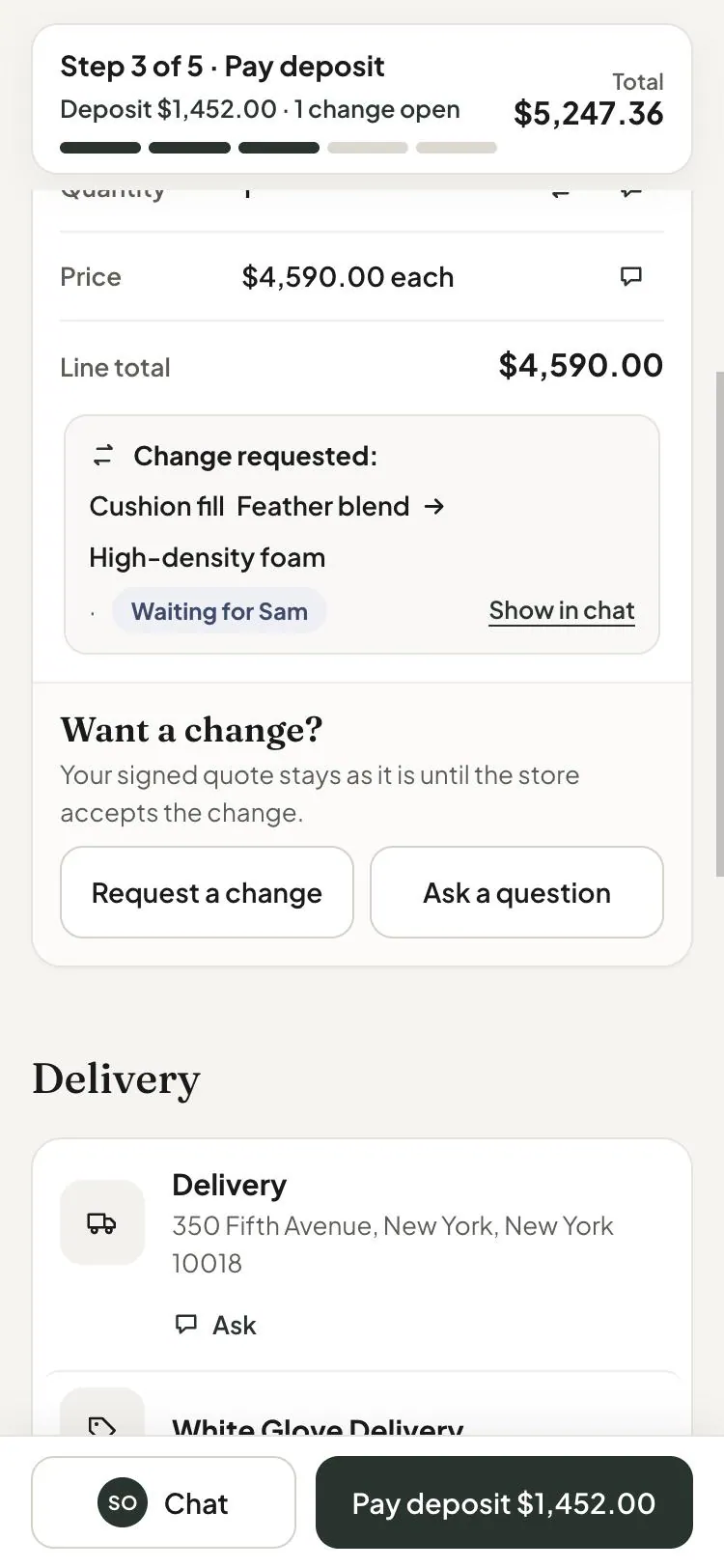
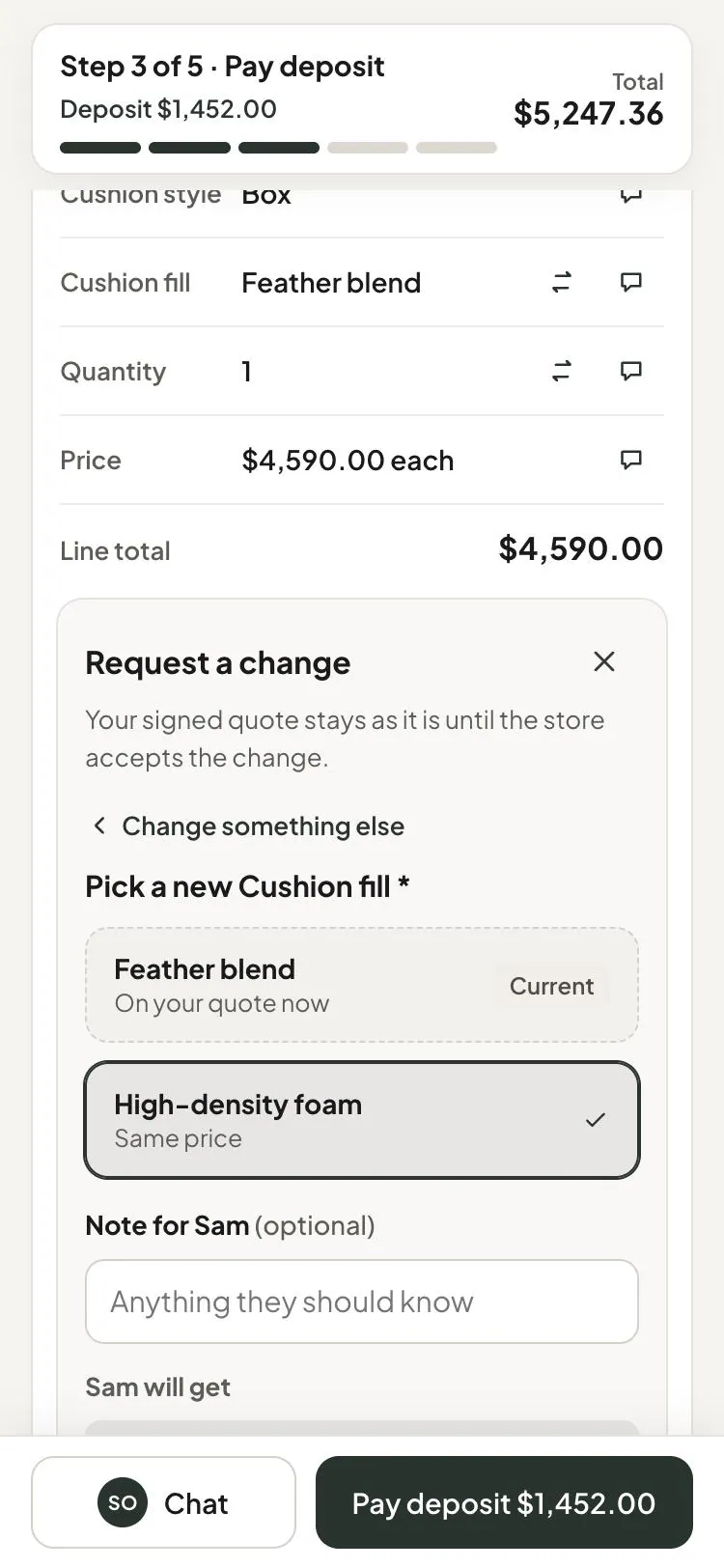
Handle the request on the order
Step 1: Open the request
Find Change requests and questions on the sale. Use the line's N open badge to find a request about that item.
Read the requested value and chip. Your decision needs a decision; Needs reply needs an answer.
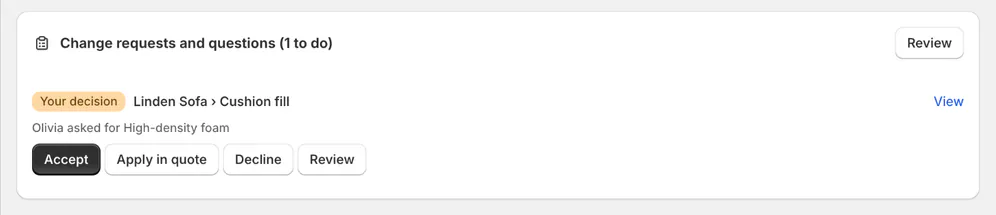
Read the requested change before accepting it. Step 2: Choose the appropriate action
Use Accept to move the sale into Changes Requested while you work. Use Apply in quote to fill the requested value, then save.
If you already made the edit, use Mark applied. To refuse it, choose Decline and reply with the reason.
Step 3: Review all changes together
When the Changes Requested banner offers Accept changes, open it. Check every item under Requested changes to this quote.
Enter Reply to and choose Accept when all changes are appropriate. The action saves the requested changes together and sends one reply.
Step 4: Close only a settled item
For a question already answered, use Mark resolved. For an applied request, check whether it is still Saved, not sent.
Close request closes that request without sending the updated quote. Reopen makes it open again and blocks signing until settled.
Review from the Inbox
Step 1: Open the review drawer
In the Inbox, find Open items under To do, All or Waiting. Click Review.
The drawer identifies the request and its position in the open items. Show in chat reveals its conversation context.
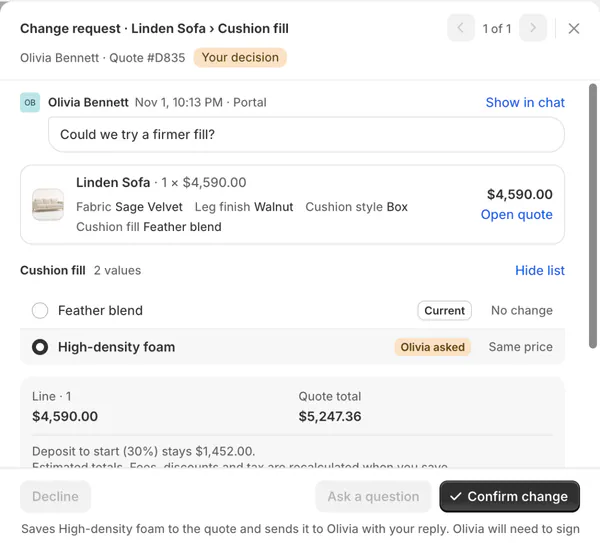
Compare the current choice with the customer's request. Step 2: Confirm or offer a different value
Compare the Current value with the one marked Olivia asked (the customer's name), and the line and quote totals below. For dimensions, inspect Now, Asked and Range.
Use Confirm change for the requested value. Choosing another value changes the action to Apply change, leaving the request waiting for the customer's agreement.
Step 3: Reply or answer a question
Write in Reply to Olivia, or the equivalent customer field. Decline and Ask a question need your explanation.
For a question, tick Resolve the question with this reply when the answer settles it. Send the reply and check Reply sent · question resolved.
If prices are still hidden, the drawer warns that they remain hidden until the quote is sent. A signed quote also warns when signing will be required again.
Send saved changes
Step 1: Review the send banner
When Ready to send appears, read the saved changes and use Review changes if needed.
Click Send updated quote or Send updated order. The appropriate email composer opens.

Saved changes can still need a customer update. Step 2: Include the change summary
Keep Include what changed ticked to explain the revised value and previous value. Review the new total and message.
Follow Email a quote or order, then click Send now. Check the send result and request state afterward.
Step 3: Check the remaining blockers
Return to the request card. Check that no question or request still waits on staff or the customer.
For changes awaiting the updated email, provider acceptance of that email settles them. A failed or held send leaves them saved but unsent.
What happens next
The customer's update can list changed options, quantities and the new total. Declined changes are excluded from What changed.
Once the last open request is settled, the sale can leave Changes Requested. Signing becomes available when no remaining open item blocks it.
Completing a request does not cancel an order or issue a refund. Handle those actions separately when the customer's request requires them.
Example: Olivia requests Feather Blend
Example · Harlow & Finch Interiors
Check the saved and sent states
Olivia Bennett asks to change her Linden Sofa's Cushion Fill to Feather Blend.
- Sam Ortiz opens the request in the Inbox.
- Sam compares the current choice with Feather Blend.
- Sam confirms the change and writes the reply.
- Sam checks whether the request shows Saved, not sent.
- If needed, Sam sends the updated quote and checks that Olivia can sign.
Important notes and tips
Read the request chips
Your decision asks staff to choose. Needs reply asks for an answer.
Saved, not sent means a change is recorded but still needs its customer update. Waiting on Olivia means her response is needed.
Done, Declined and Replaced distinguish completed work, a refused change and a request superseded by another. Use Show closed to inspect them.
If something goes wrong
Signing remains blocked
Check all open questions and requests, including saved changes not yet sent.
An alternative offer is waiting
Wait for the customer's agreement before marking it applied.
The email failed or was held
Check Delivery activity and resolve the send problem; the next quote email carries outstanding changes.
Already applied by another person
Read the current record before making another edit.
Not accepted or reply not sent
Check which part failed before retrying.
The customer cannot change that field
They can use Ask a question instead.
The message limit was reached
The customer can send 20 messages per order in 10 minutes and 30 per hour; wait before trying again.
Was this guide helpful?
Thanks. Tell us what was missing at support@meetorderpilot.com.