How purchase orders work
Related guides
- Create purchase orders in the PO WorkbenchPurchasing · 6 min
- Send a purchase order to your vendorPurchasing · 6 min
- Receive a deliveryPurchasing · 5 min
- Add freight, duty and other costs to a purchase orderInventory and costs · 6 min
- How stock on hand and tracked options shape purchase ordersPurchasing · 4 min
A purchase order tells one vendor what your store needs to buy. It can combine lines from several customer orders or buy stock without a customer order.
Each purchase order keeps its own number. Customer-linked lines retain their connection to the original sale, so your team can follow purchasing and receiving without rebuilding the customer's specification.
How it works
Start with an order in a status marked Eligible for purchase orders. The PO Workbench groups the selected orders' lines by vendor.
- 1PrepareSelect eligible orders and review each vendor's lines.
- 2CreateCreate draft POs with permanent numbers.
- 3SendEmail the vendor or confirm an outside send.
- 4ReceiveRecord the accepted and rejected quantities.
- 5UpdateAdd accepted inventory and check customer-order readiness.
- 6FinalizeClose the PO's costs after review.
Creation produces drafts. It does not send the vendor an email. A draft can still be reviewed before you send it.
When a delivery arrives, receiving records what was accepted and rejected. Accepted stock updates Shopify, while customer-linked units are held for their orders.
Purchasing prepares and sends the PO; warehouse staff receive it; accounting can review costs before finalization. Your roles decide who can perform each part.
Permission
Viewing, preparing, sending, receiving and finalizing purchase orders have separate permissions. Opening a PO does not grant permission to change every part of it.
The app can use your store's preferred word for Vendor. This guide uses Vendor; the labels in your app may use that chosen wording.
Where you'll see it
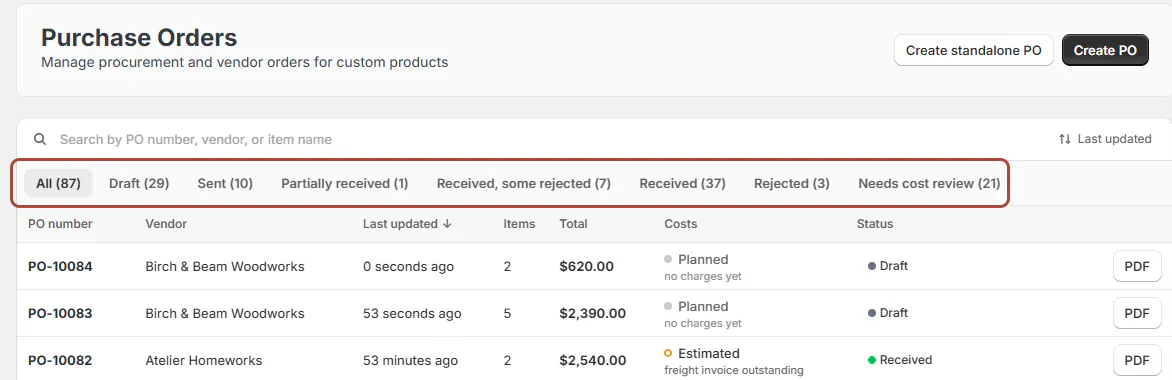
Purchase Orders in the main navigation opens the list. Create PO is also available from customer orders and the Orders list.
An order line's Manage PO action opens its purchasing choices. The PO page shows Created, Sent, Received and Finalized across its progress display.
Home's Purchase orders card helps you find work still waiting for receiving or completion. Open POs includes Sent, Partially received and Received, some rejected POs.

What each status means
| Status | Meaning | What to check next |
|---|---|---|
| Draft | Created but not sent | Review lines and costs |
| Sending | The email is on its way | Wait for sending to finish |
| Sent | Sent and awaiting goods | Receive the delivery or review the PO |
| Partially received | Some units remain unaccounted for | Receive later deliveries |
| Received, some rejected | Every unit is accounted for, with a mix of accepted and rejected units | Resolve the rejected quantities |
| Received | Every ordered unit was accepted | Review costs and finalization |
| Rejected | Every unit was rejected at receipt | Arrange the next purchasing action |
Finalized is a separate lock, rather than another status. It closes costs without replacing the receiving status.
Cancel is available for Draft, Sending and Sent POs. A Sent PO can be cancelled only before any units have been received or rejected. See editing and cancellation.
How the customer order moves
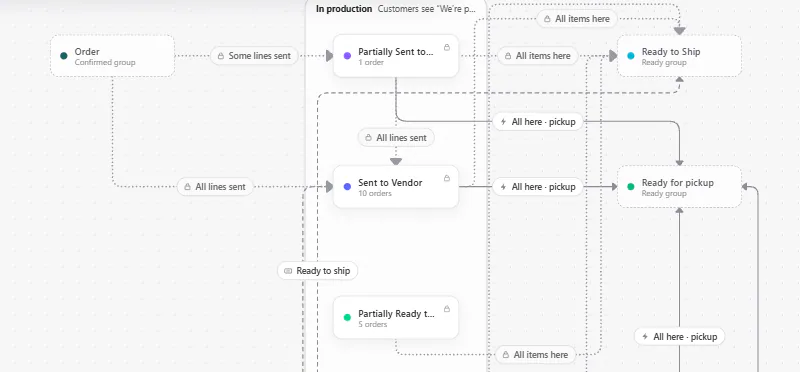
Purchasing events follow connections in your status map. Default connections describe the purchasing progress below; stores can rename statuses and change their map.
| Purchasing progress | Default destination |
|---|---|
| Some lines sent | Partially Sent to Vendor |
| All lines sent | Sent to Vendor |
| Some items here | Partially Ready to Ship |
| All items here | Ready to Ship |
| All received units rejected | Reorder needed, or Rejected where that status is unavailable |
Pickup-only orders can use Ready for pickup where the store has that connection. Unconfirmed quotes never become ready through these receiving connections.
Draft and Sending POs do not count as sent. A receipt can also move an order out of In Production or Quality Check.
After a PO change, Nothing on a PO can return a customer record to Order or Quote. These default purchasing moves add timeline comments without sending status emails.
Screen reference
The choices you have
| Your job | Choose |
|---|---|
| Buy for several customer orders | The PO Workbench |
| Split or attach one order's lines | Purchasing from one order |
| Replenish the showroom or warehouse | Buy for stock |
| Buy only what existing stock cannot cover | Review stock and tracked options |
| Send outside OrderPilot | Confirm as Sent |
| Receive directly for a customer | Choose the appropriate customer destination |
| Finish costing | Add freight and duty, then review finalization |
The vendor's copy can show or hide prices. Your purchasing settings supply the starting choices.
A stock line without a PO does not hold back purchasing readiness. A template line, untracked product or Order New line waits for its purchasing requirements.
A tracked product sold beyond its available stock still looks like a shelf item until it is on a PO or marked Order New. Review that choice before relying on readiness.
Example: sofas and a dining set
PO-10001 orders Olivia Bennett's and Marcus Reed's Linden Sofas from Atelier Homeworks. Each line stays linked to its customer order.
The PO moves from Draft through Sending to Sent. Olivia's accepted sofa makes it Partially received. Marcus's accepted sofa completes receiving, after which Jo Park can finish the cost review.
Priya Shah's order combines an Arden Dining Table bought from Birch & Beam Woodworks with 2 Mira Dining Chairs from stock. Her table's PO moves the order to Sent to Vendor.
When the table arrives, the stock chairs do not hold the purchasing progress back. The order can move to Ready to Ship.
Do it
Create your first draft POs, review them and send them to your vendors. When goods arrive, record the delivery.
If an order stays Partially Ready to Ship, check special-order lines that lack a PO or have not arrived. Use status troubleshooting when the purchasing facts are correct but the expected connection does not run.
Was this guide helpful?
Thanks. Tell us what was missing at support@meetorderpilot.com.