Keep Shopify costs right and read your margins
Related guides
- How landed cost and cost layers workInventory and costs · 4 min
- Add freight, duty and other costs to a purchase orderInventory and costs · 6 min
- Correct costs after goods arriveInventory and costs · 4 min
- Purchasing and costing settingsPurchasing · 4 min
- Profit, commission and configuration reportsReports · 6 min
Keep Shopify's Cost per item aligned with final landed costs, then review the cost behind an order's margin. Use the PO list to find missing costs, unfinished estimates and failed publishing.
Before you start
Are costs final?
Only final costs publish to Shopify. Review landed-cost states first.
Can you see and manage costs?
View costs shows the figures. Manage purchasing settings changes defaults; Enter costs and charges allows retrying a cost sync.
Does the product have inventory?
A purely custom item without a Shopify inventory item has no Cost per item to publish.
Customer PDFs, emails and portal pages do not show these internal costs. POS never shows vendor costs, regardless of the setting.
Enable Shopify cost publishing
Step 1: Open the Shopify costing card
Go to SettingsPurchasing & accountingPurchase orders & costingCosting. Find the Shopify card.
Tick Keep Cost per item updated for stocked products. The explanation states that only final costs publish.
Step 2: Choose how to handle Shopify edits
Under When the cost was changed in Shopify (it appears once the box is ticked), choose Flag it and stop publishing that item or Overwrite it with the OrderPilot figure. Flagged items appear under Purchase orders → Needs cost review.
Save the settings. Flag pauses publishing after a conflicting Shopify edit; Overwrite lets OrderPilot replace that edited value.
A new stocked variant starts at its PO unit cost whether ongoing publishing is on or off.
Shopify receives one weighted average across locations. It receives that average even when your store uses FIFO or LIFO for sales, because Cost per item holds one figure.
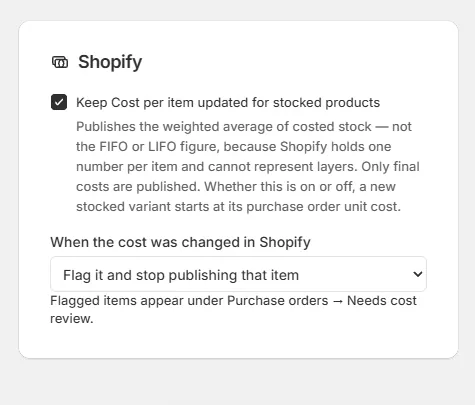
Choose how OrderPilot responds when someone changes Shopify's cost.
Work through Needs cost review
Step 1: Open the review tab
Open Purchase Orders and choose Needs cost review. It appears only when there are qualifying POs and you have View costs.
Choose All, Missing costs, Provisional costs or Cost sync failed. Read each row's Costs reason before opening it.
Step 2: Resolve missing or estimated costs
For missing vendor costs, edit planned lines before receipt or use receipt cost corrections afterward.
For provisional costs, review the outstanding invoice and edit the charge to Final.
The list has no general Resolve button. Correct the underlying PO or receipt record.
Step 3: Retry failed or paused publishing
Find Retry now in the Costs column and click it after resolving the cause. The result reads Cost sync queued or Cost sync failed.
A paused PO caused by a Shopify edit may be outside Needs cost review. Look for Retry now in the ordinary PO list.
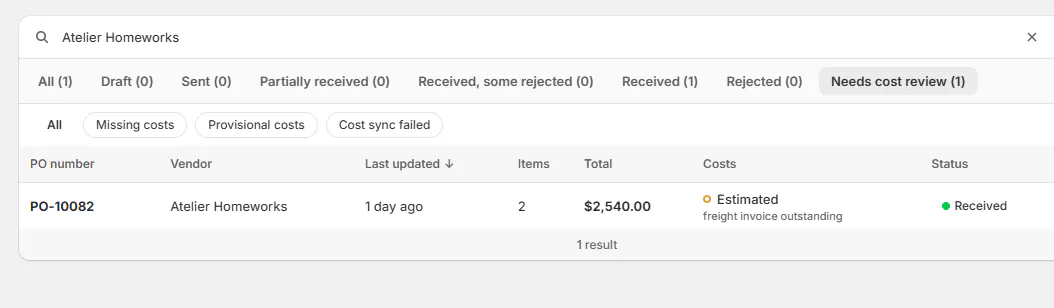
The Costs reasons distinguish missing figures, estimates and sync failures.
Review an order's cost and margin
Step 1: Turn on the private cost view
In the Costing section's Charges card, turn on Show cost on the order page and save.
It starts off because staff open orders in front of customers. View costs is still required even after the setting is enabled.
Step 2: Open Cost of this order
On the order's masked Cost row, click Review. Cost of this order opens with Item, Qty, Unit cost and Total.
Each line shows final, estimated or no recorded cost. The footer gives Total cost, Products subtotal and Margin, or identifies items not costed.
Use the individual line's Pricing dialog when you need to compare the landed cost with the planned figure.
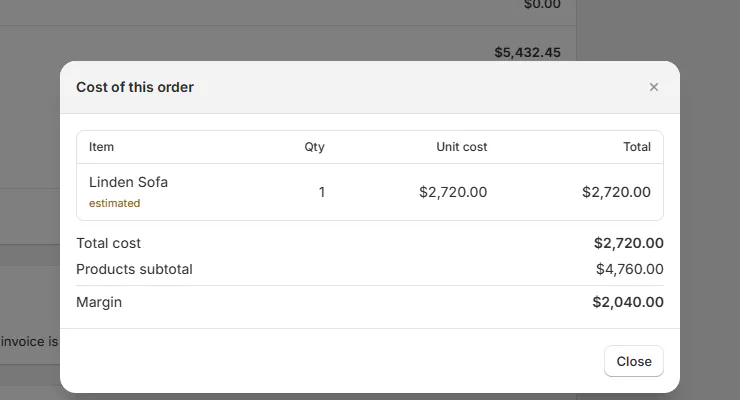
Read cost completeness alongside the margin.
Check a template's cost history
Step 1: Review the Pricing card
Open the template and find Base cost, Margin and Current cost. Base cost is the model cost before options.
Current cost identifies its state, costing method and quantity on hand. Template margin compares base price with base cost; options add their own figures.
Editing Base cost needs Manage the catalog and Enter costs and charges.
Step 2: Open Cost history
Click Cost history. The top shows the current cost with its state and costing method, then On hand and Shopify cost. Base cost appears when the template has one, and Range on hand appears when the units on hand landed at different costs.
Received deliveries lists the newest 25 deliveries with their PO, configuration, quantities, vendor cost, charges and landed cost.
Screen reference
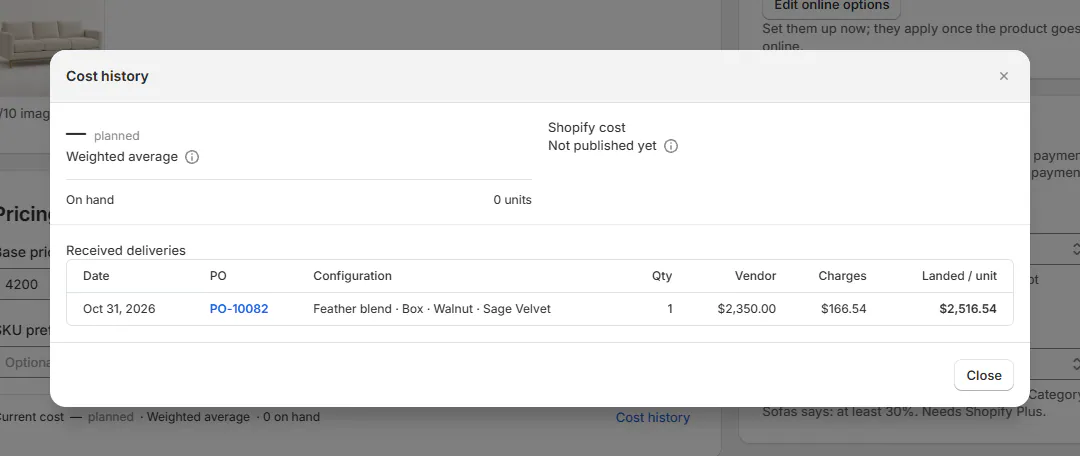
What happens next
Finalized cost information can publish to Shopify. Receipt corrections update relevant stock and linked-order figures without changing costs already drawn by past sales.
The profit report uses the landed-cost information. Check incomplete or estimated lines before interpreting its result as settled profit.
Example: sofas at 2 locations
Example · Harlow & Finch Interiors
One Shopify cost, separate receipt history
Harlow & Finch Interiors receives Linden Sofas at Showroom and Warehouse at different costs.
- Confirm the costs and charges on both deliveries.
- Publish their weighted average to Shopify.
- Review a Shopify-edit conflict in the PO list if publishing pauses.
- Open Olivia Bennett's Cost of this order after her sofa is received.
- Inspect the Linden Sofa's Cost history for the deliveries behind its current cost.
If something goes wrong
Shopify's cost has not changed
Check finality, the publishing setting, paused or failed sync and the presence of an inventory item.
Shopify shows an average in a FIFO store
That is expected; Shopify's single figure cannot represent the cost layers.
The order's Cost row is missing
Check Show cost on the order page and View costs.
Items are not costed
Review their receipts and missing vendor amounts.
Cost history is empty
No goods have been received for that template yet.
Was this guide helpful?
Thanks. Tell us what was missing at support@meetorderpilot.com.