Credit salespeople on a quote or order
Where are you working?
Related guides
- Hand over an order and choose who’s in the salesperson listTeam and permissions · 4 min
- Set up commissionTeam and permissions · 6 min
- Set up PIN access on shared iPadsShowroom (POS) · 4 min
- Set up OrderPilot on your showroom iPadsShowroom (POS) · 6 min
- Find quotes and ordersQuotes and orders · 5 min
Choose who receives sales credit on a quote or order and how they share it. Use the Sales credit card in the app or Sold by on POS.
The first salesperson is the primary. The primary is named on customer documents and owns the order: roles limited to their own records reach it through them.
Before you start
Are the people available?
Their roles need Appear in the salesperson picker. Suspended people can't be added, but keep the credit they already have.
Can you change credit?
Change sales credit is needed to add or remove people and to change the split.
Are you changing the primary?
Taking an order from its owner also needs Reassign quotes and orders, because the order moves to the new primary.
A new quote credits its creator when they are available in the salesperson picker; otherwise credit is Unassigned. Shared-register rules decide who POS credits. See shared iPads.
Read order ownership and the salesperson picker when the question is who owns an order or why a name is missing.
Set sales credit in the app
Step 1: Add the salespeople
Open the quote or order and find Sales credit. Click Add salesperson, type a name and choose the person.
The first person is the Primary. A person who isn't offered may lack the picker permission; the search then says No one else can be credited. Try another name.
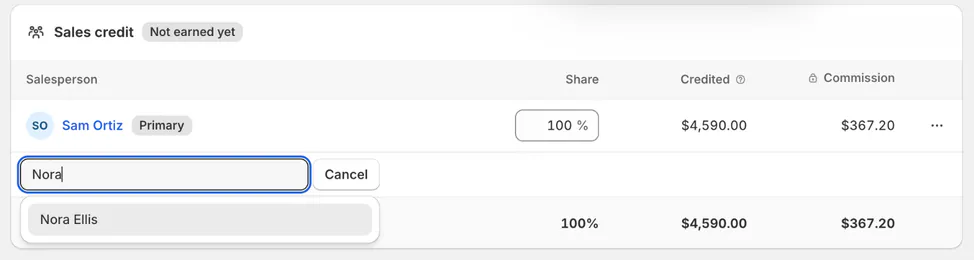
Search for the people who should receive sales credit. Step 2: Set one split for the order
With two people, pick a split under Split, such as 75 / 25, 50 / 50 or 60 / 40, or type each person's Share. Typed shares light up Custom. With three or more people, type the shares.
The card shows each person's Credited amount, and their commission if you can see commission, before you save. The Total row must reach 100%.
Changes wait for the page's Save, with the rest of the order.
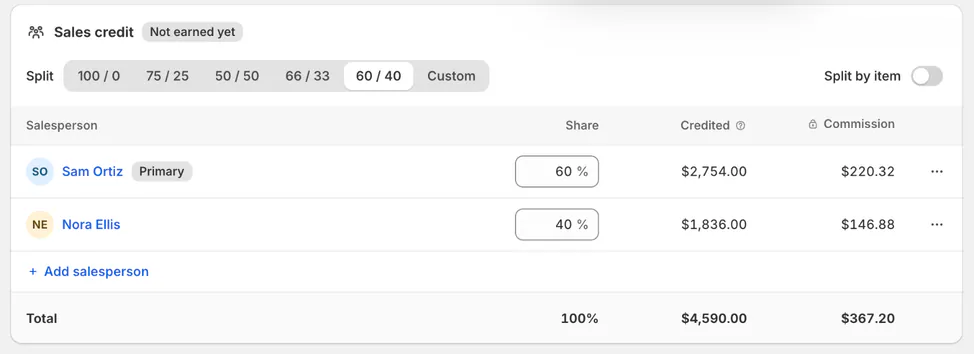
The shares must total 100%. Step 3: Split item by item when needed
Turn on Split by item. Each item gets its own shares under By item, and By salesperson adds them up. A Code chip on each item shows the commission code it uses; see commission setup.
Turning Split by item off asks Use one split for the order? Each item's own split, and any rate set on an item, is replaced when you save.
The order uses one mode at a time: one split for the order or a split per item.
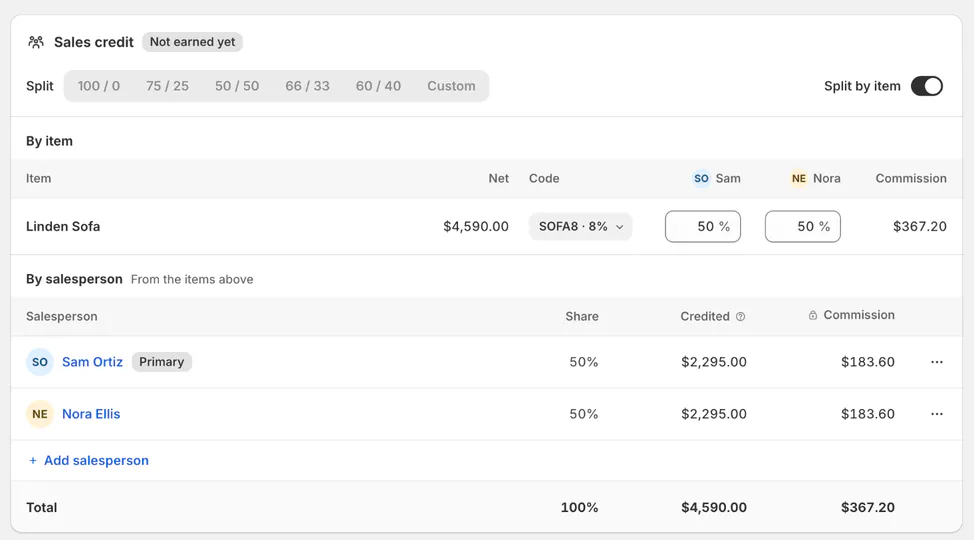
By item gives each line its own shares. Step 4: Change the primary or remove someone
Open a person's ⋯ menu for Make primary or Remove. Removing the primary makes the next person primary.
A greyed choice says why on hover, for example when the next person is no longer available as a salesperson.
Without Change sales credit, the card is read only and says which permission is missing.
Set sales credit on POS
Step 1: Open Sold by
On the create or order screen, tap Change beside Sold by. Open an existing quote or order through Orders & Quotes first. The Sold by screen lists the people credited, Primary first, with each one's share and credit.
When the app splits the order by item, POS shows the shares read only: This order is split per item. Change who sold it in admin.
Step 2: Add the people who helped
Tap + Add salesperson, search for the person and tap + Add. The first person added is the primary.
Everyone who sells is already added means there is nobody left to add. An order can credit up to 10 people.
Making someone else primary on an order someone already owns also needs Reassign quotes and orders; POS greys it otherwise.
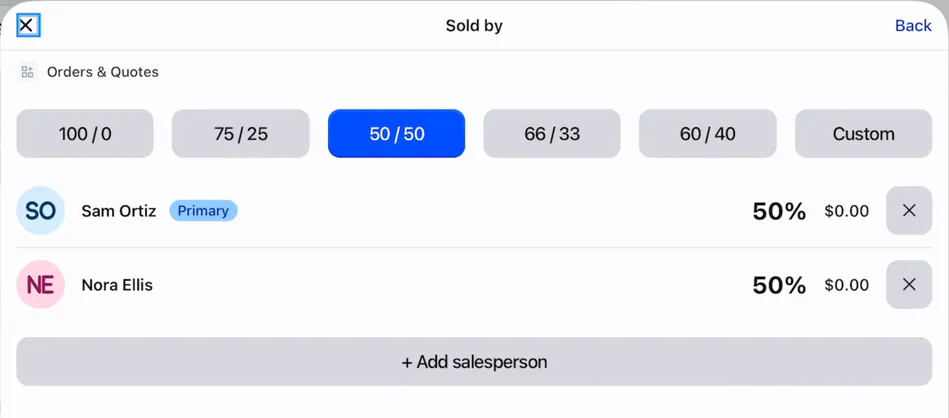
The first person is the primary salesperson. Step 3: Choose the split and save
For two people, choose one of the shop's quick picks, such as 75 / 25, 50 / 50 or 60 / 40, or Custom to step each share with − and +. Quick picks are for two people; with three or more, step each person's share.
Save waits for 100%: the screen says how much to add or take off, and any share not handed out shows as Not given yet. Sold by updated confirms the save.
POS shows each person's credit but not commission. Split by item is set in the app.
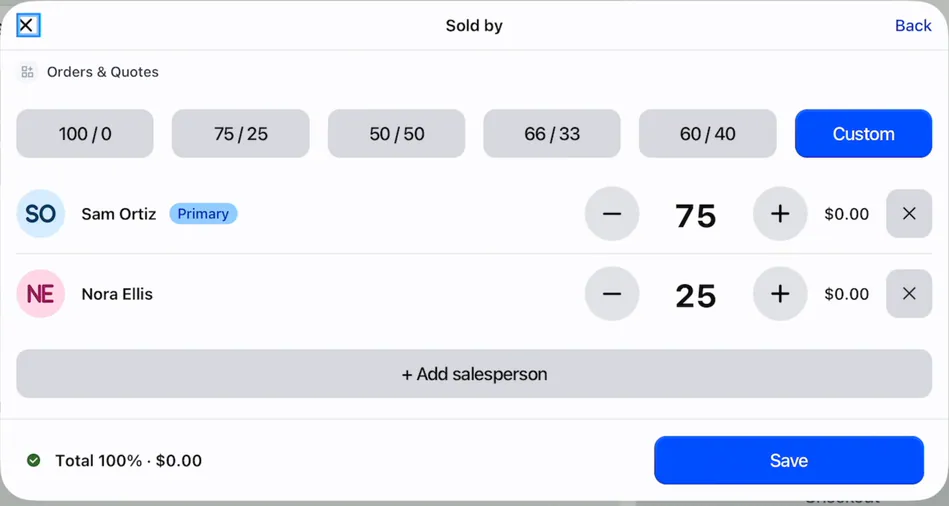
The split must total 100% before it can be saved.
What happens next
Sales reports distribute credit according to the saved shares. Sales value without credited people appears under Unassigned.
The Salesperson filter on quote and order lists matches records that credit the chosen person.
Customer order emails copy credited salespeople according to the sending rules. Documents normally show the primary salesperson unless the shop chooses another document setting.
When an OrderPilot draft goes into Shopify POS checkout, Shopify credits its first salesperson. Shopify allows one staff member per checkout line, while OrderPilot retains its own sales split.
The Sales credit card reads Not earned yet until earning conditions are met, then Earned with the date. Earning rules are explained in commission.
Example: share credit for a showroom sale
Example · Harlow & Finch Interiors
Priya's table uses a 60/40 split
Sam Ortiz and Nora Ellis both help Priya Shah choose an Arden Dining Table.
- Add Sam first and Nora second under Sales credit.
- Pick 60 / 40 under Split.
- Check Sam's and Nora's Credited amounts.
- Save the order. Sam, the primary, owns it.
Example · Harlow & Finch Interiors
Olivia's sofa uses a quick pick
Sam Ortiz creates Olivia Bennett's Linden Sofa quote and Nora Ellis helps finish it.
- Open Sold by; Sam is already the primary.
- Tap + Add salesperson and add Nora.
- Choose the 75 / 25 quick pick.
- Check Total 100% and tap Save.
If something goes wrong
The card is read only
Ask the owner or an administrator for Change sales credit.
Make primary is greyed
Changing the owner also needs Reassign quotes and orders.
Could not load staff
Use Try again after checking the connection.
A person is missing
Check their staff record, suspension and salesperson-picker permission.
The split can't be changed on POS
The record is split by item; change it in the app.
Save is refused
Make the shares total 100%.
Was this guide helpful?
Thanks. Tell us what was missing at support@meetorderpilot.com.