Find and edit customers
Related guides
- Set up the Customers page and customer fieldsCustomers and portal · 4 min
- Set up trade customers and order taxQuotes and orders · 4 min
- Create a quote or orderQuotes and orders · 6 min
- The quote and order pageQuotes and orders · 6 min
- How OrderPilot syncs with ShopifyGet started · 6 min
Find a customer's details, quotes, orders, and balance in one profile. Changes to their contact details and addresses save to Shopify, so check the customer before editing.
Shopify holds the customer information. OrderPilot reads and updates it, then adds the quotes, orders, and balances from your work in the app.
Before you start
Show Customers in the menu
The Customers page starts off. An owner can turn it on in Customers settings.
Check your access
View quotes and orders lets you view profiles. Create and edit quotes and orders is needed to save changes.
Know the address you need
Main, Shipping, and Billing can point to different addresses. Confirm which one the customer wants used.
Names, contact details, addresses, tags, tax exemptions, and custom fields belong to the Shopify customer. Treat a profile edit as a customer change, not a note for one order.
Find a customer
Step 1: Search the customer list
Open Customers list. Search by name, company, email, or phone. For the example, search for Priya Shah and check the contact details before opening her profile.
Step 2: Narrow the results
Choose All, Open quotes, Sales orders, or No orders yet. Apply a tag filter when useful. Sort by Last updated, Name, Customer since, or Location to bring the relevant record into view.
Step 3: Choose useful columns
Open Columns and choose the information you need. Customer always stays visible. Your column choices are kept in this browser.
The default columns are Contact, Location, Open quotes, Amount spent, and Last activity, plus the list you show as tags (such as Client type). Shopify orders, Customer since, and Tags start hidden. A Resale badge can appear in Location.
The tab, search, sort, tags, and page are kept in the page address. Using Back returns you to the same search, making it practical to compare several customer records.
Read a customer's profile
Step 1: Review the header and summary
Open the customer. The header shows their photo, name, tags, job title and company, email, phone, and location. The summary shows Open quotes, Sales orders this year, Balance due, and Last order.
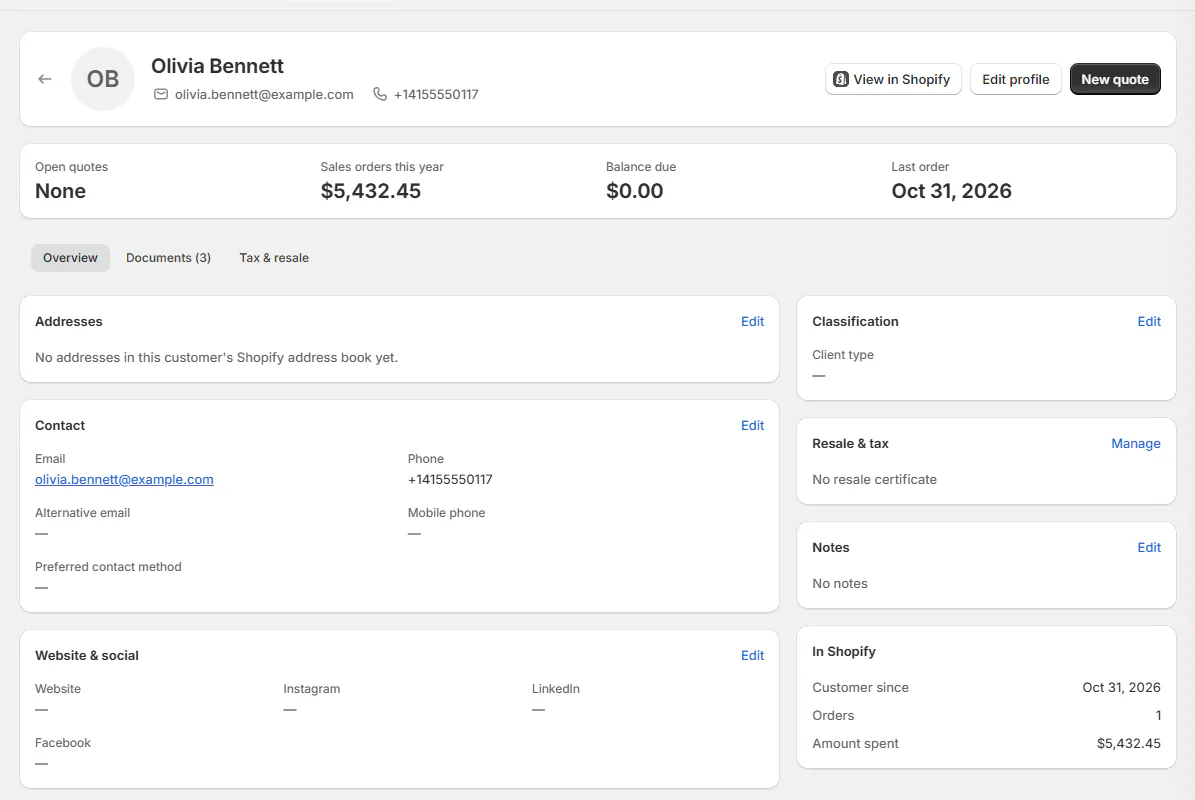
Customer profile Overview tab with the summary strip. Cancelled sales orders don't count in the summary. Last order reads None when there isn't one. Use those figures to understand the customer's current work before opening a document.
Step 2: Read the profile areas
Choose Overview for addresses, contact details, website and social information, additional fields, classification, resale information, and notes. In Shopify includes customer history such as orders and amount spent.
Notes can be edited in place. Check whether the information belongs in a reusable customer field before putting everything into a long note.
Step 3: Find the customer's documents
Choose Documents, then All, Quotes, Sales orders, Drafts, or Shopify orders. The list narrows to the document type you need.
Use Tax & resale for the customer's tax information. Follow trade and tax-exempt customers for certificates and companies; a profile label alone doesn't establish an exemption.
Edit details and addresses
Step 1: Open the profile editor
Click Edit profile. Work through Name and role, Contact, Website and social, More details (when it has fields), Classification, and Notes. The editor shows the customer's existing values.
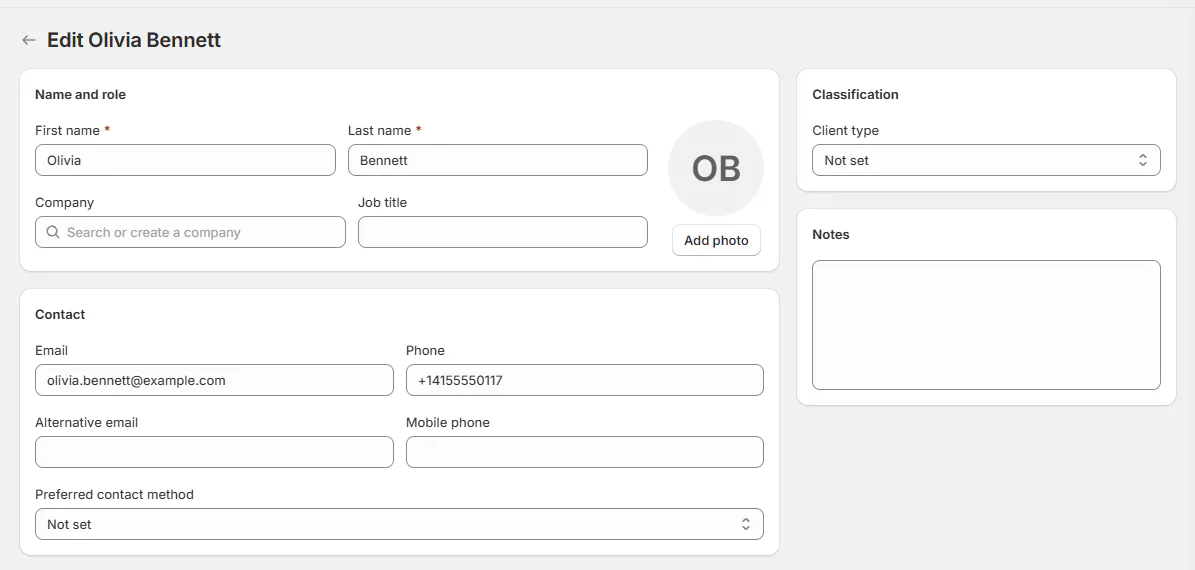
Edit profile page. At least a first or last name is required. Company uses the main address's company when B2B company handling doesn't apply.
Step 2: Update an address
In Addresses, click Add address or edit an existing entry. Enter the street, city, and country. Choose Main, Shipping, or Billing for the address's role.
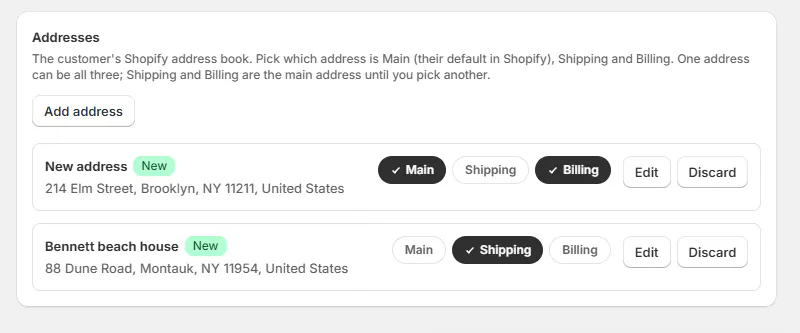
Address book with Main, Shipping and Billing toggles. One address can hold several roles, and every customer has one main address. To move the main role, choose Main on another address.
Step 3: Review removals before saving
Use Remove only for an address that should leave the customer's address book. The entry shows Removed on save. Use Undo to retain it before saving.
Warning
Address removal changes Shopify
Saving a removed address deletes it from the Shopify address book. Confirm it is no longer needed before continuing.
Step 4: Save the customer
Click Save. The confirmation reads Customer saved. Only your changed values are sent to Shopify.
Choice lists with more than 10 choices include search. Multi-choice fields use removable tags. If you leave with unsaved edits, resolve the unsaved-changes prompt before moving on.
What happens next
New app orders start with the customer's Shipping and Billing addresses. Shopify POS uses Shopify's default address for ship-to, so check the destination when comparing the two.
The customer card on quotes and orders shows profile details and the fields selected in customer settings. A field marked editable saves back to the customer.
That card also shows applicable resale information for the shipping destination. A certificate for one US state doesn't establish coverage for another destination.
Example: Priya's delivery address
Example · Harlow & Finch Interiors
Use Priya's client site for shipping
Priya Shah needs an Arden Dining Table delivered to her client's site.
- Sam Ortiz finds Priya under Open quotes.
- He opens Edit profile and adds the site address.
- He marks it Shipping, checks the other address roles, and saves.
- He creates a new quote and checks the destination.
- Priya's Utah resale certificate supplies the applicable resale line for the Utah shipment.
If something goes wrong
Customers is missing
The menu page may be off. Ask an owner to check Customers settings.
Edit profile or New quote is missing
Your role lacks Create and edit quotes and orders. Ask an administrator to review access.
An order-card field won't open
Save or cancel the field already being edited, then open the next one.
An address won't save
Complete the street address, city, and country identified by the message.
Was this guide helpful?
Thanks. Tell us what was missing at support@meetorderpilot.com.