OrderPilot on Shopify POS
Related guides
- Set up OrderPilot on your showroom iPadsShowroom (POS) · 6 min
- How payments workPayments and signatures · 5 min
- Create a quote or orderQuotes and orders · 6 min
- Find quotes and ordersQuotes and orders · 5 min
- Edit a quote or orderQuotes and orders · 5 min
Build a quote, collect payment and keep the back office informed from your showroom iPad. OrderPilot opens inside Shopify POS and uses the same records as the app in Shopify admin.
How it works
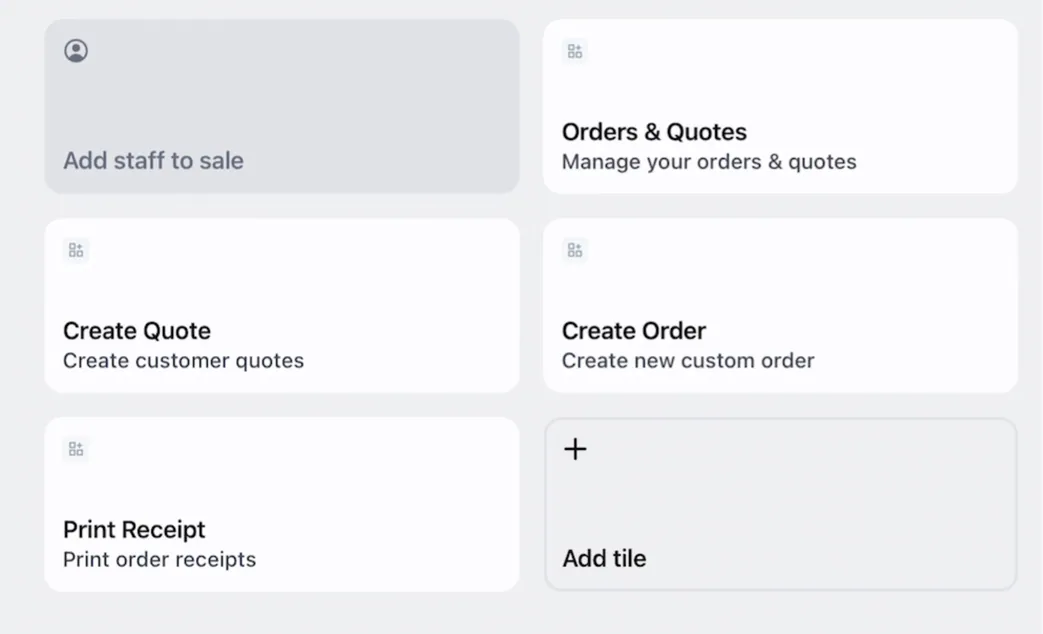
The smart grid has 4 OrderPilot tiles. Each opens a part of OrderPilot without leaving the register. Set up the tiles before your team starts selling.
- 1Create QuoteBuild the customer's piece and save the quote.
- 2Customer signatureAsk the customer to approve their quote.
- 3Take PaymentPrepare the order for payment.
- 4Collect paymentTake payment through Shopify POS.
- 5Hand overRecord the items the customer takes.
A new record uses the register's location. Opening an existing order at another register keeps that order's original location.
Save as Draft keeps unfinished work in OrderPilot. Create Quote sends the quote to Shopify as a draft order. Create Order creates a Shopify draft order and continues to payment.
Take Payment converts the Shopify draft into an unpaid Shopify order before opening Shopify's payment screen. Preparing that order does not collect the customer's money.
Every OrderPilot screen needs a connection to its server. There is no offline OrderPilot workflow. Vendor costs never appear on POS, even for a person whose app role can view costs.
Shopify calculates tax. A new quote can show an estimate, while a saved quote waits for Shopify's calculation. All amounts use your shop's currency.
Where you'll see it
| Tile | Opens | Permission needed |
|---|---|---|
| Orders & Quotes | The list of saved records | View quotes and orders |
| Create Quote | A new quote | Create and edit quotes and orders |
| Create Order | A new order | Create and edit quotes and orders |
| Print Receipt | Orders available for receipt printing | View quotes and orders |
A tile shows Access restricted when the person using it lacks access. Tile access does not grant every action inside the order.
The Orders & Quotes list
Find saved quotes and orders through Search customer or order #. All is the default tab; Mine shows records crediting the identified staff member.
Status chips narrow the list. More exposes additional chips and Less folds them away. The list loads 20 rows at a time, followed by Load More Orders.
Rows show the customer, record number, date, status, signature badge and payment badge. They also show the total, item count and Vendor not chosen when applicable. A partial payment appears as Partial Paid in the list.
The order screen
| Area | What you read or do |
|---|---|
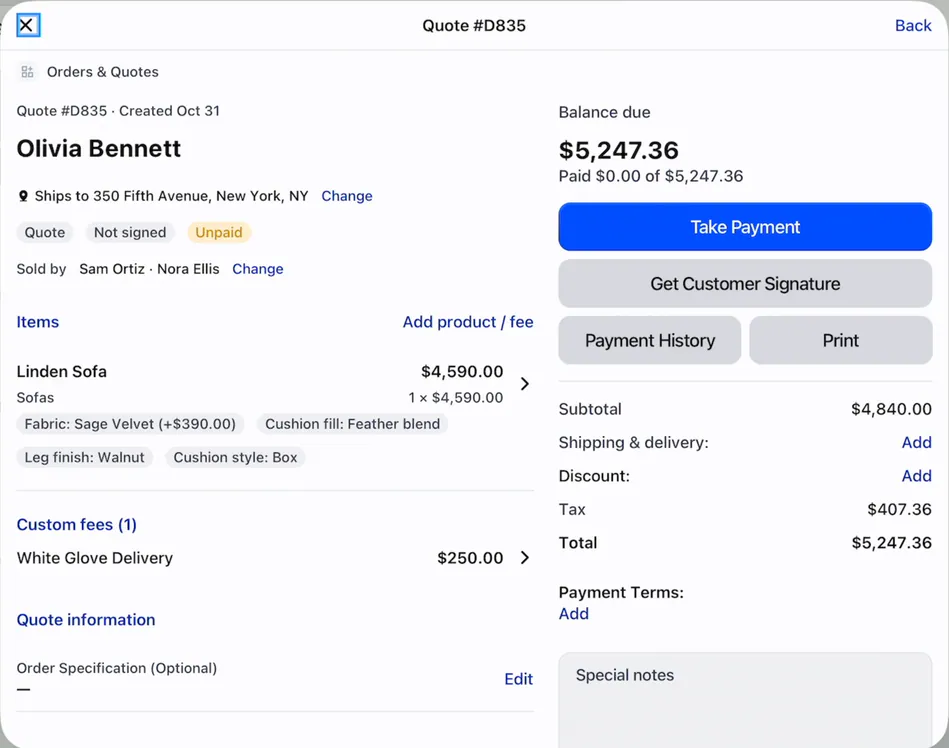
| Customer | Check who the quote belongs to and the address under Ships to. |
| Sold by | See who receives sales credit. Signature and payment badges summarize the customer's progress. |
| Items | Read the products, chosen options and fees. Quote information holds the additional order details. |
| Activity | Read the latest 3 entries, add a comment or choose See all updates. |
| Balance due | Read the outstanding amount and Paid amounts against the total. |
| Get Customer Signature | Open the signing choices. An electronically signed record offers View Signed Quote or View Signed Order. |
| Payment History | Review recorded payments. |
| Choose Print Quote or Print Order, Print Receipt, or Cancel. | |
| Summary | Review Subtotal, Item Discounts, shipping, discount, tax, total and Payment Terms. |
| Special notes | Read the notes saved with the record. |
| Fulfillment details | Review linked purchasing or serial-number information when present. |
| Delete quote | Remove a quote through its quote-only action. |
Signature badges distinguish Signed, Signed on paper, Not signed and No signature needed. Payment badges on this screen read Paid, Partly paid or Unpaid.
The save bar appears for unsaved changes and unfinished drafts. It does not remain visible after every saved order.
The choices you have
You can edit a quote, collect signatures, take payments, check stock and credit salespeople on POS. You can also handle pickup and delivery and print documents.
Purchasing, receiving, settings, warranty claims and serial-number entry belong in the app. Force Convert, product compositions and marking a line as a service also stay there. Separate deposit orders for shops without Shopify Plus are not offered on POS.
Note
OrderPilot does not require Shopify POS Pro. Native percentage deposits on POS require Shopify Plus.
The payment button explains the next available action.
| Button | Meaning |
|---|---|
| Paid in full | Nothing remains to collect |
| Calculating tax… | Wait for Shopify's tax before payment |
| Create Order | Payment is due later and no deposit is due now |
| Take Deposit | Only the required deposit is due now |
| Take Payment | Continue to payment for the amount due |
A draft saved only in OrderPilot has no payment button.
Read the tax state
| Tax display | What to do |
|---|---|
| Estimated tax | Treat the amount as an estimate before saving |
| By Shopify | Save so Shopify can calculate tax |
| Calculating… | Wait; the total still shows + tax |
| Not calculated yet · Refresh | Tap Refresh to request the latest calculation |
| A tax amount | Review the calculated total before taking payment |
The screen checks for tax for about 30 seconds before offering Refresh. A refresh can report Tax updated or ask you to try again shortly.
Pickup and delivery choices affect tax. Store pickup uses the store address; delivery uses the customer's shipping address. A mixed handover can change the amount due.
A template's Tax category determines Shopify's rate for its template line. An uncategorized template uses Shopify's default rate. Tracked option prices also use the default rate.
Orders stay in the shop's currency. A shipping amount entered in another currency is refused, and payment cannot proceed against a Shopify order in another currency.
Example: one sofa, two screens
Sam Ortiz creates Olivia Bennett's Linden Sofa quote at Harlow & Finch Interiors. Olivia chooses Sage Velvet and Feather Blend, with White Glove Delivery.
Jo Park opens the same quote in the app. Once the order is ready for purchasing, Jo prepares the Atelier Homeworks purchase order. Nobody re-enters Olivia's selections.
Marcus Reed's sale has a different handover: 2 Mira Dining Chairs leave the showroom today, while an Arden Dining Table goes to his address. Sam checks each handover choice before collecting payment because the tax locations differ.
Do it
Start with your showroom iPad setup, then create a quote. Use showroom signing when the customer is ready to approve.
For shared registers, read staff PINs. Finish with receipt printing, or use POS troubleshooting when a screen blocks progress.
Was this guide helpful?
Thanks. Tell us what was missing at support@meetorderpilot.com.