Create order fields and save fees
Related guides
- Create options and valuesCatalog · 6 min
- How the catalog fits togetherCatalog · 6 min
- The quote and order pageQuotes and orders · 6 min
- Add fees, shipping and discountsQuotes and orders · 5 min
- Quotes & orders settingsSettings and integrations · 4 min
An order field captures information about the whole quote or order, such as delivery access instructions. Product options capture details about an individual item.
A saved fee is a reusable charge your team can add to a sale. An order field adds information; a fee changes the amount charged. Completing an order field does not calculate or add a fee automatically.
Before you start
Check access
You need Manage order and quote settings to manage order fields and saved fees.
Choose the right record
Product options belong to individual lines. Order fields belong to the whole quote or order.
Use unique names
Options and order fields share a name list. You can create up to 100 saved fees.
Order fields never add a price. If the answer changes what you charge, add the appropriate fee or product separately.
Create an order field
Step 1: Open the field editor
Go to SettingsQuotes & ordersOrder fields. Click Create attribute to open Add attribute.
The list uses Active and Archived tabs. Its Type column can show codes such as TEXTAREA.
Step 2: Enter the field details
Enter Internal name, up to 75 characters. Choose Type: Text, Text Area, Number, Dropdown or Image.
Add Description, Placeholder and Preselected value when needed. The dialog now describes the field staff will complete.
For a Dropdown, supply at least 1 entry under Values. Use clear choices that the sales team can apply consistently.
Step 3: Set requirements and locations
Tick Required field when the sale cannot be saved without an answer. Choose Location visibility.
For an online quote request, choose All locations. A field restricted to selected locations does not appear on that request.
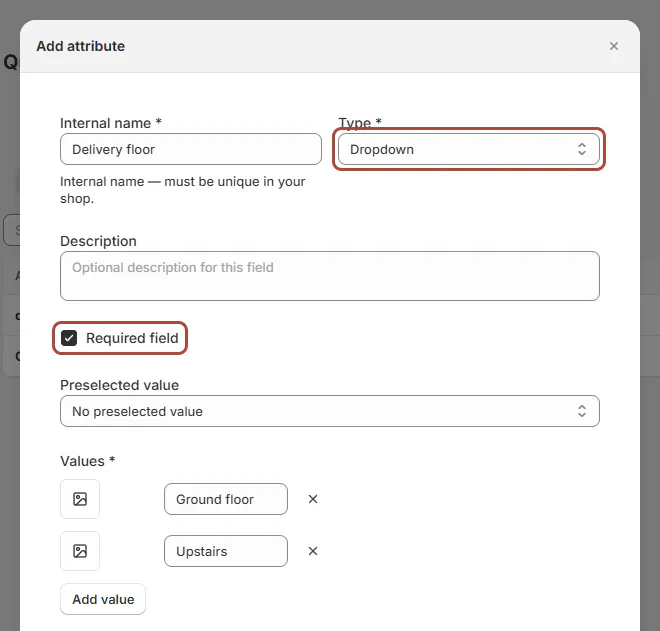
Add attribute dialog for Delivery floor as a required Dropdown Step 4: Create the field
Click Create attribute. The active field appears on the quote or order information form.
Staff fill it in under Quote information or Order information. A required missing answer blocks saving with the field's name.
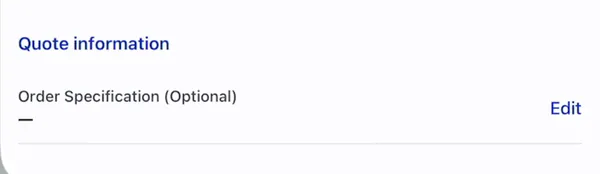
Order fields appear under Quote information, with Edit. The same information card exists on POS. Read The quote and order page for other order-wide details.
Save a reusable fee
Step 1: Open Add Custom Fee
Go to SettingsQuotes & ordersFees. Click Add Custom Fee.
The Add custom fee dialog opens. Existing records show their value, taxable setting, physical setting and status in the list.
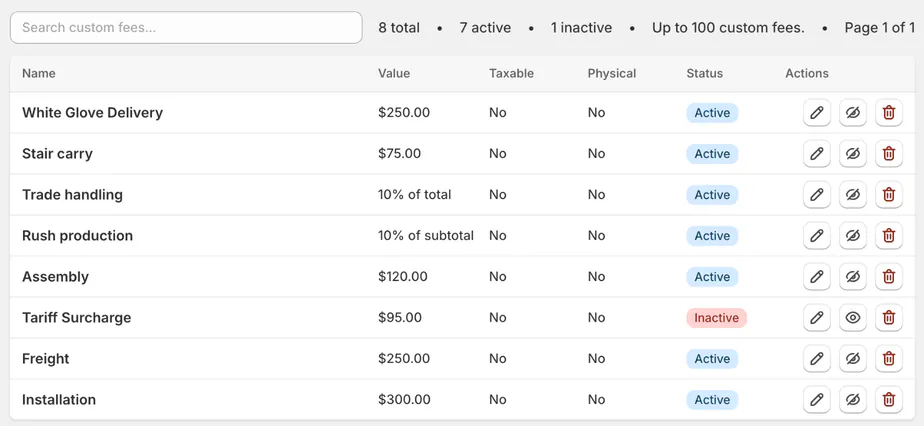
Fees tab with fixed and percentage fees and the N total • N active line Step 2: Choose the calculation
Enter Name, up to 35 characters, and choose Fee type. Enter Amount for a fixed charge or Percent for a percentage.
The 3 types calculate differently:
Fee type Calculation Fixed amount One fixed currency amount. % of subtotal Product subtotal only. % of total Product subtotal plus other fees, excluding shipping, tax, discounts and this fee itself. A saved fixed amount can be 0 or more. Percentages must be greater than 0 and no more than 100.
Step 3: Set tax and shipping behavior
Choose Fee is taxable and Fee is a physical product according to the charge. Keep Active on if staff should be able to select it.
Click Add fee. The saved fee appears in the list.
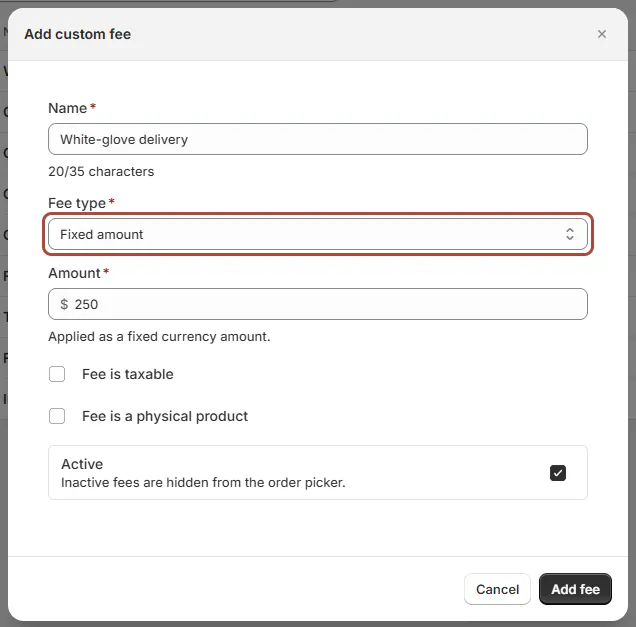
Add custom fee dialog for White-glove delivery A physical fee becomes a Shopify custom line requiring shipping. Do not use that setting only because the fee relates to a physical product.
For adding fees during a sale, see Fees, shipping and discounts.
Change or retire fields and fees
Step 1: Archive or restore a field
Use the order field's archive icon and confirm Archive. It stops appearing on new forms.
Existing quotes and orders retain their recorded value. To offer the field again, open Archived and use its restore icon.
Step 2: Edit or hide a saved fee
Open the fee, make your changes and click Save changes. Use the eye control to make a fee inactive.
Inactive fees disappear from the order picker. Existing orders retain their own copies, including the original amount and settings.
Step 3: Delete or restore fee presets
Choose Delete custom fee and review the confirmation before deleting. This cannot be undone.
When a supplied preset is missing, Restore default fees offers Tariff Surcharge, Freight and Installation as active fixed fees at 0.
Existing fees are not changed. Enter appropriate amounts before staff use newly restored zero-value presets.
What happens next
In the app, saved charges appear under Predefined fee in Add fee. On POS, staff find Saved fees.
Each fee becomes a Shopify custom line with its name, amount, tax setting and shipping behavior. Editing the saved preset does not update existing sale lines.
Quote PDFs and the signing page show one named row per fee. The order page, POS and emails show a combined fees total.
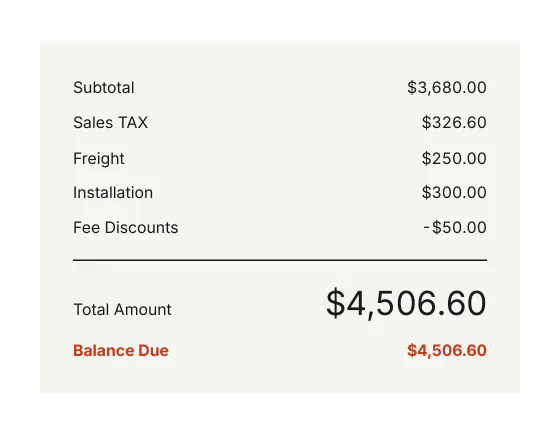
A discounted fee prints at its full amount with a separate Fee Discounts row. Percentage-of-total calculations use the gross fee base.
The default order discount scope is managed in Quotes & orders settings. Saved fees have no default or discountable flag.
Example: a dining-table delivery
Example · Harlow & Finch Interiors
Record the floor and add delivery charges
Nora Ellis prepares Harlow & Finch Interiors' delivery fields and fees.
- Create Delivery floor as a required Dropdown.
- Offer Ground, 1st floor and 2nd floor and above.
- Set visibility to All locations.
- Save White Glove Delivery as a fixed, taxable, non-physical fee.
- Add Freight as a percentage-of-subtotal fee.
- On Priya Shah's Arden Dining Table order, choose the floor and add both charges.
The order records the delivery detail, and the PDF lists each fee separately.
Important notes and tips
Tariff Surcharge, Freight and Installation can each appear once per order in the app. Use a differently named saved fee for another distinct charge.
An order can contain at most 50 fees. A one-off POS fee must be greater than 0, even though saved fee presets can start at 0.
Installation also supplies Order Specification, a Text order field. Review existing fields before creating another with the same purpose.
If something goes wrong
A Dropdown will not save
Add at least 1 value.
Location visibility is incomplete
Choose at least 1 location or All locations.
The field is missing online
Check it is active and set to All locations.
The fee name already exists
Edit the existing preset or choose a distinct name.
The percentage is refused
Enter a number greater than 0 and no more than 100.
Add Custom Fee is unavailable
Check the 100-fee limit and hover for the reason.
Restore default fees is missing
All supplied presets are already present.
Was this guide helpful?
Thanks. Tell us what was missing at support@meetorderpilot.com.