Quotes & orders settings
Related guides
- How Settings is organizedSettings and integrations · 5 min
- Quote faster: Sidekick, auto-save, barcodes and stock checksQuotes and orders · 4 min
- Set up order reviewsQuotes and orders · 4 min
- Take a depositPayments and signatures · 5 min
- The quote and order pageQuotes and orders · 6 min
Use Quotes & orders settings to control quoting defaults, numbering, delivery, stock choices, reviews, discounts, and shared order fields. These choices apply across the store.
The tabs are Defaults, Statuses, Order fields, Fees, and Discounts. Defaults contains Quotes, Numbering, Delivery & stock, and Approval rules.
Before you start
Find the right settings area
Check permission
Changes need Manage order and quote settings.
Watch saving
General edits use the save bar. The Reviews switch saves immediately.
Defaults: Quotes
Open SettingsQuotes & ordersDefaultsQuotes.
| Control | Default and effect |
|---|---|
| Show vendor on product template cards | On. Shows the vendor while choosing templates. |
| Show optional template fields by default | Off. Controls the initial visibility of optional fields. |
| Require vendor selection | Off. Requires a vendor choice when enabled. |
| Auto-save quotes after the first save | Off. Saves edits to an already saved quote or unpaid draft after typing stops. |
| Customers can pay only after payment is enabled on the order | Off. Holds customer payment on new records until enabled. |
Auto-save doesn't perform the first save. It doesn't send emails, take payments, or change statuses on its own. See Quote faster.
With the customer payment setting on, Enable payment, a payment request, recording payment, or copying the invoice link can enable payment. Existing paid or payment-requested orders remain payable.
Payments collected by staff aren't blocked by that customer gate. See Collect a payment before using it to control quote readiness.
A shop without email can show a Notifications card here. Where email is available, the relevant switches live under Messages & notifications.
Defaults: Numbering
Open SettingsQuotes & ordersDefaultsNumbering.
| Control | Initial setting |
|---|---|
| Quote & Order numbering | Off, with ORD- as its prefix. |
| Invoice numbering | Off, with I- as its prefix. |
| PDF order numbering | Off, with SO- as its prefix. |
| Prefix | Sets the text before the number for the enabled numbering option. |
| Next one will be | Previews the next number. |
| Show a reference after the quote/order number | Off. Adds a short reference printed after the number. |
| Field name | Names that reference field for staff. |
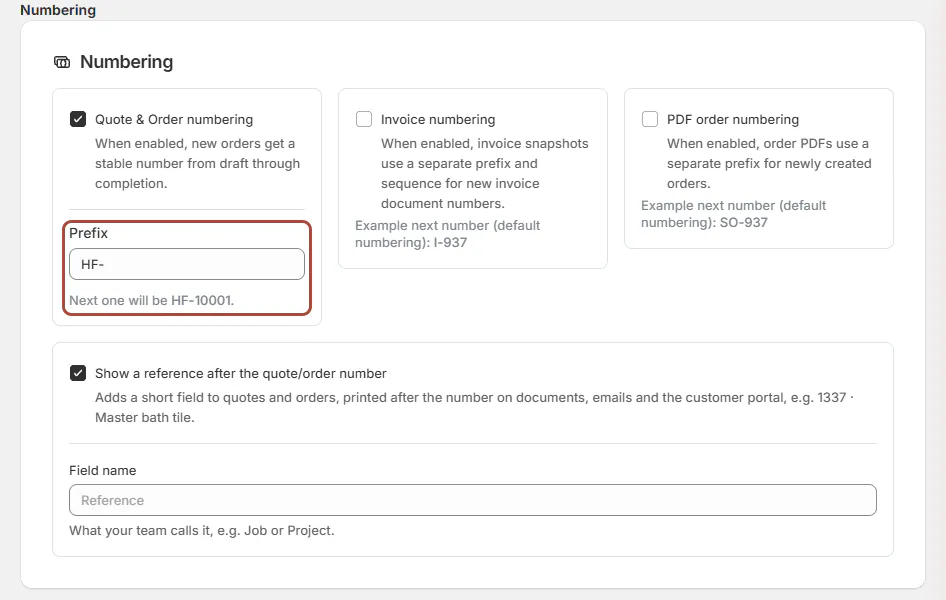
The reference appears on documents, emails, and the portal. Use a label such as Project when it helps staff identify the sale. See the quote and order page.
Defaults: Delivery & stock
Open SettingsQuotes & ordersDefaultsDelivery & stock.
| Control | Default and effect |
|---|---|
| Enable selling when out of stock | Off. |
| Hide out-of-stock products on POS | Off. |
| Require a reason to charge or exempt tax | On. |
| Deposit orders | Off. |
| Deposit line title | Starts with Deposit for {number}. |
| Default pickup choice when taking POS payment | Starts with Today, when in stock here (recommended). |
| Mark only what leaves the store as fulfilled | On. |
| New admin orders start as | Delivery, with Store pickup also available. |
| Delivery to customer (days) | Blank, shown as Not set. |
Choose the made-to-order destination on each item when selecting Order New. Use Order New and floor stock for that destination and its restrictions.
Delivery to customer (days) accepts whole calendar days from 0 to 3,650. It adds the final store-to-customer part of a Delivery item's lead time.
Store pickup skips that final leg. Leave the field blank when timing is unknown; an order then identifies the missing value. See the delivery promise.
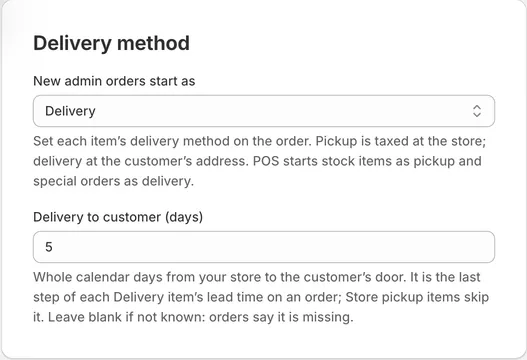
Use Take a deposit for deposit orders and pickup and delivery for register handover behavior.
Approval rules
Open SettingsQuotes & ordersDefaultsApproval rules.
| Control | What it does |
|---|---|
| Reviews | Adds Review to the menu and enables the rules below. Saves immediately. |
| Default review flag | Starts new orders with Requires Review selected. |
| Require review for all orders | Forces all orders through review. |
| Review notification emails | Shows Coming soon and isn't an available notification feature. |
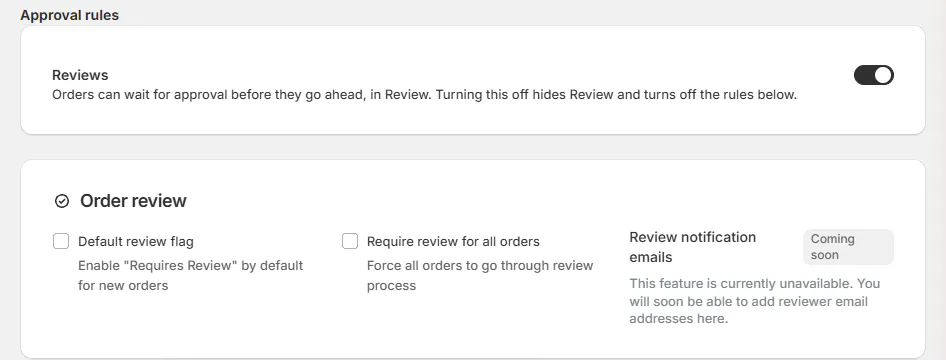
Turning Reviews off hides the Review menu and disables its rules. Templates requiring review and custom POS sales can still reach Pending Review; find those from Home.
Follow Set up order reviews for the approval workflow. Hiding its menu isn't the same as removing every reason an order may need approval.
Discounts and shared tabs
| Area | What it controls |
|---|---|
| Default order discount applies to | Starts with Products and fees; Products only is the alternative. |
| Require a reason for item discounts | On, and applies to POS item discounts. |
| Statuses | Defines your order stages and customer groups. |
| Order fields | Defines information collected on an order. |
| Fees | Holds reusable fee choices. |
Use fees and discounts, status setup, and order fields and saved fees for the corresponding tasks.
Example: Harlow & Finch's quoting defaults
Nora Ellis enables quote numbering with HF-, turns on auto-save after the first save, and records 5 delivery days. She enables Reviews and checks the review rules separately.
Sam Ortiz still saves a new quote once before auto-save takes over. He checks the delivery method on Olivia Bennett's Linden Sofa quote rather than assuming the default always fits.
If something goes wrong
The page is View only
Check Manage order and quote settings.
Delivery days won't save
Enter a whole number from 0 to 3,650, or leave it blank.
Review is missing
Check the Reviews switch.
Pending Review appears with Reviews off
Templates requiring review and custom POS sales can still use that state.
Was this guide helpful?
Thanks. Tell us what was missing at support@meetorderpilot.com.