Book repair visits and print job sheets
Related guides
- Handle a warranty claimWarranty and service · 6 min
- Set up warranty claims and staff accessWarranty and service · 6 min
- Replace, refund or credit a claimWarranty and service · 6 min
- Manage your subscription and covered locationsSettings and integrations · 5 min
- Branding settingsBranding · 4 min
Book a technician visit or workshop repair, record the result, and print the information needed for the job. Keep the repair work on the approved claim.
For paid work, the warranty quote must meet its signature and deposit requirements before the work opens.
Before you start
Approve the repair
Follow Handle a warranty claim and choose Repair visit or workshop repair.
Prepare the defaults
Set the labor rate and job sheet content in Claims settings.
Check permissions and location
Booking needs Manage warranty claims. Emailing needs Email customers. The order's location must be subscribed and accessible.
Check print access
Printing needs View warranty claims. Amounts require View costs.
Use warranty orders to resolve a paid-repair quote waiting for signature or deposit.
Book a repair visit
Step 1: Open the visit tile
Open Repair visit on the claim. Enter Date and choose Time window, including a listed 2-hour window or All day.
Step 2: Assign the technician
Choose Technician and enter Notes for the technician. Include the problem, access arrangements, and the work already agreed.
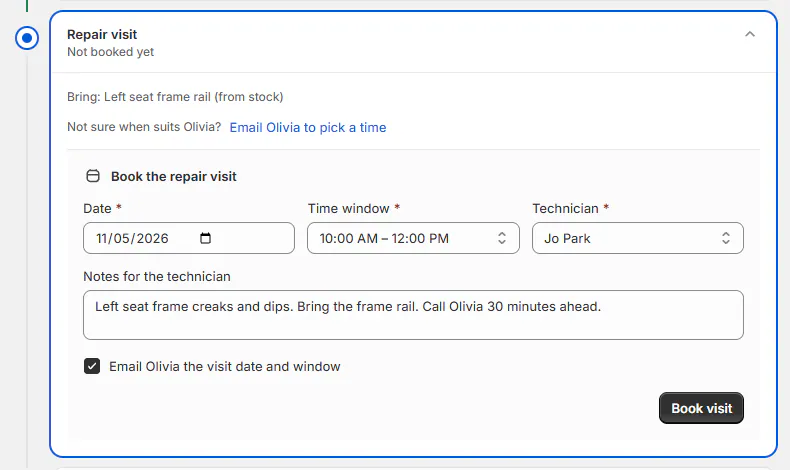
Repair visit booking with technician and window. Step 3: Book and notify
Review Email followed by the customer's name the visit date and window, then click Book visit. The visit is recorded, and the email sends if selected and permitted.
Use Cancel visit when that booking should no longer go ahead. Don't leave an obsolete visit scheduled while arranging a replacement.
Record the result
Step 1: Choose the visit outcome
After the visit, choose Fixed, Needs another visit, or Couldn't fix. The claim records the actual result instead of treating every booked visit as completed work.
Step 2: Record hours and notes
Enter Time spent in hours, such as 1.5, and complete Technician's notes. Record what was done and what remains.
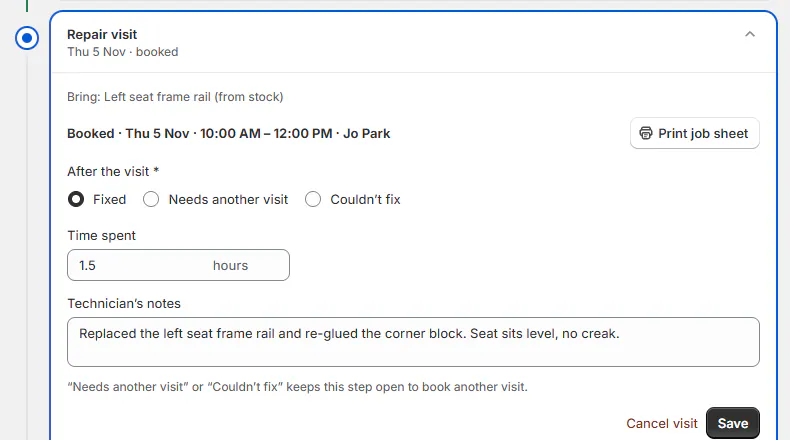
Repair visit tile with Fixed, 1.5 hours and technician's notes. The configured Labour rate prices the time. When that differs from the labour line, the tile offers Keep the current charge or Update the order. Without a rate, charges are entered by hand. Needs another visit leaves work to arrange before closing the claim.
Repair it in your workshop
Step 1: Arrange collection
Open Pick up from the customer. Set Date, Time window, Who collects it, and Notes for the pickup. The pickup details are recorded with the claim.
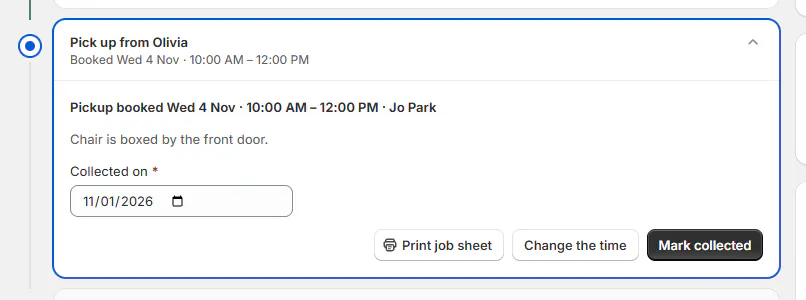
Pick up from Olivia tile with Collected on. Step 2: Record collection and the repair
Enter Collected on when the piece arrives. Under Workshop repair, record the outcome, time, and technician notes using the same result choices.
Step 3: Record the return
Use Return to the customer and enter Return date. Check the collection, repair, and return record before treating the workshop job as complete.
Print job sheets and day sheets
Step 1: Print an individual job
On a booked visit, pickup, or delivery, click Print job sheet. The control appears after the job has a date and time window, and the PDF downloads (Job sheet downloaded).
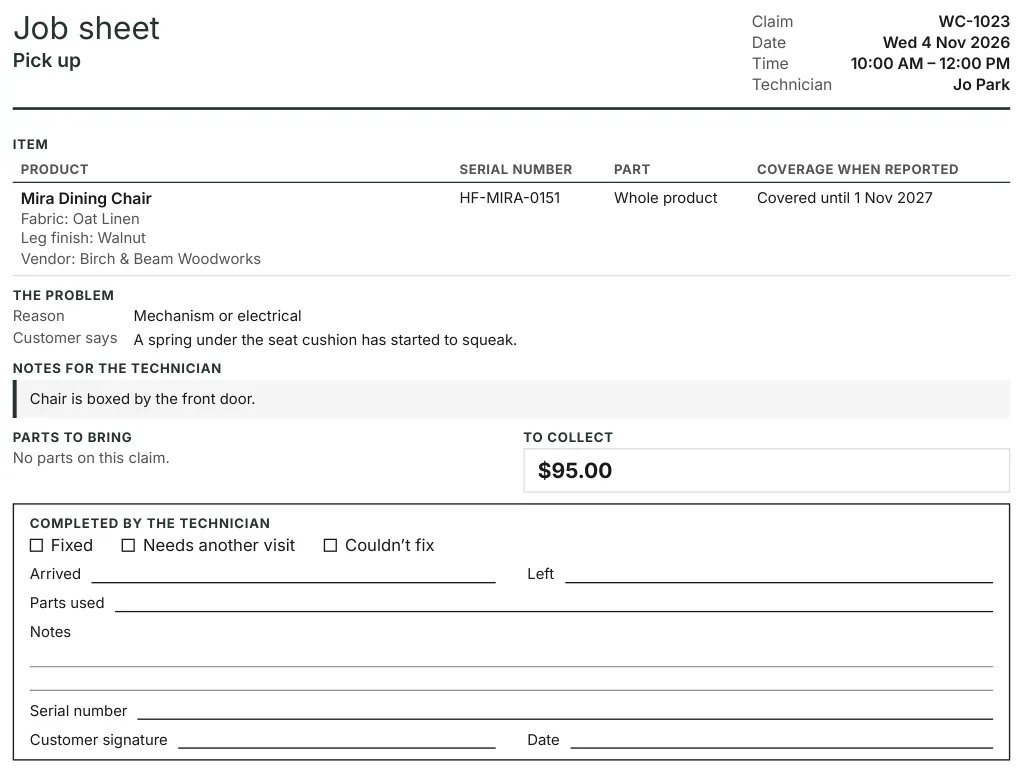
A printed job sheet for a workshop pickup. The sheet can include customer and address, original sale, units and coverage, problem, notes, earlier visits, parts, amount to collect, and photos.
Step 2: Print the day's work
From the Warranty queue, click Print day sheet. Choose Day and Technician, or All technicians, then print.
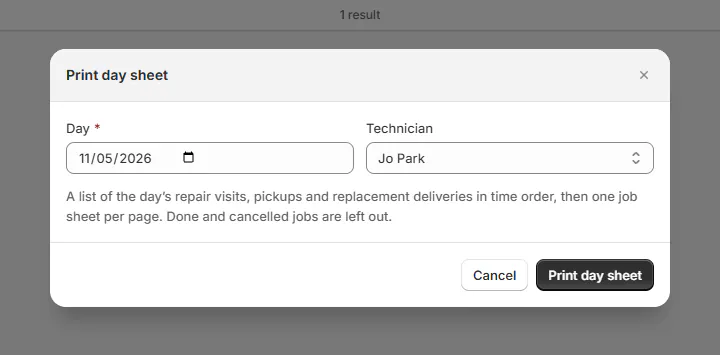
Print day sheet dialog with Day and Technician. Day sheet downloaded confirms the result. It lists repair visits, pickups, and replacement deliveries in time order, followed by one job sheet per page.
Done and cancelled jobs are left out. The day sheet supports up to 40 jobs; narrow to one technician or individual jobs if it is too large.
Step 3: Check the printed content
Review the generated sheet before handing it to the technician. Claim photos must be 3 MB or smaller; HEIC files don't print. Up to 6 photos can appear.
Job sheet content is controlled under SettingsProductsClaims. Themes are under SettingsBrandingQuote PDF, including Default, Field, Compact, and Service ticket.
The amount to collect is omitted without cost-view permission, even if the sheet setting is on. Don't assume a missing amount means the customer owes nothing.
What happens next
The booking email goes when selected. A Fixed result lets the team complete the remaining steps and close the claim.
Printed sheets support the visit, but the recorded result belongs on the claim. Add the technician's outcome so the next colleague can continue the work.
Example: a home visit and a workshop job
Example · Harlow & Finch Interiors
Plan two different repairs
Jo Park organizes the service work at Harlow & Finch Interiors.
- Olivia Bennett gets a morning Linden Sofa mechanism visit.
- Jo prints the technician's day sheet.
- The visit is recorded as Fixed with 1.5 hours.
- Marcus Reed's Mira Dining Chair is collected for workshop repair.
- Its collection, repair result, and Friday return are recorded separately.
If something goes wrong
Nothing is booked for that day
Choose another day or technician.
The sheet is too large
Print one technician or one job at a time.
Print job sheet is missing
Add the job's date and time window.
Repair work is unavailable at the location
Check location access and subscribed locations.
Work is locked
Complete the repair quote's required signature and deposit.
Was this guide helpful?
Thanks. Tell us what was missing at support@meetorderpilot.com.