Receive a delivery
Related guides
- Resolve rejected goods and receiving correctionsPurchasing · 5 min
- Add freight, duty and other costs to a purchase orderInventory and costs · 6 min
- Stock: what receiving and custom pieces do in ShopifyInventory and costs · 5 min
- How purchase orders workPurchasing · 5 min
- Correct costs after goods arriveInventory and costs · 4 min
Record the units accepted from a vendor so the PO, Shopify inventory and linked customer orders reflect the delivery. Post a separate receipt for each arrival, including partial deliveries.
Count the actual goods before entering quantities. Receiving now records this delivery, while So far shows what your team already recorded.
Before you start
Is the PO ready to receive?
It must be Sent, Partially received or Received, some rejected, and not finalized.
Have you checked the delivery?
Count the accepted goods and keep the vendor's invoice available.
Can you receive?
You need Receive items. Changing Vendor cost also needs Enter costs and charges.
Do you need cost visibility?
Without View costs, the cost columns stay hidden and OrderPilot uses the PO price.
Your warehouse team can receive without seeing vendor costs. Set their staff access for the work they perform, and have purchasing review amounts separately.
Receive the delivery
Step 1: Open Receive Items
Open the purchase order and click Receive Items. The page title reads Receive followed by the PO number.
The app's location picker switches to the PO's location while the receiving page is open. Confirm that this is where the delivery was received.
The header shows whether nothing, some or all of the expected units have been received.
Step 2: Identify the correct lines
In New receipt, review Item, Ordered and So far. Customer-linked lines show the order number and customer name.
Read the remaining-quantity note before entering anything. A fully received line names its receipt, while a rejected line identifies units that may be replaced.
For a Linden Sofa, check the selected configuration as well as the product name. Similar products can belong to different customers.
Step 3: Enter Receiving now
Enter the accepted quantity on each arriving line. Leave lines that did not arrive unchanged.
Use Receive all remaining only when the eligible remaining units actually arrived. It skips new products still being created, replacement-PO lines and replacements for rejected units.
You cannot receive more than was ordered. Put extra goods on another purchase order before recording their receipt.
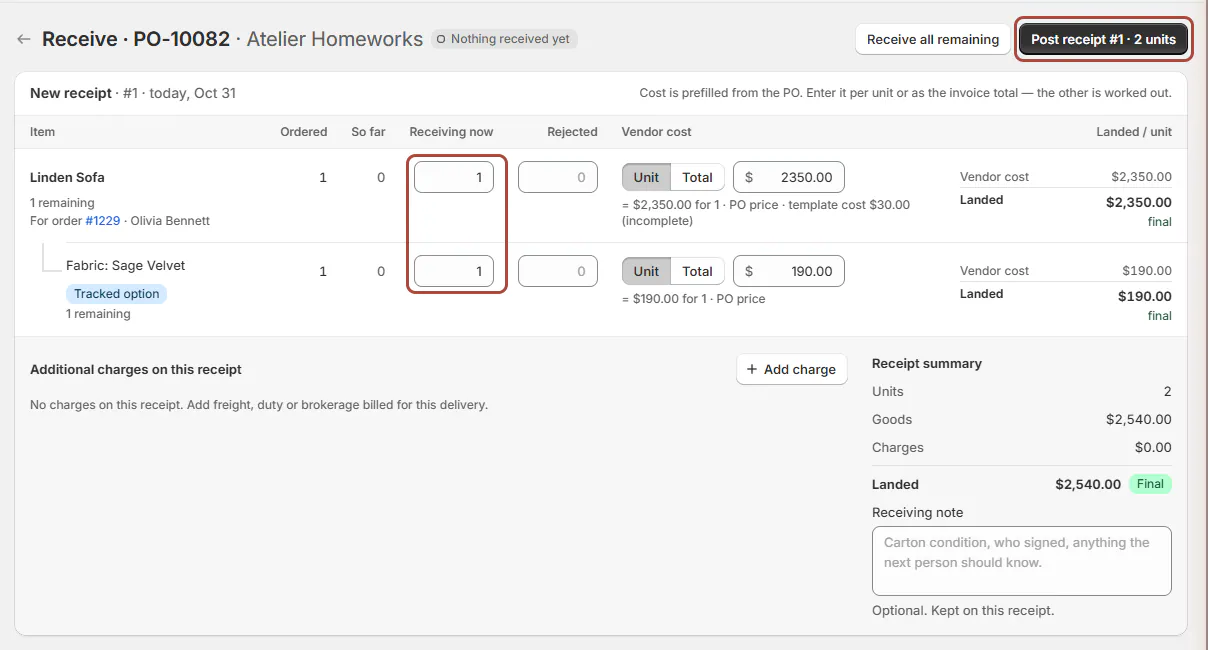
Receiving now records this arrival, not the cumulative total. Step 4: Record rejected units separately
If goods arrived damaged or wrong, use Rejected for those units instead of including them in accepted stock.
Follow receiving problems for rejection reasons, replacement units and receipt corrections. Accepted and rejected quantities represent different outcomes.
The summary should account for the delivery without treating rejected units as sellable inventory.
Step 5: Check the vendor cost
When costs are visible, compare Vendor cost with the invoice. Use Unit for a per-unit amount or Total for the received quantity's invoice total.
OrderPilot calculates the other amount. Cost begins with the PO price; changing it requires Enter costs and charges.
The helper distinguishes the PO price from the template's cost components. An incomplete template cost does not prove that the invoice amount is wrong.
Step 6: Review additional costs
If the delivery includes freight, duty or another charge, use freight and duty to apply it to the correct goods.
Check Landed / unit when available. It combines the vendor cost and allocated charges; it is not another quantity to receive.
Keep a missing vendor cost distinct from an estimated charge so the later cost review addresses the correct problem.
Step 7: Add a Receiving note
Enter a Receiving note for this receipt, such as carton condition or who accepted the delivery.
The note remains with this arrival. Describe the observed condition clearly enough that the next person can understand it without reopening the cartons.
The receipt summary now brings the quantities and costs together for review.
Step 8: Post the receipt
Check the receipt number, accepted and rejected quantities, location and summary. Click Post receipt with the displayed receipt number and unit count.
For rejection-only entries, the button reads Save with the rejected count instead.
A confirmation reports the received units and cost state, then returns you to the PO.
What happens next
The PO becomes Partially received or Received according to its recorded quantities. Activity records the receipt, and the PO retains its dated receiving history.
Accepted stock is written to Shopify inventory at the receiving location. Customer-linked units are held for the order; surplus stock remains available.
The linked order follows the store's purchasing status connections. Ordered-new items can show Arrived & Held once the receipt and hold are complete.
The PO header changes to Partially received and the steps show, for example, Receiving · 1 of 12 units · 1 receipt. Activity records the receipt, such as Receipt #1 recorded · 1 unit across 1 line · $1,150.00 landed · costs final. That line can say costs are final, provisional until charges are final, or still missing vendor costs. Read that result before treating the margin as settled.
When the last units arrive on a PO with charges, Review PO charges opens for review. Receiving all the goods and finalizing all costs are separate checks.
Screen reference

Example: one sofa arrives first
Example · Harlow & Finch Interiors
Receipt 1 accepts Olivia's sofa
PO-10001 covers Linden Sofas for Olivia Bennett and Marcus Reed.
- Jo Park opens Receive Items at Warehouse.
- Enter 1 in Receiving now for Olivia's line.
- Leave Marcus's line unchanged because his sofa has not arrived.
- Check the invoice cost and add the carton-condition note.
- Post receipt 1 and confirm Partially received.
- Reload Olivia's order to check its received and held quantity.
Important notes and tips
Use Receiving history to correct posted counts with a reason. Use cost corrections when the goods are right but their recorded cost is wrong.
Replacements for rejected units can be handled on the same eligible PO. Moving customer-held units from warehouse to showroom is a separate action after receipt.
If something goes wrong
Post receipt is greyed out
Hover for the missing quantity, invalid vendor cost or charge amount.
Someone else received these items
Reload, read the updated counts and enter only the new arrival.
The product is still being created
Follow the message's Check again action after waiting. See stock purchasing.
Receive Items is missing
Check your permission, finalization and the PO's status.
There is no receiving location
Correct the destination before posting stock.
Location subscription required appears
Ask the owner to review the PO and source-order location coverage.
Was this guide helpful?
Thanks. Tell us what was missing at support@meetorderpilot.com.