Review quotes: approve, reject or ask for changes
Related guides
- Set up order reviewsQuotes and orders · 4 min
- Edit a quote or orderQuotes and orders · 5 min
- Handle a customer's change requestQuotes and orders · 5 min
- Choose options and a vendor for each lineQuotes and orders · 6 min
- Turn a quote into an orderQuotes and orders · 4 min
Work through waiting quotes and orders, then approve them, reject them or ask for a specific change. Read the current sale before making the decision.
If a reviewer sends a sale back, make the requested changes and mark them resolved. That returns the record to the appropriate next stage.
Before you start
Open Review
The page must be enabled. Set up order reviews covers its rules and visibility.
Have decision access
Approving, rejecting and requesting changes need Approve, reject or request changes.
Check the sale
Approval needs vendors on the lines and successful creation in Shopify.
Check conversion access
If approval also creates an order, your role needs Convert quotes to orders.
A person without decision permission can view the queue and add staff comments. Making the requested sales edits needs Create and edit quotes and orders.
Review the waiting sale
Step 1: Open the Pending tab
Open Review. Order review queue starts on Pending and lists records waiting for a decision.
Use All or available status tabs when needed. Open the intended row after checking its number and customer.
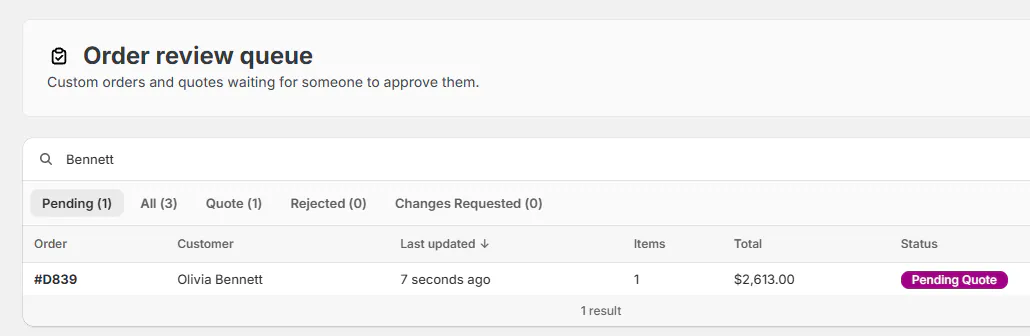
Start with the records waiting for a decision. Step 2: Check the current details
Read the review dialog's sale details, totals and comments. Confirm vendors and the customer's requested configuration.
If the record changed while you were reviewing it, refresh and review the new totals. The decision must apply to the current version.
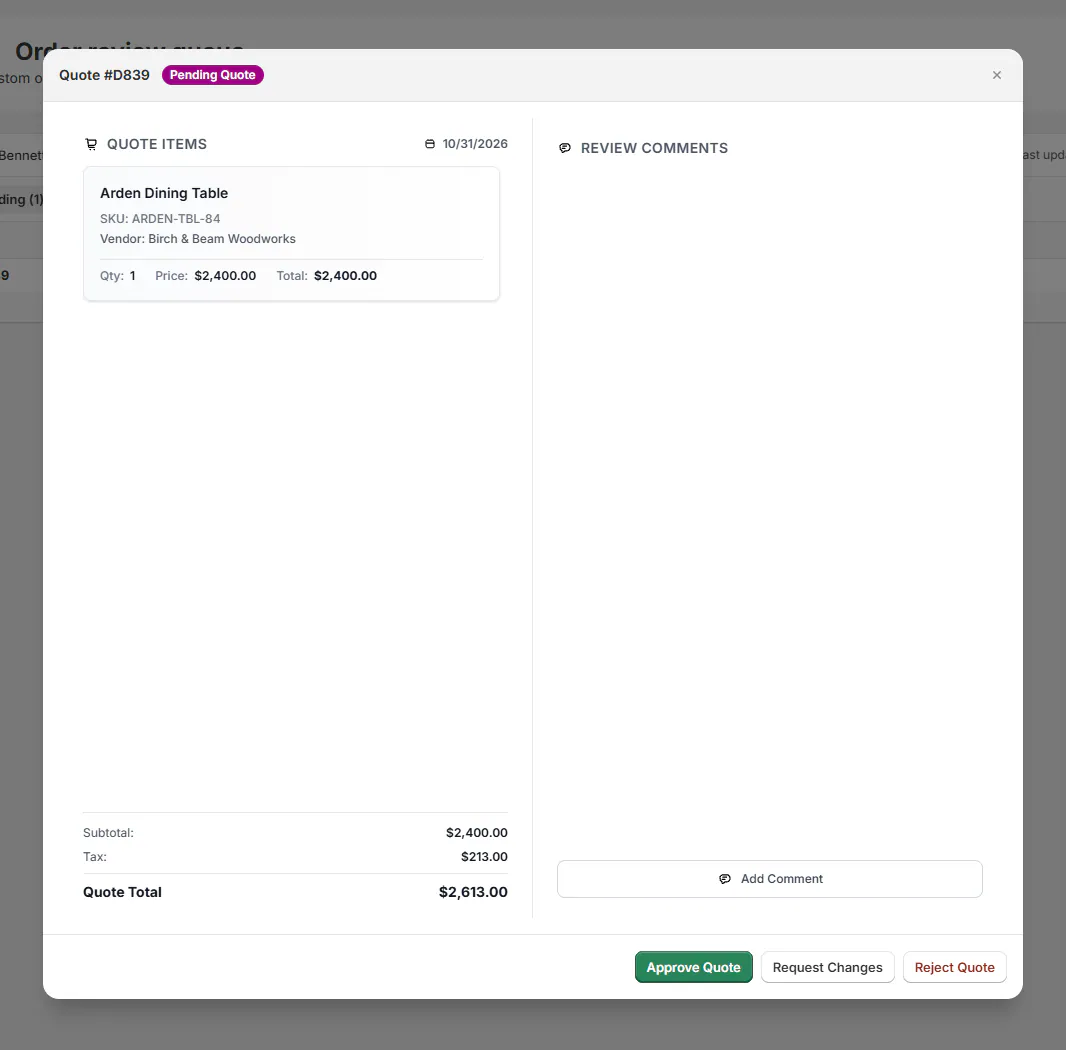
Review the sale before choosing a decision. Step 3: Approve the sale
Click Approve Quote or Approve Order when the details are ready. Read the resulting confirmation.
Approval keeps a quote as Quote and makes an order Order. An unpaid POS order goes to Draft until it is placed.
Step 4: Request a specific change
If work is needed, click Request Changes. Enter the required Changes needed, then click Submit Request.
The record moves to Changes Requested. Write a note the salesperson can act on, such as which finish or price needs checking.
Step 5: Reject when it should not proceed
Click Reject Quote or Reject Order. Enter Reason for rejection, then click Submit Rejection.
The record moves to Rejected, and its activity retains the decision and note. Rejection is different from asking for a correctable change.
Step 6: Comment without deciding
Under Review Comments, click Add Comment. Enter the note and click Post Comment.
The comment appears for staff. It does not approve, reject or request changes by itself.
Resolve the requested changes
Step 1: Read the reviewer's note
Open the sale and read its Changes Requested banner. The banner shows the request that needs addressing.
If no note is included, it asks you to make the changes and click Mark resolved. Clarify the intended correction with your reviewer before changing the wrong detail.
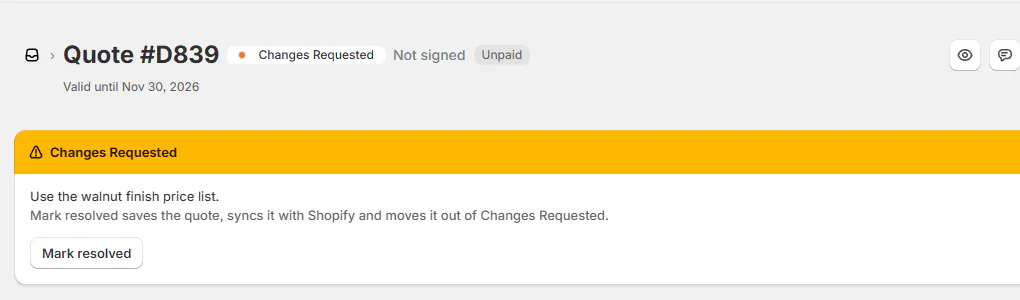
Read the requested correction before editing. Step 2: Make the correction
Follow Edit a quote or order to update the specified fields. Review the resulting options, amounts and customer-facing details.
If your role cannot make the correction, ask the appropriate staff member. The request remains relevant until the sale contains the agreed change.
Step 3: Mark it resolved
Click Mark resolved after checking the correction. This saves the order, syncs it with Shopify and moves it out of Changes Requested.
When its review flag or the shop's all-orders rule applies, it returns to Pending Review. The list then shows Revised.
A customer's own change request can also use Changes Requested. Use Customer change requests for that separate conversation and decision.
What happens next
Activity records the decision, such as Quote approved, Order rejected or Changes requested. The note is retained as a comment.
Review decisions send no status email. Do not assume the customer or another staff member received a message because the status changed.
A signed pay-later quote is placed as an order when approved. Check its Shopify and payment state after the review completes.
Note
Shopify POS has no review screen. Taking payment on POS can move a record out of review and therefore requires review permission.
Example: correct Marcus's table
Example · Harlow & Finch Interiors
Return the corrected sale to review
Marcus Reed's custom Arden Dining Table order is waiting in Pending Order.
- Nora Ellis requests changes with “Use the walnut finish price list.”
- Sam Ortiz reads the banner and corrects the price.
- Sam checks the updated total and clicks Mark resolved.
- The applicable review rule returns it to Pending with Revised.
- Nora reviews the new details and clicks Approve Order.
Important notes and tips
Use a comment when you need to discuss the sale without deciding it. Use Request Changes when the record should explicitly wait for a correction.
If the queue shows All caught up, there are no records currently waiting in that view. Check other tabs before searching for a historical decision.
If something goes wrong
Assign vendors before approval
Complete the missing vendors using Options and vendors.
Creating the sale in Shopify failed
Resolve the failure using Fix a failed Shopify sync.
This order is already approved
Check the current status before attempting another decision.
The order changed
Refresh and review the latest totals.
Approval also creates an order
Obtain Convert quotes to orders permission.
Only comments are available
Your role can view the queue but lacks review decision permission.
Was this guide helpful?
Thanks. Tell us what was missing at support@meetorderpilot.com.