Set up PIN access on shared iPads
Where are you working?
Related guides
- Set up OrderPilot on your showroom iPadsShowroom (POS) · 6 min
- Give staff accessTeam and permissions · 7 min
- How roles and permissions workTeam and permissions · 6 min
- Create and manage rolesTeam and permissions · 5 min
- Credit salespeople on a quote or orderTeam and permissions · 5 min
Choose how OrderPilot identifies staff on a shared iPad, then check the sales credit on a new quote. The register account and the staff member's PIN can affect access in different ways.
Before you start
Are the tiles ready?
Finish POS setup before changing register access.
Is each person recognized?
Each salesperson needs a Shopify POS PIN and a staff record in OrderPilot.
Can the device account do the work?
PIN access cannot exceed the account signed in to the register.
Let each PIN use its role
Step 1: Open the Point of sale card
Go to SettingsStaff & rolesAccess rules. Find Point of sale, where the register identity choices appear.
Step 2: Choose whose role applies
Under Whose role applies, choose The staff member signed in with their PIN to apply each person's role.
Choose The account signed in to the register to give everyone the device account's access. The change waits for Save in the save bar. Below, When POS can't tell who is signed in picks what happens for unidentified staff (such as View only — no changes).
PIN mode narrows the device account's access to the staff member's permissions. It also excludes Administration permissions.
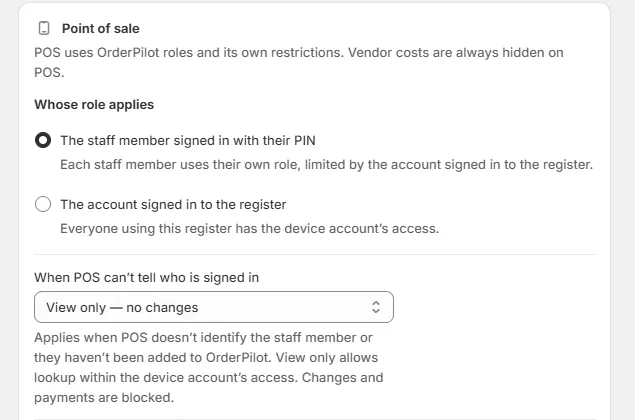
The device account still limits each PIN user's access. Step 3: Set the unidentified-person rule
Choose View only — no changes or No access under When POS can’t tell who is signed in, then save.
The rule applies the next time OrderPilot opens. An unknown PIN with view-only access makes the register view only.
Give the role its permissions
Step 1: Open the staff role
Go to SettingsStaff & rolesRoles and open the role. Tick On Shopify POS under Where they can use OrderPilot.
The role is now set to allow POS as a place to work. Its individual permissions still determine which actions are available.
Step 2: Choose the work staff can do
Use role management to grant the permissions needed for the job. Save the role after reviewing the choices below.
Permission reference
| Permission | Work it allows on POS |
|---|---|
| View quotes and orders | Lists, Activity, Payment History and Stock by Location |
| Create and edit quotes and orders | Creating, editing and changing pickup or delivery choices |
| Convert quotes to orders | Taking payment on a quote and signing that places an order |
| Change order status | Mark collected and Mark delivered |
| Change sales credit | Editing Sold by and Custom split |
| Delete quotes and draft orders | Delete quote |
| Override prices and give discounts | Price overrides and adding or increasing discounts |
| Set payment terms and deposits | Payment terms and deposit choices |
| Approve, reject or request changes | Payment that takes a draft out of review |
| Force Edit locked orders | Payment changes while a status is locked |
| Email customers | Email to Customer |
Removing or reducing an item discount does not need price-override permission. Increasing it, changing its type or changing its reason does.
Bypass signature and deposit requirements covers exceptional approval actions. It does not add Force Convert to POS or make Record Signed Copy appear there.
Check a new quote's sales credit
Step 1: Identify the salesperson
Unlock Shopify POS with Sam Ortiz's PIN. Open Create Quote and check Sold by.
In PIN mode, the new quote credits the identified person. In device-account mode, this also happens when the person is known and the device account can change sales credit.
Otherwise, credit falls to the account signed in to the iPad.
Step 2: Read the Sold by field
Check that Sold by shows the intended salesperson before building Olivia Bennett's quote.
If the field is read only, its message explains that the owner or staff allowed to change sales credit can edit it. See sales credit for splits.
What happens next
Staff see actions permitted by their effective role. A greyed control's information alert explains restrictions such as Payment unavailable or Discount changes restricted.
An order outside their scope opens view only. Its banner explains who can help. Assignment and salesperson availability affect different parts of this access.
Example: a shared showroom iPad
Example · Harlow & Finch Interiors
Sam sells under his own role
Nora Ellis sets the device account to allow the work the showroom needs.
- Select PIN-based roles.
- Give Sam Ortiz POS access without price overrides.
- Have Sam unlock the register and open Olivia Bennett's quote.
- Check that Sam receives sales credit.
- Read the restriction beside Discount when Sam cannot change it.
If something goes wrong
The register is view only
Add the identified staff member through Recent POS sign-ins and give them the appropriate role.
Sold by cannot be changed
Ask someone with Change sales credit to make the correction.
Take Payment is unavailable
Check Convert quotes to orders. A draft in review also needs approval access; a locked status needs Force Edit.
A person is missing from Sold by
Check their staff record and Appear in the salesperson picker permission.
Access remains unchanged after switching PINs
Reopen OrderPilot.
Screen reference
Was this guide helpful?
Thanks. Tell us what was missing at support@meetorderpilot.com.