Add terms to quotes and orders
Related guides
- Download and print quote and order PDFsPayments and signatures · 5 min
- Business details and what each location printsSettings and integrations · 6 min
- Set up categoriesCatalog · 5 min
- Create a product templateCatalog · 6 min
- Manage product templatesCatalog · 5 min
Add category and product terms that accompany the products on a quote or order. The document prints them after the location's standard terms.
Product terms add to category terms. They do not replace either the category wording or the standard agreement.
Before you start
Prepare the standard terms
Use Business details and documents for each location's base agreement.
Have catalog access
Category and template terms need Manage the catalog.
Know the output
Quote and order PDFs shows where to inspect the completed document.
Additional terms appear on the PDF, invoice and signing page. They do not appear as a terms section on the quote-create form.
Choose the category when the wording applies to every relevant product in that group. Choose the template when it applies only to that product.
Add category terms
Step 1: Open the category
Go to SettingsProductsCategories. Edit the category whose products need the additional wording.
Find Additional terms & conditions. If no wording exists, the collapsed area says None set — standard terms only.
Step 2: Enter the category wording
Click Add terms. Enter the store's approved wording in the editor.
The help explains that this section prints once for documents containing products in the category. It appears after standard terms and before product-specific terms.
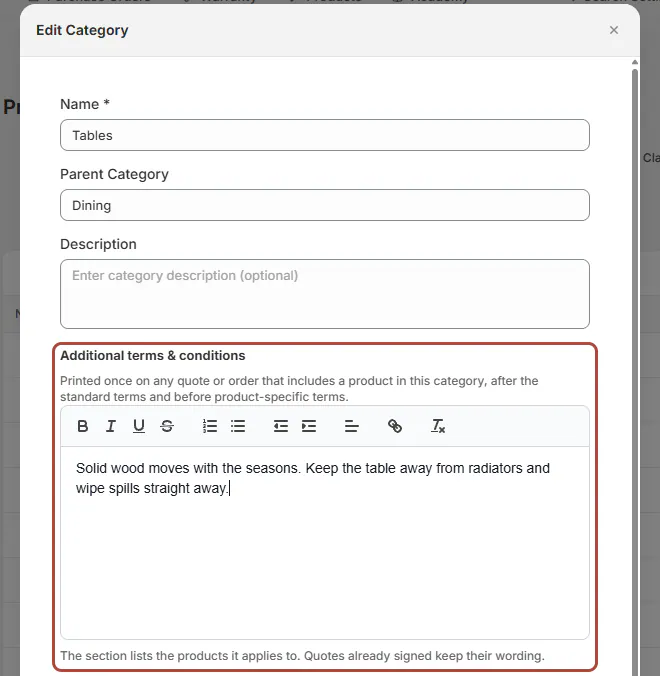
Use category terms for wording shared by its products. Step 3: Save the category
Click Update Category. Reopen the saved category if you need to check the retained wording.
Categories covers the category's other settings. A document lists the products to which this category's terms apply.
Add terms to a template
Step 1: Open Additional terms
Open the Arden Dining Table template. In Before an order is placed, find Additional terms and click Edit.
The editor identifies the product title under which the terms print. Check that you are editing the intended template.
Step 2: Write the product-specific wording
Enter the store's approved terms in the rich-text editor. Keep product-specific information separate from wording already covered by the category.
Click Done. The summary row shows the terms in one line, or None when no terms are set.
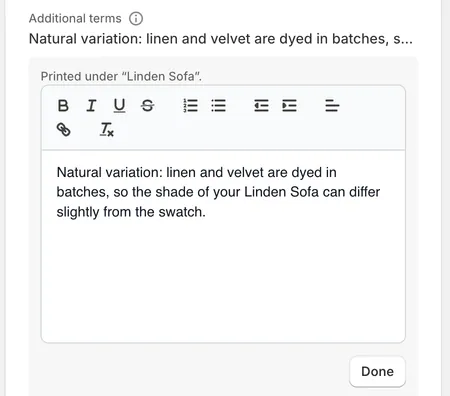
Product wording supplements the category and standard terms. Step 3: Save the template page
Use the page's save bar to keep the change. Closing the row editor is not the same as saving the template.
Manage product templates covers the page's save behavior. The retained terms are ready for documents that include that template.
Check the composed document
Step 1: Open a document with the product
Use an unsigned quote containing the intended product and generate its document. Read the terms after the sale summary.
Check that the standard location terms appear first. Then inspect the category section and the product-specific section.
Step 2: Check the applicability and order
The category prints once with Applies to identifying its relevant products. Each product's wording appears once under Additional terms for selected products.
Review the combined text for repeated or conflicting instructions. A product clause supplements the category clause rather than overriding it.
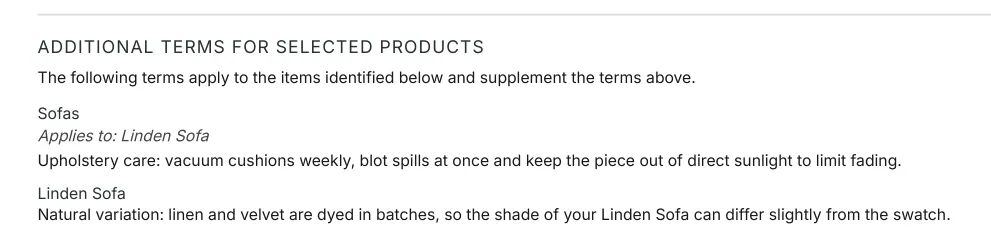
The document identifies the products covered by each section. Step 3: Compare a signed copy separately
If you open an already signed quote, check its stored wording rather than expecting the new catalog terms to replace it.
Signing freezes the agreement. Signature records retains that earlier document as evidence of what was signed.
What happens next
The applicable terms appear on the next current PDF, invoice and signing page for that product. They stay absent from the quote-create form.
Quotes already signed keep their wording. A customer-facing edit that invalidates the signature returns the current agreement to live wording for the next signature.
Signature and deposit requirements explains the re-signing state. The previous signed record remains available separately.
Example: a care note and product note
Example · Harlow & Finch Interiors
Apply each note at the right scope
Harlow & Finch Interiors has approved care wording for its dining category and a natural-variation note for the Arden Dining Table.
- Nora Ellis saves the shared care note on the category.
- Nora adds the product-specific note to Arden Dining Table.
- Sam Ortiz opens Olivia Bennett's quote containing that table.
- Sam checks the category section's Applies to line.
- Sam checks the table's wording under Additional terms for selected products.
This uses one shared category note and one template-specific note. Another product in the same category receives the category wording without inheriting the table's separate note.
Important notes and tips
The template CSV supports an Additional terms column. Use Import and export templates when maintaining terms across a catalog.
Inspect a current unsigned document after a terms change. Inspect the stored signed copy when the question is what the customer previously accepted.
If something goes wrong
The additional terms do not print
Check that the relevant product is on the sale and the saved wording is not blank.
No terms page appears
Blank-only terms do not generate a terms page.
A signed quote shows old wording
That copy is frozen at signing. Do not treat it as a failed catalog save.
The create form has no terms section
Additional terms are shown on documents and the signing page, not the create form.
The template row looks changed but the document does not
Check that you saved the template page after clicking Done.
Was this guide helpful?
Thanks. Tell us what was missing at support@meetorderpilot.com.