Take some items home and deliver the rest
Where are you working?
Related guides
- Choose pickup or delivery and hand items overQuotes and orders · 5 min
- Collect a paymentPayments and signatures · 6 min
- Take a depositPayments and signatures · 5 min
- Review payments and invoices, and refund a paymentPayments and signatures · 5 min
- How customers sign and pay onlineCustomers and portal · 5 min
Handle a sale where the customer takes some items home and waits for the rest. Choose what leaves today, collect the required payments and follow each part through delivery.
The customer sees one OrderPilot sale. When pickup and delivery are taxed differently, Shopify can hold separate orders for those parts.
Before you start
Know the handover rules
Prepare payment
Use Collect a payment for the payment permissions and available routes.
Check today's stock
Special-order goods and units unavailable at the store cannot leave today.
Check the pickup setting
Today requires Mark only what leaves the store as fulfilled to be on.
The default POS pickup choice is either Today, when in stock here (recommended) or Pick up later. Other items default to Delivery.
These settings are under SettingsQuotes & ordersDefaultsDelivery & stock.
How the two parts work
Taxed in two parts explains that pickup and delivery use different tax treatment. OrderPilot presents them together, while Shopify separates their records.
The customer has one signature and one combined document. Each part retains its own Shopify number, payment state and balance.
Both parts share the delivery promise. A part placed later takes the promise already recorded for its sibling.
Choose what leaves today
Step 1: Review each unit
Open Take Payment. On Pickup or Delivery?, read the stock detail beneath each unit.
Choose Today, Pick up later or Delivery where offered. The screen updates the unit's planned handover.
Step 2: Set the delivery address
Under Delivering to, use Change or Add when the destination is missing or wrong.
Select the intended address. Delivery cannot continue without one; choosing pickup instead must reflect the customer's actual plan.
Step 3: Check Due now
Read Due now after the choices settle. It can mean the full balance, today's items plus a deposit, a deposit alone or payment due later.
Click Continue to Payment only after checking the total. Shopify's tax difference is included when units move between pickup and delivery.
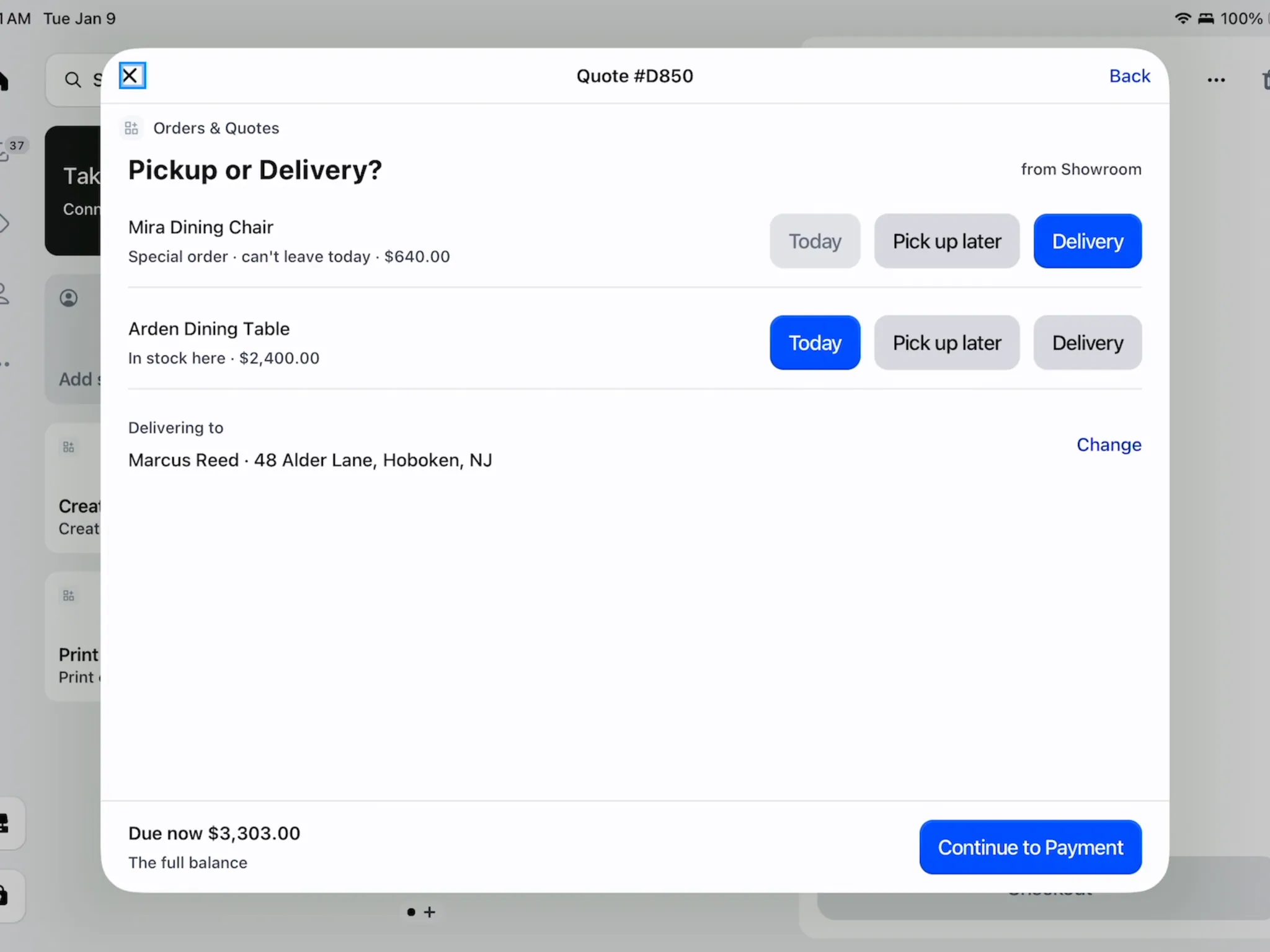
Due now reflects the chosen units and payment terms. An ordered-new unit that has arrived and is held can become eligible for Today. A unit still being made or waiting on its purchase order cannot.
Service balances are added when the last goods are due to leave. They are not treated as physical pickup units.
Take both payments and hand over
Step 1: Read the two-payment screen
If Two payments required opens, review Payment 1 of 2 · Store pickup and the delivery part below it.
Next identifies the part to collect; Paid identifies a completed part. The footer shows the amount paid against what is due now.
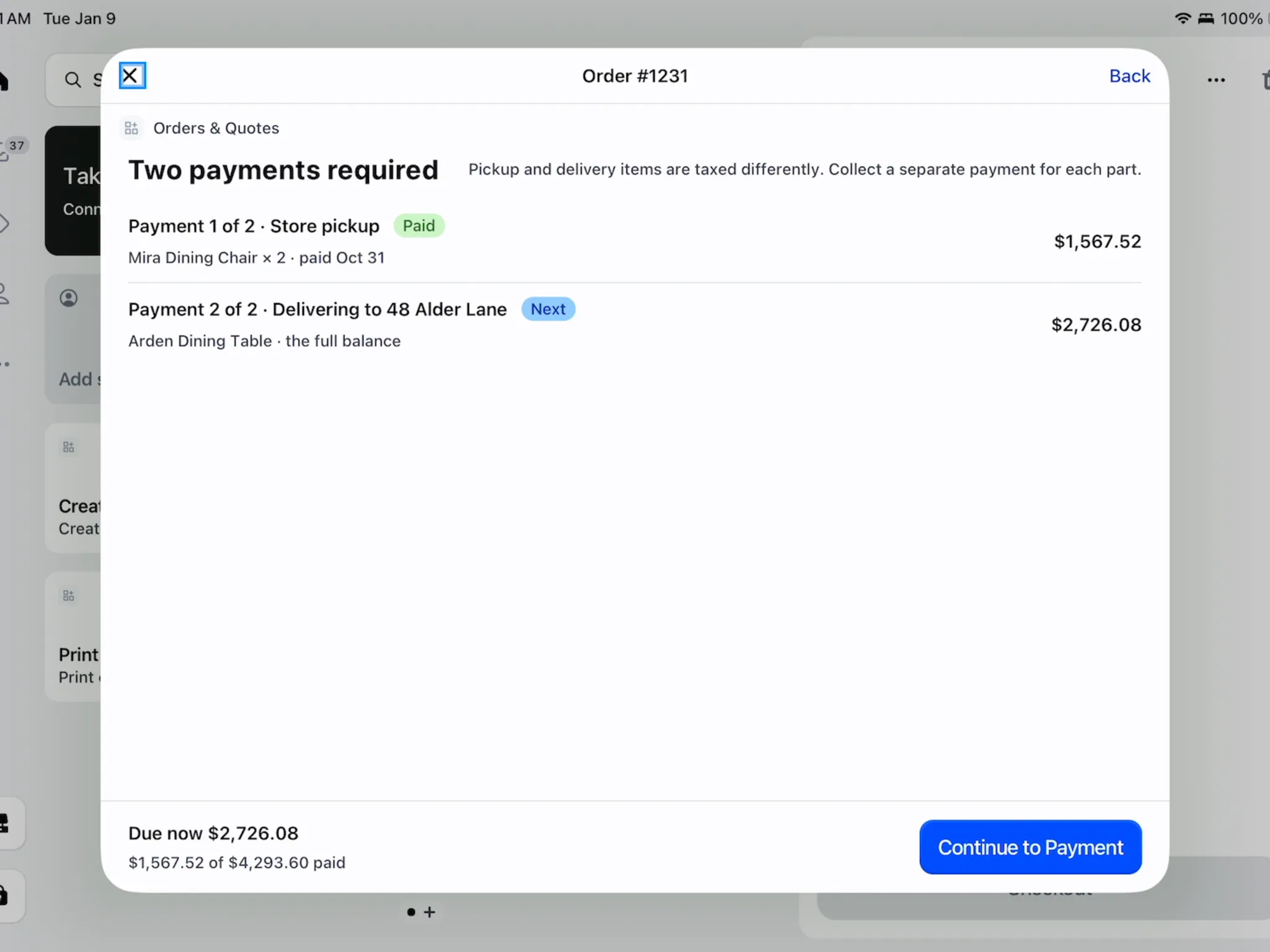
Complete the next part, then return for the remaining payment. Step 2: Complete the first payment
Tap Continue to Payment and collect the selected part in Shopify's checkout.
Return to OrderPilot afterward. Check that the first part now shows paid before collecting the remaining part.
Step 3: Complete the second payment
Continue to payment for the second part and collect its due amount. Check the resulting payment history.
A message such as Payment 2 of 2 is still due for delivery items. means the first payment did not complete the entire sale.
Step 4: Follow the goods that remain
Today's paid units are recorded as handed over and fulfilled. Open Fulfillment details to follow the items still on order.
When the table arrives and is actually delivered, record that later handover. The goods and payment state remain visible together.
Manage the parts in the app
Step 1: Inspect the part summaries
Open Taxed in two parts on the quote or order. Read each part's heading, Shopify number, total and paid or refunded amount.
The header eye control, Open in Shopify, offers the individual parts. Choose the one you need to inspect.
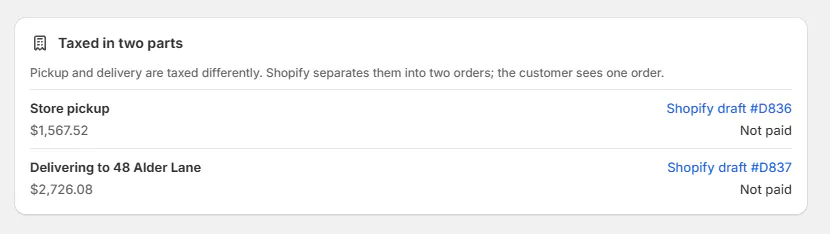
Each part shows its own Shopify and payment state. Step 2: Collect or share the right payment
Use the part's Collect payment action. A part still showing a Shopify draft is placed when its payment is collected.
Use Copy Pay Link to send the customer to the page where each part can be paid separately. The signing page allows either part to be paid first.
Step 3: Refund from the order page
Open the refund action on the order page and choose Refund from. Check which part holds the payment.
Refunds and payment history covers the remaining refund steps. The list-row refund action directs you back to the order page.
What happens next
Payment History lists the separate parts, while POS continues to show all lines and one combined tax line.
The delivery part becomes a placed Shopify order when its payment is collected. The combined customer agreement remains associated with the sale.
Example: chairs now, table later
Example · Harlow & Finch Interiors
Follow the two payments
Marcus Reed buys 2 Mira Dining Chairs and an Arden Dining Table from Birch & Beam Woodworks.
- Sam Ortiz chooses Today for the stocked chairs and Delivery for the table.
- Sam checks the address and Due now.
- Sam collects the pickup payment, then the delivery deposit when required.
- Marcus leaves with the chairs.
- Jo Park follows the table on PO-10001 and records its later delivery.
If something goes wrong
Today is missing
Check local stock, purchase-order state and the fulfill-only-what-leaves setting.
The order changed while choosing
Go back and reopen it before making fresh choices.
The method cannot change
Placed Shopify orders and purchase-order-held lines restrict method changes.
Continue is waiting
Wait while the amount says Updating… and Shopify updates the part.
A part is still a Shopify draft
Collect that part's payment to place it.
Refund is refused from the list
Open the order and select the part using Refund from.
Was this guide helpful?
Thanks. Tell us what was missing at support@meetorderpilot.com.