The customer portal
Related guides
- How customers sign and pay onlineCustomers and portal · 5 min
- Set up portal access and message alertsCustomers and portal · 4 min
- My orders and order trackingCustomers and portal · 5 min
- Help a customer who can’t open, sign or payCustomers and portal · 5 min
- Reply to customers from the InboxEmails and messages · 5 min
Give customers one place to review their quotes, sign, pay, and follow their orders. The portal also keeps their documents, warranty coverage, and conversations with your store together.
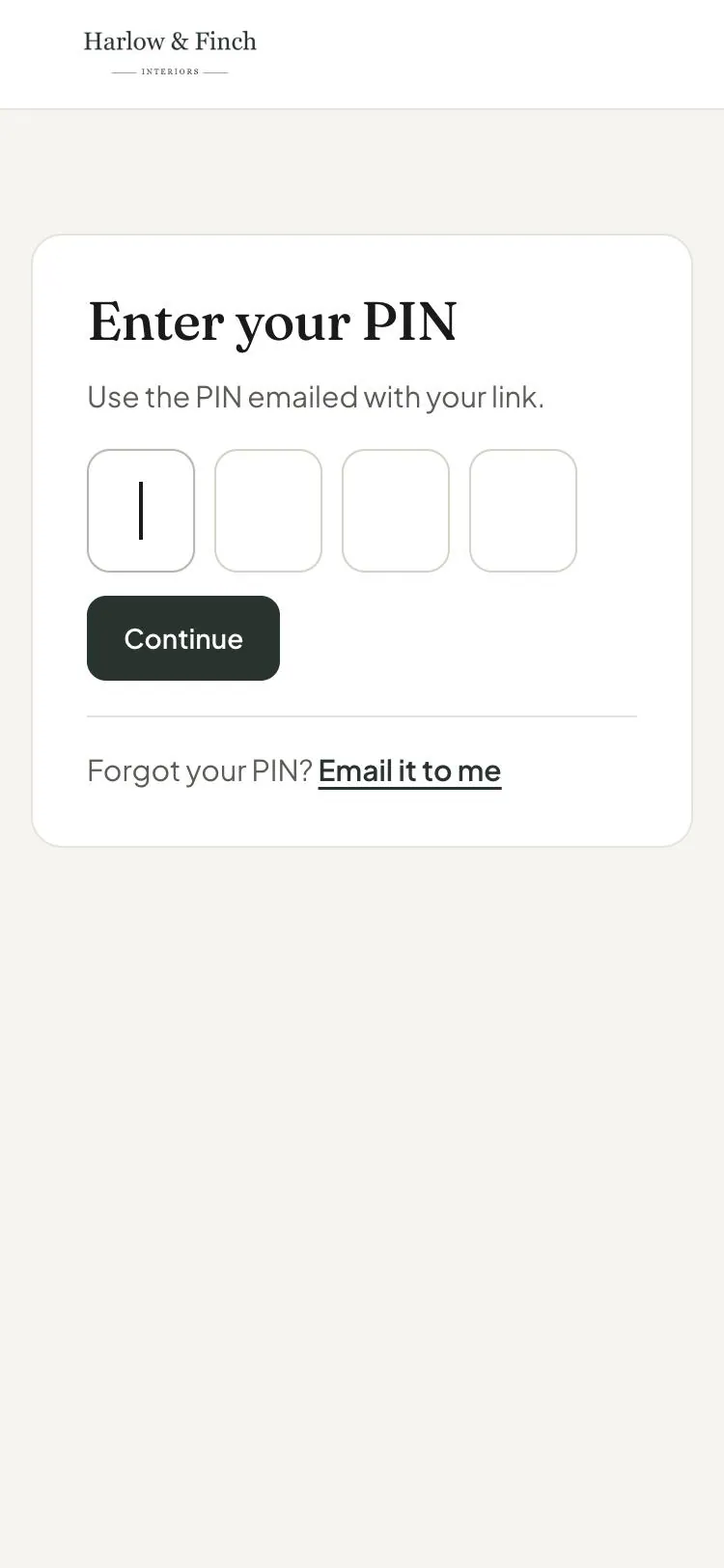
Customers open it from your email with a link and a 4-digit PIN. They don't need a store account. Your logo, footer, and brand color make the page recognizable.
How it works
The email supplies both the portal link and the customer's PIN. The customer enters the PIN the first time they open an emailed link in a browser. The portal then shows their quotes and orders.
- 1Email and PINThe customer opens your link and enters their PIN.
- 2ReviewThey read the quote and ask questions.
- 3SignThey approve the agreed quote.
- 4PayThey use the available payment button.
- 5Follow the orderThey check progress and message your store.
Anyone copied on the customer email receives the same link and PIN. Check your email recipients before copying another person.
Links and PINs
Emailed portal links don't expire. Email my PIN sends the PIN to the address on file. Email me a link sends a fresh account link to that address, not another address entered by the requester.
Change PIN asks for Current PIN, New PIN, and Repeat new PIN. Changing the PIN signs out other devices and sends a reminder email.
After 5 wrong attempts, access locks for 15 minutes. Consecutive locks double the wait, up to a day. A replacement PIN is emailed when the lock starts.
A signed-in store customer can enter without a PIN through a separate link. That link expires an hour after its last use.
Where you'll see it
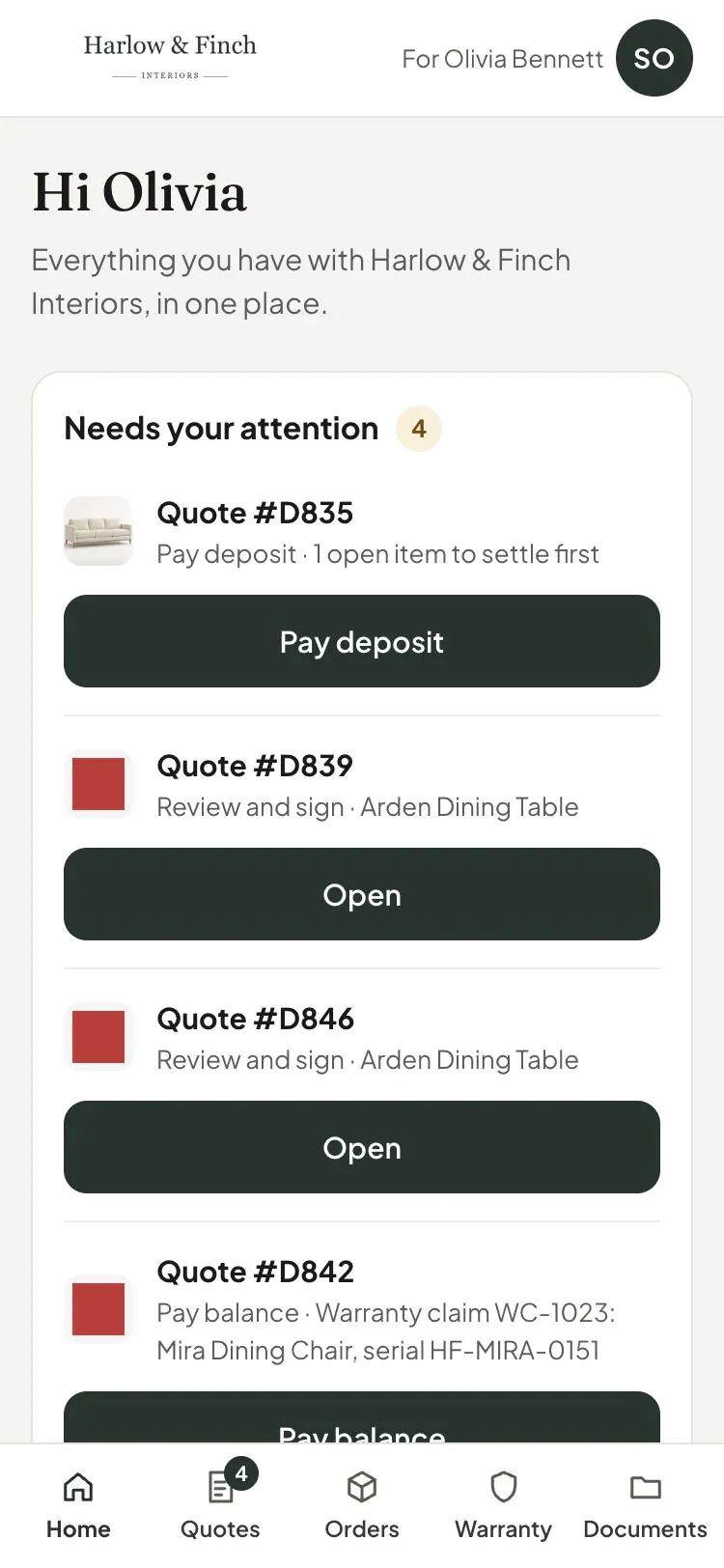
Customers reach the portal through Open your quote or Open your order in an email. They can also use See your request after submitting a request, or the QR code on a POS receipt.
The home heading is Your orders and quotes. It shows the newest 50 records. A first-time customer sees the journey Approve and sign, Payment, Made for you, and Delivery.
| Tab | What the customer finds |
|---|---|
| Quotes | Quotes to review, including requests marked Being priced before you confirm the price. |
| Orders | Placed orders and their progress. |
| Warranty | What's covered and until when. |
| Documents | Signed quotes, invoices, and receipts. |
Your contact identifies the store contact. Use the contact on the order when explaining who will answer a question.
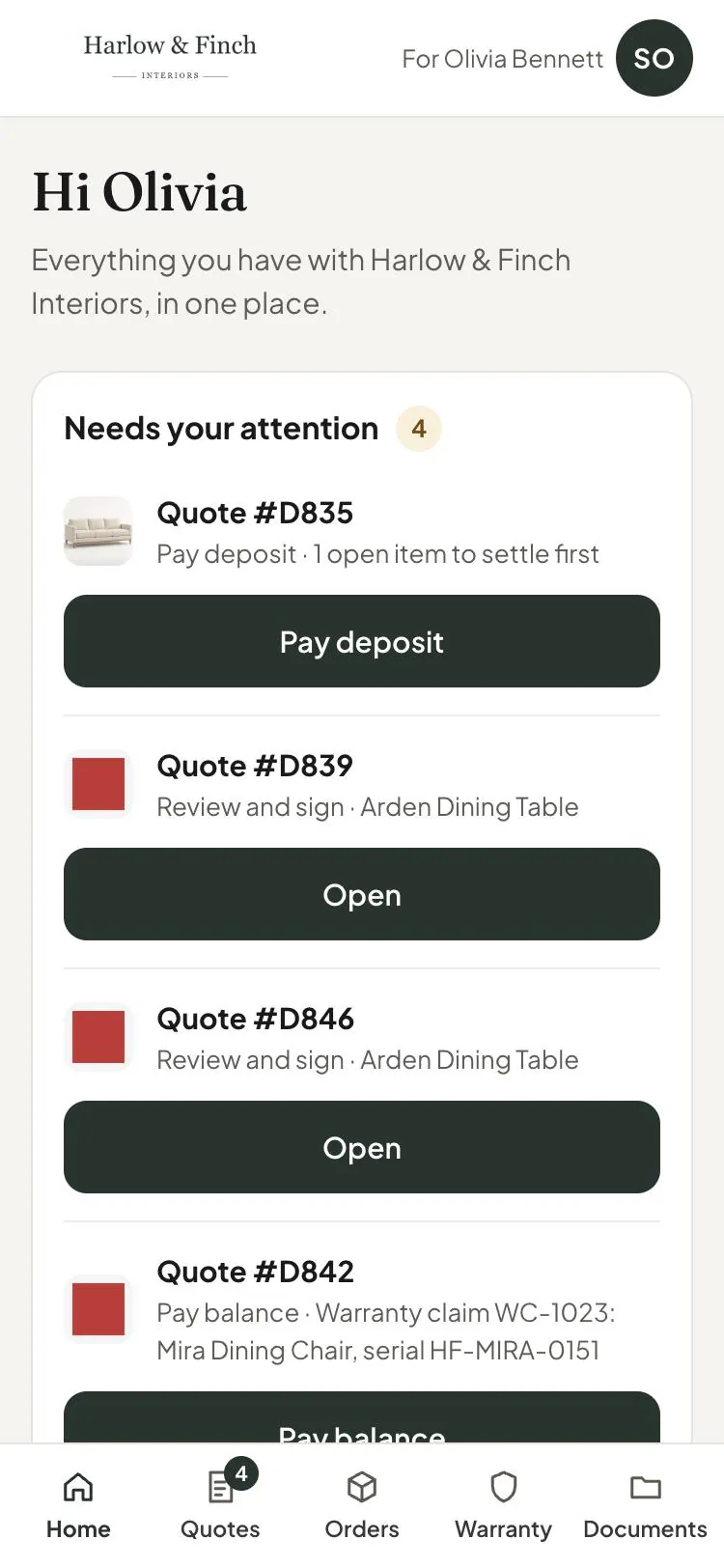
On a quote, Review items shows the pieces and their options. A customer can mark each item and delivery Looks good, or use Undo. This review is available while a signature is still requested.
An item changed after review needs reviewing again. Looks good records agreement with that item; the customer still completes the separate signing step.
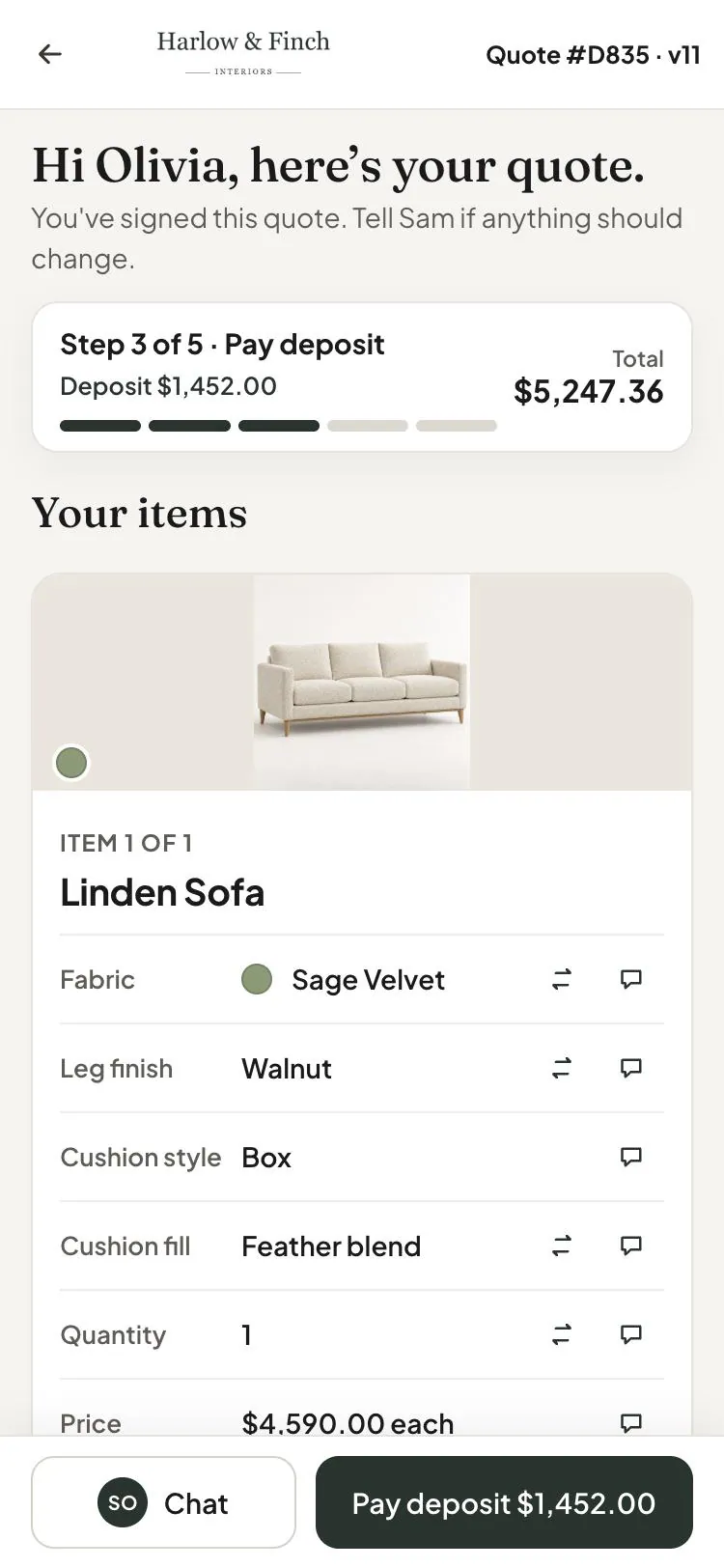
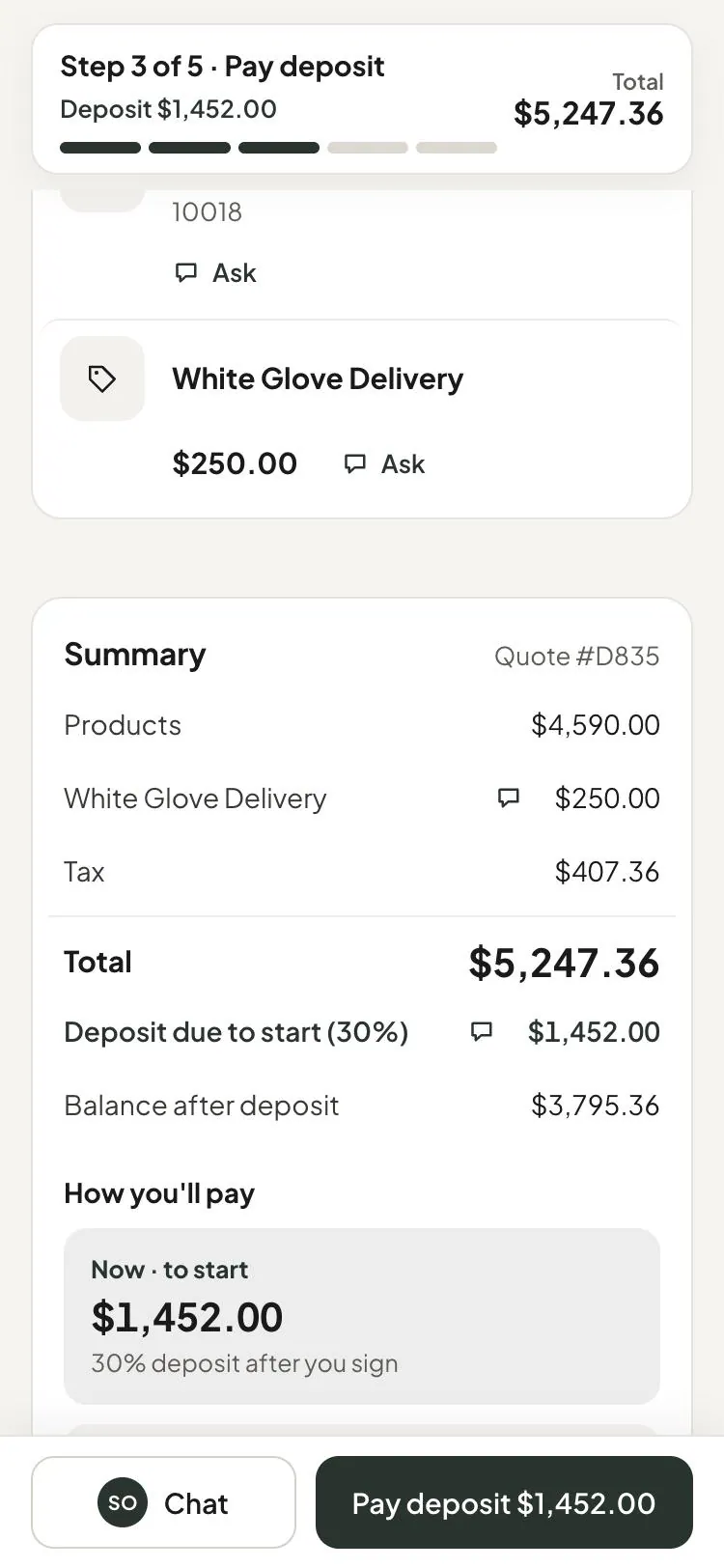
The summary shows the products, tax, deposit, and remaining balance where applicable. Approve & sign leads into signing. Payment buttons show Pay deposit with the amount, or Pay with the balance.
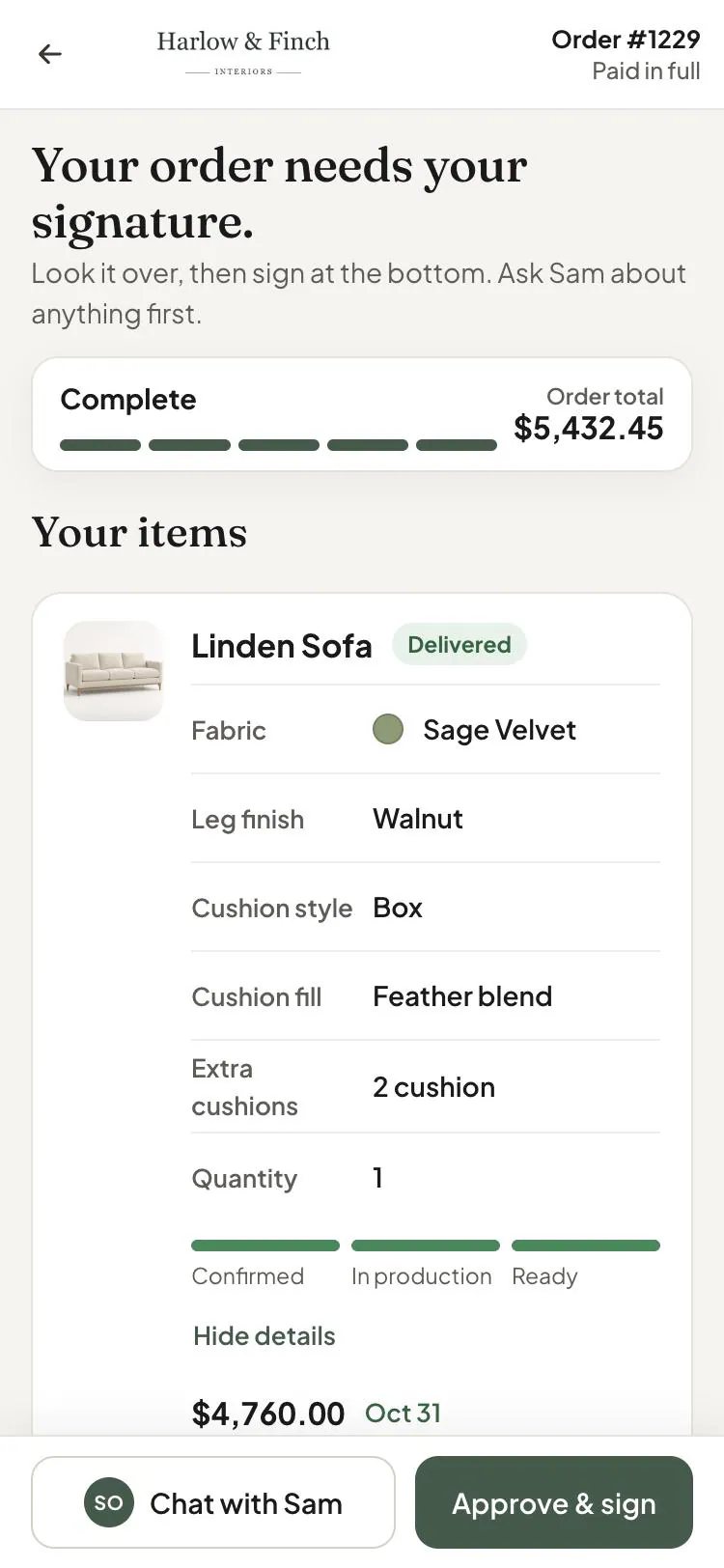
A placed order shows its stage and each item's progress. The delivery area shows its window or Time to be confirmed, with Ask to change.
The choices you have
| Customer action | What it means |
|---|---|
| Mark Looks good | Review an item before signing. |
| Ask a question | Keep the discussion with the quote or order. |
| Request a change | Ask your team to review a proposed change. |
| Sign | Approve the agreed document electronically. |
| Pay | Open the available secure checkout. |
| Attach files | Share supporting photos or PDFs. |
A change request doesn't change the order until your team accepts it. Customers can still request changes after signing or placing an order.
The paperclip attaches up to 5 files per message, each up to 10 MB. Accepted formats are JPEG, PNG, WebP, and PDF. This lets Olivia share a room photo alongside a question about Sage Velvet.
While the portal is on, replies typed by staff on the order go to its conversation. They aren't sent as ordinary email replies. Use the Inbox to handle those messages.
You control access and link revocation in Portal access. Change the logo, footer, and page appearance through customer page styling.
Where an order's stage comes from
A cancelled order shows Cancelled. An order whose goods have all left shows Complete. Otherwise, its customer status group supplies the stage, or its items supply it when no supported group applies.
An item shows its least advanced unit. Units awaiting pickup or held stock can show Ready. A purchase order sent to the vendor can put an item In production.
When a sign link stops signing
A sign link can remain useful for viewing and payment even when signing is unavailable. Open questions can show Not ready to sign yet. Settle them before requesting a signature again.
Example: Olivia Bennett's portal
Olivia opens her Linden Sofa quote from Harlow & Finch Interiors and enters the emailed PIN. She reviews Sage Velvet, Feather Blend, and White Glove Delivery.
She asks a fabric question and attaches a living-room photo. Sam Ortiz resolves the question before Olivia signs and pays the requested deposit.
Later, Jo Park sends the sofa's purchase order to Atelier Homeworks. Olivia sees the order's production progress in the same portal. Marcus Reed opens his own order on a new laptop and enters his PIN there.
Do it
Use My orders and tracking to understand the other customer views. For a blocked link, signature, or payment, follow Help a customer who can't open, sign or pay.
Was this guide helpful?
Thanks. Tell us what was missing at support@meetorderpilot.com.