Run the Inbox for a team: assign, quick replies, reply goal
Related guides
- Reply to customers from the InboxEmails and messages · 5 min
- Messages & notifications settingsEmails and messages · 4 min
- Hand over an order and choose who’s in the salesperson listTeam and permissions · 4 min
- Talk to vendors and record what you pay themPurchasing · 5 min
Share customer and vendor conversations across your team, keep responsibility clear, and save answers staff use often. A reply time goal helps you find conversations that have waited too long.
The Inbox assignee is separate from the order's owner, its primary salesperson. Assigning a conversation doesn't hand over the sale.
Before you start
Know the reply workflow
Start with Reply to customers from the Inbox.
Check setup access
Changing quick replies and the reply time goal needs Manage shop settings.
Choose eligible teammates
Only people who can reply to the conversation can be assigned.
A new conversation starts with the order's assigned person when they can answer it. Changing the order's ownership follows order assignment and needs Reassign quotes and orders.
Work the Inbox as a team
Step 1: Find unanswered work
Open Needs reply or Mine. Use Show to filter Overdue or Unread. The list shows the conversations matching that workload.
The empty messages distinguish Nothing needs a reply, Nothing assigned to you, and No unassigned conversations. Check your view before assuming there is no work.
Step 2: Assign the conversation
Open the conversation and click its assignee. Choose an eligible teammate or Unassigned. The header shows the selected person.
Step 3: Set the right conversation state
Reply when the customer needs an answer. Use Close when the conversation is done, or choose Open, Waiting, or Closed through the status control.
Reopen reverses a closure. A new customer or vendor reply also reopens the conversation. Closing isn't a way to prevent the customer from contacting you again.
Assign or close many at once
Step 1: Select the conversations
Tick the relevant rows. Rows your role cannot change are greyed out with an explanation, including vendor conversations outside your access.
Step 2: Apply the shared action
Click Close, or Assign… and choose a teammate or Unassigned. The selected conversations update to the chosen state or responsibility.
Review the selected records first. A batch can include several customers or vendors, so keep the action appropriate for every selected conversation.
Save and use quick replies
Step 1: Add a saved answer
Go to SettingsMessages & notificationsQuick replies. Click Add quick reply. Enter a Title and Text.
The title is the Inbox button label and allows 60 characters. The text allows 2,000 characters. You can save up to 20 quick replies.
Step 2: Add supported placeholders
Use
{{customer.first_name}}for the customer's first name and{{order.number}}for the order number. Click Save quick reply. The confirmation reads Quick reply saved.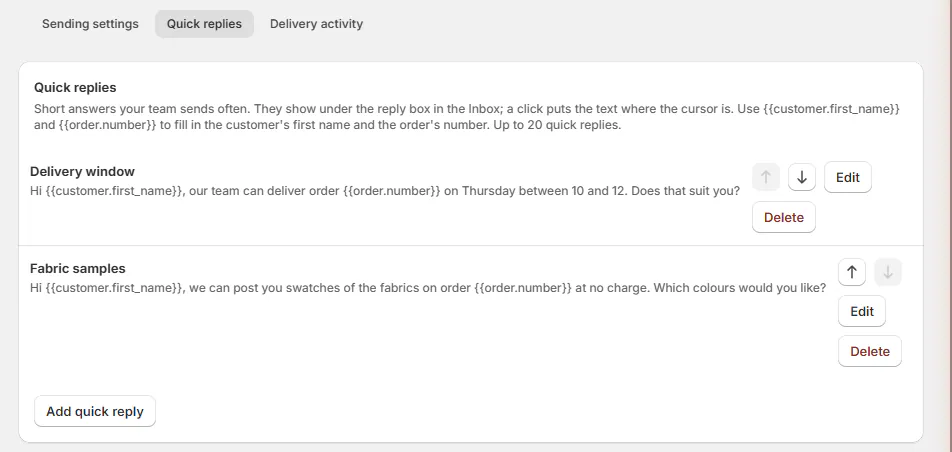
Quick replies tab with two saved replies. Edit or reorder saved replies as your team needs. Deletion asks Delete quick reply? before removing the saved answer.
Step 3: Insert and review the answer
Under the Inbox reply box, click Quick replies and choose the answer. Its text is inserted at the cursor with supported placeholders filled.
Review the wording before sending. The control isn't offered on an internal note or on the order page's Conversation card.
Set your reply time goal
Step 1: Choose the number of hours
Go to SettingsMessages & notificationsSending settingsReplies. Under Reply time goal, enter Hours as a whole number from 1 to 168.
Step 2: Save the goal
Click Save. Reply time goal saved confirms the change. The default is 4 hours.
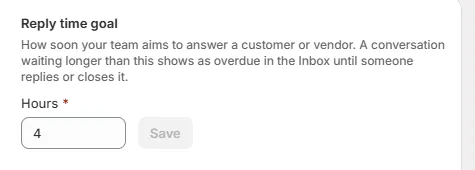
Replies section with Reply time goal set to 4 hours. The goal counts clock hours, including nights and weekends. It begins with the first unanswered reply from someone on file. Closed conversations are never overdue.
What happens next
Mine and Unassigned reflect your assignments. A reply clears the unread badge and stops the reply clock. Overdue remains until someone replies or closes the conversation.
Rows and headers show elapsed overdue time, such as Overdue 2h or Overdue 3d. Use that information to prioritize work, alongside the content of the customer's request.
Example: clear Monday's unanswered messages
Example · Harlow & Finch Interiors
Assign Marcus's delivery question
Nora Ellis opens the overdue view at Harlow & Finch Interiors.
- She finds Marcus Reed's Arden Dining Table question.
- She assigns the conversation to Sam Ortiz.
- Sam inserts the Delivery window quick reply.
- He checks the current delivery information and sends a specific answer.
- Nora selects 2 completed Birch & Beam Woodworks conversations and closes them.
If something goes wrong
A teammate isn't in the list
They cannot currently reply to that conversation. Check their access before assigning them.
Quick replies is missing
Save an answer first and use the Inbox customer reply tab.
Hours won't save
Enter a whole number from 1 to 168.
A conversation never becomes overdue
Check the goal, whether a reply is outstanding, and whether the conversation is Closed.
Was this guide helpful?
Thanks. Tell us what was missing at support@meetorderpilot.com.