Set signature and minimum-deposit requirements
Related guides
- Get a quote signedPayments and signatures · 5 min
- Sign in the showroom: on the iPad, by QR code or on paperPayments and signatures · 5 min
- Take a depositPayments and signatures · 5 min
- Set payment terms and place pay-later ordersPayments and signatures · 5 min
- Turn a quote into an orderQuotes and orders · 4 min
Set which products need a customer signature or minimum deposit before placement. Check the resulting order requirements before collecting payment or using an exception.
A requirement comes from the product's own choice or its category defaults. One demanding line can determine the requirement for the whole sale.
Before you start
Have catalog access
Setting product and category rules needs Manage the catalog.
Know signing
Get a quote signed covers the customer request.
Know deposit routes
Take a deposit distinguishes a separate deposit order from native Shopify terms.
How requirements are combined
A line uses its product's own setting where one exists. Otherwise, it follows the strictest applicable category setting.
The order needs a signature if any line requires one. Its minimum deposit is the highest percentage required by its lines.
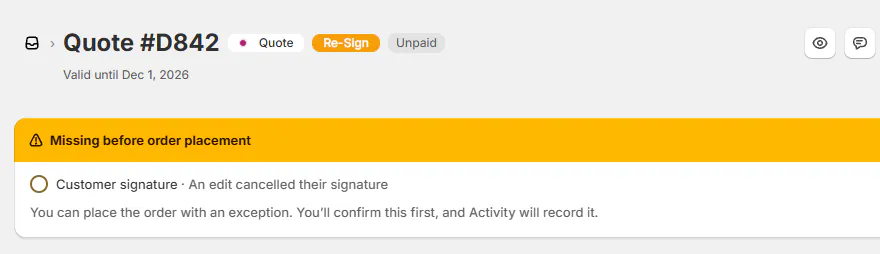
A sent signature request makes signing required even if the products did not. An edit that invalidates an existing signature also requires the new version to be signed.
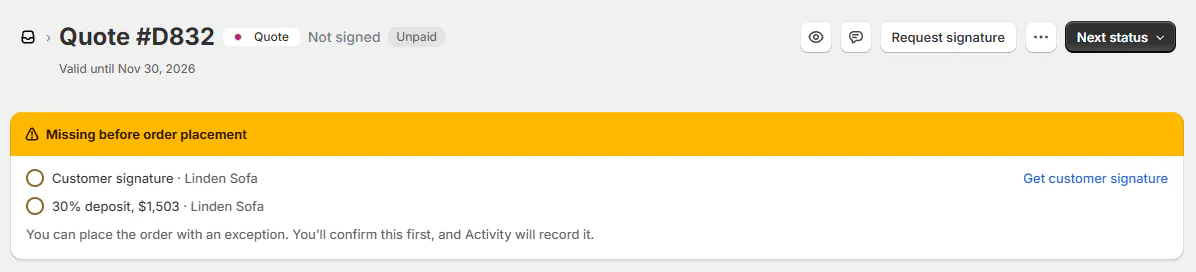
Missing before order placement lists gaps on the order. POS presents signature as a step before payment and stops with Deposit too low when the native percentage is insufficient.
Shopify Plus
Minimum-deposit checks use Shopify's native payment-terms percentage or full payment. Native percentage deposits require Shopify Plus; a separate paid deposit order does not satisfy this rule.
Set the category rules
Step 1: Open the category
Go to SettingsProductsCategories and edit the relevant category. Find Before an order with these products is placed.
The fields describe the defaults followed by templates and Shopify products in that category unless they set their own rules.
Step 2: Set signature and deposit defaults
Choose Customer signature required as needed. Enter Deposit of at least from 0% to 100%.
An empty or zero deposit means no deposit requirement. Click Update Category to save the category.
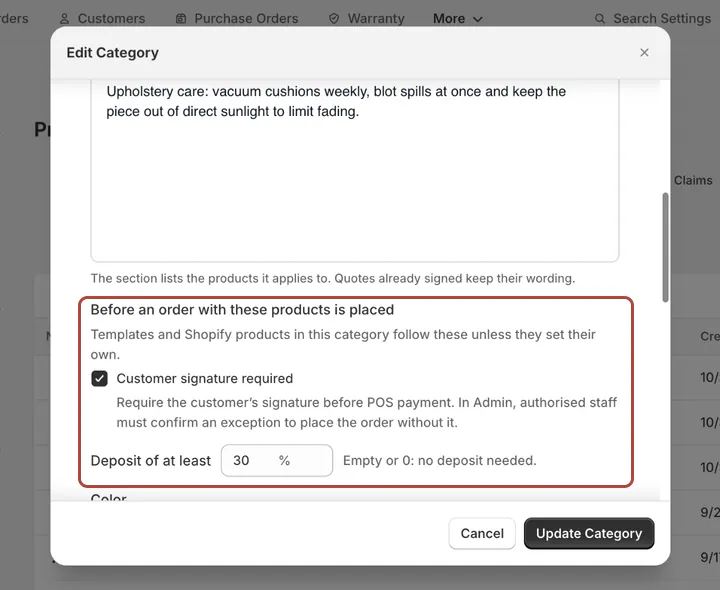
Category defaults supply rules for products that follow them. Use Categories for the category's broader setup. Confirm which products follow it before changing a rule that affects their future sales.
Set a template exception
Step 1: Open the requirement row
Open the product template's Before an order is placed card. Click Edit beside Customer signature.
Choose Use category default, Required or Not required. Click Done to return to the card's summary.
Step 2: Choose the deposit rule
Edit Deposit. Choose Use category default, None, or At least with a percentage from 1 to 100.
Click Done. The row summarizes the rule and identifies a category default when it is inherited.
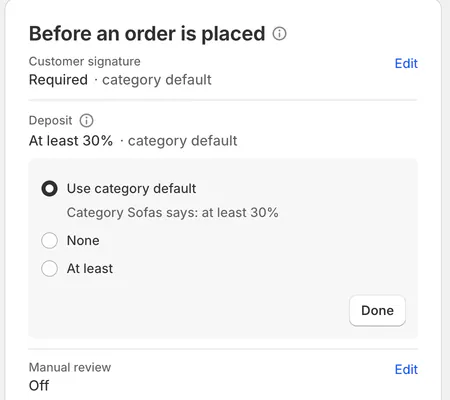
Template choices can override the category default. Step 3: Save the template page
Use the page's save bar. An Unsaved row is not yet a saved template change.
Manage product templates covers the remaining template controls. Recheck the saved summary before using the product on a sale.
Handle a requirement exception
Step 1: Read the missing requirements
Open the sale and read the signature or deposit gap. Check whether the customer can complete it normally.
Use Payment terms and paying later to set an eligible native deposit before placement.
Step 2: Use an authorized placement exception
If the store intends to proceed anyway, read the placement confirmation and use Place anyway only with bypass permission.
The exception is recorded in Activity. Turn a quote into an order also explains Force Convert to Order for eligible unsigned records.
What happens next
Customer-facing changes after signing invalidate the previous agreement's current signature. The earlier signed copy remains in Signature records as superseded.
The order shows Re-Sign. The signing page tells the customer the quote changed and asks them to review and sign again.
| Change | Effect on the signed agreement |
|---|---|
| Lines, prices or quantities | Can require signing again |
| Warranty, fees, shipping or discounts | Can require signing again |
| Options and order fields | Can require signing again |
| Payment or quote-to-order conversion | Does not change the signed copy |
| Adding a payment link | Does not change the signed copy |
| Changing the number reference | Does not reset the signature |
Do not assume every internal edit resets signing. Check the resulting badge and activity after the save.
Example: Olivia's sofa requirement
Example · Harlow & Finch Interiors
Require the agreed commitment
The Sofas category requires a signature and at least a 30% deposit.
- Sam Ortiz creates Olivia Bennett's Linden Sofa quote.
- Sam checks both gaps under Missing before order placement.
- Olivia signs the current agreement.
- On a Plus shop, Sam uses native 30% deposit terms and verifies payment.
- After a later fabric change, Sam checks Re-Sign and requests the new signature.
Important notes and tips
An exception records that the requirement was bypassed. It does not create a customer's signature or prove a deposit was collected.
If something goes wrong
A paid deposit does not satisfy the minimum
Separate deposit orders are not counted by the native percentage requirement.
The template still follows its category
Choose an explicit template override and save the page.
The percentage is refused
Category requirements allow 0–100%; an explicit template minimum allows 1–100% or None.
The customer must sign again
Review the customer-facing edit and send the current agreement.
The exception is unavailable
Check Bypass signature and deposit requirements and the other permissions needed for the placement action.
Was this guide helpful?
Thanks. Tell us what was missing at support@meetorderpilot.com.