Set up OrderPilot on your showroom iPads
Related guides
- OrderPilot on Shopify POSShowroom (POS) · 6 min
- Set up PIN access on shared iPadsShowroom (POS) · 4 min
- Give staff accessTeam and permissions · 7 min
- How roles and permissions workTeam and permissions · 6 min
- Create and manage rolesTeam and permissions · 5 min
Set up the OrderPilot tiles and staff access before your team uses the showroom iPads. Then check the settings that affect product choices, discounts and handover at the register.
Before you start
Is OrderPilot installed?
Open it once in Shopify admin before setting up the register. Install OrderPilot.
Can you manage access?
Role editing needs Create and edit roles. Staff assignments need Assign roles and locations.
Is the iPad ready?
Have Shopify POS installed and connected. Connect a receipt printer before using Print Receipt.
Will staff share a register?
Prepare their Shopify POS PINs and decide whose OrderPilot role should apply.
OrderPilot roles control access, alongside POS restrictions. Vendor costs remain hidden on POS regardless of the person's app permissions.
Add the tiles to the smart grid
Step 1: Open the smart grid editor
Open Shopify's Point of Sale area and find the smart grid layout for your showroom. The layout is where you add the OrderPilot tiles.
Step 2: Add the OrderPilot tiles
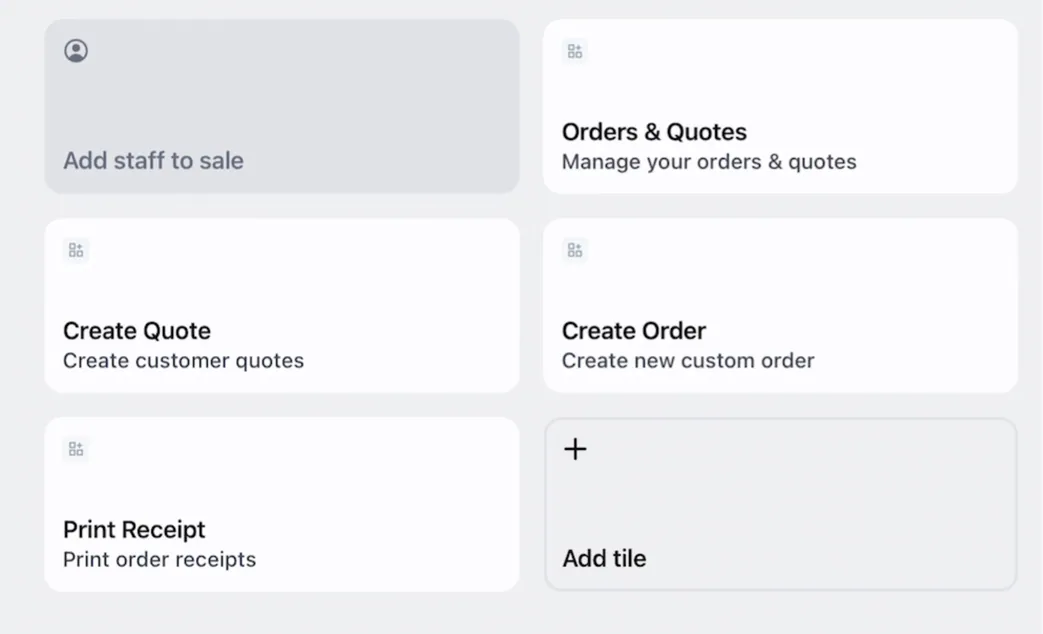
Choose the OrderPilot app in the tile picker. Add the 4 entries listed below, then save the layout.
Tile-picker entry Title on the iPad Create new quotes Create Quote Create new orders Create Order Manage and view orders from the POS interface Orders & Quotes Print order receipts Print Receipt Step 3: Assign and check the layout
Assign the saved layout to the showroom location. Open Shopify POS at that location and tap Orders & Quotes to check access.
The other tile subtitles read Create customer quotes, Create new custom order and Print order receipts. Orders & Quotes reads Manage your orders & quotes.
Let staff use OrderPilot on POS
Step 1: Enable POS for the role
Open SettingsStaff & rolesRoles and choose the role. Under Where they can use OrderPilot, tick On Shopify POS.
Set the permissions for that role and save. Create Quote and Create Order need Create and edit quotes and orders. Orders & Quotes and Print Receipt need View quotes and orders.
The role now permits POS use, subject to the access rule for the register. Read roles and permissions before granting wider access.
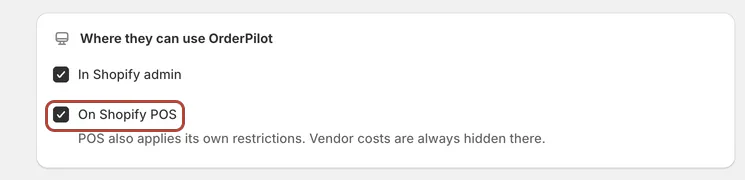
POS access is enabled separately from Shopify admin access. Step 2: Choose whose role applies
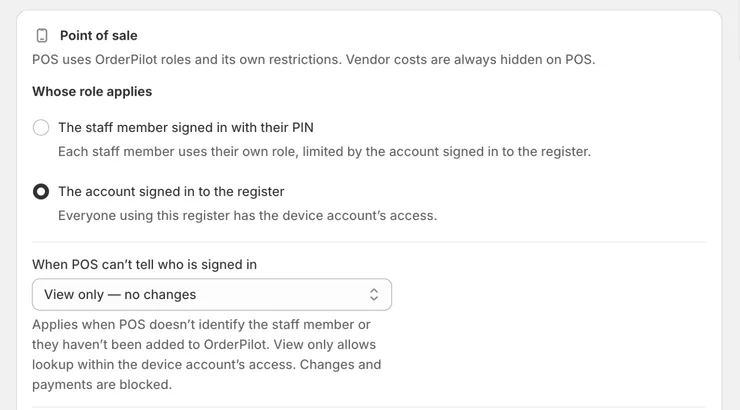
Open SettingsStaff & rolesAccess rules. In Point of sale, choose Whose role applies.
The account signed in to the register is the default. Everyone on that register uses the device account's access.
The staff member signed in with their PIN uses that person's role, limited by the device account. Save the rule; it applies when OrderPilot next opens.
Step 3: Choose access for unidentified staff
Set When POS can’t tell who is signed in to View only — no changes or No access, then save.
View only is the default. The choice controls what happens when OrderPilot cannot identify the staff member; it does not create a staff record.
For a shared register, continue with shared iPads and PINs.
Step 4: Add a newly seen staff member
Have the person open OrderPilot on the iPad. Return to Recent POS sign-ins and find their Not in OrderPilot row.
Click Add to OrderPilot. Enter First name and, if needed, Last name, then click Add to OrderPilot.
The person can now be given a role and locations through staff access. Confirm the identity before assigning access.
Check the settings that change POS
Review these settings in the app before training staff. Quotes & orders settings explains the wider defaults.
| Settings area | What changes on POS |
|---|---|
| Quotes | Show vendor on product template cards adds vendor names to the picker. Require vendor selection removes Decide later and requires a vendor before final creation. |
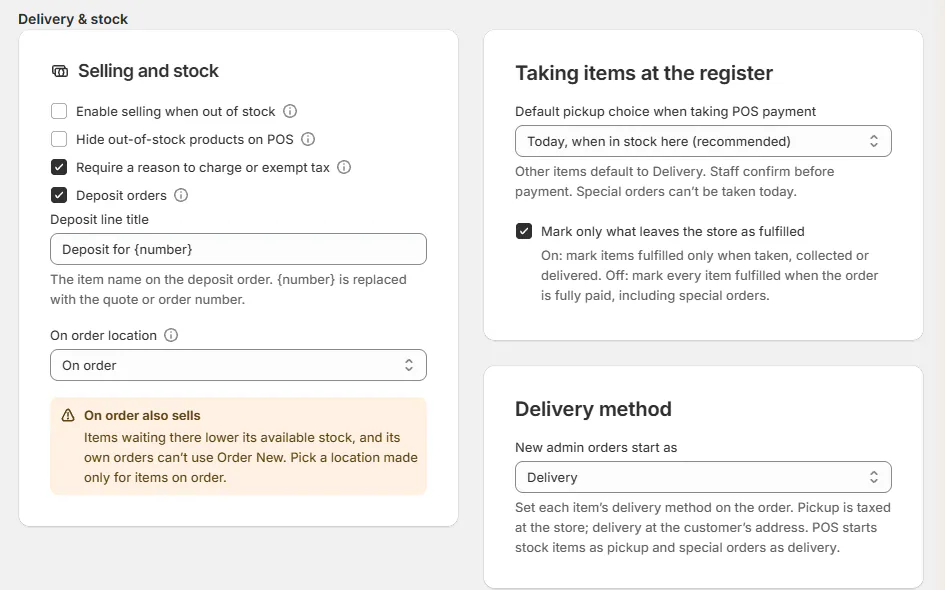
| Delivery & stock | Hide out-of-stock products on POS hides Shopify products with no stock at the register's location. It starts off. |
| Default pickup choice when taking POS payment | Choose Today, when in stock here (recommended), or Pick up later. Other items default to delivery; special orders cannot leave today. |
| Mark only what leaves the store as fulfilled | When on, items are fulfilled when taken, collected or delivered. When off, full payment fulfills every item and removes the Today choice. |
| Discounts | POS order discounts cover products and fees, excluding warranty plans. Required item-discount reasons print for the customer. |
| Statuses | A status that disallows editing also locks editing on POS. |
| Order fields | These appear in Quote information. |
| Fees | Saved fees are available when staff add charges. |
| Commissions | Splitting sales credit controls splits. Quick picks on POS offers matching predefined shares. |
| POS receipt | Set the receipt logo, position, store name, slogan, text and QR choice. |
| Receipt terms (short) | Location terms supply the footer on 80 mm receipts. |
| Email customers their signed copy | Electronic signing sends the signed PDF and copies the salesperson. Recording an external signed copy sends nothing. |
| Name prefix | Identify tracked option products as add-ons in Shopify POS. |
Choose the made-to-order destination on each Order New item. There is no shared On order location setting. Separate deposit orders are managed in the app.
Screen reference
What happens next
Staff can create quotes from the smart grid. Each tile checks access again when tapped, so reopening OrderPilot picks up the access rules.
The Activity tab records added POS staff. Greyed-out POS actions show an information control explaining the restriction.
Example: the Harlow & Finch showroom
Example · Harlow & Finch Interiors
Sam can quote without changing prices
Nora Ellis prepares the showroom for Sam Ortiz.
- Add all 4 tiles to the showroom layout.
- Give the Salesperson role POS access and permission to view, create, edit and convert quotes.
- Leave price overrides off.
- Give Jo Park's warehouse layout Orders & Quotes and Print Receipt.
- Open OrderPilot as Sam and check that Discount is unavailable with its reason.
If something goes wrong
The tiles are missing
Check that the saved layout includes them and is assigned to this register's location.
A tile says Access restricted
Tap it to read the reason. Check POS access and the tile's required permission.
Recent POS sign-ins is empty
Open OrderPilot on the iPad first, then return to Access rules.
Access rules is view only
Ask someone with permission to manage roles or assignments to change the rules.
Products are missing
Check their Point of Sale channel availability and the setting that hides out-of-stock products.
Decide later is missing
Require vendor selection is on. Choose the vendor or save an unfinished draft.
Was this guide helpful?
Thanks. Tell us what was missing at support@meetorderpilot.com.