Download and print quote and order PDFs
Where are you working?
Related guides
- Add terms to quotes and ordersPayments and signatures · 4 min
- Review payments and invoices, and refund a paymentPayments and signatures · 5 min
- Email a quote or orderQuotes and orders · 5 min
- Set up your brand kitBranding · 6 min
- Business details and what each location printsSettings and integrations · 6 min
Download the quote, sales order or invoice, or print the full document from POS. Check that you have the right document type and version before sharing it.
A signed record uses the stored copy frozen at signing. That is different from generating a fresh document from an unsigned sale's current details.
Before you start
Open the correct sale
Start from Create a quote or order or an existing record.
Check access
Viewing documents needs View quotes and orders.
Check billing
A fresh PDF needs the record's owning location to be billed.
Prepare POS printing
Connect a printer to Shopify POS before using its print action.
The PDF's appearance comes from SettingsBrandingQuote PDF. Your brand kit covers the shared branding choices.
Location details, standard terms, wire instructions and order notes come from Business details and documents.
Download the document
Step 1: Download the quote or order
Open •••, then choose Download Quote PDF or Download Order PDF. The same eligible action appears on list-row menus.
The page shows Downloading PDF..., then PDF downloaded successfully. Open the downloaded document to inspect it.
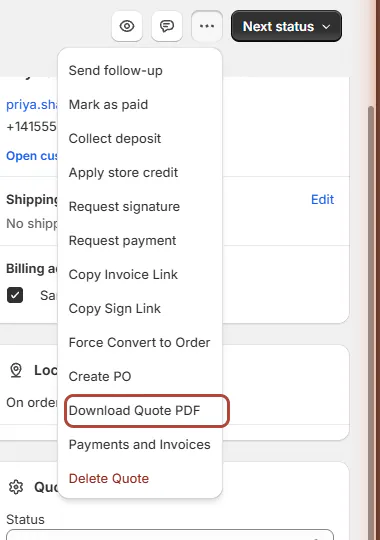
Choose the document for this quote or order. Step 2: Check whether it is signed
Read the document and signature area. On a signed record, the download is the stored signed copy.
Use Signature records when you need the agreement's evidence or an older signature version. Do not assume later catalog edits changed this signed document.
Step 3: Download an invoice
Open Payments and Invoices, switch to Invoices, then choose Download on the intended current or archived version.
Refunds and payment history explains those versions. Invoices are downloaded from that tab, not a separate order-menu invoice action.
Step 4: Print the downloaded file
Open the PDF in your usual document viewer and use its print command. Check the preview and page range before printing.
The app's order menu has no Print item. The downloaded PDF is the document you print from the computer.
Print the full document on POS
Step 1: Open the print choices
Open the quote or order and tap Print. Choose Print Quote or Print Order.
The full PDF opens through POS's print preview. Check that the selected document belongs to the customer in front of you.
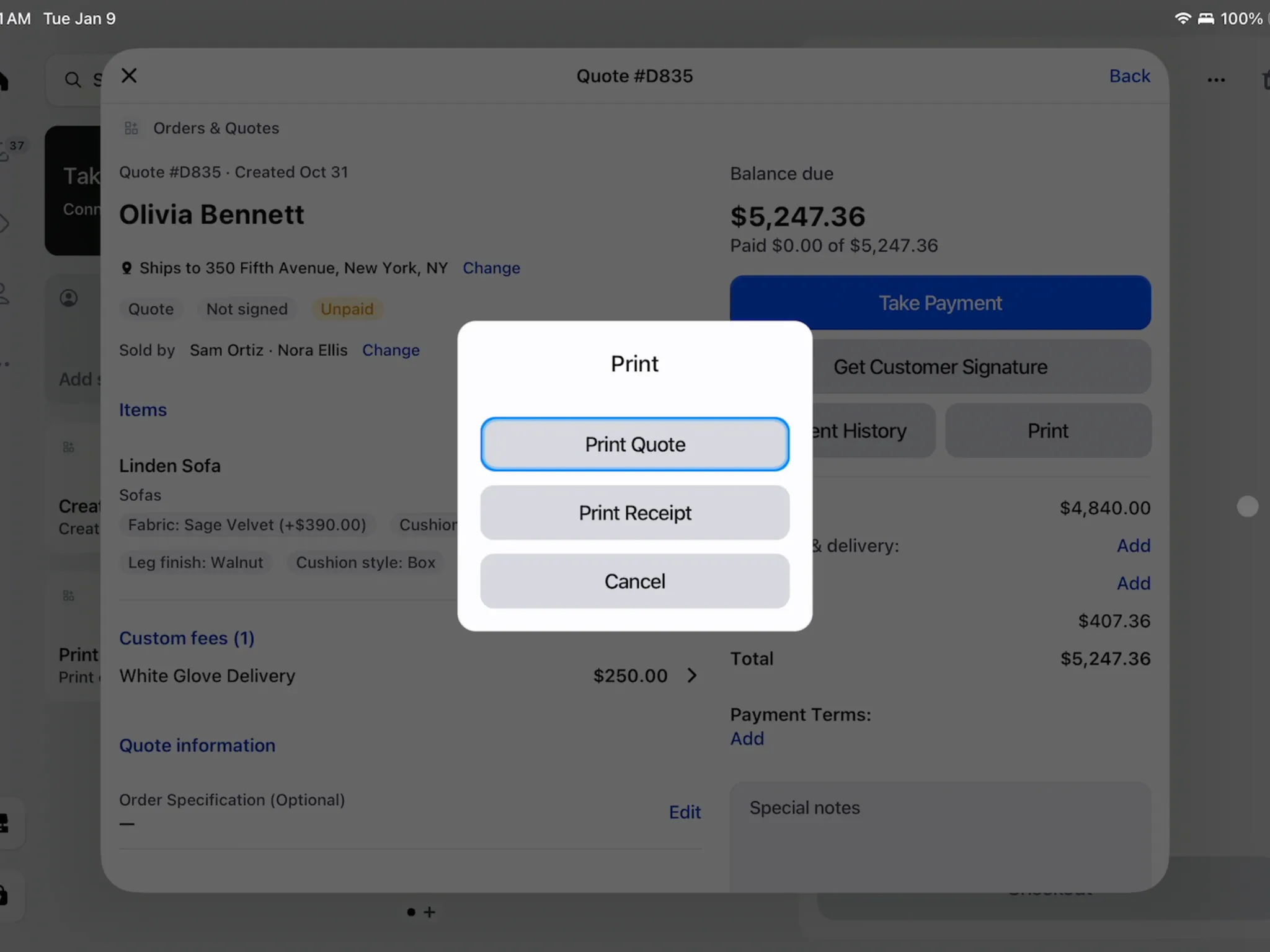
Print Quote and Print Receipt produce different documents. Step 2: Review and print
Review the preview, then print through POS. The document uses the same PDF rendering and assigned theme as the app download.
For a signed sale, the stored signed copy is used. Check the version if the customer requested a copy after later changes.
Step 3: Choose the other format when needed
Use Print Receipt for the 80 mm receipt. Use Print to Sign when the customer will sign a printed agreement.
Those actions serve different tasks. A receipt is not the full quote PDF, and printing a document does not itself record a signature.
Read the document from top to bottom
| Area | What it contains |
|---|---|
| Header | Logo, document number and reference, customer details, addresses, quote date, validity date and salesperson. |
| Bill to and Ship to | The relevant customer addresses, with company beneath the name. All-pickup and services-only sales use their applicable address treatment. |
| Line items | Products and options, with options following the template's field order. |
| Delivery groups | Separate Delivering, Store pickup and Services tables appear when the sale needs them. |
| Summary | Product subtotal, named fees, discount rows, shipping, tax, total and payment information. |
| Signature and notes | The customer signature and date, applicable waiver wording, wire instructions and sale notes. |
| Terms | Standard location terms, followed by relevant category and product terms. |
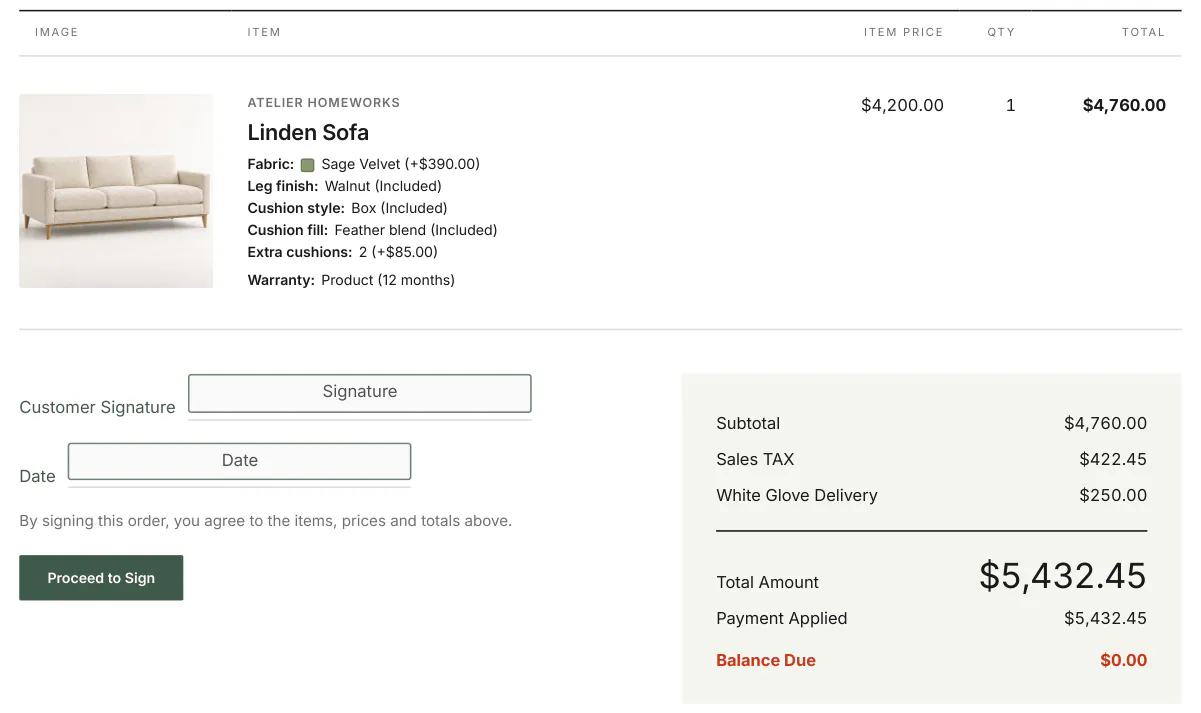
Each fee prints by its own name. Subtotal and fee rows show gross amounts; Line Discounts, Fee Discounts and order Discount are separate reductions.
The payment area can include a Pay button. For customers abroad, the document identifies the store currency rather than implying their local currency applies.
The order's own note prints below the location note and above the signature. Treat both notes as customer-facing content.
Additional terms can include categories and selected products. Terms on documents explains their order and how signing preserves them.
Sales Order PDFs can include Memo, Credit Card Authorization and Rental Agreement pages according to the assigned theme. These are not additional pages on every quote.
What happens next
The first order PDF assigns its sales order number. Quote files use the quote number; invoices use their own numbering and later-version suffixes.
A document has one Customer Signature and Date area. Its terms page does not add another signature line.
After Force Convert, the signature area can say Signature not required with the staff member and date. That records the exception, not a customer signature.
Example: Olivia's quote copy
Example · Harlow & Finch Interiors
Check the downloaded agreement
Sam Ortiz downloads Olivia Bennett's Linden Sofa quote.
- Sam checks Olivia's details and the selected options.
- Sam checks White Glove Delivery as its own fee row.
- Sam checks the applicable category terms.
- Sam prints the downloaded PDF for Olivia.
Example: print at the register
Example · Harlow & Finch Interiors
Use the full PDF
Olivia asks for a paper copy during her showroom visit.
- Sam opens her quote and taps Print.
- Sam chooses Print Quote.
- Sam reviews the full-document preview.
- Sam prints the customer copy.
If something goes wrong
Download is greyed out
Check the location's subscription. Fresh documents require a billed location; stored signed copies stay readable.
Valid until is in the past
It is calculated from creation, with a default of 30 days. Reviving a quote does not restart that date, and the date is not enforced as an expiry.
The validity period cannot be changed here
It is not an ordinary quote-page setting. Confirm the supported document-setting route with support.
No terms page appears
Blank-only terms do not produce a terms page.
Couldn't print
Review the printer connection and retry the intended document.
Was this guide helpful?
Thanks. Tell us what was missing at support@meetorderpilot.com.