Set up lead times for vendors and options
Related guides
- Set up vendorsCatalog · 5 min
- Create options and valuesCatalog · 6 min
- Read and change an order's delivery promiseQuotes and orders · 5 min
- Quotes & orders settingsSettings and integrations · 4 min
- Create a product templateCatalog · 6 min
Lead times are the expected durations used to plan when a product can be ready. OrderPilot combines vendor build time, the longest selected option lead time, transfer to your store and any delivery time.
These figures feed the order’s delivery promise, which uses the longest line calculation to help staff plan the sale. The full order calculation is an internal planning figure; it is not automatically shown on customer documents or the portal.
Keep unknown durations blank. A blank value means Not set; 0 means Same day. Both add no days, but missing information remains visible.
Before you start
Set up the catalog
Start with vendors and options. You can then enter shared durations and template-specific exceptions.
Use whole days
Every duration accepts whole calendar days from 0 to 3,650.
Check permissions
Vendor days need Manage vendors. Delivery days need Manage order and quote settings. Option durations need Manage the catalog.
Options are made in parallel. Only the slowest selected option adds time; you do not add every option's duration together.
Pickup skips delivery days. An in-stock Shopify product uses delivery days only; Order new also adds vendor build and transfer until arrival.
Set vendor build and transfer times
Step 1: Open the vendor
Go to SettingsPurchasing & accountingVendors. Open Atelier Homeworks to see Edit Vendor.
Step 2: Enter the durations
Under Lead time, after Order minimums, enter Build time (days) and Transfer to us (days). Use 21 and 3 for this example.
Leave an unknown value as Not set. Click Update Vendor to save the durations.
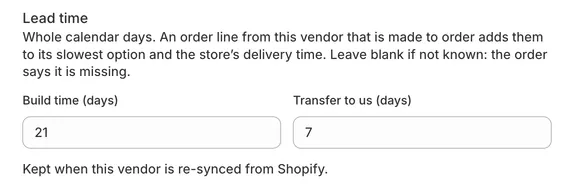
Edit Vendor dialog, Lead time section with Build time 21 and Transfer to us 3 Shopify vendor re-syncs keep these durations. Vendor history labels them Build time (days) and Transfer time (days).
Set your delivery time
Step 1: Enter the store's delivery days
Open SettingsQuotes & ordersDefaultsDelivery & stock. In Delivery method, enter 5 in Delivery to customer (days).
Save using the Save bar. Delivery items now include these days; Store pickup items skip them.
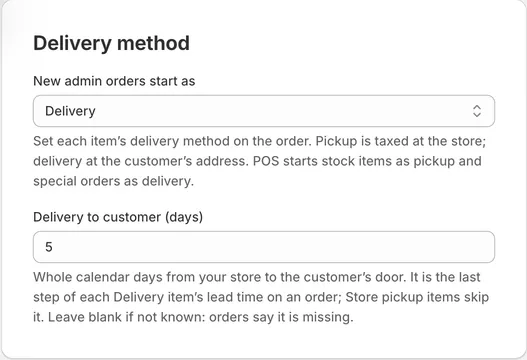
Delivery method card with Delivery to customer (days) = 5
Set option lead times
Step 1: Edit the shared option
Go to SettingsProductsOptions and open Fabric. Click a value's Lead time figure and enter its days.
Use 30 for Sage Velvet, then Save. Clear a figure to leave it Not set.
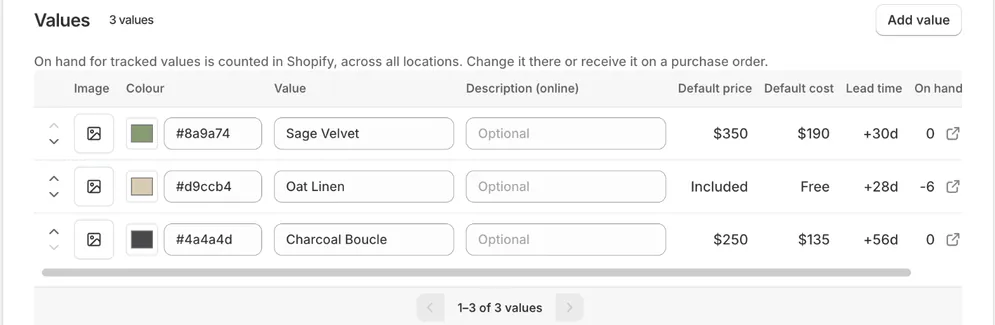
Each value adds its own days; Sage Velvet takes 30. Number, Dimensions and Text options have a single Lead time field rather than a table of value durations.
Step 2: Override one template
Open the template's Options card and click Manage on the option. Enter an override in Lead time, then Save.
Leave the override blank to follow the shared option. An asterisk marks a duration set on the template.
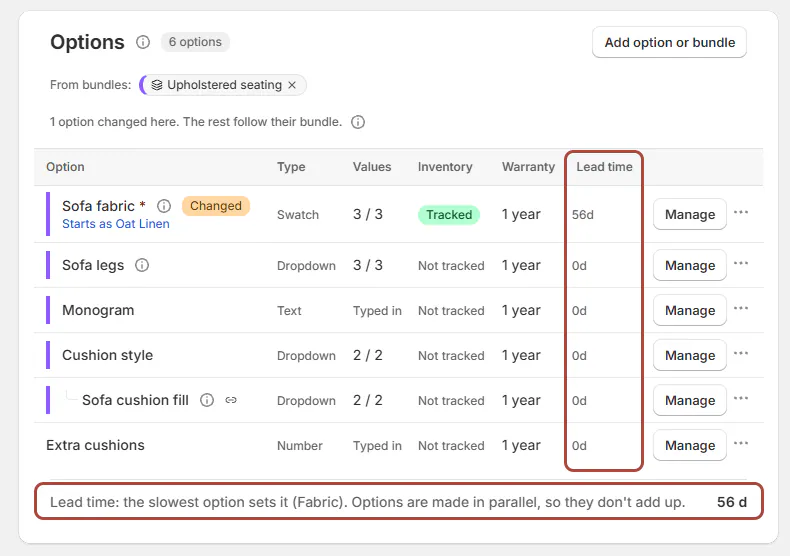
Template Options card with the Lead time column and the slowest-option line under it The template's figure is its slowest offered value. A dash means none of its offered values has a duration.
For many values, use Value lead time (days) in CSV import. Blank means unknown; 0 means same day.
Check the quote's calculation
Step 1: Open a configured line
Add a Linden Sofa to Olivia Bennett's quote, choosing Sage Velvet and a Leg finish with a 14-day duration.
Read the made-to-order lead-time link beneath the line. It shows readiness in days, weeks or a missing-information message.
Step 2: Inspect the breakdown
Click the link to open Lead time. Review Vendor build, Options, Transfer to us, Delivery to customer and Total.
For missing vendor or delivery figures, use Set it in Vendors or Set it in Order defaults. The breakdown identifies the missing part.
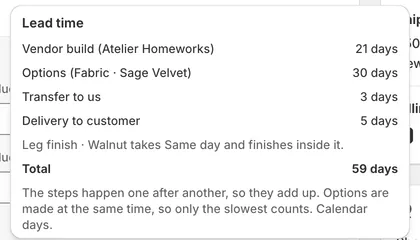
A Linden Sofa line's Lead time popover: Vendor build (Atelier Homeworks) 21 days, Options (Fabric · Sage Velvet) 30 days, Transfer to us 3 days, Delivery to customer 5 days, Total 59 days Below 14 days, the line shows days. From 14 days, it shows rounded weeks; the breakdown retains the exact day count.
What happens next
Quotes and unplaced drafts follow current durations. Placing an order records its promise, which later catalog edits do not replace.
The Delivery promise uses the longest order line. A placed order can show its recorded promise beside Today's calculation.
Template figures appear in Products, the template's Options card and the online block when Show lead time is on. These use the slowest offered value.
The full order calculation appears in the app. It does not appear on quote PDFs, purchase orders, POS, emails or the portal.
Example: Olivia's Linden Sofa
Example · Harlow & Finch Interiors
Calculate 59 days
Nora Ellis sets up the sofa's durations at Harlow & Finch Interiors.
- Set Atelier Homeworks' build time to 21 days and transfer to 3.
- Set store delivery to 5 days.
- Set Sage Velvet to 30 days and Walnut leg finish to 14.
- Add both choices to Olivia's Linden Sofa.
The total is 21 + 30 + 3 + 5 = 59 days, shown as about 8 weeks. Pickup reduces it to 54 days.
The template itself shows 30 days. A Mira Dining Chair template can override Sage Velvet to 14 without changing the shared value.
Important notes and tips
You only need durations on choices that delay a piece. Missing values add no days, but remain identified in the breakdown.
Bundles do not replace a template's own lead times. Check the template override when the shared option and template disagree.
When purchase-order receipts cover the product and every tracked option bought for it, the line reads Made to order · arrived.
If something goes wrong
A duration will not save
Enter whole days between 0 and 3,650, or clear it. Hover over a greyed save control for the invalid field.
The line says lead time not known
Open its breakdown and supply the missing vendor, option or delivery duration.
An older value says Same day unexpectedly
Contact support@meetorderpilot.com to check older unset durations that need correcting.
A placed order kept its old promise
Placement records that promise. Review its recorded date and today's calculation separately.
Was this guide helpful?
Thanks. Tell us what was missing at support@meetorderpilot.com.