Messages & notifications settings
Related guides
- Set up your sending domainEmails and messages · 5 min
- Set sender details, replies, and email copiesEmails and messages · 4 min
- Choose which emails go out, and whenEmails and messages · 5 min
- Send customers text messagesEmails and messages · 3 min
- Run the Inbox for a team: assign, quick replies, reply goalEmails and messages · 4 min
Find sending controls, recipients, reply routing, saved answers, and delivery history under Messages & notifications. Email designs live separately under Branding.
The page has 3 tabs: Sending settings, Quick replies, and Delivery activity. Use Manage shop settings to change this setup.
Before you start
Understand the sending rules
Read which emails go out before changing automatic notifications.
Find the right page
Edit subjects and designs at SettingsBrandingEmails.
Sending setup
Open SettingsMessages & notificationsSending settingsSending setup. This section controls the sending identity and domain.
| Control | What it does |
|---|---|
| Sender | Holds the required Sender name shown in customer inboxes. |
| Domain | Shows verification records, Show full names, and Check again, plus DMARC and branded links when offered. |
| Change domain | Replaces the sending domain and requires new verification. |
| Remove setup | Disconnects the domain. |
| Run guided setup again | Reopens completed guided setup. |
| Continue guided setup | Resumes an unfinished setup. |
Follow Set up your sending domain for DNS verification. Changing domains cancels waiting customer emails and removes the old reply-capture setup.
Email & SMS rules
Open SettingsMessages & notificationsSending settingsEmail & SMS rules.
| Control | Default and effect |
|---|---|
| Send customer emails | Off. Controls customer email, including staff sends. Turning it off cancels waiting emails. |
| Send an email when an order is created | On. The Sends on chips identify eligible statuses; Draft doesn't trigger the creation email. |
| Send status emails when staff change a status | On. Turning it off leaves automatic status moves eligible to send. |
| Email customers their signed copy | On. Uses the Signed copy email after a customer signs in OrderPilot. |
| Remind customers about unfinished quotes | Off. Sends one reminder for an eligible quote still in Draft. |
| Send customer text messages | Off. Appears in Text messages when texting is available and requires setup. |
Reminder Wait before reminding starts at 48 hours, with 24 hours, 72 hours, and 1 week also available. Sending hours offers Any time or the displayed daytime windows.
Reminder template starts with Quote follow-up (default). See sending rules for creation conditions, status triggers, and reminder exclusions. See text messages for SMS setup.
Recipients
Open SettingsMessages & notificationsSending settingsRecipients.
| Control | What it does |
|---|---|
| Default CC and BCC | Prefills copies for Purchase Orders or Sales Orders. |
| Shop-wide | Supplies the default recipient lists. |
| Brand | Overrides the shop-wide list when enabled and non-empty. |
| Location | Overrides brand and shop-wide lists when enabled and non-empty. |
| Also copy these addresses | Adds copies to customer order emails. |
CC and BCC resolve separately. Defaults prefill the composer; Copies of customer emails is a separate rule. Review sender and copy settings before changing either.
Replies
Open SettingsMessages & notificationsSending settingsReplies.
| Control | What it does |
|---|---|
| Reply-to addresses | Comma-separated addresses that receive a plain reply. An empty list uses the sender address. |
| Reply time goal | The wait before an unanswered conversation becomes overdue. |
| Hours | Starts at 4 and accepts a whole number from 1 to 168. |
| Receive replies | Captures customer and vendor replies on their records. |
| Set up | Starts reply capture after domain verification. |
| Check record | Checks its DNS record. |
| Turn off | Stops reply capture. |
Receive replies can show Not found yet, Found, or Needs attention. Follow reply setup for routing and team Inbox setup for the clock-hour reply goal.
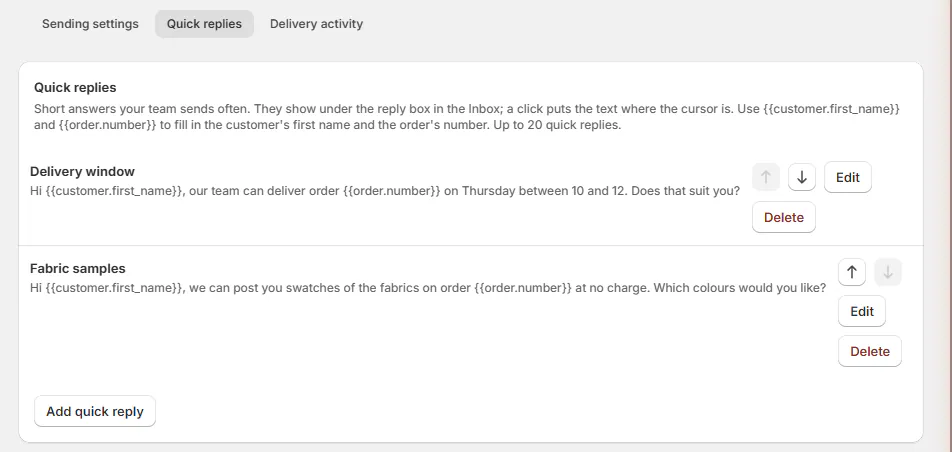
Quick replies
Open SettingsMessages & notificationsQuick replies.
| Control | Limit or effect |
|---|---|
| Add quick reply | Creates a saved answer for the Inbox. |
| Title | Up to 60 characters; appears on the reply button. |
| Text | Up to 2,000 characters. |
| Edit | Revises an existing answer. |
| Up and down arrows | Set the order of the reply buttons. |
| Delete quick reply? | Confirms removal. |
You can keep up to 20 replies. Supported placeholders are {{customer.first_name}} and {{order.number}}. These answers are used in the Inbox reply composer.
Delivery activity
Open SettingsMessages & notificationsDelivery activity.
| Control | What it shows |
|---|---|
| Group | Filters by email group. |
| Status | Filters Opened, Clicked, Delivered, Bounced, Sent, Scheduled, Failed, or Cancelled. |
| Search | Finds a customer or order. |
| Date | When the activity occurred. |
| Recipient / order | Who and which record the email concerns. |
| Template | The selected email design. |
| View | Opens the email's details. |
Use Emails aren't reaching customers to interpret results. A scheduled or sent message doesn't establish that the customer read it.
If something goes wrong
Sending switches are greyed out
Turn on Send customer emails before changing dependent rules.
Sending is paused for safety
Contact support@meetorderpilot.com to review delivery problems before resuming.
Text messages is missing
Texting isn't available or set up for the store.
Settings are read-only
Your role needs Manage shop settings to change them.
Was this guide helpful?
Thanks. Tell us what was missing at support@meetorderpilot.com.