Emails aren’t reaching customers
Related guides
- Choose which emails go out, and whenEmails and messages · 5 min
- Set up your sending domainEmails and messages · 5 min
- Set sender details, replies, and email copiesEmails and messages · 4 min
- Edit and publish your email designsEmails and messages · 5 min
- Email a quote or orderQuotes and orders · 5 min
A customer hasn't received an email, or found it in spam or Promotions. Check the recorded send before changing the design or sending another copy.
Delivery activity helps separate an email that never sent from one accepted by the recipient's mail service. Neither a sent status nor a delivery status guarantees the customer noticed it.
Check these first
Find the customer in SettingsMessages & notificationsDelivery activity. Also check View all emails on the order and ask the customer to check spam and Promotions.
Look at the email group's chip under SettingsBrandingEmails. Off, Paused, Manual only, and Not sending explain why an automatic email may not be expected.
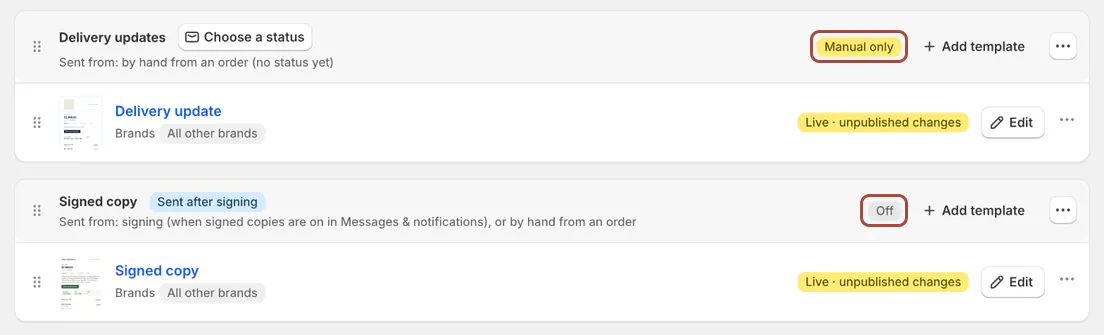
Use Email a quote or order for a manual send after you identify the cause. Repeated copies won't repair an incorrect address or inactive sending setup.
Check whether an email arrived
Step 1: Find the recorded send
Use Group, Status, and Search to find the customer's email. Search accepts a customer or order. The table shows Date, Recipient / order, Template, Status, and View.
Usage and 30-day engagement appear above the history. Focus on the individual send when investigating one customer's missing quote.
Step 2: Read the send details
Click View to inspect the email as sent. Use Show text version or Compare with current when comparing its content with today's template.
Status What to check next Scheduled The message is waiting for its scheduled send. Sent Check again for delivery, then ask about spam folders. Delivered Ask the customer to search their mailbox. Opened or Clicked Review the recorded engagement alongside the customer's report. Bounced Check the address and failure detail. Failed Open the error shown in the send view. Cancelled Read why the queued send was stopped.
Find why an email didn't go out
Step 1: Check sending and domain verification
Open SettingsMessages & notificationsSending settingsEmail & SMS rules. Confirm Send customer emails is on, then check the domain under Sending setup.
Use domain setup when it isn't verified. A domain that was verified earlier can still need attention if its records were removed.
Step 2: Check the trigger
Review which emails go out. The status needs the correct email group, and a new record needs the creation rules enabled.
Draft doesn't send automatic status emails. Staff changes send none when the manual-status-email rule is off. An email group set to Manual only won't start sending from an unrelated status.
Step 3: Check the record and recipient
A failed Shopify sync prevents the creation email. Follow failed sync recovery, then send the intended email from the order.
A storefront request still being priced uses price-free automatic messages. Finish pricing before expecting a priced quote email.
A bounced, spam-reported, unsubscribed, or otherwise suppressed address is refused for later customer sends. Correct a mistyped address; don't treat an unsubscribe as an address error.
Step 4: Check subscription-related cancellations
A location removed from the subscription has its scheduled sends cancelled. An ended subscription cancels scheduled sends across the store. Check subscription and locations when the activity names either cause.
Changing the sending domain or turning customer email off also cancels waiting messages. Cancelled emails don't resume automatically after you fix the cause.
Sending is paused for safety
Step 1: Ask support to review the pause
If the banner says Sending is paused for safety, contact support@meetorderpilot.com. Only OrderPilot support can turn sending back on after reviewing delivery problems.
The pause uses recent bounce and spam-report rates, including thresholds of 5% bounced or 0.1% reported as spam over 24 hours. Minimum counts and volume also apply.
A verified domain doesn't need DNS changes merely because sending is paused. Share the affected recipients and recorded errors so support can investigate the delivery problem.
Keep emails out of spam
Step 1: Check identity and reply routing
Confirm domain verification and DMARC, plus branded links where offered. Use a monitored Reply-to address instead of a noreply-style address.
Step 2: Review the message design
Resolve relevant editor warnings. Keep the email focused on the order, reduce unnecessary links, and provide useful text alongside images.
Authentication, sender reputation, recipient behavior, and content all affect placement. Clearing a design warning doesn't guarantee the Primary inbox.
Step 3: Review domain reputation when available
Your domain administrator can use Google Postmaster Tools and add its verification TXT record alongside existing records. A small store may show No data.
Keep reported spam below 0.1%. Use those results alongside Delivery activity, rather than interpreting missing reputation data as proof that delivery is healthy.
If it still fails
After fixing the cause, send the email again from the order. Use the corrected address when the original address was wrong. A sending pause still requires support to resume.
Olivia Bennett's email may show Delivered and Opened while sitting in Promotions. Marcus Reed's may bounce because of an address error. Priya Shah's unsubscribe stops later customer emails to her address.
Contact OrderPilot support with the record, recipient, exact error, and any error ID. Explain whether the send failed, bounced, was cancelled, or was delivered but unseen.
Was this guide helpful?
Thanks. Tell us what was missing at support@meetorderpilot.com.