See what changed and restore an earlier version
Related guides
- Edit a quote or orderQuotes and orders · 5 min
- The quote and order pageQuotes and orders · 6 min
- Set signature and minimum-deposit requirementsPayments and signatures · 5 min
- Give staff accessTeam and permissions · 7 min
- Edit or cancel a purchase orderPurchasing · 6 min
See who changed a record, compare its saved versions and restore an earlier version when your role allows it. Read the comparison before restoring.
Restoring creates another saved version. It keeps the later history, so you can still see what happened between the version you chose and today.
Before you start
Know the record
Orders have their own activity history. Vendors, brands, categories, locations, options, templates and purchase orders use the shared Activity card.
Have edit access
Restore requires the permission that edits the record. For orders, start with Edit a quote or order.
Check the current state
A restore follows the record's normal saving rules. Locks, purchasing links and receiving checks still apply.
Version 1 represents the order as created, including orders started in the app, on POS or through an online request. Customer edits can create versions too.
Read the activity and comment
Step 1: Open the history
Open the record and find Activity. Choose All activity to read events and comments, or Version history to focus on saved versions.
On an order, look for rows marked vN. Their hover text identifies a saved version you can restore.
Step 2: Read the earlier entries
Click See more when older entries remain hidden. Expand the version you want to inspect.
A version shows State after this save, or State when created for the initial version. Status changes show Triggered by information; automatic moves are system-authored.
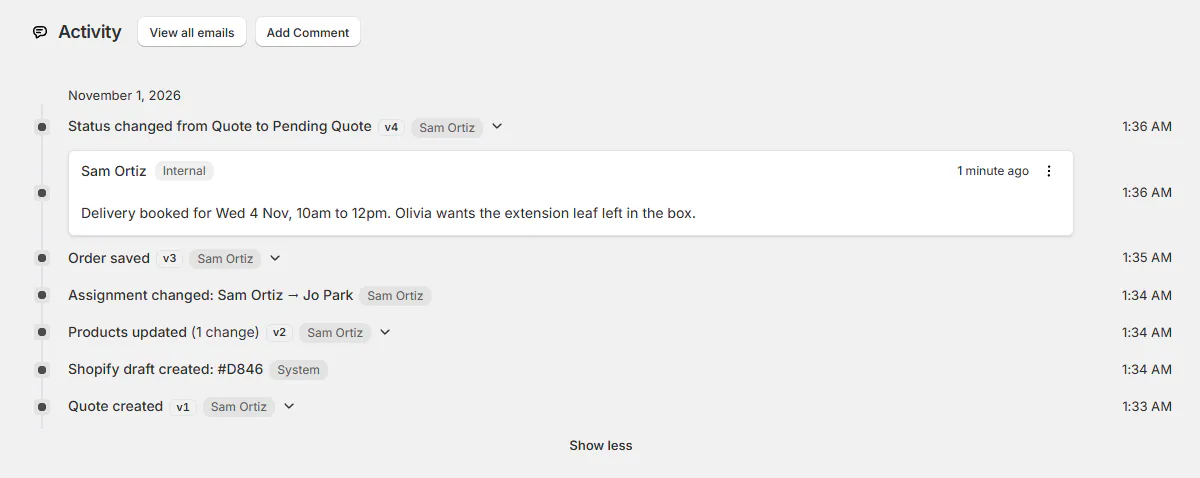
Activity brings comments and saved changes together. Step 3: Add a comment
Enter your comment, using @ when you want to tag a teammate. Click Add Comment, or press Ctrl+Enter.
Comment added successfully confirms the save. Keep the comment specific, such as the fabric choice you discussed with Olivia.
Restore an earlier version
Step 1: Choose the saved version
Open Version history and select the version you need. On an order, expand its vN row.
Click Restore this version. The comparison dialog opens, showing how the selected version differs from today's record.
Step 2: Review the changed fields
Read Field, Current and After restore. The dialog states how many changed fields will be undone.
Check every row, including changes unrelated to the mistake you intended to fix. Restore only when the proposed result is the record you want.
Step 3: Confirm the restore
Click Restore version N, using the version number shown. Wait while the button reads Restoring….
Version N restored confirms completion. The record shows the restored values and another entry in its activity history.
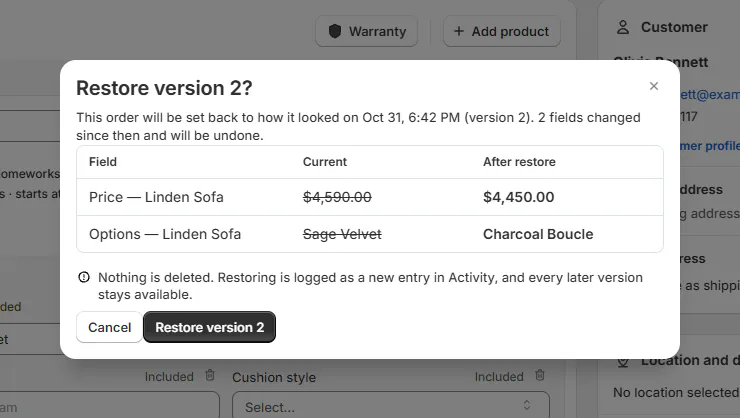
Review the proposed quote changes before confirming.
What a restore leaves alone
| Record | What to check |
|---|---|
| Quotes and orders | A restore leaves status, review flag, the customer's current profile and costs unchanged. A changed agreement can require another signature. |
| Purchase orders | Restoring needs Prepare purchase orders. Status changes also need Send and cancel purchase orders; cost changes need Enter costs and charges. |
| Sending purchase orders | A saved Sending version restores as Sent and does not email anyone. |
| Product templates | Restoring an active template sends its restored title, price and tax category to Shopify. Restoring an older version can remove a later tax category. |
| Vendors | A version from before build and transfer times existed keeps today's values for those fields. |
| Delivery promises | Restoring an order version without a forced promise removes that override. |
| Brands | A restore does not restore the brand's place in the list. |
Check Signature and deposit requirements before sending a changed agreement back to the customer.
What happens next
Review the current record after the confirmation. Use its new activity entry to identify the restore when discussing it with a colleague.
For an active template, allow its Shopify update to finish before checking the matching product. Manage product templates covers the template's publishing controls.
Example: restore the earlier fabric choice
Example · Harlow & Finch Interiors
Keep the change history
Olivia Bennett asks Sam Ortiz to return her Linden Sofa quote to the previously selected Sage Velvet.
- Sam opens the quote's version 2.
- Sam compares the current fabric with After restore.
- Sam checks the other proposed changes.
- Sam restores version 2 and reads the confirmation.
- Sam checks whether the changed agreement needs another signature.
If something goes wrong
There is nothing to restore
The record already matches that version, or you selected the current version.
Earlier versions cannot be rebuilt
A change happened outside the activity history. Use a version the dialog can reconstruct.
Some items had no price yet
Choose a later version with priced items.
Restore would remove a purchased line
A line linked to a purchase order cannot be removed through restore.
Restore is unavailable
Check the displayed reason. A deleted Shopify image, a locked order or an active save can prevent restoring.
The purchase order is finalized
Reopen it before restoring. Receiving can also prevent restoring an earlier status or reducing quantities below received or rejected units.
For Restore failed, copy the error ID and follow Get help from support.
Was this guide helpful?
Thanks. Tell us what was missing at support@meetorderpilot.com.