Review payments and invoices, and refund a payment
Where are you working?
Related guides
- Collect a paymentPayments and signatures · 6 min
- How payments workPayments and signatures · 5 min
- Take a depositPayments and signatures · 5 min
- Take some items home and deliver the restQuotes and orders · 5 min
- Download and print quote and order PDFsPayments and signatures · 5 min
Review payment requests, received money, refunds and invoice versions before correcting a sale. Record cash refunds in OrderPilot; handle card refunds and returns in Shopify.
A refund record and a stock return are different actions. The cash-refund action does not restock items.
Before you start
Open a created sale
Payment history is unavailable on a draft saved only in OrderPilot.
Check history access
Viewing the sale needs View quotes and orders.
Check refund access
Cash refunds need Refund payments and an available refundable amount.
Identify the payment
Check whether it belongs to the main sale, a deposit order or one part of a split sale.
Collect a payment explains recording received money. Check for an existing payment before recording another one.
Inspect payments and invoices
Step 1: Open the payment history
Choose •••, then Payments and Invoices. Start on Payments.
Read the request and transaction rows, their states and any Store credit or deposit label. The Refunds section records returned amounts.
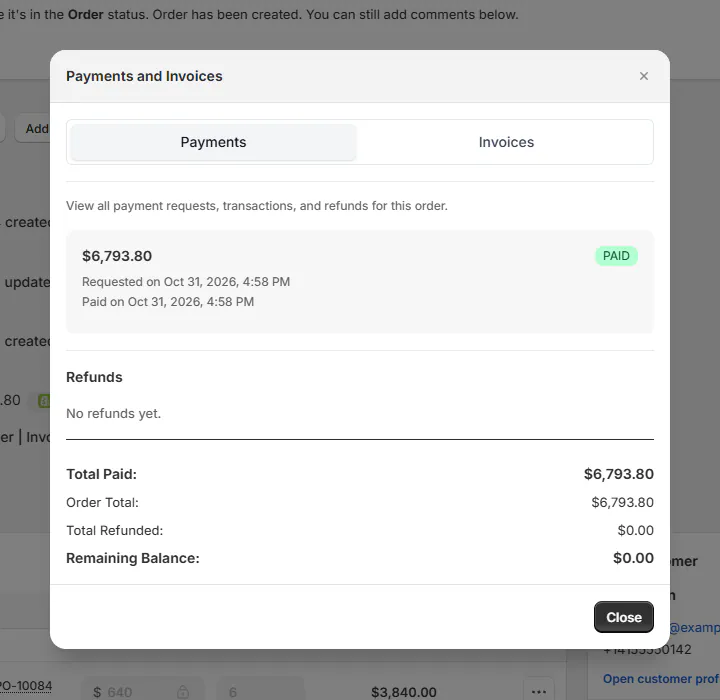
Review received and refunded amounts before making a correction. Step 2: Cancel an unwanted request
Find the open request and click Cancel request. Read the warning before confirming Cancel invoice.
The customer's link stops working. Choose Keep if the request should remain available.
Cancelling a request is not a refund. It withdraws that unpaid request rather than returning money already received.
Step 3: Mark a received deposit paid
On an eligible deposit row, click Mark as paid. Enter How was it paid? and confirm Confirm paid only after checking receipt.
The deposit is marked paid in Shopify, and its payment link stops working. View deposit order opens its Shopify record.
Step 4: Open the invoice versions
Switch to Invoices. Read the CURRENT and ARCHIVED badges and each version's Total, Paid, Refunded and Balance Due.
Use Open or Download for the version you need. Quote and order PDFs covers the other document routes.
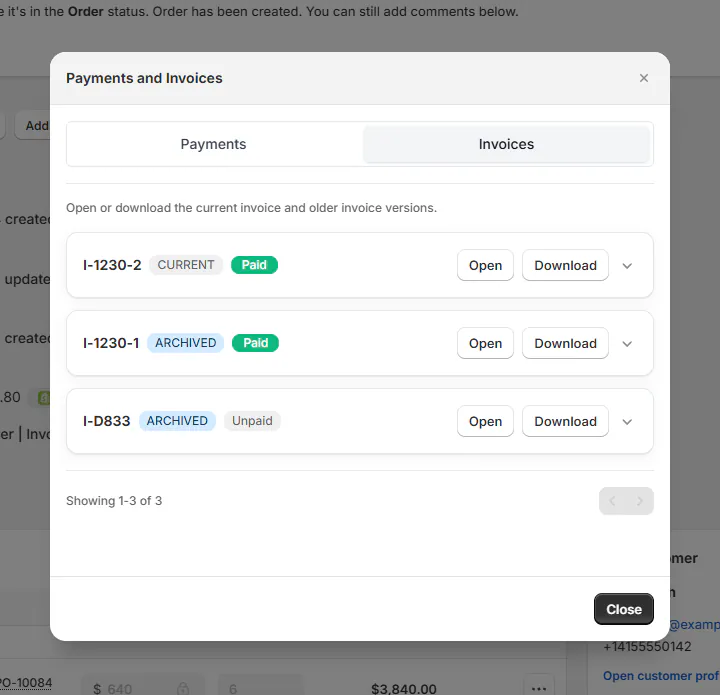
Choose the invoice version that matches the event you are checking. The order menu has no separate invoice-download action. Use this tab when you need the current invoice or an earlier copy.
Refund the correct payment
Step 1: Choose the refund route
For a cash refund, choose •••, then Refund Payment. Refund (Cash) opens.
For a card refund or item return, open the Shopify order instead. Shopify handles the card transaction and any return or restock choices.
Step 2: Check the refundable amount
Read Paid to date, Refunded and Refundable. For a split sale, choose Refund from to identify the correct part.
Enter Amount, or use a suggested quick amount and verify it. The refund is limited by recorded payments and Shopify's allowed maximum.
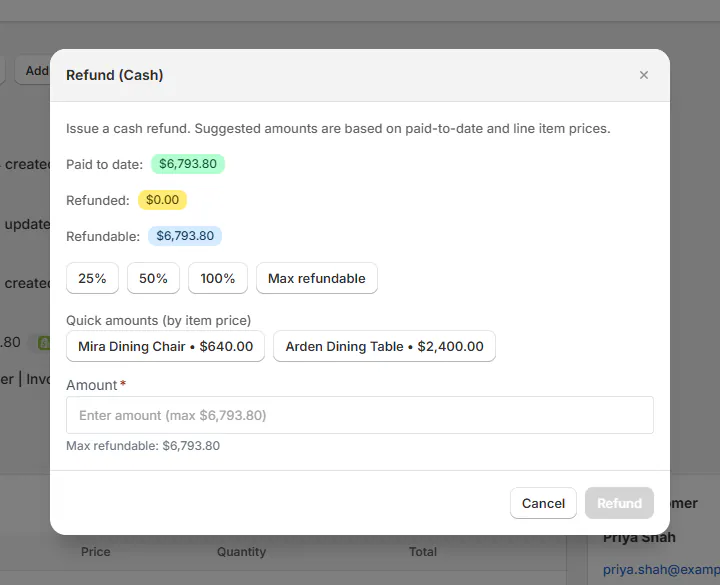
Check the source and refundable amount before recording the refund. Step 3: Confirm the intended cash refund
Review the amount and click Refund when the cash-refund action is appropriate. Check the resulting refund row and totals.
This action records a cash refund without item lines. It does not return money to the original card or restock the goods.
Step 4: Handle a deposit refund separately
For a payment made through a separate deposit order, open View deposit order and refund it in Shopify.
OrderPilot puts the refunded portion back onto the main draft's balance. Check both records after the update.
Split orders explains selecting the right part. Store credit issued through a warranty claim follows the claim-resolution route.
Check payment history on POS
Step 1: Open the history
Open the created quote or order and tap Payment History. Read the amounts, status badges and Requested on dates.
If it says No Payments Yet, no rows are shown in this history view. Check the sale's summary as well.
Step 2: Compare the totals
Read Total Paid, the quote or order total, and Remaining Balance. On a split sale, inspect both labeled payment parts.
The part headings distinguish pickup from delivery. Match the payment to the part you are discussing with the customer.
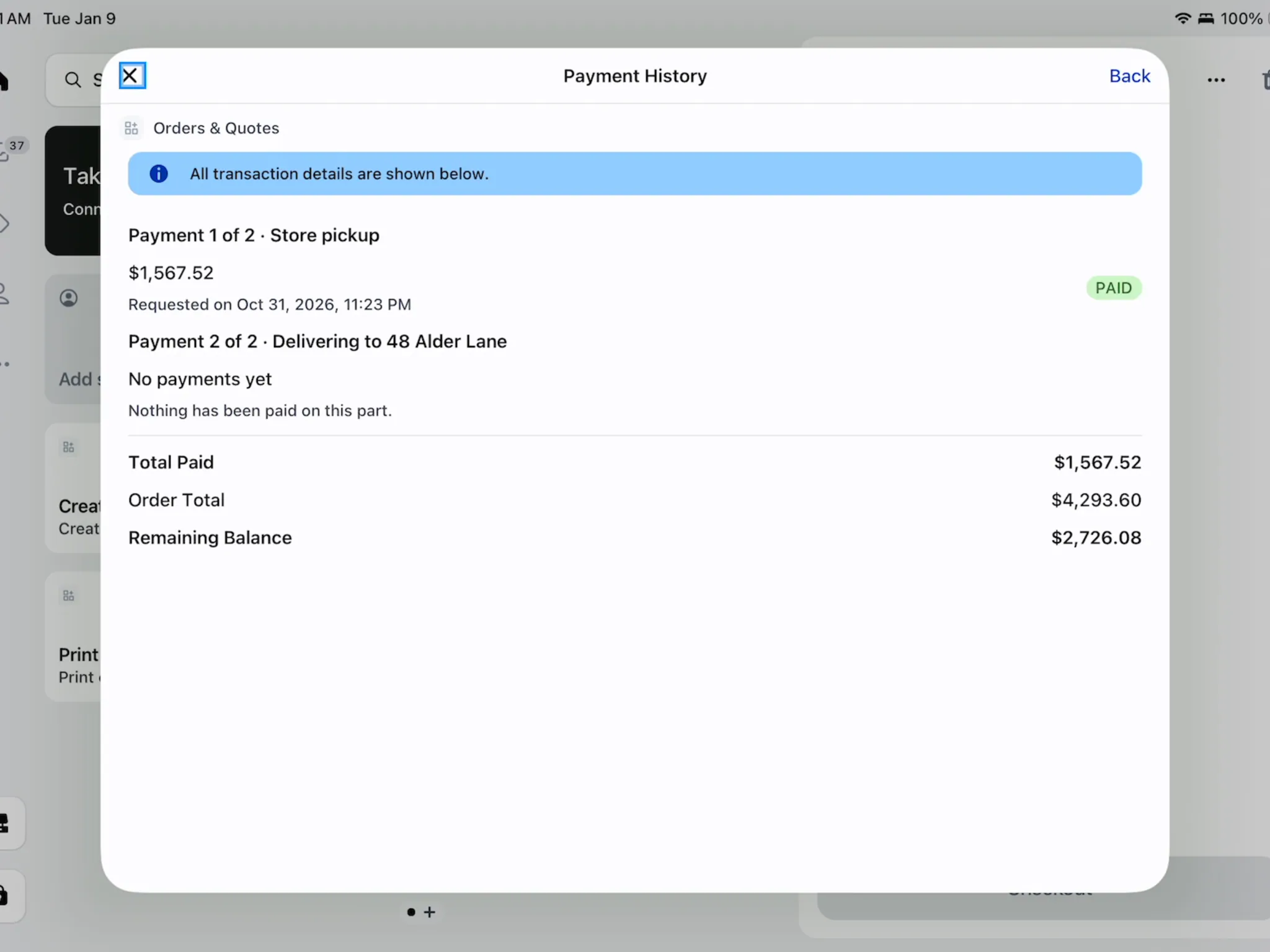
Compare the recorded deposit with the remaining balance. Step 3: Check Shopify when a payment is missing
This screen is built around OrderPilot payment requests. If a payment was taken directly in Shopify POS, check Shopify's transaction record.
Do not collect again solely because this list lacks a row. First establish whether the payment already exists.
What happens next
A recorded refund updates the refunded amount and payment state, and adds activity. Invoice history retains snapshots for later reference.
Refund Owed means payments exceed the current sale total. It identifies a balance to investigate; it does not itself issue a refund.
Invoice files normally use the invoice number with later-version suffixes. Custom-numbered records omit the normal invoice prefix.
Example: inspect Olivia's deposit
Example · Harlow & Finch Interiors
Compare the history before a correction
Olivia Bennett's Linden Sofa record includes a paid deposit.
- Sam Ortiz opens Payments and Invoices.
- Sam checks the deposit row and remaining balance.
- Nora Ellis reviews a legitimate cash-refund adjustment separately from the deposit transaction.
- After recording it, Nora checks Refunds and the revised totals.
- Sam checks the corresponding history on POS before discussing the balance with Olivia.
Important notes and tips
An archived invoice shows a saved version. Use it to understand what the figures were then, and use the current version for today's balance.
If something goes wrong
Refund Payment is missing
Check the refundable amount and refund permission.
The amount is capped
It cannot exceed paid-to-date or Shopify's maximum.
The refund did not restock
Cash refunds have no restock action. Handle item returns in Shopify.
The invoice download is missing
Open the Invoices tab inside Payments and Invoices.
A deposit refund is missing from the main draft
Check the refund on the deposit's Shopify order and allow its update to arrive.
Was this guide helpful?
Thanks. Tell us what was missing at support@meetorderpilot.com.