Get a quote signed
Related guides
- How customers sign and pay onlineCustomers and portal · 5 min
- Email a quote or orderQuotes and orders · 5 min
- Sign in the showroom: on the iPad, by QR code or on paperPayments and signatures · 5 min
- Set signature and minimum-deposit requirementsPayments and signatures · 5 min
- Export, hold and retain signature recordsPayments and signatures · 5 min
Send the current quote or order for signature, then confirm that the customer signed and received the stored signed copy.
Use the signature request for the agreement itself. Sending an ordinary follow-up email does not prove that the customer completed signing.
Before you start
Create and save the sale
Shopify must have caught up with the quote or order.
Resolve open items
The customer's unanswered questions or change requests can block signing.
Check email access
Your role needs Email customers and the shop needs sending setup.
Choose the signing route
For a customer beside you, see Sign in the showroom.
The header shows Request signature while a required signature is missing. It shows Request payment when payment is the next available request.
The other action remains in the ••• menu where eligible. Read the current signature state before sending another request.
Send the signature request
Step 1: Open Request signature
Click Request signature in the header, or choose it from •••.
Send an Email opens with the signature-request template. Check that it names the intended quote or order.
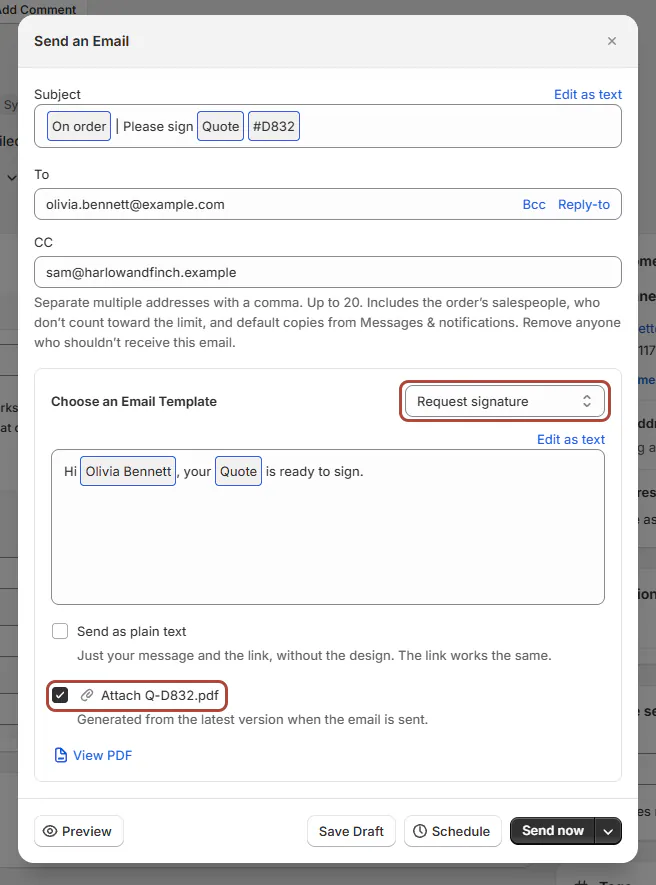
Send the current agreement with its document attached. Step 2: Check the recipients and message
Review To, Cc, Bcc, Reply-to, Subject and Message. Make sure the customer is a recipient.
A request sent only to colleagues does not establish the customer's signature requirement. The recipient matters as much as the chosen template.
Step 3: Review the document and preview
Keep the quote or order PDF attachment ticked when it should accompany the request. Use Preview to inspect the message.
Send as plain text is available for this request if needed. The signing link remains the action the customer uses.
Step 4: Send or schedule
Click Send now when the agreement is ready. Use Schedule for a later time, or Save Draft to keep working.
Email a quote or order covers those controls in full. Check the send result rather than assuming closing the composer sent it.
The customer message says their quote or order is ready to sign and offers Review and sign.
Copy the signing link
Step 1: Copy the created record's link
Choose •••, then Copy Sign Link. Sign link copied to clipboard confirms the copy.
If the quote has not been created, the action asks you to create it first. Complete that step before copying.
Step 2: Share it with the customer
Paste the copied link into the text or chat you use with the customer. Confirm the recipient before sending it.
The link opens the signing page for that sale. How customers sign and pay explains what the customer does there.
Step 3: Check the signature result
Return to the quote and inspect the header and signature badge. Viewed information tells you about opening the quote; Signed confirms the signature state.
If the customer says they signed, check the current version and any later edits. Do this before requesting another signature.
Send the stored signed copy
Step 1: Check the automatic copy setting
Go to SettingsMessages & notificationsSending settingsEmail & SMS rules. Find Email customers their signed copy.
This starts on. It emails the signed PDF after signing in OrderPilot and copies the salesperson.
Step 2: Resend a customer-signed copy
Open the signed sale and choose •••, then Email signed copy. It appears only for a signature made in OrderPilot and only while Send customer emails is on in SettingsMessages & notifications.
Wait for Signed copy emailed. The action sends the stored signed document, including its certificate page.
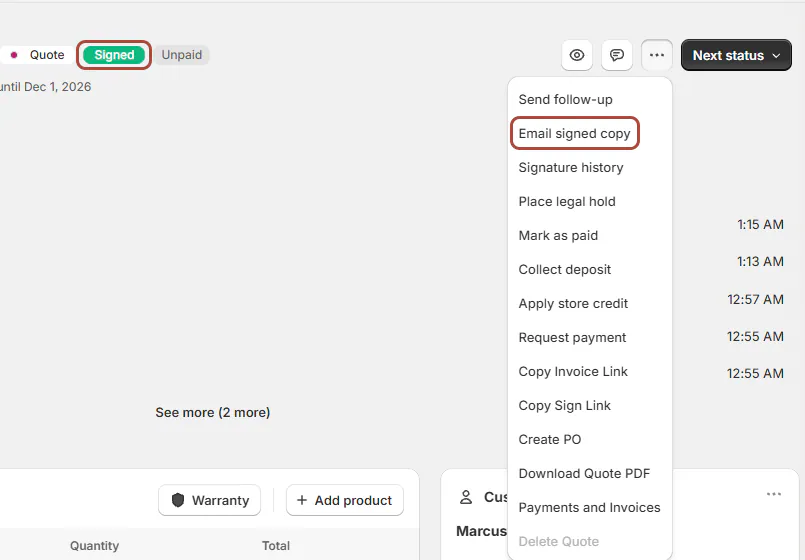
Resend the stored copy from the signed sale. Step 3: Distinguish an external paper copy
Check how the signature was recorded. An externally signed paper copy does not use the automatic signed-copy email.
The resend action is for customer-signed records, not a recorded paper copy. Use Signature records to inspect the evidence type.
What happens next
When a signature request reaches the customer, signing becomes required for the record. Test sends and messages only to colleagues do not count.
The signed PDF is frozen at signing. It includes the agreement the customer signed and a certificate page, rather than regenerating from later edits.
A customer-facing edit can turn the badge to Re-Sign. Signature and deposit requirements explains when the new version needs signing.
The viewed line and email history help track the request. They are separate from the signature evidence and the actual signed state.
Example: Olivia signs at home
Example · Harlow & Finch Interiors
Check the request and the completed signature
Olivia Bennett wants to review the Linden Sofa quote at home.
- Sam Ortiz opens Request signature and checks Olivia's address.
- Sam previews the message with the quote PDF attached.
- Olivia opens Review and sign on her phone.
- Olivia completes signing, and Sam checks Signed on the quote.
- With automatic copies enabled, Olivia receives the stored signed copy and Sam is copied.
Important notes and tips
A copied link is not evidence that the customer opened or signed it. Check the sale's actual signature result.
If the customer asks for a revision, resolve the request and review the current agreement before sending another signature request.
If something goes wrong
Request signature is greyed out
Check unsaved edits, change scope and open customer requests.
Shopify sync failed
Resolve it using Fix a failed Shopify sync.
Signed-copy emails are off
Enable the signed-copy setting before using the resend action.
The signed copy could not be sent
Inspect the send failure and use Emails not arriving.
The customer cannot open or sign
Follow Help a customer who is stuck.
No email arrives
Check delivery history and the customer's actual address before resending.
Was this guide helpful?
Thanks. Tell us what was missing at support@meetorderpilot.com.