Set option prices and track separate stock
Related guides
- Create options and valuesCatalog · 6 min
- Create a product templateCatalog · 6 min
- How the catalog fits togetherCatalog · 6 min
- How stock on hand and tracked options shape purchase ordersPurchasing · 4 min
- Stock: what receiving and custom pieces do in ShopifyInventory and costs · 5 min
The base price is the product’s starting selling price. Selected options add their prices to that amount; an included choice adds nothing. Cost records what the item or option costs your store, separately from what you charge the customer.
Some options describe the finished product, while others represent items or materials your store buys and stocks separately. Enable inventory tracking for those separately stocked choices.
A tracked option has its own Shopify inventory and purchase-order row, so this setting changes how your team buys and receives it. Choices that only describe the product remain part of that product’s line.
Before you start
Create the option
Start with options and values, then attach the option to a product template.
Check permissions
Tracking needs Manage the catalog. Selling prices need Change catalog selling prices, and costs need Enter costs and charges.
Decide what you stock
Track independently purchased add-ons. Leave descriptive choices, such as a finish, inside the product.
A template's price override replaces the option's default. Check both before changing shared prices across several products.
How option prices add up
The configured unit price starts with the template's base price, then adds the selected options.
| Type | Price added |
|---|---|
| Dropdown or Swatch | The selected value's price. |
| Number | Price each multiplied by the entered number. |
| Text or Text area | A flat price when filled; nothing when blank. |
| Dimensions | A flat price when dimensions are entered. |
A zero selling price reads Included. A zero cost reads Free; an empty cost is unknown and shows a dash.
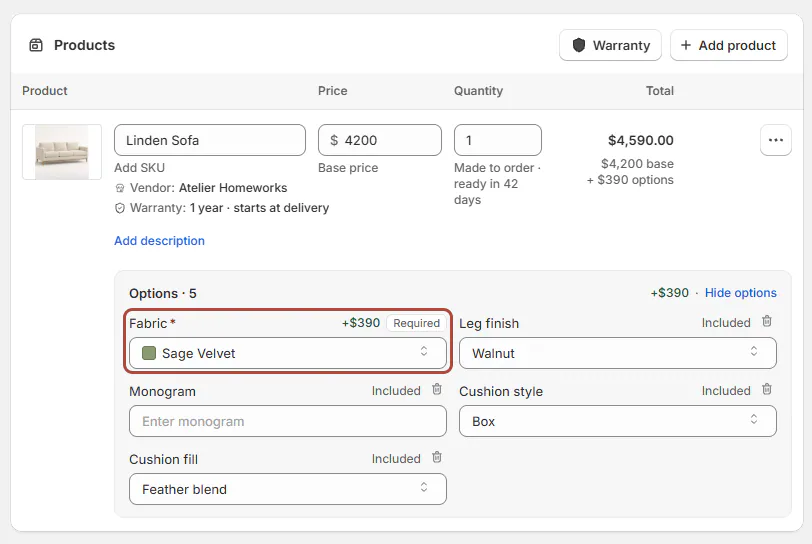
The order desk shows the selected value and its additional price beside the field. The line total and documents reflect that configuration.
Tracked options become separate Shopify lines. Untracked prices remain within the product line, rather than being charged again as add-ons.
Saved lines keep their prices. Changing a template's price does not automatically reprice an existing quote.
Charge by the unit
Step 1: Create a Number option
Open SettingsProductsOptions, click Add option, and create Extra cushions with Type set to Number.
The editor shows one settings row instead of a list of named values.
Step 2: Set limits and pricing
Enter Minimum, Maximum, Step and Unit. For whole cushions, use 0, 6 and 1 for the first 3 fields.
Set Price each, Cost each and Lead time as needed, then Save. The option records those per-unit settings.
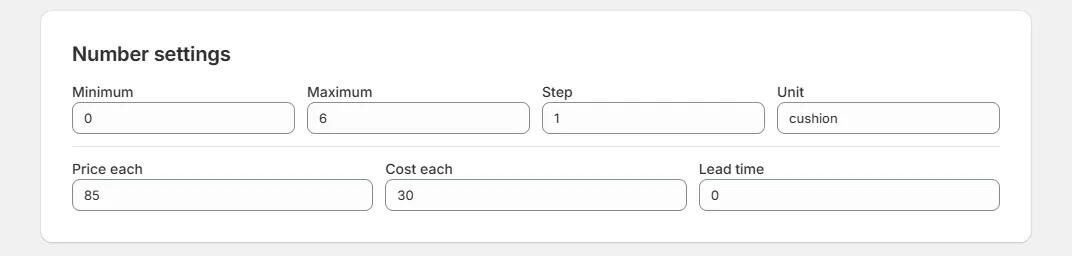
Number settings card for an Extra cushions option: Minimum, Maximum, Step, Unit, Price each, Cost each, Lead time A blank minimum or maximum leaves that limit unset. A blank step means Any, and a blank cost remains unknown.
Step 3: Check a configured line
Attach Extra cushions to Linden Sofa and enter 2 on a quote line. The option adds its per-unit price twice.
If stock tracking is enabled, the Number option has 1 unit variant. Its Shopify quantity is the entered number multiplied by the product quantity.
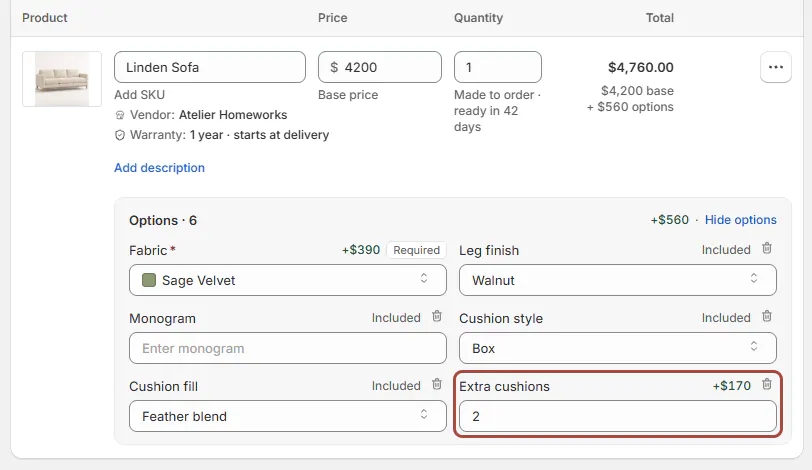
Order desk line with Extra cushions set to 2 and the per-unit price beside it For CSV imports, put Value price on the Number option's own row.
Track an option's stock
Step 1: Enable inventory tracking
Open the option's Settings card and tick Track inventory for this option. Use this for Dropdown, Swatch or Number options purchased separately.
Click Save. The editor shows Inventory tracked, and the list's Inventory column reads Tracked.
Step 2: Check Shopify stock
After the next sync, check the On hand column in Values. Stock is counted across Shopify locations and is read-only on the option page; Manage in Shopify opens it there.
Change stock in Shopify or receive it on a purchase order. The option page then reflects Shopify's stock count.
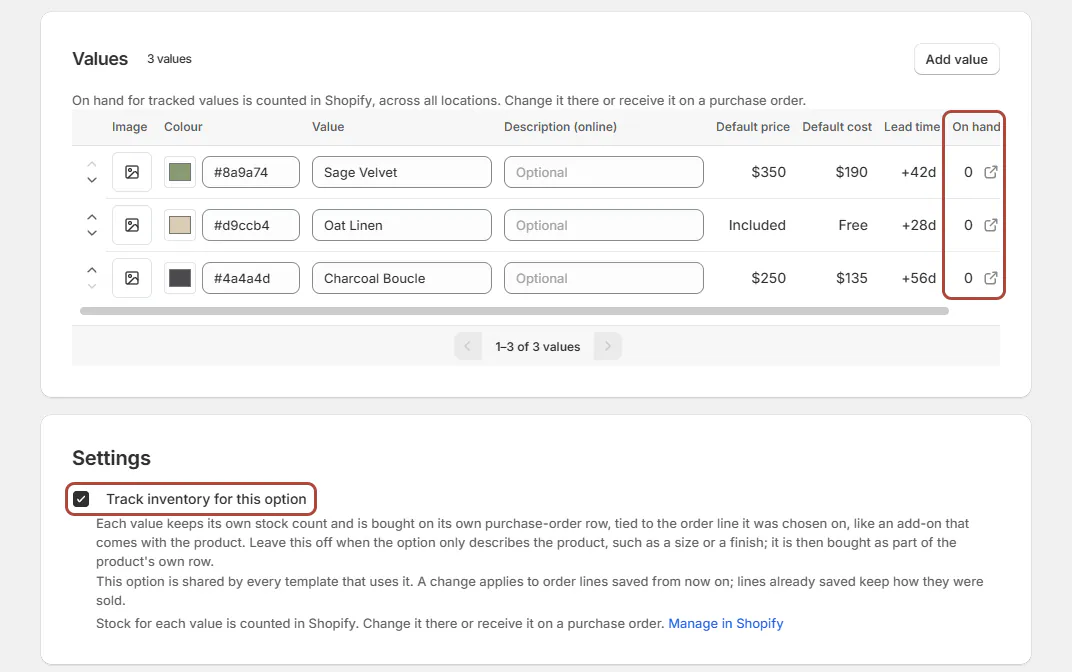
Values with the On hand column, and Settings with Track inventory ticked Warning
Tracking gives the chosen option its own purchase-order row. Leave it off when the choice only describes the product being bought.
What happens next
The sync creates 1 Shopify product for each tracked option, with a variant per value. Number options use 1 unit variant.
The product name uses the prefix from Product defaults, initially Add-On:. These products are published to Point of Sale only.
Each tracked choice becomes its own Shopify line and linked purchase-order row. See Stock and purchase orders for purchasing consequences.
Tracked add-on products have no Shopify product category. Their prices use Shopify's default tax rate, even when the template has a Tax category.
For that distinction, read Template special cases. Untracked choices remain part of the template's own line.
Example: cushions and fabric
Example · Harlow & Finch Interiors
Price cushions and buy fabric separately
Harlow & Finch Interiors configures Olivia Bennett's Linden Sofa.
- Offer Extra cushions as a Number option with whole-number entry.
- Enter 2 cushions and check that the extra price doubles.
- Track Fabric because the store purchases its values separately.
- Choose Sage Velvet on Olivia's line.
The cushions use per-unit pricing. Sage Velvet becomes its own Shopify line and purchase-order row for Atelier Homeworks.
If something goes wrong
On hand cannot be edited
Tracked stock is counted in Shopify. Change it there or receive stock against a PO.
The option says Included
Its selling price is 0. Check the template override before changing the shared default.
Number pricing did not multiply
For an import, check Value price is on the option's own row.
The add-on is missing online
Tracked add-on products are published to Point of Sale only.
Tracking is unavailable
Dimensions cannot be tracked. Also check Manage the catalog access.
Was this guide helpful?
Thanks. Tell us what was missing at support@meetorderpilot.com.