Set up your theme for OrderPilot
Related guides
- How OrderPilot works on your online storeOnline store · 6 min
- Put a product template on your online storeOnline store · 6 min
- Style the options block with your theme and CSSOnline store · 4 min
- Let shoppers quote your Shopify productsOnline store · 4 min
- Online store settingsOnline store · 3 min
Add OrderPilot's options and quote cart to your Shopify theme, then choose whether customers must sign in to request a quote. The theme setup checklist helps confirm the published theme is ready.
Each template still needs its own online mode. Theme setup provides the page controls; template settings decide what shoppers can do.
Before you start
Prepare a product
Have at least 1 active product template ready.
Check the theme
Work with the theme you intend to publish. The checklist reads the currently published theme.
Check access
Online store settings need Manage order and quote settings. You also need permission to edit Shopify themes.
Keep a template's configuration and the theme preview on the same product. A theme can use several product-page templates, so check the one assigned to your product.
Enable templates and choose access
Step 1: Turn on product templates online
Open SettingsOnline storeSelling on the online store. Turn on Show product templates on the online store.
Review the other settings before saving. The switch allows active templates to publish according to their individual online modes.
Step 2: Choose whether sign-in is required
Review Customers must sign in to request a quote, which starts on. Leave it on for signed-in requests or turn it off to allow guests.
Save the settings. The online switch queues a republish of every active template and the store's online configuration.
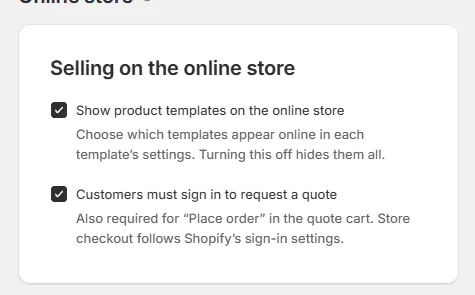
Settings › Online store, Selling on the online store card with both switches The sign-in rule also applies to Place order in the quote cart. Shopify checkout follows Shopify's own sign-in settings.
Guest request limits
What guest requests do
A valid guest submission creates its own Shopify customer after the complete request passes validation. An email already belonging to a customer is asked to sign in; the guest is not attached to that existing account.
Guests can submit 20 requests per IP address and 5 per email each hour. Signed-in customers can submit 30 per hour. A guest's entered phone stays on the order.
Add the options block and embed
Step 1: Open the product theme editor
In SettingsOnline storeTheme setup, choose Add in theme editor for the options block.
The theme editor opens. Select the product-page template used by your example product. A fourth row, Cart and checkout, says whether buying online is available yet and links to Checkout rules.
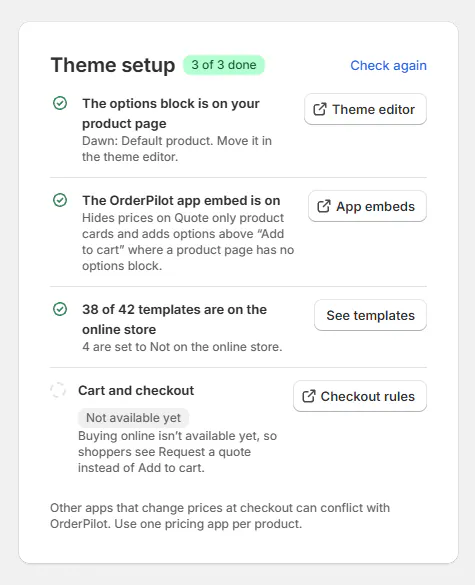
Theme setup card with its rows, the '3 of 3 done' badge and Check again Step 2: Place OrderPilot options
Add OrderPilot options above Add to cart. Set an optional Heading and adjust Top spacing and Bottom spacing if needed.
Spacing can be 0 to 64 px. Save in Shopify, return to OrderPilot and click Check again.
The checklist reports whether the options block is present.
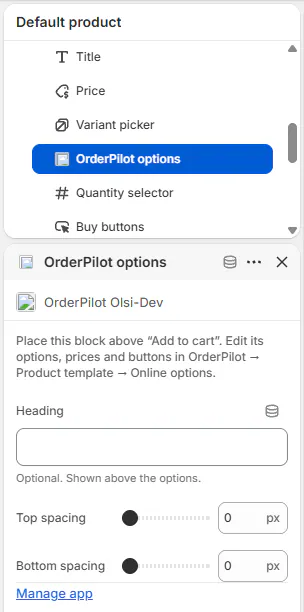
Shopify theme editor with the OrderPilot options block selected above Quantity selector and Buy buttons in the product template For appearance beyond spacing, read Style the options block.
Step 3: Enable the app embed
Choose Turn on in theme editor, then open App embeds. Turn on OrderPilot configurator and save.
Return to the checklist and click Check again. The embed row confirms it is on.
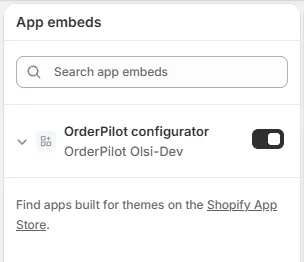
Theme editor App embeds panel with OrderPilot configurator switched on Warning
Keep the embed on even when the options block is present. It hides quote-only prices on covered collection and search cards and supplies options where a page has no block.
Use Extra selector to hide only when the theme needs an additional control hidden. Check the effect on the intended product page.
Step 4: Check every relevant product template
Verify that each product-page template used by your configurable products can display the options.
The checklist examines the published theme's product templates. If it reports a partial check, inspect the remaining templates in Shopify before treating setup as complete.
How broad the checklist check is
The check covers the default product template and named product templates, reading up to 100 theme files within about 10 seconds. A theme without suitable app-block support uses the embed to place options instead.
Add quote-cart and order links
Step 1: Add a cart control
In the theme editor, open a suitable header section and choose Add block. Add Quote Cart Drawer or Quote Cart Badge.
Keep its quote-cart URL at the supplied default. The drawer offers a title and empty-state text; the badge's default button is Open Quote Cart.
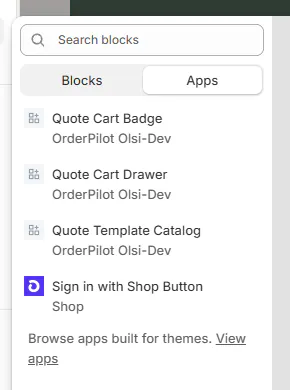
Theme editor Add block list with the OrderPilot quote blocks The drawer also has Trigger accessibility label. Use wording that explains the control to someone using a screen reader.
Step 2: Check the quote cart
Save the theme and preview the cart control. With pieces added, it opens the quote cart for the shopper's current device.
Review the drawer title and empty-state wording. Customers should be able to find their selections after browsing another product.
Step 3: Add My orders
Add a My orders menu link to
/apps/quotepilot/my-quotes. Keep the quote cart at/apps/quotepilot/quote-cart.The store menu now gives customers a route back to their requests and orders.
Step 4: Add a template catalog if needed
Add Quote Template Catalog to a suitable page. Review Heading, Button text and Empty state text, then save.
The catalog lists active templates offered online, newest first. Past 500 items it offers Show more.
For regular Shopify products, use Add to Quote and eligibility rules.
What happens next
Theme setup shows progress out of 3 checks. Cart and checkout reads Not available yet and is excluded from that count while unavailable.
Each template appears according to its own online mode. Follow Put a template online to finish publication.
The Quote Template Catalog does not obey the store-wide template switch when listing its active, online-mode templates. Review that block separately when hiding the online catalog.
An Explore only card says the product cannot be quoted online. That mode is for configuring and sharing a design.
Example: Harlow and Finch goes online
Example · Harlow & Finch Interiors
Prepare the theme for sofa requests
Nora Ellis sets up Harlow & Finch Interiors' published theme.
- Enable product templates online.
- Place OrderPilot options on the Linden Sofa's product template.
- Turn on the OrderPilot configurator embed.
- Add a Quote Cart Drawer to the header.
- Choose Request a quote for Linden Sofa and check the setup again.
The checklist reaches 3 of 3 and the storefront offers the sofa's configured quote-request route.
If something goes wrong
Your theme can't hold the options block
Use the app embed to place options on that theme.
Theme settings could not be read
Check App embeds manually, then retry.
Only some templates were checked
Review the remaining assigned product templates in Shopify.
A template is Not published
Check its active state, online mode and store-wide switch; allow for sync and storefront caching.
An account already exists
The guest must sign in with that email.
Requests are temporarily limited
Wait for the hourly limit to clear.
Collection prices remain visible
Follow Online store problems.
Was this guide helpful?
Thanks. Tell us what was missing at support@meetorderpilot.com.