Show or narrow options with rules
Related guides
- Group options into bundlesCatalog · 6 min
- Create options and valuesCatalog · 6 min
- Create a product templateCatalog · 6 min
- Manage product templatesCatalog · 5 min
- Fine-tune how options look and behave onlineOnline store · 6 min
Option rules control which choices are available after an earlier selection. They can show an option only when it applies or limit its values to combinations your store sells.
Put shared rules in a bundle when several templates need the same behavior. Use template rules for differences that apply to one product.
These rules follow the order in which customers choose. The controlling option must appear above the choice it controls.
Before you start
Choose a controlling option
Rules can depend on an earlier Dropdown or Swatch, but not Number, Text or Dimensions.
Check access
You need Manage the catalog to change these settings.
Reorder the bundle before writing rules. Customers must make the controlling choice before the dependent option can appear or narrow its values.
Show an option after a choice
Step 1: Open the dependent option
Open the bundle editor and click Manage on the option that should appear later, such as Cushion fill.
The dialog shows Show this option and its current visibility rule.
Step 2: Choose the matching values
Choose Only when…, then the earlier option under Which option. For this example, choose Cushion style.
Under Which values count, choose Any value or Specific values. For a Box-only rule, tick Box.
The dialog now identifies the earlier choice that makes Cushion fill appear.
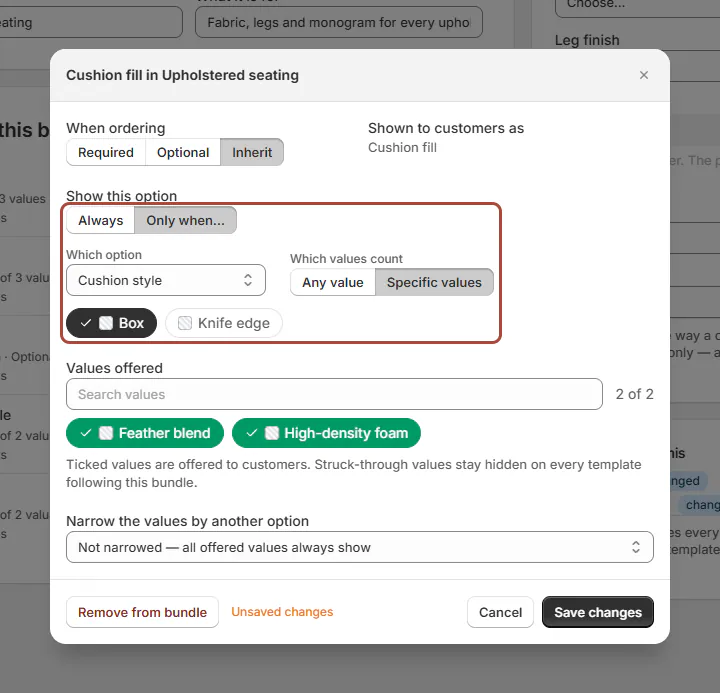
Manage dialog with Only when… and a rule on Cushion style Step 3: Save the rule
Click Save changes. The row summarizes the condition under Shown.
Try the choices in the bundle preview. Cushion fill appears only after the matching Cushion style is chosen.
Narrow values by an earlier option
Step 1: Choose what controls the values
Click Manage on the Dropdown or Swatch you want to narrow. Under Narrow the values by another option, choose By and the controlling option.
For Finish, choose Wood. A grid opens for the value pairs.
Step 2: Set the permitted pairs
Tick combinations you offer and untick combinations you do not. For Walnut, allow Natural and Ebony; for Oak, allow Natural only.
The grid now describes which values can be chosen together.
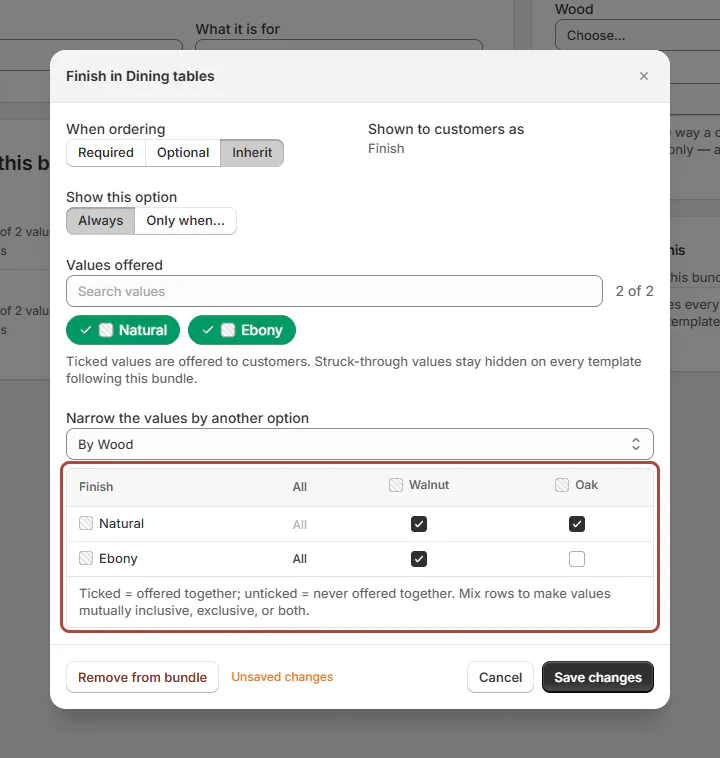
Value-by-value grid of Finish by Wood, Oak with only Natural ticked A value must retain at least 1 match. To hide it completely, untick it under Values offered instead of clearing its last grid tick.
Step 3: Save and check both choices
Click Save changes, then try Walnut and Oak in the preview. The available finishes follow the permitted pairs.
The option row adds a value-rule count. Not narrowed restores all offered values for every choice.
Change a rule on one template
Step 1: Open the template's rules
On the template's Options card, click the option's Manage control. Beside Shown (it reads Always or Conditional), click Edit rules.
The rule dialog opens for that template, rather than for every bundle follower.
Step 2: Save the template's difference
Choose Always or Only when…, then click Save rules. Save the template.
Its option row shows a conditional link icon and becomes Changed when it differs from the bundle.
See Manage product templates to return an exception to following the bundle.
What happens next
Following templates use the bundle's rules immediately. Staff see the resulting choices on order lines in the app and Shopify POS.
Shoppers see those rules in the online options block. A template's own rule affects that template only.
If the controlling option is removed or stops being a Dropdown or Swatch, the dependent rule can be ignored. The option then remains visible.
Example: valid furniture combinations
Example · Harlow & Finch Interiors
Show the right cushion and finish choices
Nora Ellis configures Harlow & Finch Interiors' catalog.
- Place Cushion style above Cushion fill in Upholstered seating.
- Show Cushion fill only when Cushion style is Box.
- Put Wood before Finish for Arden Dining Table.
- Allow Natural and Ebony with Walnut, but only Natural with Oak.
- Choose Oak on Marcus Reed's quote.
Natural is the only offered finish for that selection.
If something goes wrong
Only when… is greyed out
Put a Dropdown or Swatch above this option. The explanation identifies the missing earlier choice.
A specific-value rule will not save
Tick at least 1 value, or switch back to Any value.
The rule references a later option
Reorder the bundle so the controlling choice comes first.
The last grid tick will not clear
Hide the value under Values offered if it should never appear.
Removing an option warns about other rules
Review the dependent options. Those rules stop narrowing and their values become available.
A row says Rule ignored
Edit the rule to reference a suitable option still on the template, or restore the controlling option's type.
Was this guide helpful?
Thanks. Tell us what was missing at support@meetorderpilot.com.