Set template locations, tax categories and services
Related guides
- Create a product templateCatalog · 6 min
- Manage product templatesCatalog · 5 min
- How templates sync to Shopify productsCatalog · 5 min
- Import and export templates with a CSVCatalog · 7 min
- Put a product template on your online storeOnline store · 6 min
Limit where staff can sell a template, choose its Shopify tax category, or make it a service. These settings change who can add it and how its lines behave.
Set each independently. A template's staff-location availability does not control whether shoppers can find it online.
Before you start
Create the template
Start with Create a product template. You need Manage the catalog for these changes.
Prepare locations
Check your locations and any brand groups.
Check tax setup
Category-based rates depend on Shopify Tax setup. An active template syncs its category to its Shopify product.
Category is OrderPilot's grouping and becomes the Shopify product type. Tax category is Shopify's separate product category.
Choose who can add it
Step 1: Open location availability
Open the template from Products. Under Organization, find Who can add it and click Edit.
The Brands and locations picker opens for staff and POS availability.
Step 2: Choose the permitted locations
Choose All locations, a brand, or the specific locations that can sell the template. Click Done.
The summary shows the selection, such as a location followed by + 2 more. It reads Unsaved until the page is saved.
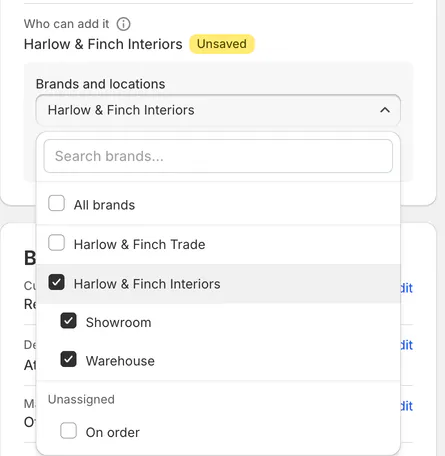
Organization's 'Who can add it' row open in 'Brands and locations' with two locations ticked Step 3: Save the availability
Save with the Save bar. Staff at other locations no longer see the template in their product pickers.
For customer-facing publication, use Put a template online.
Set the tax category
Step 1: Search Shopify's categories
In Organization, find Tax category. Enter at least 2 letters in Search Shopify categories…, such as sofa.
Results load as you scroll, 25 at a time. Choose the category you intend to use; its full name appears in the field.
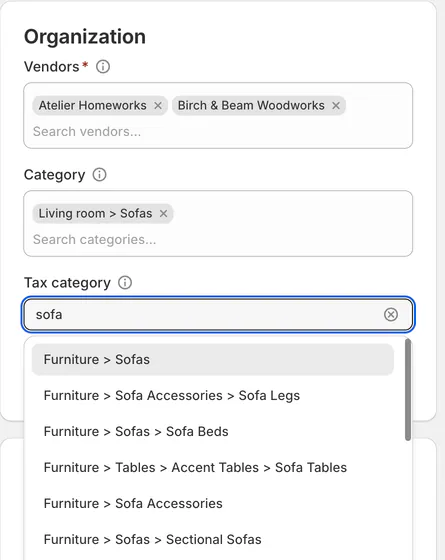
Organization card with Tax category open, 'sofa' typed and Shopify categories listed Step 2: Save or clear the choice
Save the template. Its catalog sync writes the category to the Shopify product separately from the title and price.
To change it, search again and choose another category. To remove it, clear the field with the x and save.
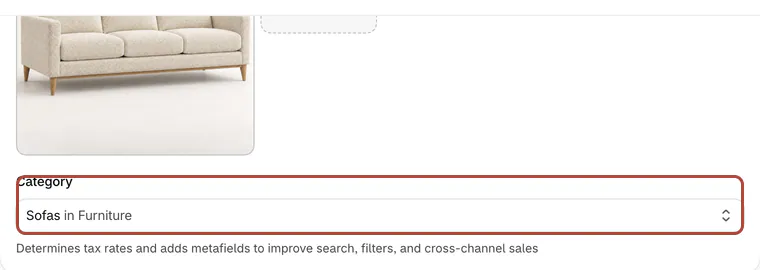
The Linden Sofa's Shopify product page with the same Category If Shopify refuses the category, other product updates can still complete. Read the message beneath the field before assuming the category reached Shopify.
Warning
Tracked options use separate Shopify add-on products without a product category. Their prices use Shopify's default rate; untracked options remain part of the template line.
See Option pricing and stock before deciding whether an option should be tracked.
Set categories through the CSV
Step 1: Export the templates
Use Import and export templates to export the products you need. Find the Tax category column.
The export provides the template rows and their current category IDs.
Step 2: Enter category IDs and check
Use a Shopify category ID, such as
gid://shopify/TaxonomyCategory/fr-1-2orfr-1-2. Blank means none.Import and check the file. Invalid or retired category IDs appear as row issues; a failed Shopify connection prevents the check.
Choose an ID from the template editor or Shopify's taxonomy. Do not treat an example ID as the correct category for every product.
Make a template a service
Step 1: Change the product type
Open the template's title card. Set Product type to Service, then save with the Save bar.
The header shows Service. New service lines have no delivery, pickup or hand-over and never go on a purchase order.
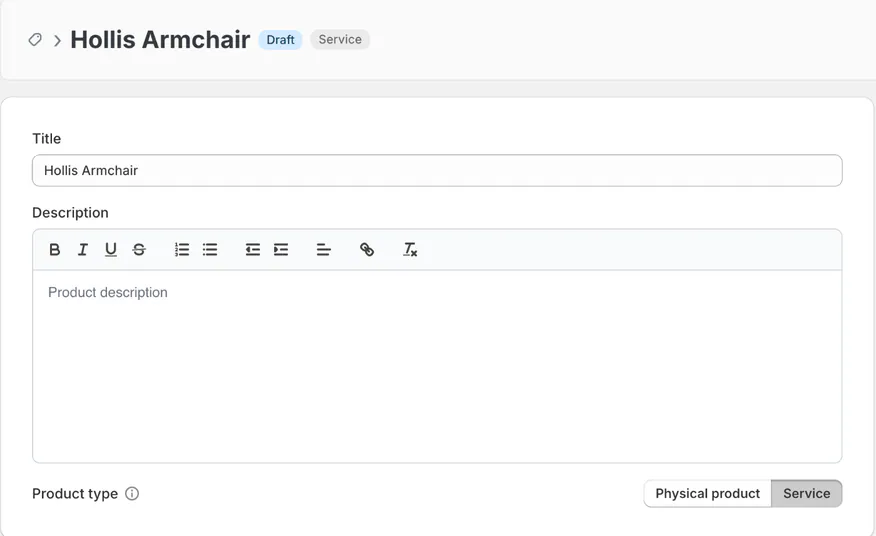
Title card with Product type set to Service and the 'Service' badge in the header A line with a tracked option cannot be a service. Once an order is placed, its lines cannot change service status.
What happens next
Services reach Shopify as items that need no shipping. An order containing only services ships nothing unless a fee requires shipping.
The CSV uses Physical product with yes or no for this distinction. Keep that setting aligned with what the customer is buying.
Tax-category changes appear in template history. Restoring an earlier version restores its category and queues another sync; duplication copies the category too.
Clearing a category removes Shopify's value only while it is still owned by OrderPilot's previous write. A category set directly in Shopify is left alone.
Example: 3 template settings
Example · Harlow & Finch Interiors
Set availability, category and service behavior
Nora Ellis prepares Harlow & Finch Interiors' templates.
- Limit Arden Dining Table to the locations that sell it.
- Search for sofa in Linden Sofa's Tax category and choose the appropriate result.
- Save and check the product's Shopify category.
- Set Design consultation to Service.
- Add that service to Marcus Reed's order.
The consultation needs no delivery or purchase order, while the furniture retains its physical-product behavior.
If something goes wrong
Location selection will not save
Choose a brand or at least 1 location, or use all locations.
A salesperson cannot find the template
Check the template's location restrictions and active status.
Categories could not be searched
Use Try again when the connection is available.
Shopify rejects the category
Choose another valid category or correct it in Shopify. Read the field's error before retrying.
A service still has delivery behavior
Check whether the line includes a tracked option.
Was this guide helpful?
Thanks. Tell us what was missing at support@meetorderpilot.com.