Require and record serial numbers
Related guides
- Set up warranty coverageWarranty and service · 5 min
- Set coverage exceptions for options and productsWarranty and service · 4 min
- Create and sell extended warranty plansWarranty and service · 4 min
- Check and change warranty on an orderWarranty and service · 5 min
- Handle a warranty claimWarranty and service · 6 min
Record a serial for each fulfilled unit so your team can identify the right piece during service. Require serials on selected templates, Shopify products, or warranty plans, then enter them in the app.
Serials are always available. The requirement tells staff which fulfilled units still need one.
Before you start
Prepare coverage
Read warranty setup and Warranty on an order.
Check setup permissions
Templates need Manage the catalog. Shopify products and plans need Manage shop settings.
Check entry access
Recording serials needs Add and edit serial numbers within your order change scope.
Confirm fulfillment
A unit accepts a serial only after Shopify fulfillment.
Require serial numbers
Step 1: Set the template requirement
Open the template's Before an order is placed area, then Warranty and Edit. Tick Require a serial number.
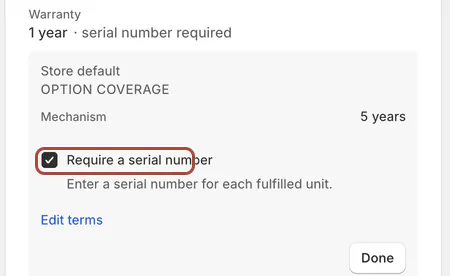
The template's open Warranty row with Require a serial number ticked. The change saves immediately. Wait for Saving… to finish. The Warranty row adds serial number required to its summary.
Step 2: Set a Shopify product requirement
Open By product in Warranty coverage and edit the product's warranty. Tick Require a serial number, then save. See coverage exceptions for the product dialog.
Step 3: Set a plan requirement
In the plan editor, use Units and Require a serial number for each covered unit. Save the plan.
These requirements are recorded at sale. Earlier orders don't acquire the requirement when you change the template or plan. Template imports also support Serial required through CSV import.
Enter serials for fulfilled units
Step 1: Open the line's serial dialog
On the order, click Serials X of Y missing, or use Serial numbers in the line menu. A line without a requirement offers Add serial numbers with an Optional badge.
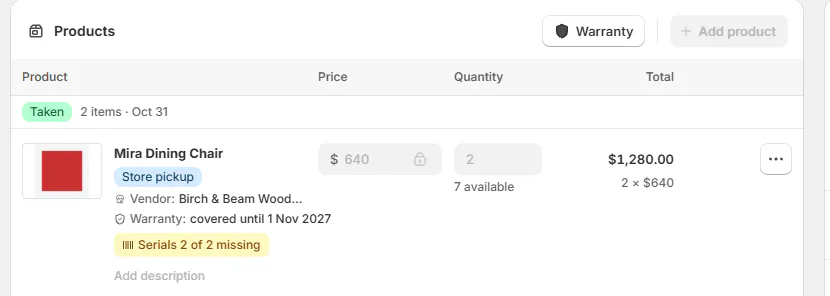
Order line with the Serials 2 of 2 missing chip. Step 2: Enter each unit's serial
Enter the serial in each Unit N field, matching the physical serial plate to the unit. The dialog shows how many units are fulfilled and how many serials are entered.
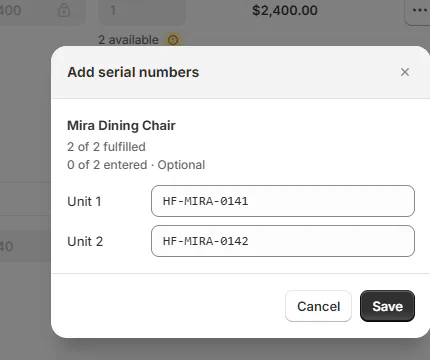
Add serial numbers dialog with two units. Each serial can contain up to 100 characters. An unfulfilled unit shows Not fulfilled yet or Available after fulfillment and cannot be assigned a serial.
Step 3: Save the entries
Click Save. Serial numbers saved confirms the result. The missing count updates for the fulfilled units.
Save is unavailable when no serial has been entered or changed. Read that reason before assuming the form cannot save.
Correct a serial
Step 1: Open the individual unit
From the order's Warranty panel, open the unit menu and choose Edit serial number. Check the product and unit again before replacing the value.
Step 2: Save the correction
Enter the correct serial and save. Activity records the change. If another person changed the same serial, close and reopen before editing again.
Serials are unique per product across orders. An Already assigned to Order message identifies the existing order and unit; inspect that assignment instead of inventing a different serial.
Find a unit by its serial
Use the serial in Coverage look-up, the warranty claims queue, or Start a claim under Find the order. These searches can identify the unit even when the customer doesn't know the order number.
A claim's part or replacement purchase order includes the unit's serial in the vendor notes. That helps the vendor identify the physical product needing service.
What happens next
Missing serials remain visible until entered. Coverage look-up and claims can then find the unit by serial. Cancelling its shipment in Shopify retires that shipment's serials.
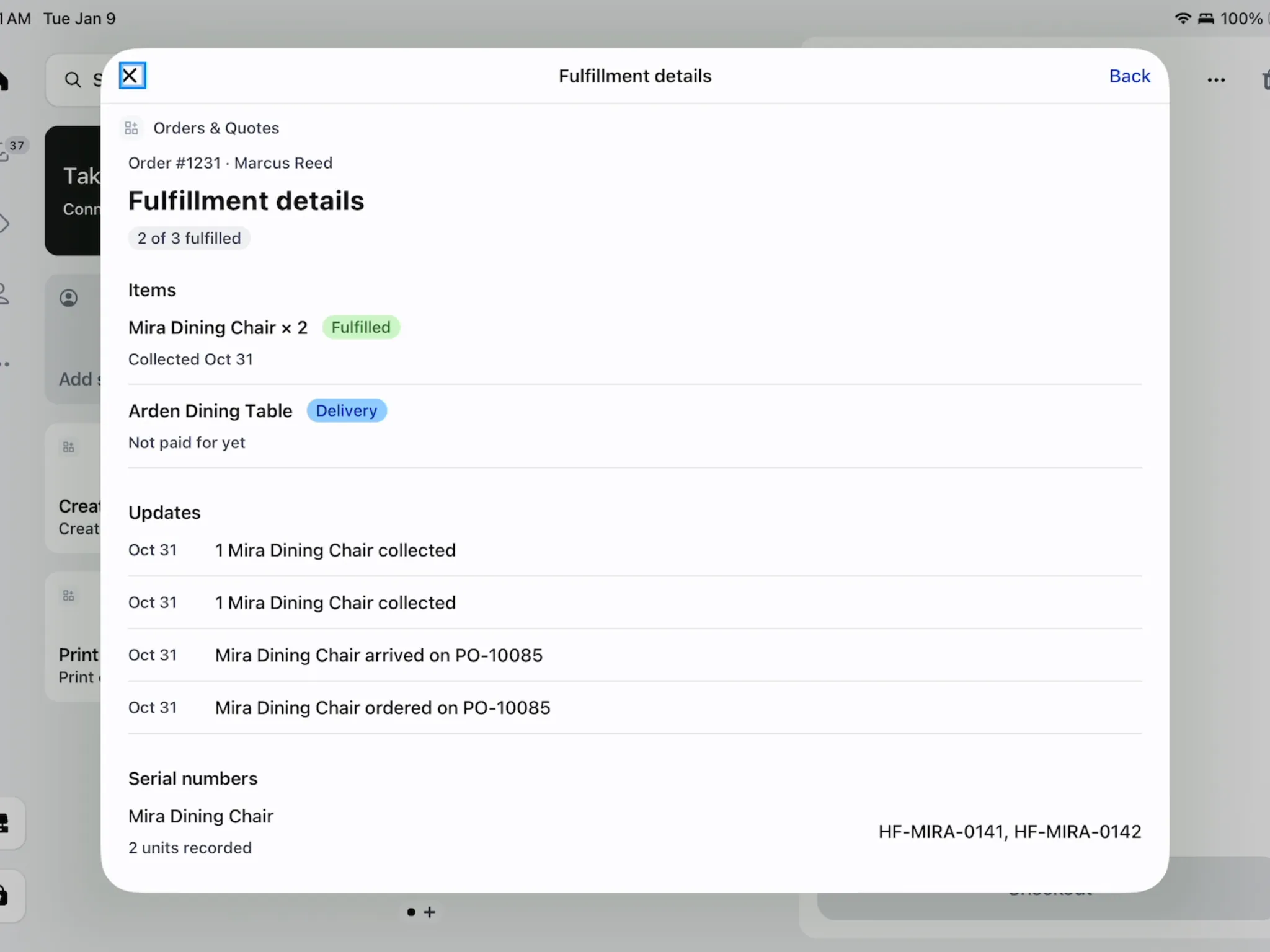
On POS, Fulfillment details shows how many fulfilled units have serials. The order screen can show Serial needed. These views are read-only; enter serials in the OrderPilot app.
Example: identify Olivia's sofa mechanism
Example · Harlow & Finch Interiors
Record both sofa units
Harlow & Finch requires serials for the Linden Sofa's recliner mechanism.
- Nora Ellis enables the template requirement before the sale.
- Olivia Bennett's 2 sofas are fulfilled.
- Jo Park opens Serials 2 of 2 missing in the app.
- Jo enters each plate's serial against the correct unit and saves.
- Months later, Sam Ortiz searches the serial to find the sofa needing service.
If something goes wrong
A serial is already assigned
Review the named order and unit for this product. Correct the mistaken assignment if authorized.
The unit has no serial field
Confirm Shopify fulfillment first.
Someone else changed the serial
Close and reopen to load the latest value.
Fields are read-only
Check Add and edit serial numbers and your order change scope.
Serials disappeared after cancellation
Shopify cancellation retires the shipment's serials.
Was this guide helpful?
Thanks. Tell us what was missing at support@meetorderpilot.com.