Resolve rejected goods and receiving corrections
Related guides
- Receive a deliveryPurchasing · 5 min
- Correct costs after goods arriveInventory and costs · 4 min
- Stock: what receiving and custom pieces do in ShopifyInventory and costs · 5 min
- Create purchase orders in the PO WorkbenchPurchasing · 6 min
- How purchase orders workPurchasing · 5 min
Record rejected goods, correct an eligible receipt and move customer-held stock to the order's store. Keep the physical count, accepted stock and purchasing allocation distinct when resolving a receiving problem.
Before you start
Is the receipt still open to changes?
Reopen a finalized PO before adjusting it. Start with receiving a delivery for normal arrivals.
Can you make the correction?
Receive items, Correct receipts and Add to stock or write off are separate permissions.
Which kind of line is it?
A template received into stock cannot have its accepted count changed through receipt editing.
Warning
Correct a stocked template's inventory count in Shopify. Receipt editing cannot reduce its received count or add more template units; receive additional units through the PO.
Reject units and handle replacements
Step 1: Enter the rejected quantity
On Receive Items, enter the damaged or wrong units under Rejected. Fill the required Rejection reason with what happened.
Accepted plus rejected units cannot exceed the ordered quantity. Check both entries before posting.
Step 2: Save the rejection
Post the receipt. If you are only rejecting units, the button reads Save with the rejected count.
The PO line displays Rejection reason. A mixed completed receipt becomes Received, some rejected.
If every unit was rejected, the PO becomes Rejected and no longer offers Receive Items. Its customer order can move to Reorder needed.
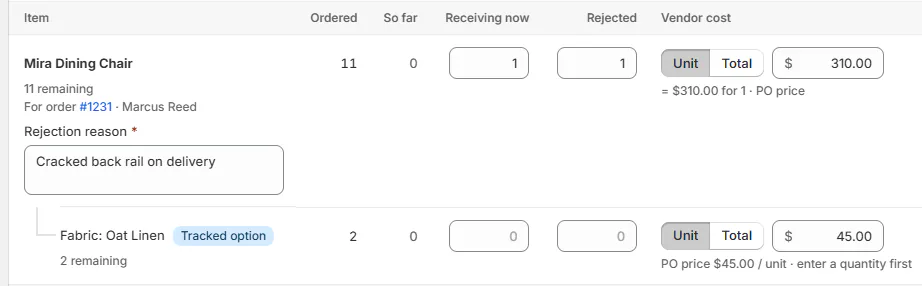
Rejected units need a reason and do not become accepted stock. Step 3: Receive a replacement or reorder
On an eligible partly received PO, enter replacements under Receiving now on the line showing rejected, can be replaced. Receive all remaining skips these replacements.
Alternatively, create a new PO. Rejected units release the order's purchasing allocation immediately.
Once a replacement PO takes the line, the original receiving row names that PO and is disabled. Receive there instead.
A rejection does not create a vendor refund or credit. Record a later credit note through cost corrections where appropriate.
Correct a posted receipt
Step 1: Open the receipt's editor
Open Receive Items and find Receiving history. A role that cannot receive can use Receiving history in the PO menu when available.
Click Edit on the receipt identified by number, date and staff member. The editor shows its current counts.
Step 2: Correct eligible quantities
Change Received or Rejected, and update Why were these rejected? when needed.
For an eligible carton missed during check-in, choose Add another item to this receipt and pick the item. The row is marked Added to receipt and notes it was missed at the dock.
Stocked template units cannot be added here. Units already sold or allocated also limit how far an accepted count can fall.
Step 3: Record the reason and save
Enter Reason for change and click Save adjustment. The confirmation reads Receipt #N adjusted.
The receipt gains an adjustment log naming the person, changes and reason. For an invoice correction without a count change, use received-cost corrections.
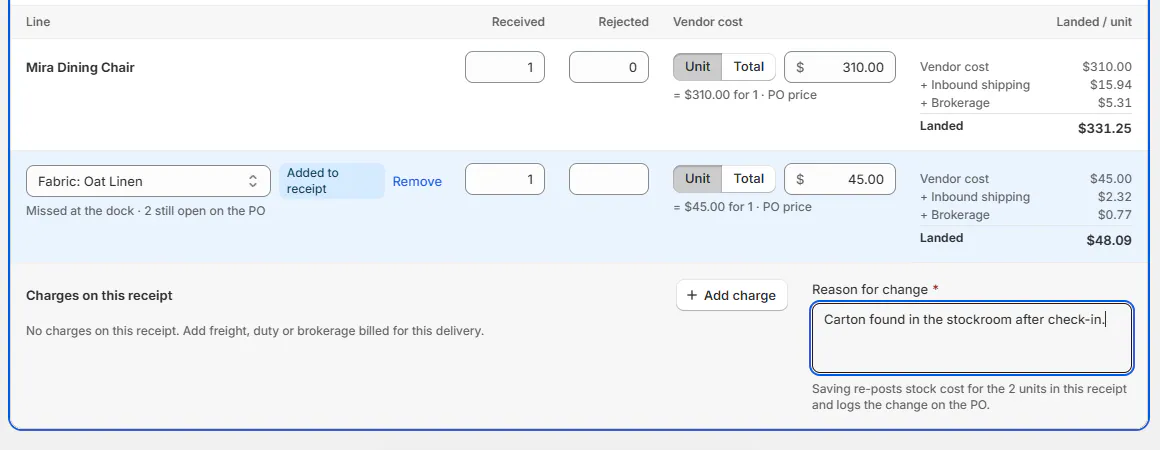
Receipt corrections retain the reason and adjustment history.
Move held units to the order's store
Step 1: Check the held-stock note
Find the template line's held quantity and location on the PO or customer order.
A move is offered for a live order when its template units are held at another location. Catalog products and tracked options do not use this move action.
Step 2: Move the complete held quantity
Click Move with the displayed quantity and order location. The confirmation reads Moving with that quantity and destination.
All the order's units move together. There is no in-transit stage or Shopify Transfer record for this action.
The destination must be on the subscription. A move can take stock from an unsubscribed warehouse to a subscribed store.
Handle units for cancelled orders
Step 1: Check whether stock already exists
For supported current rows, units received for a cancelled order become ordinary available stock. Previously held units are released when the order is cancelled or its line removed.
If the line's missing order prevents receiving, follow the refusal and add the goods to a new PO line.
Step 2: Resolve an older unstocked row
An older row can say the order was cancelled after the goods arrived and no stock was created. Choose Add to stock or Write off according to the actual disposition.
This needs Add to stock or write off. If the banner is visible without actions, ask someone with that permission to decide.
Screen reference
What happens next
A receipt correction updates the affected stock-cost records. A move adds a stock-transfer request to the PO and order activity.
Neither action changes the vendor's instructions automatically. Keep purchasing communication aligned with the replacement or correction your team agreed.
Example: damage and a warehouse move
Example · Harlow & Finch Interiors
Separate the rejected sofa from Olivia's stock
Jo Park checks a delivery from Atelier Homeworks.
- Accept Olivia Bennett's sofa and reject Marcus Reed's sofa for a torn arm.
- Record the rejection reason on the mixed receipt.
- Receive Marcus's replacement later on the still-eligible PO.
- Move Olivia's complete held quantity from Warehouse to Showroom for pickup.
If something goes wrong
The receipt changed since you opened it
Choose Start again with the current figures and re-enter only the intended correction.
The count cannot be reduced
Check sold, allocated or stocked units and use the stated inventory correction route.
Move is greyed out
Read whether stock updates are pending, failed, split across locations or short of the held quantity.
Receive the rest first
The order's units move together; finish receiving before moving them.
Someone already decided these units
Reload before taking another action on the cancelled-order stock.
Was this guide helpful?
Thanks. Tell us what was missing at support@meetorderpilot.com.