Give staff access
Where are you working?
Related guides
- How roles and permissions workTeam and permissions · 6 min
- Create and manage rolesTeam and permissions · 5 min
- Set up PIN access on shared iPadsShowroom (POS) · 4 min
- When OrderPilot shows an errorGet started · 4 min
- Hand over an order and choose who’s in the salesperson listTeam and permissions · 4 min
Give each staff member the role and locations they need in OrderPilot. You can also reserve a role before their first visit, suspend access, and check who changed it.
Access is managed in the OrderPilot app inside Shopify admin. The changes also affect the same person's access through the Shopify POS tiles.
Note
On a shared iPad
Use Shopify admin to follow the setup steps below. On a shared iPad, staff identity also depends on your POS sign-in and PIN setup; see Shared iPads and staff PINs.
Before you start
Has the person opened OrderPilot?
Staff appear after opening the app in Shopify admin or on POS. There is no Shopify staff import; reserve a role by email before their first visit if needed.
Can you assign access?
You need Assign roles and locations and can grant only roles and locations within your own access.
Whose access are you changing?
Nobody can change their own access. The store owner's access cannot be changed or suspended.
How roles and permissions work explains what a role contains. Each person has 1 role; use a custom role for a different mix of permissions.
Set a role and locations
Step 1: Find the staff member
Go to SettingsStaff & rolesStaff. Click Show them on the people-needing-a-role banner, or open Needs a role. The list shows staff who need an individual assignment.
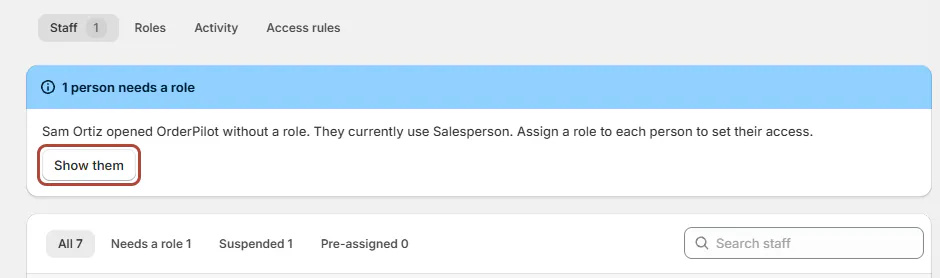
Needs a role includes people using the default role until you assign one. Step 2: Choose their role
Open the person and choose a role under Role. No role leaves them subject to Access rules. When you change the selection, the save bar appears.
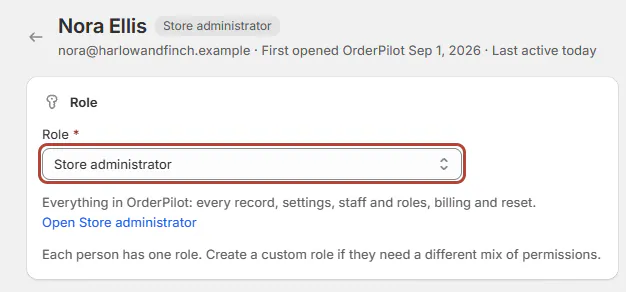
Choose the person's role, then save the access change. Step 3: Choose their locations
Under Locations, keep All locations to include locations added later. Or choose Only these locations and tick the locations they need. With brand grouping enabled, choices appear under each brand.
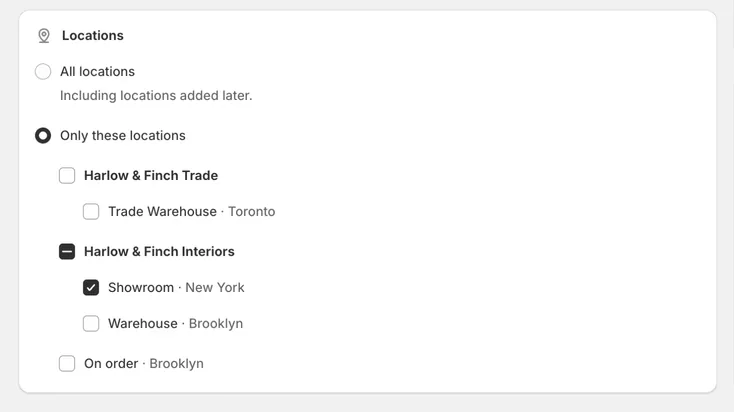
Only these locations limits the person to the locations you select. Step 4: Save their access
Click Save in the save bar and look for Access saved. Their role and location choices are stored together.
Why a role or location is greyed
You cannot grant a role with permissions you lack or locations outside your own access. Selecting an entire brand requires access to every location in that brand.
Inactive Shopify locations are unavailable. Hover over a greyed control to read the reason; Select at least one location, or choose All locations means no location was selected.
The role separately controls which records the person can reach within those locations. See Create and manage roles when page access and record scope need different rules.
Reserve a role before the first visit
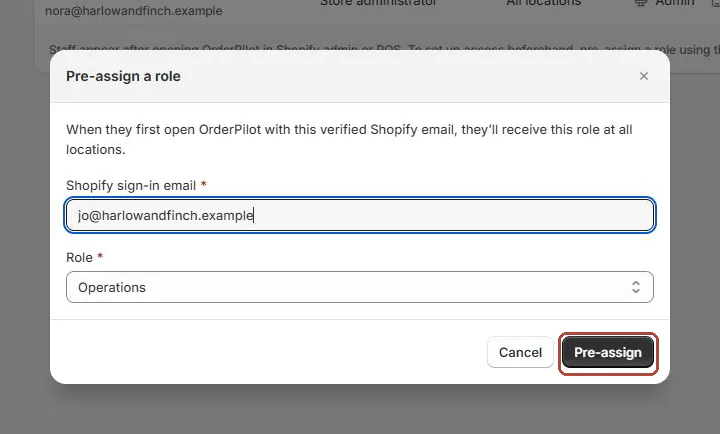
Click Pre-assign a role, enter the person's Shopify sign-in email, choose Role, and click Pre-assign. Role pre-assigned confirms the reservation, and the row shows Pre-assigned.
The role applies at all locations on their first visit, provided Shopify reports the email as verified. Only someone with access to every location can pre-assign a role.
Use Remove to undo a reservation. Access rules will then apply when that person opens OrderPilot. If they have already visited, set their role on the Staff tab instead.
Decide what newcomers receive
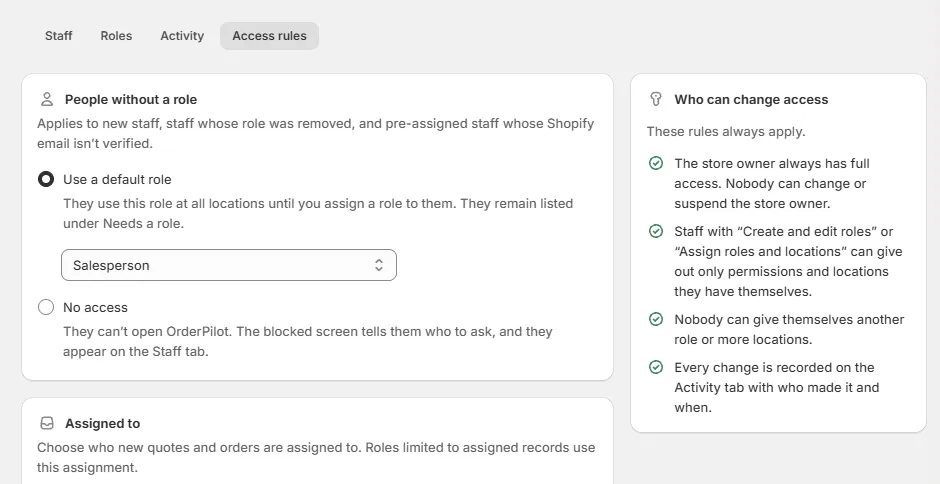
Under SettingsStaff & rolesAccess rules, People without a role offers 2 choices. Changing them requires Create and edit roles and access to every location.
| Choice | What happens |
|---|---|
| Use a default role | Choose the role people use at all locations until individually assigned. They remain under Needs a role. |
| No access | People without a role cannot open OrderPilot. The blocked screen tells them who to ask, and they appear on Staff. |
This rule also covers people whose role was removed and pre-assigned people whose Shopify email is not verified. After saving a change, Access rules saved confirms it.
PIN-only POS staff can be added from Recent POS sign-ins. Shared iPads and staff PINs explains that setup.
Suspend or restore access
Step 1: Open the person's access page
Find the person on Staff and open their page. The suspension card explains that records and existing sales credit are kept.
Step 2: Suspend access
Click Suspend access. Add Reason (optional) if needed, up to 200 characters, then confirm Suspend access. Access suspended for followed by the person's name confirms the change.
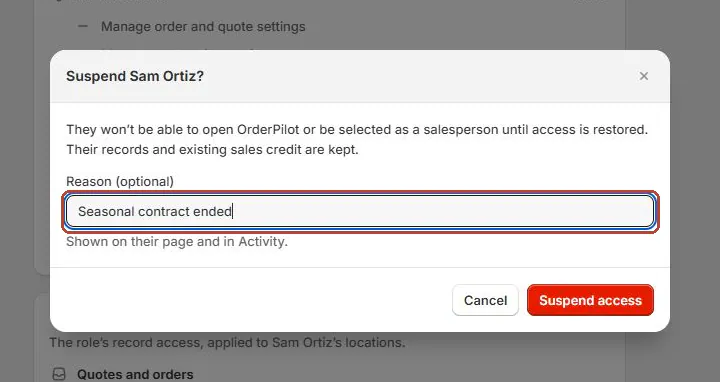
A suspension blocks access while preserving records and existing sales credit. Step 3: Restore access when needed
Open the Suspended filter, select the person and click Restore access. Confirm the dialog. The message says that the person's access is restored; their role and locations return on the next load.
What suspension keeps
Suspension blocks OrderPilot in Shopify admin and POS. The person cannot be selected as a salesperson until access is restored, but their quotes, orders, sales credit and history remain.
The reason appears on the person's page and in Activity. Removing a Shopify staff account is a separate action in Shopify's staff settings.
See who changed access
Step 1: Open access Activity
Go to SettingsStaff & rolesActivity. The table shows When, Who and What happened; automatic changes name OrderPilot as the actor.
Step 2: Narrow the entries
Choose a Staff member or Role. The staff filter selects whom the change was about. Tick Show blocked attempts to include access refusals, with Blocked badges where relevant.
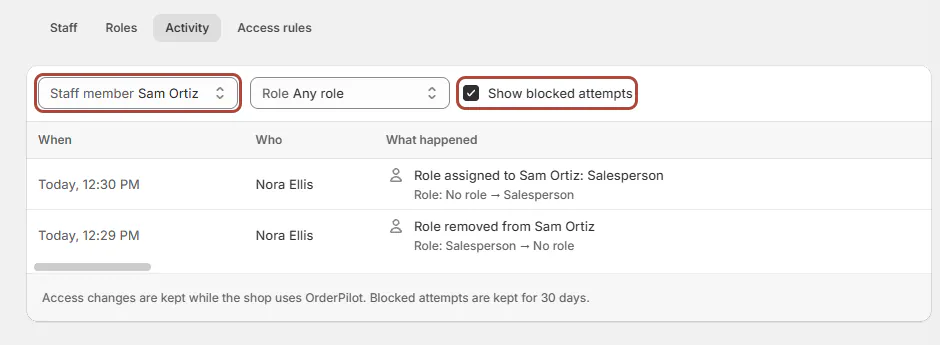
Filter the history by person or role, and tick Show blocked attempts to include refusals. Step 3: Read more history
Click Load more when you need older entries. The list can show role assignments, location changes, suspensions, pre-assignments, POS staff additions and access-rule changes.
How long entries are kept
Access changes are kept while the shop uses OrderPilot. Blocked attempts are kept for 30 days, and repeated refusals are grouped rather than recorded on every action.
What happens next
Changes apply when the person next loads a page or opens OrderPilot on POS. With No access, a newcomer sees Ask an admin for access until assigned a role.
The location picker offers their permitted locations, and lists apply the same access limits. Sales credit does not replace these permissions; see Assign orders and salespeople.
Example: staff the showroom and warehouse
Example · Harlow & Finch Interiors
Give Sam and Jo their access
Nora Ellis manages access for Harlow & Finch Interiors.
- Sam Ortiz opens OrderPilot on the showroom iPad and appears under Needs a role.
- Nora assigns Sam the Salesperson role with the Showroom as his only location.
- Before Jo Park's first visit, Nora reserves Operations for Jo's verified Shopify sign-in email.
- After Jo opens OrderPilot, Nora checks the location assignment for the warehouse work.
- When Sam's seasonal work ends, Nora suspends his access with the reason Seasonal contract ended; his existing sales credit remains.
If something goes wrong
The person is not listed
They must open OrderPilot once, or you can pre-assign a role before their first visit. Check Recent POS sign-ins for PIN-only staff.
They see Ask an admin for access
Assign a role or review People without a role. The blocked screen names people who can help.
A page is missing or View only
Check the role's page and action permissions. A store administrator can assign a suitable role or edit the role.
Admin works but POS does not
Check the role's In Shopify admin and On Shopify POS switches, along with the POS staff identity.
A role exceeds your access
You cannot grant permissions you do not hold. Ask the store owner to make that assignment.
The person's page is View only
You may be viewing your own access or a person with broader permissions or locations. Ask another authorized administrator.
Pre-assign is greyed out
You need access to every location. Ask the store owner, or assign the role after the person first opens the app.
The reserved role did not apply
Check the exact Shopify sign-in email and its verification. A prior visit means the role must be assigned on Staff instead.
For the blocked person's view, use When OrderPilot shows an error.
Was this guide helpful?
Thanks. Tell us what was missing at support@meetorderpilot.com.