How payments work
Where are you working?
Related guides
- Collect a paymentPayments and signatures · 6 min
- Take a depositPayments and signatures · 5 min
- Set payment terms and place pay-later ordersPayments and signatures · 5 min
- Review payments and invoices, and refund a paymentPayments and signatures · 5 min
- Set signature and minimum-deposit requirementsPayments and signatures · 5 min
Customers pay online or at the register through Shopify. Staff can also record money received another way, such as cash, check or bank transfer.
Recording that money in OrderPilot does not charge the customer. Choose the action according to whether you need to collect money or record an existing payment.
How it works
A customer's payment link leads to the relevant Shopify checkout. Pay buttons on documents use the sale's payment link, so the customer reaches the payment route for that record.
Payments made through Shopify update OrderPilot when Shopify reports the result. Read the payment badge and summary to confirm the received amount.
- 1Prepare the saleCreate the quote or order and check its total.
- 2Choose the payment routeSend a payment link, use POS or record money already received.
- 3Check Shopify placementThe main draft becomes an order through its placement and payment route.
- 4Track the balanceRead payments, refunds and the remaining amount on the sale.
A separate deposit-order link is a special route. It creates another Shopify order for the deposit, then credits that paid amount against the main draft.
Card refunds and returns happen in Shopify and sync back. Refund Payment in OrderPilot records a cash refund; it does not send money back to a card.
How it works at the register
POS prepares the sale before opening Shopify's own collection screen. It saves unsaved edits and waits for Shopify's tax calculation.
- 1Take PaymentBegin the payment route from the order.
- 2Choose handoverReview Pickup or Delivery and what leaves today.
- 3Get the required signatureComplete the signature step when an item requires it.
- 4Collect through ShopifyThe draft is placed as an unpaid order and Shopify POS opens Collect payment.
When a draft has no payment terms, the route adds Due on receipt. It opens the placed order's collection screen, rather than adding the draft to a new cart.
The button changes with the task. Take Deposit appears when only the deposit is due now; goods leaving in full can make it Take Payment.
Create Order indicates payment due later without a deposit. Paid in full and Calculating tax… indicate that collecting a new amount is not the current action.
Sign in the showroom covers signing, and Split orders covers taking some goods today and delivering the rest.
Where you'll see it
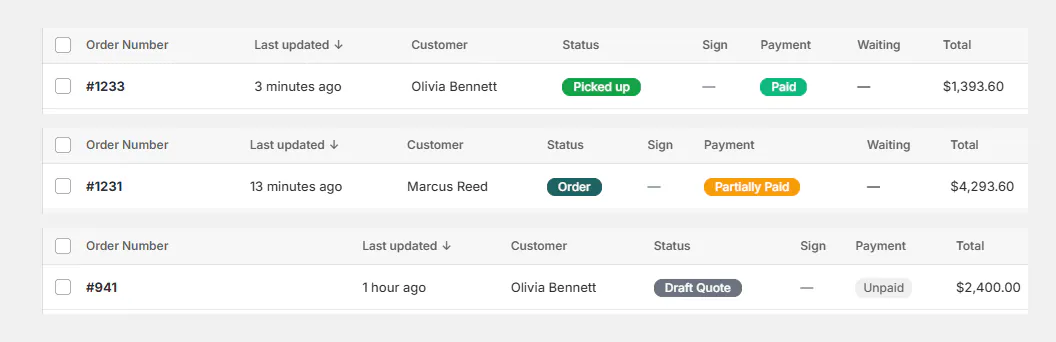
In the app, the quote or order shows its payment badge and summary. Payments and Invoices provides the detailed records.
The list's Payment filter helps locate paid, partial and unpaid work. Its groups are broader than the individual badges.
| Filter | Included payment states |
|---|---|
| Paid | Fully paid |
| Partial | Partially paid, refunded or partially refunded |
| Unpaid | Unpaid, authorized or voided |
On POS, look for the balance, amount paid, payment button and Payment History. Shopify's collection screen and receipts show the checkout side of the transaction.

The choices you have
| Route | Use it for | What to check |
|---|---|---|
| Request payment | Customer checkout by link | Customer address and amount due |
| Collect payment or Mark as paid | Money already received | It records payment without charging |
| Create order (pay later) | An agreed deferred payment | Due date and terms |
| Apply store credit | Existing customer credit | Available balance and placement limits |
| Take Payment on POS | Register checkout | Tax, signature and handover |
| Refund Payment | A cash refund | Refundable amount and history |
The action name Collect payment can sound like a charge. Read its explanation: the app's recording action confirms money already received elsewhere.
Deposit choices
| Deposit route | Availability | Relationship to requirements |
|---|---|---|
| Separate deposit order | Any Shopify plan; app before placement | Does not satisfy a minimum-deposit rule |
| Percentage in payment terms | Shopify Plus | Used for native deposit requirements |
| Take Deposit on POS | Shopify Plus | Amount comes from payment terms |
| Partial store credit on a draft | Any plan | Review the resulting draft balance |
Separate deposit orders start off in settings. Take a deposit explains enabling and using them.
Shopify Plus
Native percentage deposit terms, POS Take Deposit and partial manual payment recording on placed orders need Shopify Plus. Minimum-deposit rules also depend on the native deposit capability.
Store credit works on any plan. On a placed order without Plus, it must cover the whole balance.
Payment badges and amounts
| Label | Meaning |
|---|---|
| Paid | The sale is fully paid. |
| Partially Paid | Some payment has been received and a balance remains. |
| Unpaid | Payment has not been completed. |
| Authorized | A payment authorization is recorded; do not read this as fully paid. |
| Refunded or Partially Refunded | A refund is recorded against the payment. |
| Voided | The recorded payment state is voided. |
| Paid | In the summary, this is the recorded amount received. |
| Refunded | The amount recorded as returned. |
| Net payment | Payments after recorded refunds. |
| Refund Owed | Payments exceed the current sale total. |
| Balance Due | The displayed amount still owing on the sale. |
The Payments tab can show PENDING, PAID, EXPIRED, CANCELLED, PARTIAL and SETTLED. It also identifies Store credit and deposit rows.
Customer payment says whether the customer payment route is enabled. It is separate from whether money has already arrived.
Example: a sofa deposit and bank transfer
Harlow & Finch Interiors can request Olivia Bennett's sofa deposit using a separate deposit order on any Shopify plan.
With Shopify Plus, the store can instead set a native percentage deposit and take it on POS. Those routes have different effects and requirements.
Priya Shah pays for Mira Dining Chairs by bank transfer. Staff record the received amount; the app does not collect the transfer again.
Do it
Use Collect a payment, Take a deposit, or Payment terms and paying later for the chosen route.
Refunds and payment history covers corrections. Signature and deposit requirements explains placement restrictions.
Was this guide helpful?
Thanks. Tell us what was missing at support@meetorderpilot.com.