Choose which emails go out, and when
Related guides
- Set up your sending domainEmails and messages · 5 min
- Set sender details, replies, and email copiesEmails and messages · 4 min
- Edit and publish your email designsEmails and messages · 5 min
- Create email templates and assign brand designsEmails and messages · 4 min
- Send customers text messagesEmails and messages · 3 min
Choose which customer emails send automatically and which remain staff actions. An email group can send when an order reaches a chosen status, while actions such as requesting payment send their own messages.
Start with the event that should reach the customer. Then choose the email, its design, and the sending rule.
Before you start
Enable customer email
Complete sending-domain setup and turn on Send customer emails.
Check settings access
Sending rules need Manage shop settings. Status setup needs Manage order and quote settings.
Know your workflow
Read order statuses before changing when a stage contacts the customer.
- 1EventAn action or status change occurs.
- 2Email groupThe matching group determines the message.
- 3DesignThe brand version or default supplies its appearance.
- 4CustomerSending rules determine whether the email goes out.
| Main trigger | |
|---|---|
| Quote and Invoice | Their assigned status or a staff send. |
| Request signature | A signature request, or an optional status. |
| Request payment | A payment request, or an optional status. |
| Quote follow-up | A reminder, staff send, or optional status. |
| Signed copy | A customer signs with signed-copy emails enabled. |
| Purchase order | Staff send the purchase order to the vendor. |
| Quote request received | An online request needs pricing and creation emails are on. |
Request signature and Signed copy attach the quote or order document. Request payment attaches the invoice. Quote request received includes no attachment or prices.
Each group can use at most one status. Signed copy, Purchase order, and Quote request received don't take a status. Draft doesn't send automatic status emails or texts.
Choose the status that sends each email
Step 1: Open the email group
Go to SettingsBrandingEmails. Open the group and choose Choose a status, or Also send on a status… for a group with an existing action trigger.
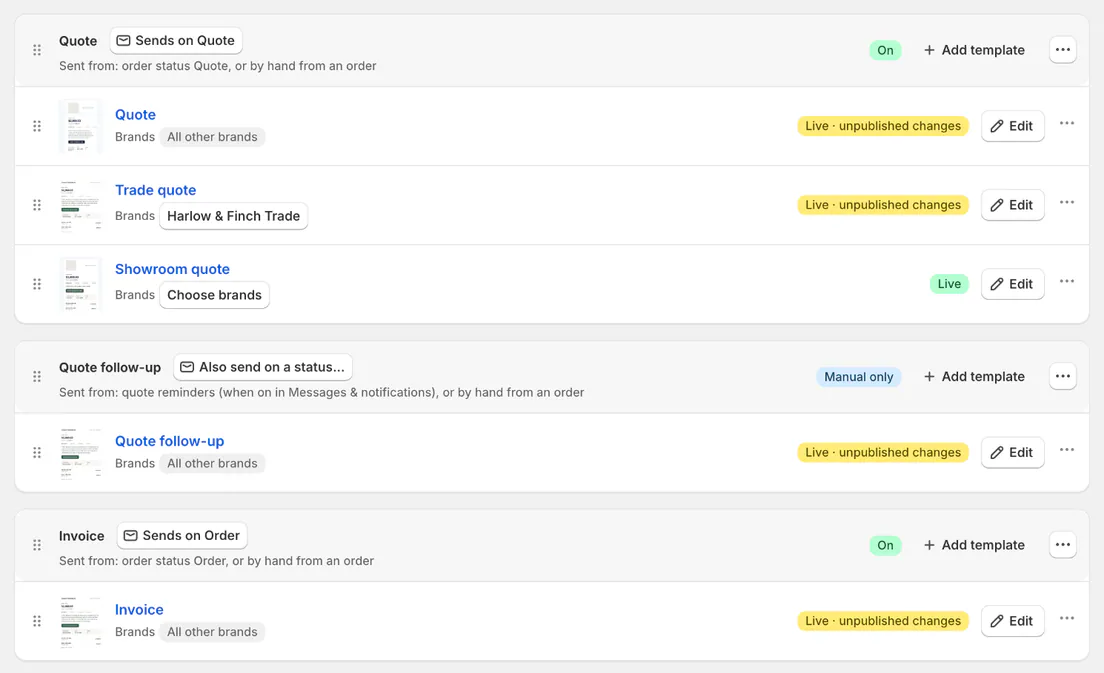
Branding › Emails group cards with chips and Sent from lines. Step 2: Choose its automatic trigger
In When it sends, choose the status. Choose No status for a group you don't want triggered by a status. Staff can still send it by hand.
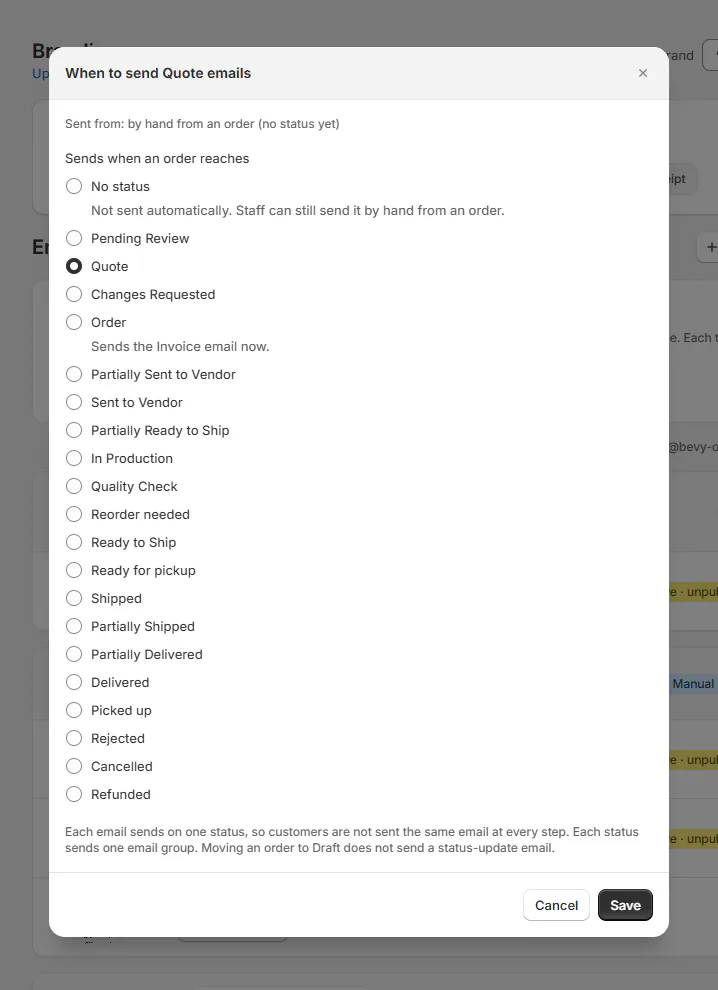
The group's When it sends dialog with a status picked. Step 3: Save and review any move
Save the choice. If the status already sends another group, review Move status before confirming. The group's sending line reflects the new assignment.
A switched-off status cannot be reached, so it sends nothing. Assign the email on its group; the Statuses page doesn't choose which email a status sends.
Use email designs for the content and templates and brands for brand versions or your own groups.
Set the sending rules
Step 1: Choose creation emails
Open SettingsMessages & notificationsSending settingsEmail & SMS rules. Review Send an email when an order is created and its Sends on chips.
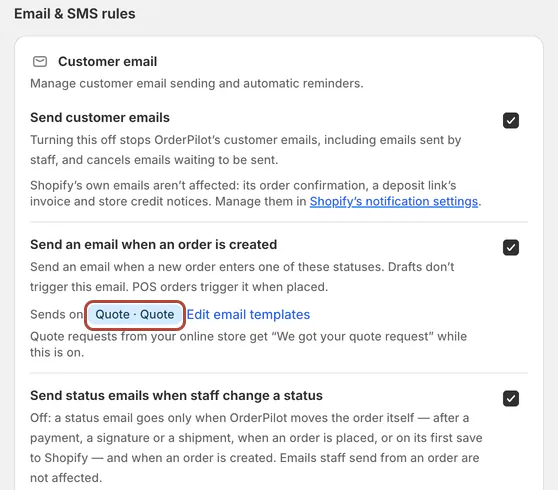
Email & SMS rules: Send an email when an order is created with Sends on chips, and the hand-change switch. This switch starts on. A status must also enable Also send when an order or quote is created with this status. under its Email settings. Draft creation doesn't trigger this email.
Step 2: Choose emails for staff changes
Set Send status emails when staff change a status. It starts on. Turning it off stops status emails caused by staff changes, while OrderPilot's own moves can still send.
Staff changes include the order page, Next status, POS, and bulk changes. Automatic moves include payments, signatures, shipments, creation, and automatic status-map connections.
The setting doesn't stop manually sent emails or text messages. Keep those separate when deciding how many updates a customer should receive.
Step 3: Choose signed-copy emails
Set Email customers their signed copy. It starts on and emails the signed PDF after a customer signs in OrderPilot, copying the salesperson.
Recording an externally signed copy doesn't trigger this email. Use the recorded signature method when checking why a signed-copy email did or didn't send.
Set an unfinished-quote reminder
Step 1: Enable the reminder and wait
Turn on Remind customers about unfinished quotes. Choose Wait before reminding: 24 hours, 48 hours, 72 hours, or 1 week. The default wait is 48 hours.
Step 2: Choose hours and template
Choose Sending hours and Reminder template. Options include Any time, 9am – 6pm, 8am – 8pm, and 10am – 4pm. The default template is Quote follow-up (default).
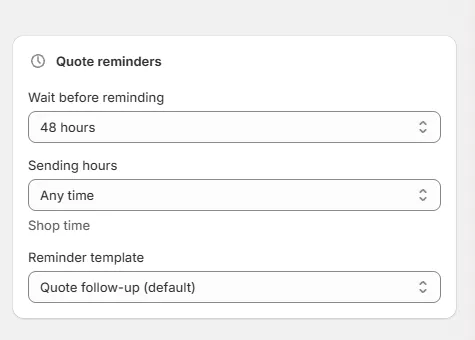
Quote reminders with the three pickers. The reminder sends once for a quote still in Draft after the required quiet period. It doesn't remind Pending Review quotes. Signed copy and purchase order templates can't be reminders.
What happens next
Group chips show On, Off, Paused, Manual only, or Not sending. The Sent from: line explains the trigger. The order's activity can show Email queued.
Creation emails wait until the Shopify draft exists and the number is final. Failed sync sends none. POS creation emails send when the order is placed.
An hourly reminder check respects the chosen sending hours. It skips unsubscribed customers, quotes no longer in Draft, and quotes at locations outside the subscription.
Example: two different quote paths
Example · Harlow & Finch Interiors
Send Olivia's quote and remind Priya
Harlow & Finch Interiors uses automatic quote emails and a 48-hour reminder.
- Olivia Bennett's Linden Sofa quote is created in an eligible status.
- Sam Ortiz requests her signature.
- Olivia signs and receives her signed copy.
- Her order reaches the Invoice group's status and receives that email.
- Priya Shah's untouched Draft receives one reminder within the chosen hours.
Important notes and tips
Unsubscribing stops later customer emails to that address for your store, including order and status emails. Vendor purchase-order emails aren't stopped by that unsubscribe, though other delivery blocks still apply.
There is no app control to remove the unsubscribe. Staff alerts and portal access-link emails don't carry an unsubscribe link.
If something goes wrong
A new quote sends no email
Check the creation switch, its status setting, Draft state, and Shopify sync.
A reminder's hours show UTC
Save the sending hours again to retry loading the store's time zone.
Reminder controls are greyed out
Turn on reminders first.
A status sends nothing
Check its group, whether the status is enabled, and sending rules. Then use email troubleshooting.
Was this guide helpful?
Thanks. Tell us what was missing at support@meetorderpilot.com.