Email a quote or order
Related guides
- Get a quote signedPayments and signatures · 5 min
- Collect a paymentPayments and signatures · 6 min
- Handle a customer's change requestQuotes and orders · 5 min
- The quote and order pageQuotes and orders · 6 min
- Reply to customers from the InboxEmails and messages · 5 min
Write and preview an email from the quote or order, then send it now or schedule it. Check its delivery history afterward.
The composer shows who will receive the message, including automatic copies. Review those recipients before sending customer information or portal links.
Before you start
Create the record first
An unfinished local draft must be created before it can be emailed.
Check access and billing
Sending needs Email customers and a billed owning location.
Check email setup
Enable customer emails and complete sending setup.
Check recipients
Confirm the customer's address and the staff who should receive a copy.
Signature and payment requests have their own routes: Get a quote signed and Collect a payment.
Write, preview and send
Step 1: Open the composer
On a quote, choose •••, then Send follow-up. On an order, choose Send email.
Send an Email opens. A quote follow-up starts with its follow-up template; an order's Send email starts with the Invoice template.
Step 2: Choose the message and recipients
Use Choose an Email Template, or choose the option to send your message as typed. Check To, Cc, Bcc and Reply-to.
The order's salespeople and configured shop copies appear in Cc. Remove anyone who should not receive this particular manual email.
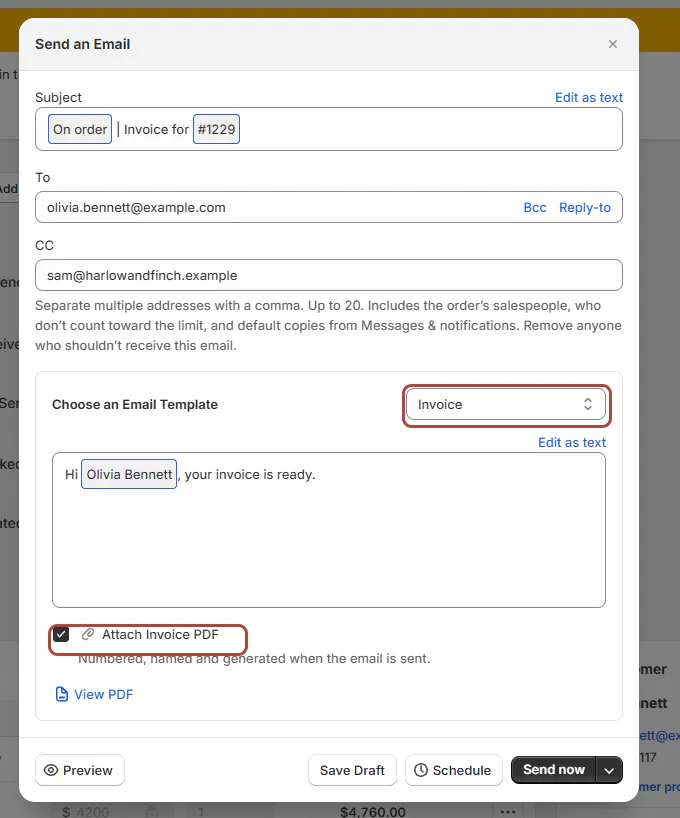
Review the recipients, message and attachment before sending. Step 3: Write the message
Check Subject and Message, including any inserted customer or order details. Keep the attachment ticked when the document should accompany the message; it reads, for example, Attach Q-D832.pdf on a quote or Attach Invoice PDF on an invoice.
For customer-requested changes, review Include what changed. The composer retains the selected content for preview.
Step 4: Preview the result
Click Preview. In Email Preview, choose Mobile, Laptop or Desktop, and use Fullscreen if needed.
Read the message, links and attachment context. Close the preview to return to the composer.
Step 5: Send a test when needed
Under More send options, choose Send test email…. Enter an address you control under Test email address, then click Send test.
The test goes immediately to that address. The customer is not emailed, and your draft remains available.
Step 6: Send now or save
Click Send now when the message is ready. Email queued for delivery confirms it entered the sending queue.
Use Save Draft when it needs more work. A queued confirmation is not yet a delivery confirmation.
Step 7: Schedule instead of sending now
Choose Schedule, then set Date and Time in your local time zone. The time must be at least 1 minute ahead.
Check the scheduled message under Scheduled notifications. Use its Cancel action if it should no longer be sent.
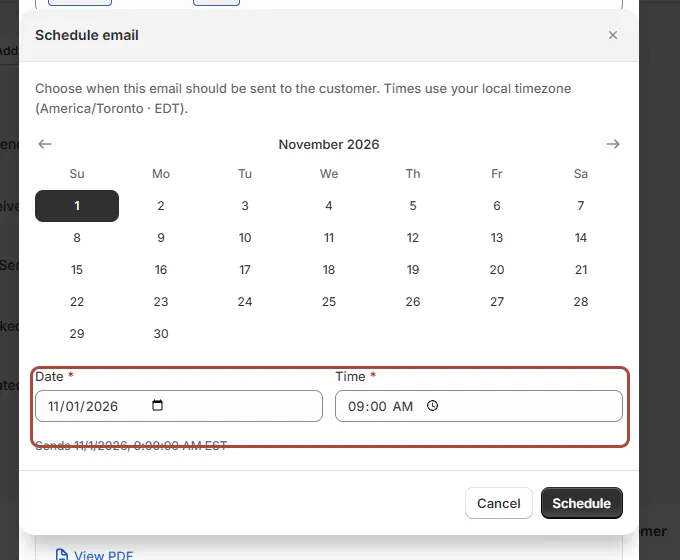
Confirm the local date and time before scheduling.
Check delivery and viewing
Step 1: Read the quote's header
Look beneath the title for the last-viewed information, sent version and valid-until date, for example Marcus last viewed the quote at 12:57 AM EDT · Valid until Dec 1, 2026. A live viewing line can show that Olivia is viewing the quote now.
Compare the sent version with the current sale. A customer opening an older version does not prove they saw your latest edit.

The line names when the customer last viewed the quote. Step 2: Open the email history
In Activity, click View all emails. Emails for the record opens with an All statuses filter.
Choose a status or open a message to inspect its recorded history. Email and signing-page opens also appear in Activity.
Step 3: Interpret the status
Read Scheduled, Sending…, Sent, Delivered, Opened or Clicked according to the event recorded.
Bounced, Failed, Cancelled and Send status unconfirmed need closer inspection. Follow Emails not arriving for delivery problems.
Open tracking can be blocked or triggered by mail scanners. Treat an open as a viewing signal, not proof that the customer read and understood the sale.
Set copies or plain-text sending
Step 1: Set recurring shop copies
Go to SettingsMessages & notificationsSending settingsRecipients. Under Copies of customer emails, edit Also copy these addresses.
Save the change and review future prefilled Cc lists. Sender, replies and copies explains the recipient settings.
Salespeople do not count toward the Cc cap of 20. Everyone copied receives the same portal link and PIN, so choose recipients carefully.
Step 2: Choose a template's sending style
Open the template row's menu and choose Send as plain text. The template displays Plain text.
Choose Send with the design to restore designed messages. Staff can untick plain text for an individual email.
Use Edit and publish emails when the design or template wording itself needs changing.
What happens next
Emails are queued and kept in the sale's conversation. When Receive replies is enabled, replies can reach the Inbox.
Scheduled sends also depend on billing when they run. Removing a billed location cancels its scheduled sends; ending the subscription cancels all scheduled sends.
Example: follow up with Olivia
Example · Harlow & Finch Interiors
Preview before scheduling
Sam Ortiz prepares a follow-up for Olivia Bennett's Linden Sofa quote.
- Sam opens Send follow-up and checks the recipients.
- Sam previews the message on Mobile.
- Sam sends a test to an actual address Sam controls.
- Sam schedules the customer message for 9:00 am.
- Afterward, Sam checks delivery and viewed activity separately.
If something goes wrong
Send follow-up is greyed out
Create the quote first and check email permission.
A recipient is refused
Remove duplicate addresses across To, Cc and Bcc.
The schedule time is refused
Choose a time at least 1 minute in the future.
Billing prevents sending
Resolve the owning location's subscription or the billing check.
A scheduled message is Cancelled
Inspect whether the location stopped being billed or the subscription ended.
Someone unexpected is copied
Review salespeople and shop-copy settings, then the manual message's Cc list.
Was this guide helpful?
Thanks. Tell us what was missing at support@meetorderpilot.com.