How the status map works
Related guides
- How order statuses workStatuses and workflow · 6 min
- Connect statuses and add Next status buttonsStatuses and workflow · 5 min
- Automate your workflow: events, conditions and actionsStatuses and workflow · 5 min
- Test, publish and restore the status mapStatuses and workflow · 5 min
- When an order’s status doesn’t do what you expectStatuses and workflow · 4 min
The status map shows how orders move between your store’s stages. Each connection describes a move: what starts it, which conditions must be met and what happens afterward.
Some connections run automatically after an event, such as goods being received. Others give staff a Next status button for a decision they need to record.
Creating a status names the stage; connecting it defines how orders reach or leave it. The same map also shows the app’s built-in connections.
Before you start
Read How order statuses work and Connect statuses. Open the map from SettingsQuotes & ordersStatuses.
Anyone with access can view the map. Changes need Manage order and quote settings.
How the map chooses a connection
- 1WhenAn event happens or a condition becomes true.
- 2Only ifThe order passes the connection's checks.
- 3ThenThe connection moves the order or runs its actions.
After a relevant change, the map reads connections from the current status and Any status. The first matching connection wins.
Checks also run when staff press Next status, during the open-order check and nightly. One check allows up to 10 moves without visiting the same status twice.
A manual status choice is not limited to the drawn connections. It holds until something read by its connections changes.
Connection types and priority
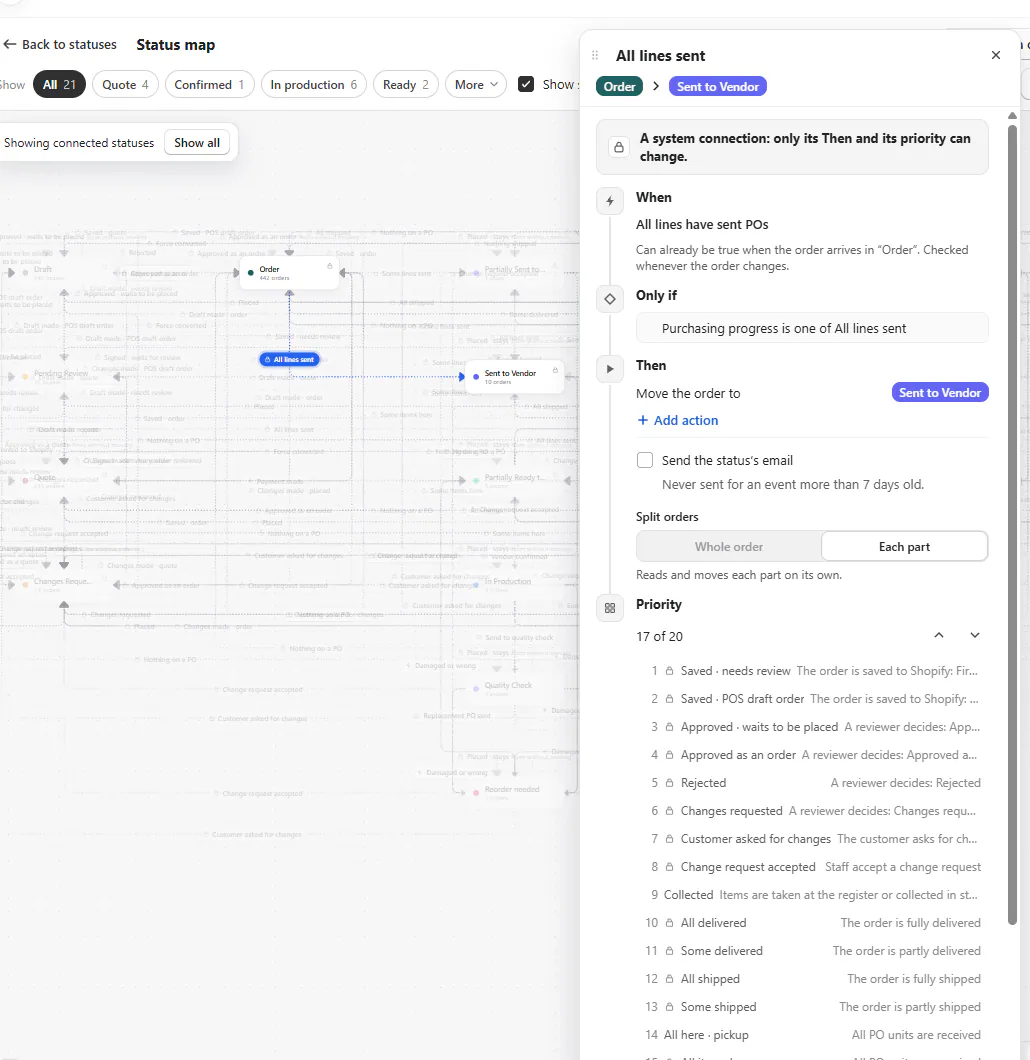
Automatically can respond to an event or to something already true. An event counts only while the order is in the starting status.
A state condition can already hold when the order arrives. It is checked again when relevant information changes.
Staff press Next status creates an order-page button. Its Unlocked when condition can hold the button until the order is ready.
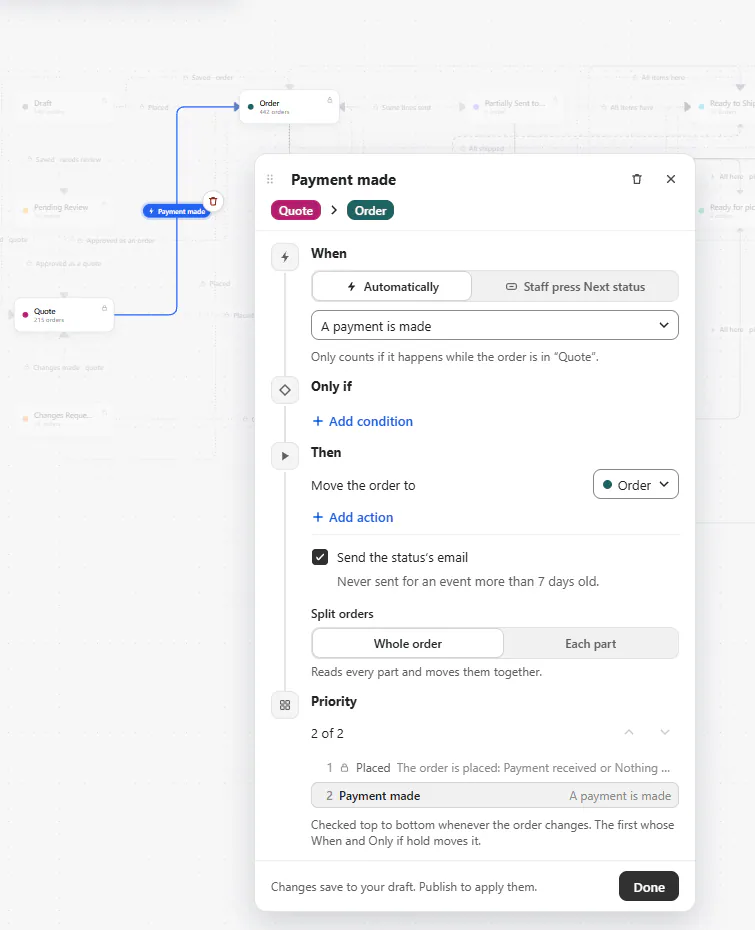
Priority has 3 parts: the app's save, review and placement decisions; the card's ordered connections; then the app's stay-in-place connections.
Connections can move only within their own priority part. Your connections are primary; the app's backup connections stay hidden until Show system connections is on.
A system connection permits changes to Then and priority only. Its triggering event and destination are protected.
Events you can choose
| Group | When choices |
|---|---|
| Staff, quotes and orders | Staff press Next status; The order is created; The order is saved to Shopify; A reviewer decides; The customer asks for changes; Staff accept a change request; The changes are made; The order is signed; An edit cancels the signature; The order is placed; Another part is placed; The order is cancelled in Shopify. |
| Payments | A payment is made; The order is fully paid; A refund is issued. |
| Purchase orders | A PO is sent; A PO is received; A PO for it changes; Some lines have sent POs; All lines have sent POs; Some PO units are received; All PO units are received; All received units are rejected. |
| Fulfilment | The order is partly shipped; The order is fully shipped; The order is partly delivered; The order is fully delivered; Items are handed over; A fulfilment is cancelled; Delivery is no longer confirmed. |
Legacy events
Existing connections can use Items are marked fulfilled and It is delivered. Review what the connection does before replacing an older event.
Conditions you can check
Only if combines checks using All of these are true or Any of these is true.
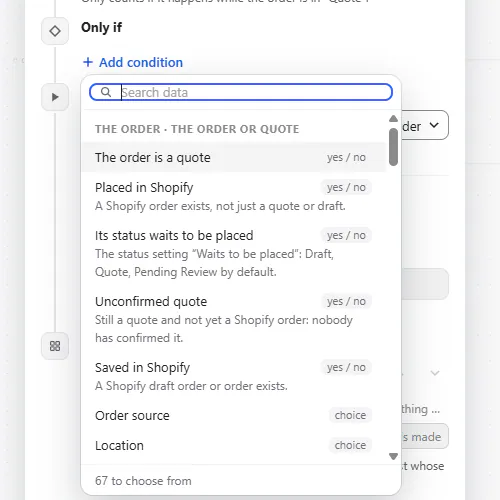
| Order data group | Available fields |
|---|---|
| The order or quote | The order is a quote; Placed in Shopify; Its status waits to be placed; Unconfirmed quote; Saved in Shopify; Order source; Location; Tags; Order note; Assigned to; In-store sale; Part of a split order; Split order part; Cancelled in Shopify; Cancellation reason; Change source. |
| Review | Review required; Review required for all orders. |
| Signature | Signed; Signature status; Signature required; Signature waived. |
| Payment | Payment status; Paid in full; Total; Paid so far; Balance due; Deposit %; Deposit required (%); Payment due later; Customer payments enabled. |
| Refunds | Latest refund amount; Total refunded; Refund owed; Refund source. |
| Purchase orders | Purchasing progress; Not fully on POs; Missing vendor. |
| Fulfilment | Fulfilment status; Delivery progress; Ever delivered. |
Line checks use At least one line, Every line or No line. Choose the scope before deciding whether the condition describes readiness.
| Line data group | Available fields |
|---|---|
| The line | Product title; SKU; Vendor; Category; Quantity; Price; Review required; Delivery method. |
| Stock | Stock source; Ordered-new item has arrived. |
| Purchase orders | PO required; Is on a PO; On an open PO; On a sent PO; Fully on sent POs; Not fully on POs; Its PO status; All PO units received; Any part received; Received quantity; Any received units rejected; All received units rejected; Rejected quantity; Why it was rejected. |
| Fulfilment | Shipped quantity; Delivered quantity. |
Purchasing progress and All PO units received count PO-covered lines and special orders still awaiting a PO. A stocked line with no PO is left out.
Actions and split orders
Under Then, choose Move the order to or Runs without moving. Additional actions can accompany the connection.
| Action | Result |
|---|---|
| Add an order tag | Adds the tag and syncs it to Shopify. |
| Remove an order tag | Removes the tag and syncs that change. |
| Add an activity note | Adds a staff-visible note to the order. |
| Email the customer | Sends the selected template. |
| Flag a replacement PO for rejected lines | Adds a note listing rejected lines; staff still draft the PO. |
| Turn customer payment on | Enables online payment from then on. |
| Notify staff | Emails the order's salespeople. |
Send the status's email uses the destination status's email. It never sends for an event more than 7 days old.
For split orders, Whole order reads every part and moves them together. Each part evaluates parts separately.
The editor
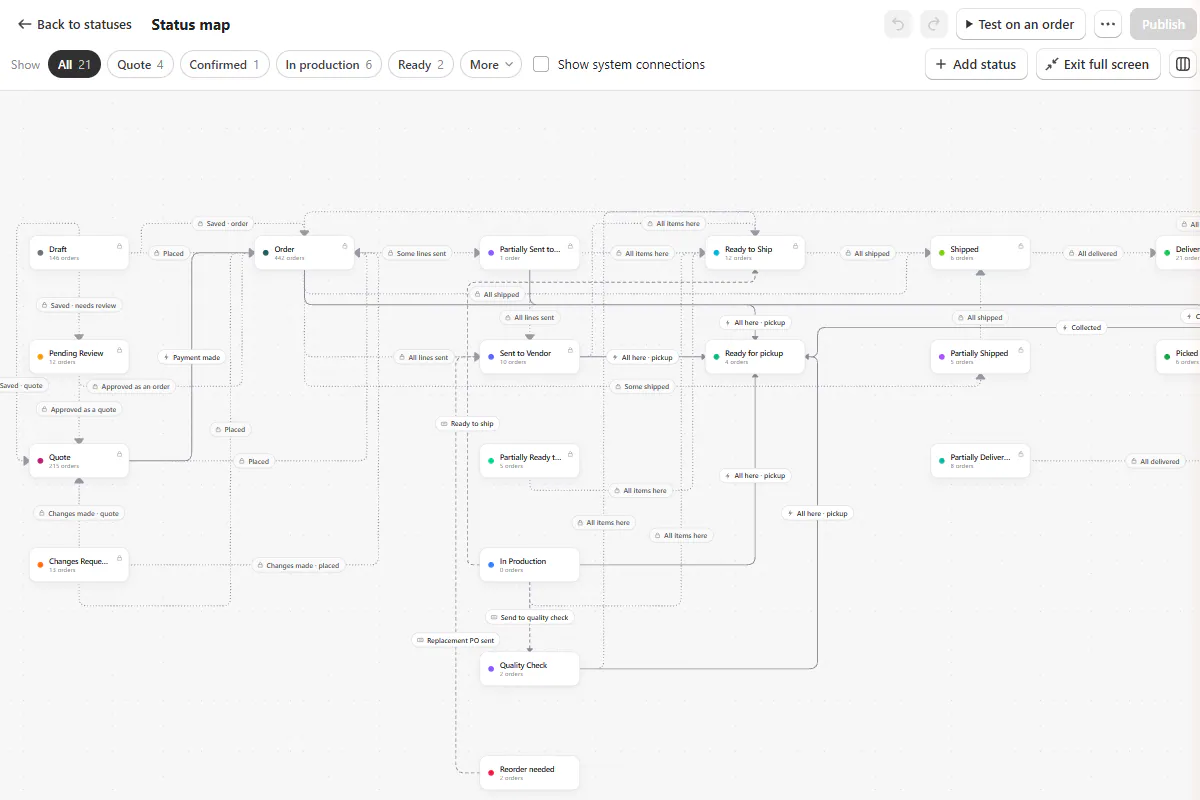
| Area | Controls and meaning |
|---|---|
| First toolbar row | Back to statuses, unpublished-change indicator, save state, problems, Undo, Redo, Test on an order, Version history, Discard changes, Publish. |
| Second toolbar row | Group Show chips, Not in a group, Show system connections, Add status, Full screen, Sort by group. |
| Status cards | Order count, Turned off or No longer exists state, and 4 connection dots. |
| Any status | Connections that apply regardless of the current stage. |
| Hidden-group stubs | Connection destinations whose group is currently hidden. |
| Connection panel | Name, When (Automatically or Staff press Next status) with its event or Unlocked when, Only if, Then, Priority, recent moves and Done. |
Show system connections starts off on every load. The panel footer reports movements over the last 30 days.
Limits are 200 cards, 300 connections, 80-character connection names, 10 conditions, 6 line checks, 10 actions, 500-character notes and 10 staff emails.
Example: workshop to readiness
Harlow & Finch Interiors connects Sent to Vendor to In Workshop with a Vendor confirmed staff button.
Olivia Bennett's sofa moves when Sam Ortiz records Atelier Homeworks' confirmation. A second connection waits for All PO units are received.
Receiving the sofa then moves it to Ready to Ship. The staff confirmation and receipt use different triggers for different evidence.
Do it
Connect statuses, then add automation. Edits save to a draft until you test and publish.
Publishing moves no orders immediately. Orders follow the new map from their next change; Check N open orders now applies it without emails.
Every map movement leaves an Activity entry ending with its connection label.
If something goes wrong
Not saved appears
Fix marked problems or resolve the notice that another person changed the map.
A new connection moved nothing
Check it was published and whether the order has changed since publication.
The map is read-only
Ask for Manage order and quote settings.
The reason for a movement is unclear
Inspect Status problems using the order's Activity.
Was this guide helpful?
Thanks. Tell us what was missing at support@meetorderpilot.com.