Find your way around OrderPilot
Related guides
- Welcome to OrderPilotGet started · 6 min
- How Settings is organizedSettings and integrations · 5 min
- Give staff accessTeam and permissions · 7 min
- Bring in your locationsSettings and integrations · 6 min
- Analytics and the sales performance reportReports · 5 min
Find the page, sale or setting you need without losing your place. OrderPilot's menus follow your role, while Home brings recent work and outstanding tasks together.
The location chip changes your working location or a list's filter. Home and Analytics cover all locations, so their totals do not change with that chip.
Before you start
Which pages can you use?
Your role controls the menu entries you see. Home search and Continue working need View quotes and orders.
Are optional pages enabled?
Customers and Review appear in menus only when turned on. Their absence does not mean that your customer or quote has disappeared.
Which figures are you reading?
Home totals cover every location. Check the reporting period before comparing them with another report.
Get around the menus
| Area | What you find there |
|---|---|
| Header row | Home, Quotes, Orders, Customers, Review, Purchase Orders, Warranty, Products and Academy, followed by Search Settings, the location chip and Settings. |
| More | Header entries that do not fit in the available space. On a phone, Open navigation menu can hold the navigation. |
| Shopify sidebar | Home, Inbox, Quotes, Orders, Customers, Review, Purchase Orders, Warranty, Products, Analytics, Academy and Settings. Your role and optional-page settings filter this list. |
| Shopify title bar | Inbox, with a count of conversations containing replies new to you. Counts above 99 show 99+. |
Analytics appears in Shopify's sidebar, not in OrderPilot's header row. Use Analytics and the sales performance report when you need the detailed reports.

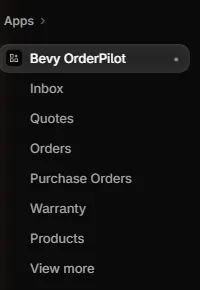
Inbox also announces new replies with an Open or Open Inbox action. The count is about replies new to you, so another staff member can see a different count.
Academy opens the training library inside the app. If Academy unavailable appears, contact support@meetorderpilot.com.
Why a menu entry is missing
| Entry | What makes it available |
|---|---|
| Quotes, Orders, Customers, Review and Warranty | View quotes and orders. Customers and Review also need their page switches enabled. |
| Inbox | View quotes and orders or View purchase orders. |
| Purchase Orders | View purchase orders. |
| Products | View quotes and orders, Manage the catalog, or Change catalog selling prices. |
| Analytics | View Home and Analytics totals or a commission permission. |
| Home, Academy and Settings | Always available in navigation. Individual content and actions can still depend on your role. |
See Customers settings, Set up order reviews or Give staff access for the relevant setup.
Search for a setting
Click Search Settings in the header, enter a word, then choose a result. Settings opens the matching page and scrolls to the tab or section.
| Search detail | How to read it |
|---|---|
| Page › Tab or Page › Section | The place the result will open. |
| View only | You can see that setting, but your role cannot change it. |
| Elsewhere in the app | A related page outside Settings, such as Products for product templates. |
| No matching result | Every word must match. Try fewer words or the setting's older name. |
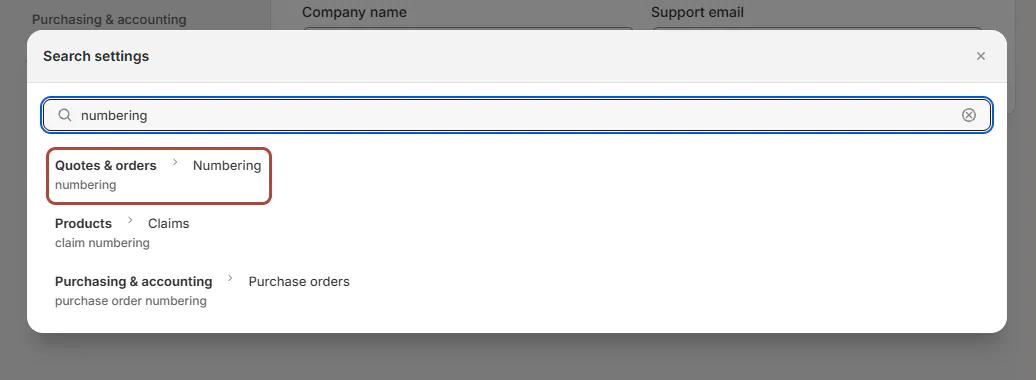
Old section names remain searchable. For the delivery setting, search "delivery to customer", "delivery days" or "delivery promise" to find Delivery to customer (days).
Work from Home
| Home area | What it shows or opens |
|---|---|
| Greeting and actions | Hi followed by your name, or Your sales workspace, with a Needs attention summary. Create quote and Create order need Create and edit quotes and orders; New product template needs Manage the catalog. |
| Failed-sync banner | Records that did not reach Shopify. Inventory does not track until they do. Open the affected record to check and retry. |
| Setup list | Until setup is done or skipped, Home is the setup list: up to 7 steps, one open at a time. After a skip, a setup bar with Resume setup. |
| Find a quote or order | A search by reference, customer name or email. |
| Continue working | Up to 3 recently updated quotes and 3 orders, with customer, number, total, payment, status and update time. |
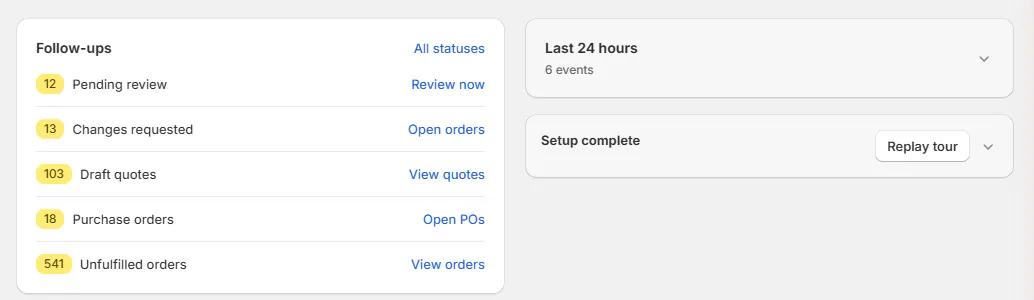
| Follow-ups | Open work grouped by the action it needs. |
| Last 24 hours | A collapsed activity card with up to 8 events; comments are excluded. |
| How you are tracking | Value tiles and counts for 7D, 30D or 90D. The default is 30D. |
| Help when you need it | User guide opens Academy. Copy support email appears when the support address is available. |
Use Fix a failed Shopify sync for a failed-sync banner, or Install and set up OrderPilot for the checklist.
Find or reopen a sale
Choose Quotes or Orders under Search in. Enter a reference, customer name or email, then click Search to open the filtered list.
The button stays greyed out until you enter text. Hover over it for the explanation.

The search opens the list with its salesperson filter set to all salespeople. Your role's access rules still apply; see Find quotes and orders.
Click a recent row in Continue working to reopen it. View all quotes and View all orders open their lists; the address keeps search filters so Back returns to your search.
Read your follow-ups
| Row | Action |
|---|---|
| Orders or quotes failed to sync | Review orders or Review quotes. |
| Pending review | Review now; without approval permission, Waiting for review and View queue. |
| Changes requested | Open orders. |
| Draft quotes | View quotes. |
| Purchase orders | Open POs; requires View purchase orders. |
| Unfulfilled orders | View orders. |
Only rows with work show initially. All statuses also shows rows at zero; Show open only returns to the shorter list.
Read the totals
The quote and order value tiles need View Home and Analytics totals. For roles limited to some records, STORE-WIDE makes the broader scope explicit.
Comparison badges show change against the previous period. Counts beside the values include Pending review, Changes requested, Draft orders and Sync failures.
Choose the location you work in
Click the location chip and choose a location, or choose All Locations. With brand grouping, the all-locations choice reads All Brands, and locations appear under their brand.
| Where you are | What the location choice changes |
|---|---|
| Quotes, Orders, Review or Purchase Orders | That list's location filter. |
| Create and edit screens | The working location, subject to the record's restrictions. |
| Home and Analytics | Neither page is filtered by the chip. |
The Select a Location list offers active selling locations and excludes the made-to-order location. Your locations explains location setup and ordering.
Staff assigned to specific locations see only their allowed locations. Give staff access covers those assignments.
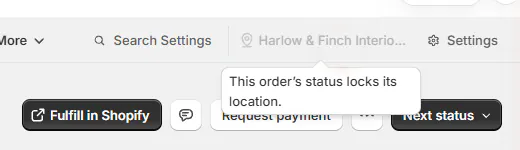
When the location is locked
An order's status can lock its location. A placed Shopify order, a linked purchase order, a missing active Shopify draft, an unfinished sync or view-only access can also prevent a change.
Hover over the greyed chip for the reason. On a purchase order, the explanation says that it keeps its own location; leave that page to switch locations.
What happens next
Lists keep their search and location in the address. A new browser tab starts at All Locations or All Brands, so check the chip before starting a sale.
Settings opens on the first page your role can change. How Settings is organized explains where store setup and customer-facing settings belong.
Example: Marcus calls about his quote
| Person | Where they go |
|---|---|
| Sam Ortiz | Choose Quotes on Home, search "Marcus", and open Marcus Reed's Mira Dining Chair quote. |
| Jo Park | Open Purchase Orders and choose Warehouse to see that location's work, then return to All Locations. |
| Nora Ellis | Search "numbering" in Search Settings to open the quote and order numbering settings. |
If something goes wrong
A menu entry is missing
Check your role and, for Customers or Review, whether the page is enabled. Analytics is in Shopify's sidebar.
The location chip is greyed out
Hover for its reason. Leave the record page before choosing another working location.
Error loading locations appears
Reload the page to load the available locations again.
A new tab returns to all locations
The choice is remembered separately in each tab. Select your working location again.
Home and Sales performance disagree
Their scope or calculations can differ. Check Analytics and the sales performance report before comparing totals.
Search Settings finds nothing
Reduce the query to fewer words or try an older section name.
Academy unavailable appears
Contact support@meetorderpilot.com so the training-library setup can be checked.
Was this guide helpful?
Thanks. Tell us what was missing at support@meetorderpilot.com.