Order a new unit or sell from stock
Where are you working?
Related guides
- Stock: what receiving and custom pieces do in ShopifyInventory and costs · 5 min
- Buy for stockPurchasing · 5 min
- How stock on hand and tracked options shape purchase ordersPurchasing · 4 min
- Create purchase orders in the PO WorkbenchPurchasing · 6 min
- Bring in your locationsSettings and integrations · 6 min
Ordering new tells purchasing to buy units for a customer even when stock already exists. This lets you keep a showroom piece available while buying another for the sale.
You can also sell a finished configuration already in stock when it matches the customer’s selections. Available stock can be sold; held stock is reserved for a particular order.
Choose the stock source before committing the item to a handover. That choice tells your team whether to use an existing unit or purchase a new one.
Before you start
Is this a tracked Shopify product?
Order New applies to Shopify products with inventory tracking.
Is a destination ready?
Order New needs an active made-to-order location and Create and edit quotes and orders.
Are you selling a finished configuration?
Use stock unit needs matching stock that covers the complete line quantity. See stock purchasing.
Made-to-order locations hold commitments. Selling, physical receiving and stock moves use subscribed locations. Existing items keep their saved destinations; new Order New items require an explicit choice.
Create a made-to-order location
Step 1: Open the location card
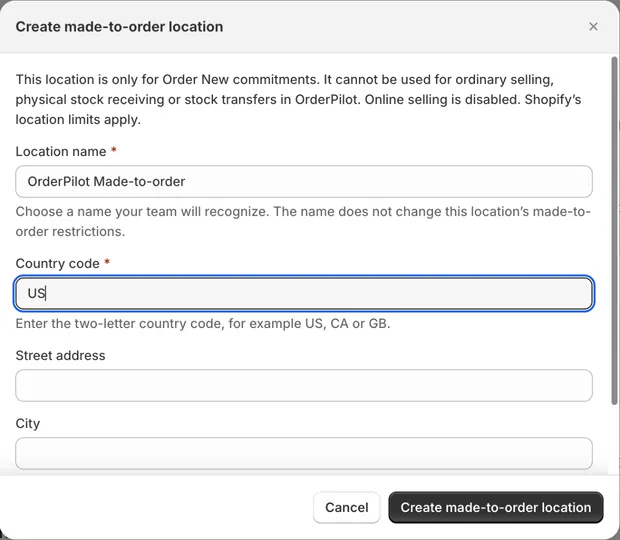
Go to SettingsBusiness & locationsBrands and locations and find Made-to-order location. Click Create made-to-order location.
The card needs Manage shop settings, Manage billing and Manage order and quote settings. Your store must have an active OrderPilot subscription.
Step 2: Enter the location details
Keep OrderPilot Made-to-order or enter a recognizable Location name. Enter a 2-letter Country code, such as US.
Street address, City and Postal code are optional. Click Create made-to-order location and wait for confirmation before closing.
The card then lists the created location with a check and Free for Order New commitments. It is excluded from selling-location and subscription-location choices.
Only a location created for this purpose by OrderPilot receives this free role. Renaming an existing location does not give it the same role.
Check setup before continuing
Creation has not confirmed
Use Check location status before requesting another location. After 15 minutes, End unconfirmed request becomes available.
Check Shopify locations first and read the required confirmation. Ending the request does not delete a location or create a replacement. Contact support if a location appears later.
Order a new unit
Step 1: Choose Order New
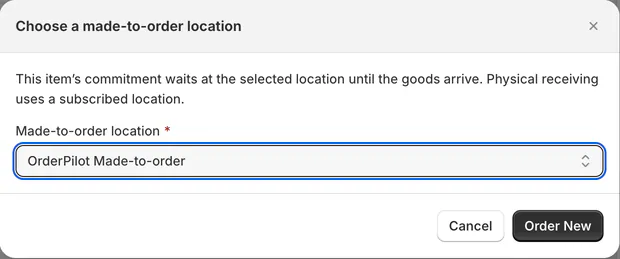
On the Shopify-product line, open the menu and choose Order New. Choose a made-to-order location opens.
Choose the item's Made-to-order location, then click Order New. The line shows New and the selected location.
Step 2: Review the source
Use Change made-to-order location to change the waiting destination, or Take From Stock to switch back where allowed.
An arrived item with a broken destination can offer Repair made-to-order location. Read the explanation before changing it.
The PO Workbench includes ordered-new units regardless of available floor stock. The existing showroom piece stays for sale.
Choose the item's source
Step 1: Open Stock Source
Open Edit item and find Stock Source. Choose This location, Other location or Order New.
This location shows the register's stock. Other location shows stock elsewhere. Order New buys another unit for the customer.
Step 2: Choose the destination
For Order New, open Choose a made-to-order location and search with Search made-to-order locations.
For Other location, use Change to open Choose a location. The list puts the largest stock first and excludes this store and empty locations.
The selected source appears on the item screen.
Step 3: Update the item
Tap Update item to save the source. An ordered-new item shows New Stock.
Units taken from another location do not leave from this register's store. Check pickup and delivery before handing anything over.
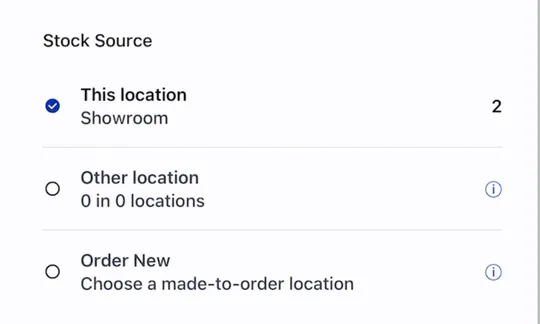
Choose existing stock or a new purchase for the customer.
Sell a finished configuration
Step 1: Check the stock offer
Save the made-to-order template line with the customer's exact choices. Look for the message showing how many of that exact configuration are in stock.
Use stock unit appears only when matching stock covers the whole quantity. Unsaved changes hide the offer.
Step 2: Use the stock unit and save
Click Use stock unit, then save the order. The line reads In stock — this configuration is a finished unit.
Modify releases the unit and changes the line back to made to order. Use it when the customer wants a different configuration.
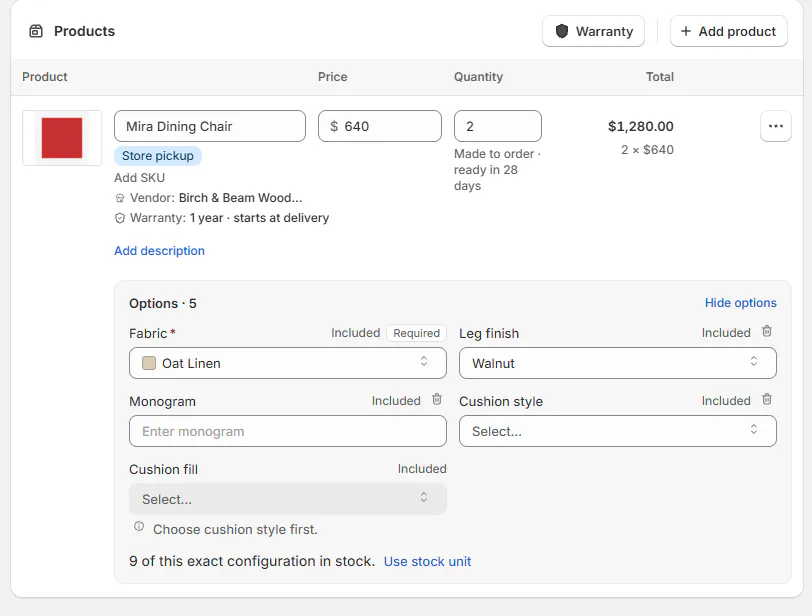
The stock offer requires the exact configuration and full quantity.
What happens next
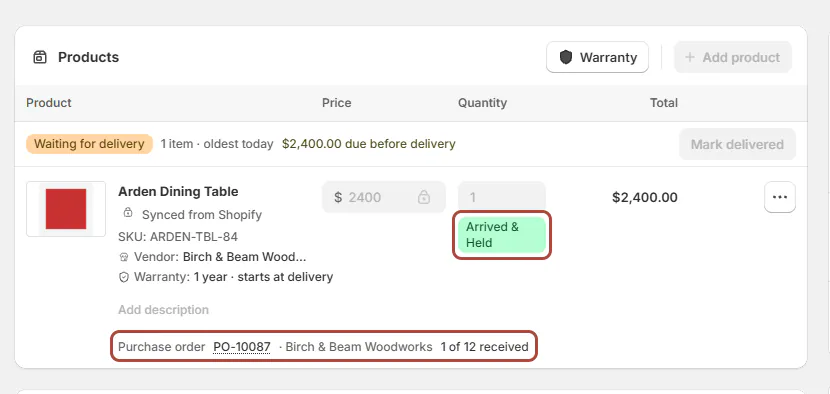
Ordered-new commitments wait at their selected made-to-order destination. After receipt, the line becomes Arrived & Held, and its source is locked. The line names its purchase order, for example Purchase order PO-10087 · Birch & Beam Woodworks · 1 of 12 received, and Activity says the item was received on that PO and reserved for this order.
On a placed order, fulfillment moves to the location that received the goods. The delivery promise describes expected readiness before arrival.
A finished stock line remains a custom item in Shopify. It is held when the order is sent to Shopify; quotes hold nothing.
Screen reference
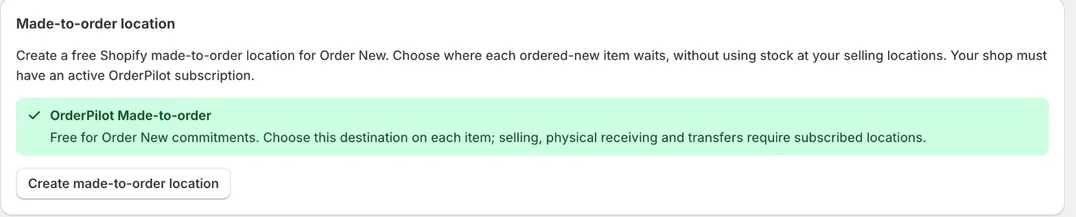

Example: keep the floor chair available
Example · Harlow & Finch Interiors
Marcus gets a new chair
Marcus Reed likes the showroom Mira Dining Chair but wants a newly ordered unit.
- Choose Order New on his tracked chair line.
- Select OrderPilot Made-to-order as its waiting destination.
- Buy the chair on a PO from Birch & Beam Woodworks.
- Receive it at a subscribed location and check Arrived & Held.
Example · Harlow & Finch Interiors
Marcus's second chair comes from Warehouse
Sam Ortiz sources another chair for Marcus through the shared register.
- Open Edit item and Stock Source.
- Choose Other location and select Warehouse.
- Tap Update item.
- Confirm the handover choice without treating that chair as stock leaving the showroom.
Important notes and tips
Backorders and finished stock on POS
The app line menu can offer Enable Backorder, with a confirmation and Disable Backorder to undo it.
A native Shopify POS sale can use a stocked variant. To change a finished stock configuration, OrderPilot directs staff to Modify in the app.
If something goes wrong
Order New is greyed out
Read the reason: missing destination, untracked inventory, arrival, handover, cancellation or an unfinished Shopify update can block it.
Use stock unit is missing
Save the order and check exact configuration, quantity and location coverage.
The source is read only
Historical orders with more than 100 rows require support for source changes.
The made-to-order location is refused
Use a subscribed physical location for selling, receiving or transfers.
Creation status cannot be checked
Use Check location status again, then contact support before creating another location.
Was this guide helpful?
Thanks. Tell us what was missing at support@meetorderpilot.com.