Test, publish and restore the status map
Related guides
- How the status map worksStatuses and workflow · 7 min
- Connect statuses and add Next status buttonsStatuses and workflow · 5 min
- Automate your workflow: events, conditions and actionsStatuses and workflow · 5 min
- When an order’s status doesn’t do what you expectStatuses and workflow · 4 min
- Change an order’s statusStatuses and workflow · 5 min
Test what a draft map would do to a real order before publishing it. You can compare the draft with the published map, apply the published rules to open orders, or restore an earlier version.
Testing does not move the order or send email. It gives you a result to review before changing the live workflow.
Before you start
Check editing access
You need Manage order and quote settings.
Check order access
Testing also needs View quotes and orders. Checking open orders needs Change order status.
Prepare the draft
Start with Connect statuses or Automate your workflow.
The top bar shows Unpublished changes while the draft differs from the running map. Saved draft changes are not published changes.
Choose an example order that represents the behavior you want to test. Use its actual payment, purchasing and fulfillment state when interpreting the result.
Test the map on an order
Step 1: Open the test panel
Open SettingsQuotes & ordersStatuses, then Status map. Click Test on an order.
The panel asks for Order or quote number, What happens now and Map.
Step 2: Choose the order and event
Enter an order or quote number you can view. For What happens now, choose Nothing new to check its current state.
Alternatively, choose the event you want to test. The panel now identifies the order and the situation to evaluate.
A selected event is a test input, not proof that the event happened on the order. Check the real record before using the result operationally.
Step 3: Choose which map to test
Choose Draft changes for your proposed rules or Published map for the current workflow. Run the test.
Read the result and the connection it identifies.
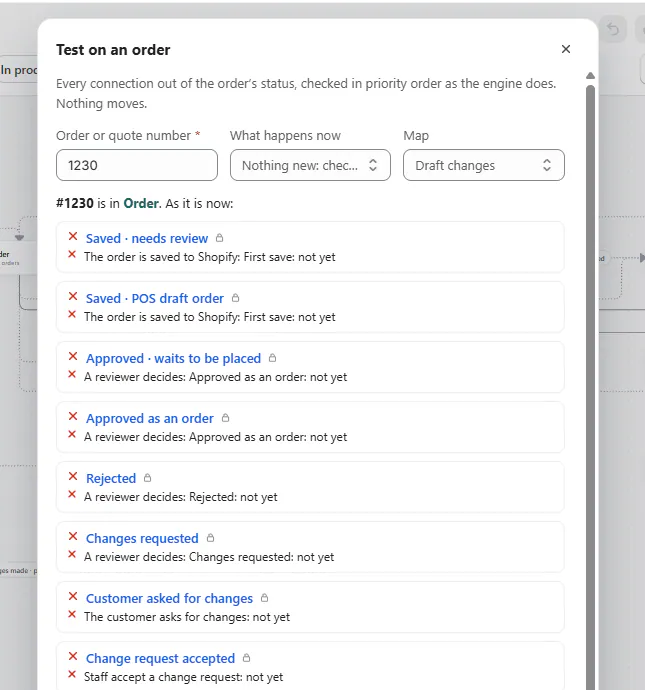
Test on an order for #1230: it is in Order and each connection out of Order shows why it doesn't apply yet Result Meaning Would move to a status A matching connection would move the order. Stays in a status The evaluation leaves the status unchanged. Runs without moving The matching connection performs actions while staying in place. No connection moves orders out on its own No automatic outgoing connection applies. Step 4: Compare the result
Run the same order and event against the other map when you need a before-and-after comparison. Check which connection wins, not only the destination.
Both tests leave the order unchanged. If the draft result is unexpected, edit the conditions or priority and test again.
Publish or discard changes
Step 1: Resolve marked problems
Return to the draft and review the map's problems. Complete unnamed connections, missing conditions or other validation issues.
Wait for the draft to save. The map is ready to publish when the problems are resolved.
A greyed Publish control explains why it is unavailable. Read that reason rather than assuming the map is already live.
Step 2: Publish the draft
Click Publish and review Publish?. Confirm when the draft is ready to become the running map.
The banner confirms publication and explains that orders follow the new map from their next change.
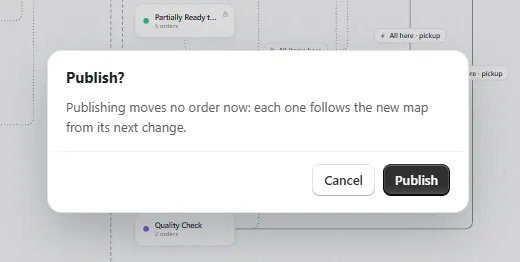
Publish? confirm with Publishing moves no order now… Publishing itself moves no orders. A status button or later relevant change can cause an order to follow the new connections.
Step 3: Check open orders now
If you want existing open orders evaluated immediately, use Check N open orders now on the published banner.
The app reports OrderPilot is checking N orders. This check does not send emails.
Open orders exclude canceled orders and those in Complete or Cancelled customer groups. Each press checks at most 20,000 orders.
Review the resulting movements in order Activity. The check applies the published map, so test representative orders before starting it.
Step 4: Discard an unwanted draft
To abandon unpublished changes, open More > Discard changes. Read the confirmation and confirm only when you want to replace the draft.
Changes discarded confirms that the draft matches the published version again.
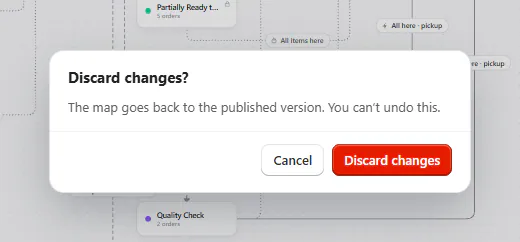
Discard changes? confirm Warning
Discarding removes the unpublished changes and cannot be undone. It does not restore an older published version.
Restore a published version
Step 1: Open version history
Choose More > Version history. Click a version to view it on the map.
The banner shows Viewing version and its publication details. The history marks the currently running version Live.
The panel lists the latest 100 published versions, newest first. Each includes its publication time and connection count.
Step 2: Restore it to the draft
Choose Restore to draft when that version is the one you want to recover. Review and test the restored map.
Use Back to the draft if you only wanted to inspect the version. Viewing history alone does not change the running workflow.
Step 3: Publish the restored draft
Publish after checking the restored draft. Orders then follow that map from their next change.
A restored draft is not live until you publish it. Publish is unavailable while you are only viewing a historical version.
What happens next
New staff buttons appear under Next status after publication. See Change an order's status for using them.
Map movements appear in each order's Activity with the connection name. Use those entries to verify what actually happened after testing.
The test result predicts the chosen evaluation; Activity records real movements. Keep those separate when investigating a customer order.
Example: test Fully paid
Example · Harlow & Finch Interiors
Check Marcus's production move
Nora Ellis tests Harlow & Finch Interiors' payment workflow.
- Connect Order to In Production using The order is fully paid.
- Test Marcus Reed's paid Arden Dining Table order against Draft changes.
- Confirm Would move to In Production names the Fully paid connection.
- Publish, then optionally check the 12 open orders shown in the banner.
- If a later revision needs reversing, restore version 4 to the draft and test before publishing.
The workflow is reviewed against a real order before it governs future movements.
If something goes wrong
The order cannot be found
Check its number and whether your role can view it.
Testing asks for Orders View
Ask for View quotes and orders alongside settings access.
Nothing to publish appears
The draft matches the running map.
Publish asks you to return to the draft
Leave the historical-version view first.
Check open orders is missing
Check Change order status permission.
No open orders are available
The current eligible set is empty.
Publishing appeared to do nothing
Existing orders wait for a relevant change unless you run the open-order check.
Was this guide helpful?
Thanks. Tell us what was missing at support@meetorderpilot.com.