Correct costs after goods arrive
Related guides
- Add freight, duty and other costs to a purchase orderInventory and costs · 6 min
- Resolve rejected goods and receiving correctionsPurchasing · 5 min
- How landed cost and cost layers workInventory and costs · 4 min
- Edit or cancel a purchase orderPurchasing · 6 min
- Keep Shopify costs right and read your marginsInventory and costs · 5 min
Correct the cost of goods already received, or change the planned cost of units still to come. Choose the route that matches the invoice change so earlier receipts keep the right history.
Before you start
Has the PO been received in part?
Received costs are frozen at receipt and change through a recorded adjustment.
Is the PO finalized?
Reopen it with a reason before correcting costs.
Can you change the right amounts?
Correct received costs controls receipt costs. Prepare purchase orders plus Enter costs and charges controls planned costs.
Cost corrections do not replace the procedure for correcting received counts. Keep the physical quantity unchanged when the invoice alone is wrong.
Choose what to change
Step 1: Open Force edit costs
On a PO past Draft and not finalized, open its menu and choose Force edit costs.
The dialog identifies how many units remain outstanding and how many have been received. What this changes lists which figures change and which stay as they are.
Step 2: Choose the affected goods
Choose Only what is still to come to change the planned price of outstanding units. Existing receipts keep their recorded costs.
Choose Also correct what was received to open receipt corrections. Enter the required Reason, then choose Update planned costs or Continue, according to the route.
The next page opens without yet posting a cost adjustment.
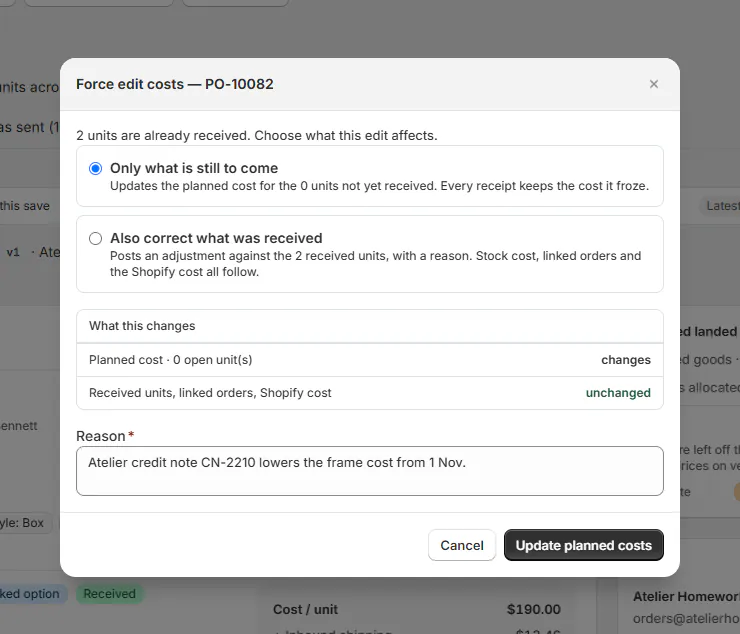
Choose the goods affected by the new vendor information.
Update the cost still to come
Step 1: Change Unit Cost
After Update planned costs, the PO edit page opens. Change Unit Cost for the outstanding goods.
Check the line before saving so the price change applies to the intended item. The existing receipt's frozen cost remains unchanged.
Step 2: Save the planned change
Click Save. The PO now carries the revised planned price for future receiving.
Review the invoice again when those goods arrive. A planned-cost edit does not prove that an earlier delivery had the same price.
Correct a receipt cost or late charge
Step 1: Open the receipt
After Continue, find Receiving history and click Edit on the receipt that needs correction.
You can also reach the history from Receive Items or the PO menu. Identify the receipt by number, date and staff member.
Its badge distinguishes Final costs, Cost missing and Estimated costs.
Step 2: Correct Vendor cost
Enter the revised Vendor cost for the affected line. Compare it with the credit note or corrected invoice.
The helper keeps the PO price distinct from the template's component cost when they differ. Do not replace a valid invoice cost merely to match a template total.
Step 3: Add a late receipt charge
Under Charges on this receipt, choose Add charge when a bill belongs to this delivery.
A new charge starts as Brokerage and Estimated. Check its type, target, amount and finality before continuing.
For charges covering the entire purchase order, use PO charges instead of assigning the whole amount to one delivery.
Step 4: Explain and save the adjustment
Enter Reason for change, such as “Vendor credit note” or “Broker invoice received after delivery.”
Review the affected units and click Save adjustment. The receipt cost is reposted for those units, and the PO logs the change.
The explanation belongs with the posted correction, where another team member can understand why the recorded cost changed.
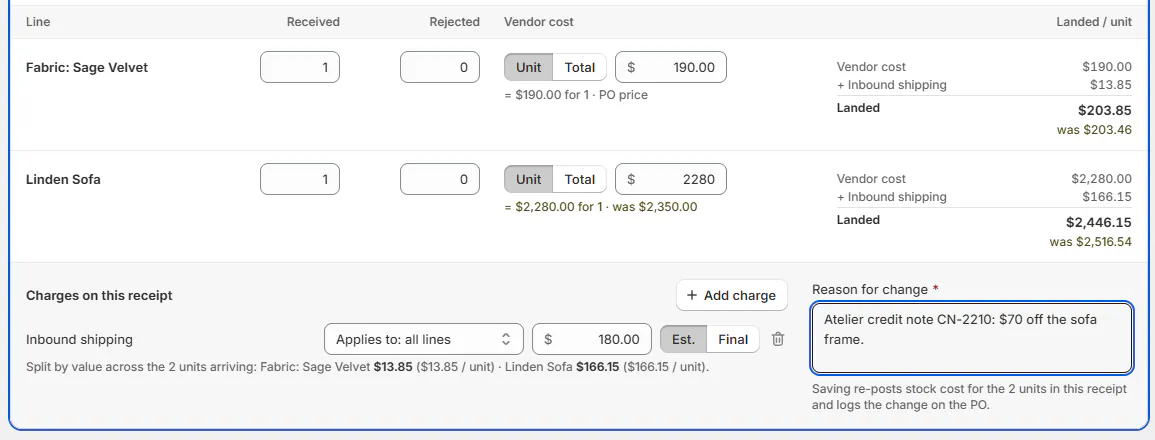
Save the reason with the actual receipt adjustment.
What happens next
The correction updates the receipt's stock cost and relevant linked-order cost information. Final costs can feed Shopify cost publishing.
Cost already drawn by past sales stays as it was. A correction to remaining stock does not silently restate those completed cost draws.
The receipt history keeps the adjustment rather than pretending the new invoice amount was known at the original delivery.
Example: a credit note and broker bill
Example · Harlow & Finch Interiors
Correct the delivery that incurred the cost
Atelier Homeworks issues a credit note for Olivia Bennett's received Linden Sofa.
- Open receipt 1 of PO-10001.
- Lower that line's Vendor cost to the corrected amount.
- Enter Vendor credit note as Reason for change and save.
- Add a late Brokerage bill to the appropriate chair receipt on Birch & Beam Woodworks PO-10002.
- Use Only what is still to come for a separate price change on Marcus Reed's outstanding sofa.
If something goes wrong
The change makes cost negative
Check the vendor cost and charge allocations; received goods and landed costs cannot fall below zero.
The receipt changed while open
Choose Start again with the current figures before entering the correction again.
The receipt was not changed
Read the displayed failure and resolve it before retrying.
Costs are hidden
Existing charges are retained. Ask someone with the needed cost permissions to review the amounts.
Force edit costs is missing
Check whether the PO is Draft or finalized and whether your role allows the selected correction.
Normal editing says every item arrived
Use Force edit costs for cost changes, or create another PO for additional goods.
Was this guide helpful?
Thanks. Tell us what was missing at support@meetorderpilot.com.