Products settings
Related guides
- How the catalog fits togetherCatalog · 6 min
- How Settings is organizedSettings and integrations · 5 min
- Create options and valuesCatalog · 6 min
- Group options into bundlesCatalog · 6 min
- Set up categoriesCatalog · 5 min
Use Products settings for the catalog records shared by templates and for product defaults. Product templates themselves live under Products in the app menu.
Some template behavior during quoting is configured under Quotes & orders, so check the setting's purpose before looking for it.
Before you start
Understand the catalog
Read How the catalog fits together for the relationship between shared records and templates.
Check access
Catalog tabs and the add-on prefix need Manage the catalog. Warranty tabs need Manage shop settings.
Check quote-setting access
The template controls under Quotes & orders need Manage order and quote settings.
For the wider settings layout, read How Settings is organized.
The Products tabs
| Tab | What you manage |
|---|---|
| Options | Shared choices, values, default prices, costs and lead times. |
| Bundles | Groups of options, their offered values and rules. |
| Categories | Template grouping and category-level rules. |
| Product defaults | The starting option type and Shopify add-on name prefix. |
| Warranty coverage | Coverage rules for products. |
| Warranty plans | Extended coverage sold to customers. |
| Claims | Settings for handling warranty claims. |
Use Manage product templates for individual product pages, activation and template-specific choices.
Product defaults
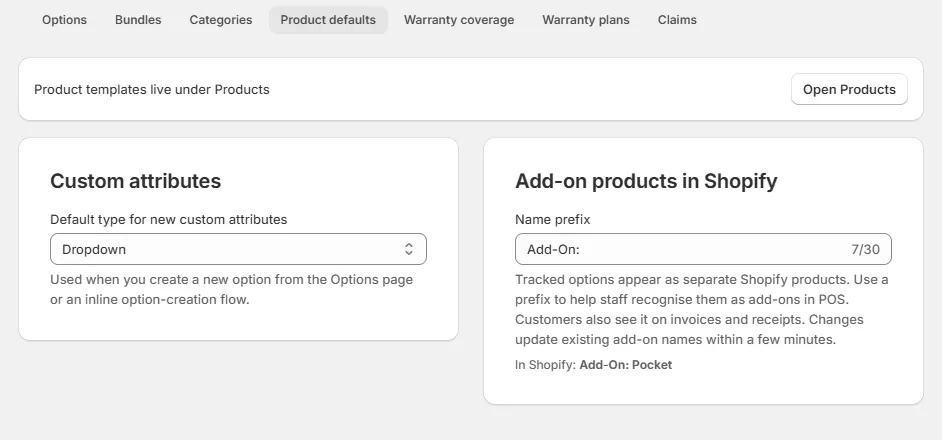
Open SettingsProductsProduct defaults. A note at the top, Product templates live under Products, links to Open Products.
| Setting | What it controls |
|---|---|
| Default type for new custom attributes | The initial type when creating an option from the Options page or an inline creation flow. Choices are Dropdown, Text, Text area, Number and Image. The default is Dropdown. |
| Name prefix | Under Add-on products in Shopify, the text before tracked-option product names. It starts as Add-On: and accepts up to 30 characters. An empty value uses no prefix. |
Swatch and Dimensions are not in the default-type list. Choose either directly when creating an option.
The prefix helps staff recognize add-ons on POS. Customers also see it on invoices and receipts, so use wording they can understand.
Changing the prefix renames existing add-on products within a few minutes. See Templates and Shopify products for how those products are maintained.
Template settings for quotes
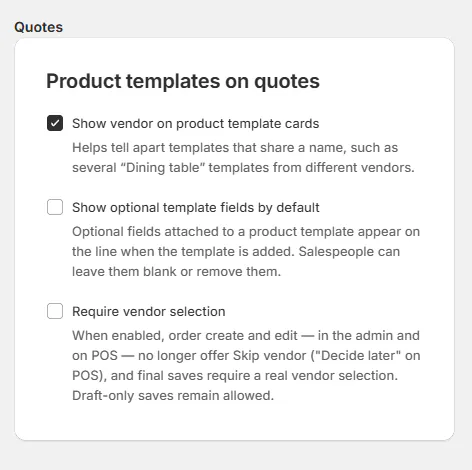
Open SettingsQuotes & ordersDefaultsQuotes. Find Product templates on quotes.
| Setting | What it controls |
|---|---|
| Show vendor on product template cards | Starts on. Vendor names help staff distinguish templates with similar titles. |
| Show optional template fields by default | Starts off. Its help describes showing optional attached fields when a template is added. |
| Require vendor selection | Removes Skip vendor in the app and Decide later on POS. Final saves require a real vendor; draft-only saves remain available. |
For the other defaults, read Quotes & orders settings.
What happens next
New options begin with the selected default type. Staff can still choose the correct type during creation.
Requiring vendors changes order creation and editing in both the app and POS. Use Choose options and a vendor to finish a line.
The add-on prefix changes product names, rather than the option's role in the configuration or its stock calculation.
Example: product defaults for the showroom
Harlow & Finch Interiors keeps Dropdown as the starting type and Add-On: as its prefix. Tracked Fabric is recognized as Add-On: Fabric.
Nora Ellis enables Require vendor selection. Sam Ortiz must choose Atelier Homeworks or Birch & Beam Woodworks for the Linden Sofa before a final save.
If something goes wrong
The new prefix has not reached Shopify
Allow a few minutes for existing add-on names to update.
Swatch or Dimensions is missing
Choose the type when creating the option; neither is a default-type choice here.
Skip vendor has disappeared
Require vendor selection is on. Choose a vendor, or save a draft while the decision is pending.
A field is greyed out
Hover for the reason and check the permission for that settings area.
Was this guide helpful?
Thanks. Tell us what was missing at support@meetorderpilot.com.