Set up order reviews
Related guides
- Review quotes: approve, reject or ask for changesQuotes and orders · 4 min
- Quotes & orders settingsSettings and integrations · 4 min
- Create and manage rolesTeam and permissions · 5 min
- Create a product templateCatalog · 6 min
- Find your way around OrderPilotGet started · 7 min
Turn on Review and choose which sales need approval. Give reviewers the right permission before relying on the queue.
The Review switch controls the page and general rules. Turning it off does not prevent every kind of sale from reaching review.
Before you start
Have setup access
Changing these settings needs Manage order and quote settings.
Assign reviewers
Their role needs Approve, reject or request changes. Use Create and manage roles.
Know the decision process
Review quotes covers approval, rejection and requested changes.
Reviews starts off for new shops. A shop that already uses reviews can have the page enabled.
How review works
A product template with Manual review can send a new sale to Pending Review. POS orders with custom products also enter that stage.
The list displays Pending Quote or Pending Order according to the record type. Home and the Quotes or Orders lists can expose the pending work.
A reviewer can approve, reject or request changes. Approval keeps a quote as Quote and makes an order Order; an unpaid POS order stays Draft until placed.
Rejected records become Rejected. Requested changes move them to Changes Requested, then can return them to pending review when resolved.
Review decisions do not send status emails. Review notification emails is labeled Coming soon, so arrange how your team checks the queue.
Turn on Review
Step 1: Open the approval settings
Go to SettingsQuotes & ordersDefaultsApproval rules. Find Reviews.
The explanatory text describes adding Review to the menu. Check that you are changing the shop's intended workflow.
Step 2: Enable Reviews
Turn on Reviews. The switch saves immediately, and the Review menu entry becomes available to permitted staff.
The Order review card appears below the switch.

Turning on Reviews adds the page to the menu.
Choose the review rules
Step 1: Set the general rules
In Order review, choose Default review flag or Require review for all orders as appropriate. Both start off.
Save the settings change.
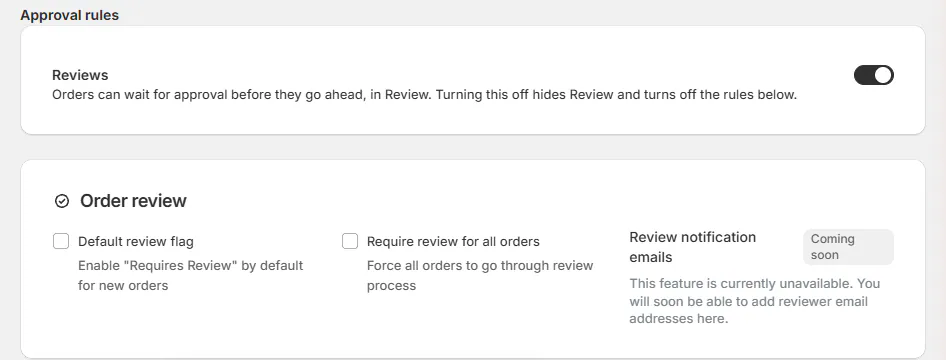
Choose the general rules separately from enabling the page. The flags hold a signed pay-later quote in review when it would otherwise be placed. They also affect the return from requested changes.
Step 2: Flag a product template
Open the template's Before an order is placed card. Edit Manual review and tick Flag orders with this product for review.
Save the template page. The row shows On, and matching sales are flagged through that product's review requirement.
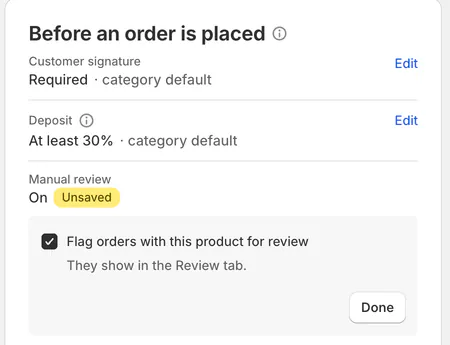
Product-specific review is configured on the template. Step 3: Check an individual record
Open a quote or order and inspect Requires review in its settings card.
Use it to see the record-level flag alongside the shop rules. The displayed flag helps the reviewer understand the intended approval path.
Turn Review off
Step 1: Read the consequence
Return to the Reviews switch. Turning it off hides Review and turns off Default review flag and Require review for all orders.
Check how your team will find any remaining pending work before making the change.
Step 2: Disable the page
Turn Reviews off. The page leaves the menu, and the general review card is hidden.
Template requirements and custom POS sales can still enter Pending Review. Find them through Home and the Quotes or Orders lists.
What happens next
Matching records wait for an authorized reviewer. Requested changes appear on the sale for the responsible staff member.
Review setup does not remove the need to watch pending work. Use Review quotes for the daily decisions.
Example: review custom tables
Example · Harlow & Finch Interiors
Apply review to the product that needs it
Nora Ellis wants custom Arden Dining Tables checked before they proceed.
- Nora enables Reviews.
- Nora gives the reviewer the decision permission.
- Nora turns on Manual review for Arden Dining Table.
- Marcus Reed's table sale enters the pending queue.
- The reviewer checks the requested configuration before approving.
If something goes wrong
Review is missing
Check the Reviews switch and the person's page access.
Records still reach review with Reviews off
Check template Manual review and custom POS sales.
Nobody can decide
Assign a role with Approve, reject or request changes.
No decision email arrives
Review decisions send no status email; reviewer notification emails are not available.
Was this guide helpful?
Thanks. Tell us what was missing at support@meetorderpilot.com.