Read and change an order's delivery promise
Related guides
- Set up lead times for vendors and optionsCatalog · 5 min
- Set up vendorsCatalog · 5 min
- Create options and valuesCatalog · 6 min
- Choose options and a vendor for each lineQuotes and orders · 6 min
- Edit a quote or orderQuotes and orders · 5 min
The delivery promise is the order’s calculated planning time, based on the line that takes longest to reach the customer. It combines the relevant vendor build time, selected option lead time, transfer time and delivery time.
Use the breakdown to check the calculation and find missing durations. You can set a different number of days when needed; save the sale to keep the change.
The promise is an internal planning figure in the app. Customers do not see it on PDFs, emails or the portal, and it does not appear on POS.
Before you start
Prepare lead times
Set up lead times covers vendor build, option, transfer and store delivery days.
Have edit access
Changing a promise needs Create and edit quotes and orders and an editable record.
Know the card's position
It sits under Customer on the edit page and under Summary on the create page or one-column layout.
The product page still shows its slowest option lead time. That is different from the complete order promise, which combines more stages.
Read the calculated promise
Step 1: Open a line's breakdown
Click the dotted lead-time label on a product line. Lead time opens with the contributing stages and Total.
Read any Not set values and notes before using the total. An unset figure contributes nothing, so an incomplete calculation can be too short.
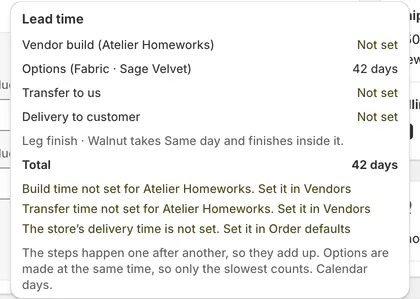
Missing figures are identified in the line breakdown. Step 2: Read the order card
Look at Delivery promise, its exact days and Estimated delivery date. Longest line identifies the item the order waits for.
The order ships together, so it uses the longest line. A quote's date counts from today; a placed order uses its recorded promise day.
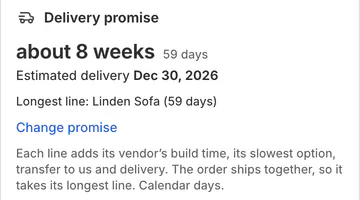
The longest line determines the calculated order promise. Step 3: Check the missing-figure warning
If the card says Some lines are missing a figure, open those line breakdowns. Identify the missing vendor, build, transfer, option or delivery value.
Follow Set it in Vendors or Set it in Order defaults, or ask the relevant administrator to complete it.
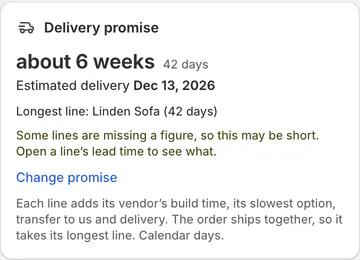
An incomplete total can understate the required time.
Change or reset the promise
Step 1: Enter the agreed days
Click Change promise. Enter a whole number from 0 to 3,650, then click Done.
The card shows the unsaved manual figure. The control accepts days; the estimated date is calculated from them.
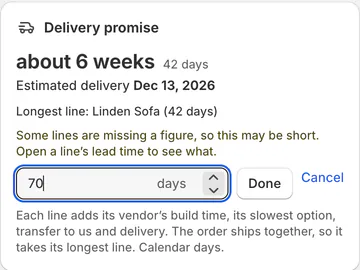
Enter whole calendar days for the manual promise. Step 2: Save the order
Use the order's Save action. Done in the card alone does not save the record.
After saving, the card identifies who set the promise and when. It also retains the calculated figure for comparison.
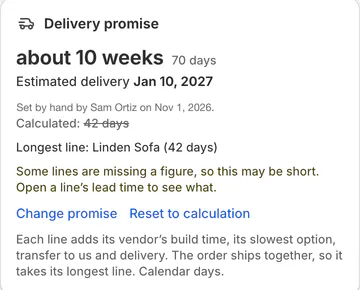
The saved manual figure keeps its author and comparison. Step 3: Return to the calculation
Click Reset to calculation, then save the sale. The manual override is removed.
On a placed order, check the newly recorded promise and its date. Resetting adopts the current calculation intentionally.
How the days add up
| Line type | Included stages |
|---|---|
| Made-to-order template | Vendor build + slowest option + transfer + customer delivery |
| Ordered new, not arrived | Vendor build + transfer + customer delivery |
| Other physical item | Customer delivery |
| Store pickup | Its applicable stages, without customer delivery |
| Service or fee | Not counted in the promise |
Stages happen one after another, so their days add together. Options happen alongside each other, so only the slowest option contributes.
All figures are calendar days. A deliberate 0 means Same day; blank means Not set.
Below 14 days, the card shows days. At 14 days or more, it shows approximate weeks with the exact days beside them.
What happens next
A quote or unplaced draft follows current lead-time settings. Placement records the calculated or manually chosen days and the promise day.
Later changes to vendor or option settings do not move a placed order's promise. The card can show Today's calculation beside the recorded promise.
A manual change or reset records the revised promise. Both parts of a split order share it, including a part placed later.
Version history lists Delivery promise (days). Restoring a version without an override removes it.
POS edits preserve a manual promise even though POS does not display this card. Returning a record to quote clears the placement record but retains a forced figure.
Example: allow for a fabric delay
Example · Harlow & Finch Interiors
Record a different promise deliberately
Marcus Reed's Linden Sofa calculates to 59 days, but Atelier Homeworks reports a fabric delay.
- Sam Ortiz reads the line breakdown and checks the 59-day calculation.
- Sam selects Change promise and enters 70.
- Sam clicks Done, then saves the quote.
- Sam checks the roughly 10-week display, exact days and updated estimated date.
- Sam can still compare the manual figure with the calculated 59 days.
Important notes and tips
No promise was recorded when this order was placed means there is no saved placement promise. It does not mean delivery takes no time.
Use Change promise and save a figure to record one. Check the historical agreement before selecting that figure.
Some older option values may show Same day because they were saved as 0. If their duration is unknown, clear the lead time to Not set.
If something goes wrong
Lead time is not known
Open the line breakdown and complete the missing figures.
No vendor is chosen
Choose the real vendor; build and transfer days are otherwise omitted.
Settings changed but the promise did not
Placed orders keep their recorded promise. Reset only when you intend to revise it.
Pickup looks shorter
Pickup skips the store-to-customer delivery stage.
Done is greyed out
Enter whole days from 0 to 3,650.
Change promise is greyed out
Read the page's edit-lock or access reason.
Was this guide helpful?
Thanks. Tell us what was missing at support@meetorderpilot.com.