Split or attach one order's purchase lines
Related guides
- Create purchase orders in the PO WorkbenchPurchasing · 6 min
- How stock on hand and tracked options shape purchase ordersPurchasing · 4 min
- Edit or cancel a purchase orderPurchasing · 6 min
- Send a purchase order to your vendorPurchasing · 6 min
- Change a locked order, or a line already on a purchase orderQuotes and orders · 4 min
Buy for one customer order, split a line between purchase orders or attach a late addition to an open PO. You can also keep a line on the customer's order while excluding it from purchasing.
Before you start
Is the order saved?
Save its changes, choose each line's vendor and use a status eligible for purchase orders.
Can you prepare POs?
You need Prepare purchase orders. Exclude and Include on an order line need Create and edit quotes and orders.
Is this a multi-order purchase?
Start from the PO Workbench when you need several customer orders.
Create POs for this order
Step 1: Open Create PO
Click Create PO in the order header, or choose it from the order's menu. The Orders list also offers Create PO in the row menu.
The header button appears for paid or partially paid orders when nothing blocks creation. Otherwise, hover over the menu action to read its reason.
Step 2: Review the selected order
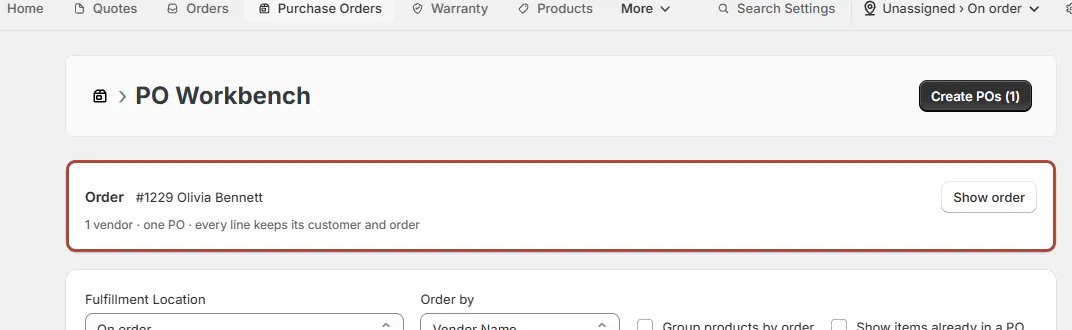
The workbench opens with an Order card fixed to this sale, such as #1229 Olivia Bennett. Use Show order to inspect it.
Check the receiving location and vendor cards. Standalone PO is unavailable in this mode because you are buying for the selected customer order.
Step 3: Create the drafts
Select the vendor cards, click Create POs and confirm. You return to the customer order while its drafts are created.
Buy part now and the rest later
Step 1: Reduce the purchasing quantity
Open the vendor card's Edit form and lower Quantity to the number you want to buy now. Click Save, then create that PO.
The remaining customer-order quantity is not allocated to this draft.
Step 2: Create the later purchase
Open Create PO from the customer order again. The workbench offers the remaining need.
Create the next draft, then open the line's Manage PO. Each allocation appears on its own row with Open PO. In the workbench's PO Summary, a Multiple PO badge groups the references by status.
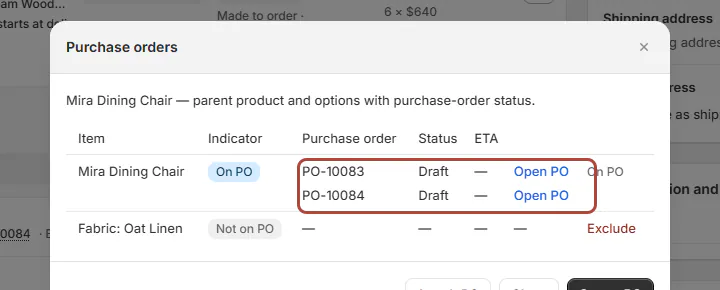
Manage PO keeps both allocations visible on the order. Draft and active POs reserve the allocated quantity. Rejected units free that allocation again. Order editing restrictions prevent reducing the customer line below its reserved quantity.
Add a line to an open PO
Step 1: Choose Attach PO
On the saved order line, open Manage PO, then Attach PO. Choose a Purchase order in Attach to purchase order, then click Attach.
Eligible POs share the line's vendor, are Draft, Sent or Partially received, and are not finalized. The picker includes the 50 most recent eligible POs.
Step 2: Review and update
The workbench opens on that PO. Check the new row and click Update PO.
The PO keeps its status. New product… and From a template… are unavailable while updating an existing PO.
Step 3: Decide whether to send the update
For a PO the vendor already has, OrderPilot asks whether to send the updated document. Choose Send updated PO… or Not now.
If no vendor email is saved, the success message says the update was not sent. Use sending a PO to complete the vendor communication.
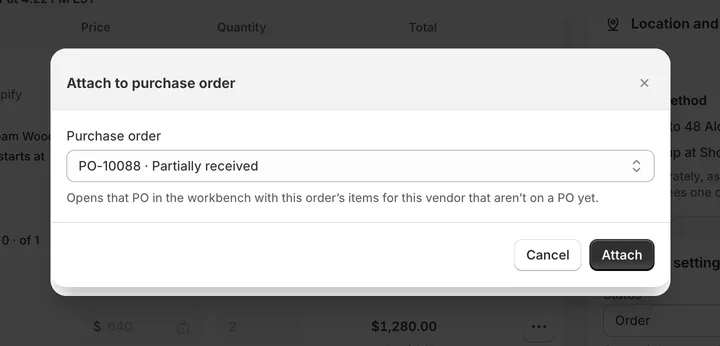
Attach PO opens the existing purchase order for review.
Keep items off purchase orders
Step 1: Choose temporary removal or exclusion
In the workbench Edit form, open Remove or exclude from POs.
Remove from this PO marks the row Removed Temporarily; Add back to PO restores it. Permanently exclude from POs keeps it out of future POs for this customer order after confirmation.
The customer-order line remains in place.
Step 2: Manage exclusion from the order
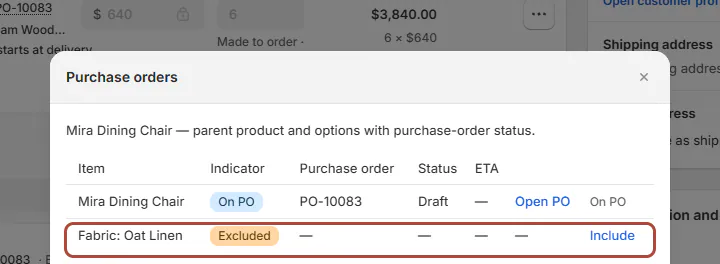
Open the line's Manage PO and choose Exclude or Include. Its indicator changes between On PO, Not on PO and Excluded as appropriate. The change waits for the page's Save bar.
For a parent with tracked options, choose Parent and options or Parent only. Review each component so the exclusion matches what you intend.
Services never go on purchase orders. Their Manage PO explanation says to mark the line as a physical product if it needs purchasing.
Screen reference


What happens next
Created POs appear beneath their order lines. The PO summary shows Allocated to POs and Not allocated for each line.
Exclusion removes a line from future purchasing, without removing the product from the customer's sale. Existing stock coverage is explained in stock and purchase orders.
Example: Priya's dining set
Example · Harlow & Finch Interiors
Four chairs now, two later
Priya Shah orders an Arden Dining Table and 6 Mira Dining Chairs.
- Create PO-10003 for the table and 4 chairs from Birch & Beam Woodworks.
- Return later and create PO-10004 for the remaining 2 chairs.
- Open Manage PO to check both chair allocations.
- For a separate stock-covered chair line, choose Exclude only when that line should stay out of purchasing.
If something goes wrong
Save first to create or attach a purchase order
Save or discard the order's unsaved changes.
No open purchase orders for this vendor
Create a new PO or check that the intended PO meets the status and finalization requirements.
The requested quantity is unavailable
Another draft or active PO reserves it. Review Manage PO before changing allocations.
A line cannot be reduced
Its POs reserve more units than the proposed customer-order quantity.
Was this guide helpful?
Thanks. Tell us what was missing at support@meetorderpilot.com.