Change an order’s status
Related guides
- Change status or tags on many orders at onceQuotes and orders · 3 min
- When an order’s status doesn’t do what you expectStatuses and workflow · 4 min
- Turn a quote into an orderQuotes and orders · 4 min
- The quote and order pageQuotes and orders · 6 min
- Connect statuses and add Next status buttonsStatuses and workflow · 5 min
Move a quote or order forward with Next status, or choose a status manually when the situation needs a different stage. Both methods record the change in Activity.
Use the suggested button when you are following the store's published workflow. Use the status field when you deliberately need another permitted status.
Before you start
Check access
You need Change order status. Review and quote-conversion moves can need additional permissions.
Check the map
Next status appears only after a status map has been published.
Use the app
POS displays the status, but has no status picker or Next status button.
Your store can add and rename its own stages. Use the meaning agreed by your team when the names differ from these examples.
For button setup, read Connect statuses. For making a draft workflow available, read Test and publish the status map.
Move forward with Next status
Step 1: Open the sale
Open the quote or order and check its current status. Confirm you have the right customer and sale before making a change.
Click the black Next status button. The menu shows the map's available next destinations.
Step 2: Read the suggested moves
The top row is the status the map checks first. Alternatives appear under Can also move to.
Expand More for backup staff buttons. Hover a row to read Available when or Occurs when and understand its trigger.
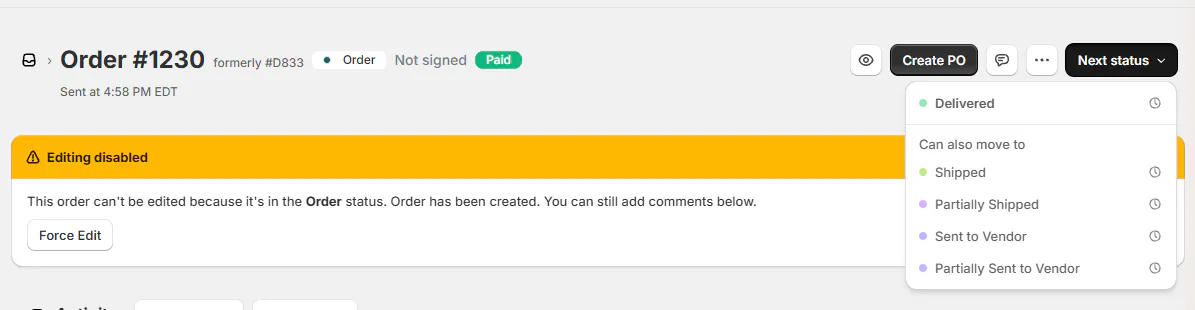
Next status menu open with one ready row and Can also move to A button's position expresses workflow priority, not proof that the order is ready. Check its condition and the actual work completed.
Step 3: Resolve anything still required
Hover over a greyed row. It explains what is missing, such as the customer's signature, full payment or every PO item arriving.
Complete the stated requirement before trying the move. The row becomes available when the order qualifies.

Hover on a greyed Next status row: waiting for payment If lines have no vendor, assign one to every required line before a purchasing-eligible move. See Options and vendors on a line.
Step 4: Choose the ready move
Click the available row that matches the work completed. The app confirms Moved to the new status.
Check the resulting status on the order. Its Activity now records the map connection that performed the move.
Do not choose another button merely because the intended one is waiting. Its explanation identifies the work or evidence still needed.
Set a status manually
Step 1: Open the Status field
Find Quote settings or Order settings. Open Status.
The list groups statuses by customer group, with Not in a group yet last. Only active destinations your role may use are offered.
Step 2: Choose the destination
Choose the status that describes the sale's current state. Read any permission explanation beneath the field.
Leaving review needs Approve, reject or request changes. Turning a quote into an order needs Convert quotes to orders.
A move to a purchasing-eligible status requires vendors. Fix missing vendors before saving the status change.
Step 3: Save the sale
Save the quote or order. The selected status takes effect when the record is saved.
Check the displayed status and its Activity entry. Choosing a list value without saving does not finish the change.
Moving a quote to Order converts it. Read Turn a quote into an order before using that destination.
For many sales together, use Change many orders at once.
What happens next
Activity records Status changed from the old status to the new one. It includes Triggered by and the reason.
Map-driven rows also name Connection: and the connection label. That makes a suggested movement distinguishable from a manual choice.
A manually chosen status holds until information read by its connections changes. A later payment, purchase order or shipment can then move it again.
Review the relevant event before treating a later movement as an unwanted reversal. The map can respond to work completed after the manual choice.
Customer messages after a change
A status email can send when enabled for the destination and permitted by the store's notification rules. The staff-change setting starts on.
The setting is Send status emails when staff change a status. Read Which emails go out before changing notification behavior.
Customer groups can make several internal statuses look like one milestone. Moving between those stages does not necessarily show a new customer-facing name.
The status change and the notification are separate results. Check Activity and notification settings when one happened without the other.
Example: Marcus's dining table
Example · Harlow & Finch Interiors
Record vendor confirmation and readiness
Sam Ortiz follows Marcus Reed's Arden Dining Table order at Harlow & Finch Interiors.
- Open the order while it is Sent to Vendor.
- After Birch & Beam Woodworks confirms, open Next status.
- Choose the Vendor confirmed move to In Production.
- When the table arrives early, have the manager review its readiness.
- Choose Ready to Ship in Order settings and save if a manual move is appropriate.
Activity records both the connection-driven movement and the manager's manual change.
If something goes wrong
A status is missing from the list
Check whether it is inactive or requires review or conversion permission you lack.
Vendors are required
Assign them before moving to a purchasing-eligible status.
Next status is missing
Check whether the store has published its status map.
Nothing comes next from here appears
There is no published route from this status. Use the permitted status field or ask a manager to review the map.
A row is greyed out
Hover for its requirement, then complete the missing work.
The order moved again later
Inspect the later event and connection in Status problems.
The customer received an unexpected email
Check the destination's email and the staff-change notification setting.
Was this guide helpful?
Thanks. Tell us what was missing at support@meetorderpilot.com.