Check and change warranty on an order
Related guides
- How warranty coverage worksWarranty and service · 5 min
- Start, end or extend coverage by handWarranty and service · 4 min
- Create and sell extended warranty plansWarranty and service · 4 min
- Set coverage exceptions for options and productsWarranty and service · 4 min
- Require and record serial numbersWarranty and service · 4 min
Read the warranty saved on a sale, see where each term comes from, and check coverage for individual units. Before the sale becomes a Shopify order, authorized staff can change its line terms.
Use the line review for what was agreed. Use the Warranty panel for what has happened to each physical unit.
Before you start
Understand coverage
Read How warranty coverage works and confirm the rules are set.
Check view access
You need View quotes and orders to read order warranty and coverage look-up.
Check edit access
Changes need Create and edit quotes and orders. A positive overridden term also needs Override warranty coverage.
Line terms lock once the sale is a Shopify order. After that, record delivery, returns, and goodwill through unit coverage actions.
Check and change a line's warranty
Step 1: Open the line review
Open the line menu and choose Review warranty; the Warranty on dialog opens with the product's name. Read Whole product and the Exceptions table before editing.
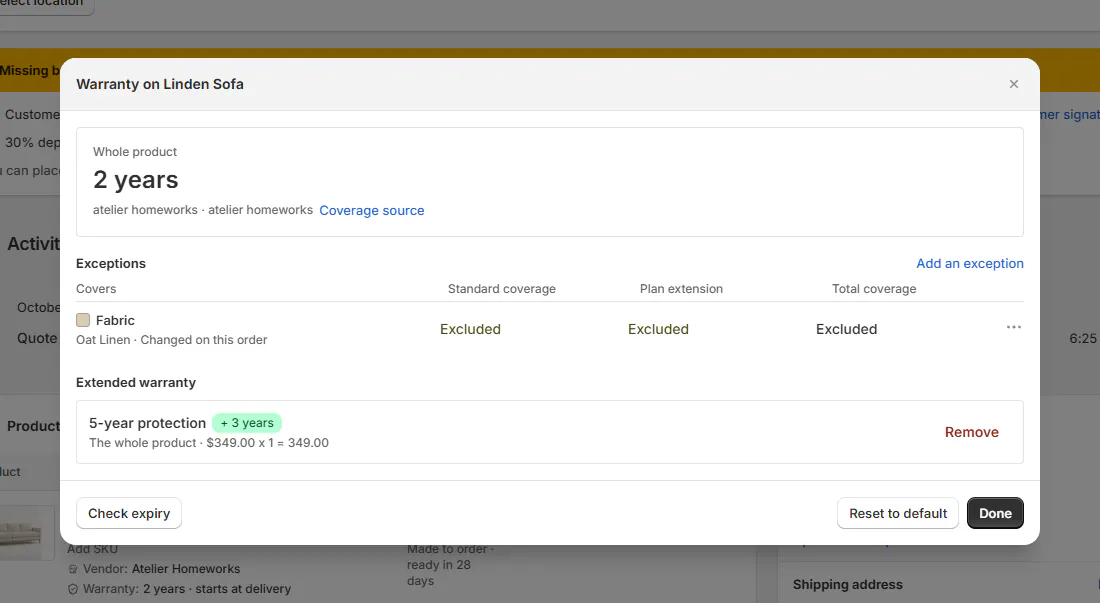
Review warranty for a Linden Sofa line with exceptions and a plan. The table separates Standard coverage, Plan extension, and Total coverage. If there are no exceptions, it says Every option follows the product term above.
Step 2: Read the source
Click Coverage source beside the term. The dialog lists Comes from and Term, with Applied identifying the rule that supplied the result.
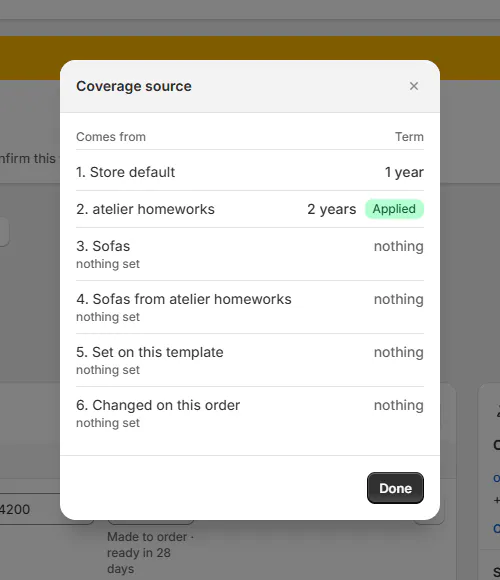
Coverage source dialog with the Applied badge on Atelier Homeworks. Use that source when explaining the term to the customer. A vendor's warranty can be replaced by a more specific category, product, or order rule.
Step 3: Change the whole-product term
Enter the agreed term, or choose Don't cover on this order for a deliberate exclusion. Check the resulting coverage shown for this line.
If you lack override permission, the dialog asks you to find someone with Override warranty coverage. Don't substitute a different product rule to bypass that order-level restriction.
Step 4: Review option exceptions
Use the option menu for Don't cover on this order, Allow plan coverage on this order, Restore exclusion, or Remove exception, as applicable.
An option locked on its product template displays that reason. Follow coverage exceptions to understand template locks before requesting a change.
Step 5: Check expiry and finish
Use Check expiry and enter Delivered on to inspect the resulting term. Use Reset to default if the line should return to its standard coverage, then click Done.
The date check helps explain the term; it doesn't replace recording the actual delivery. Add an extended plan separately when extra coverage is being sold.
Read the order's Warranty panel
Step 1: Open the Warranty panel
In the Products card, click Warranty. It appears when at least one line carries warranty. Choose This order or Customer's orders to set the scope.
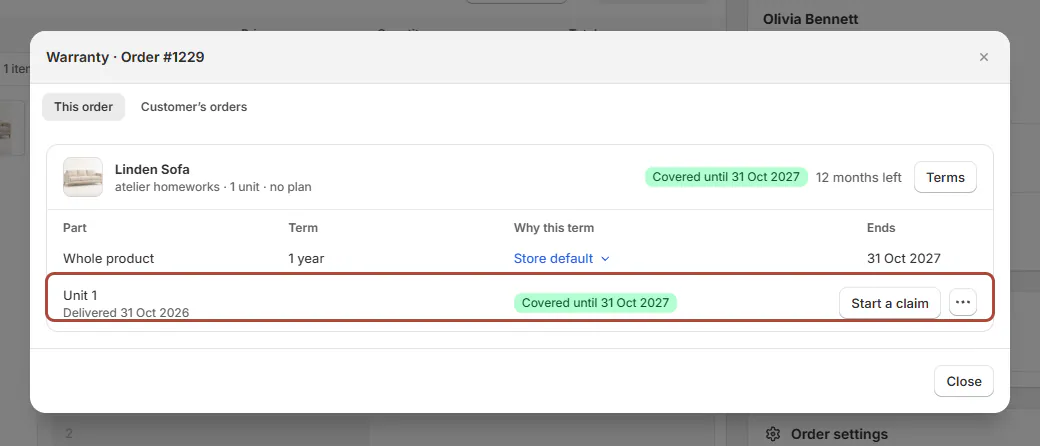
Warranty panel for an order with two delivered units. On a quote, the current-record tab can read This quote. Check the tab before interpreting coverage from another purchase.
Step 2: Read the line summary and terms
Look for Covered until, X of Y covered, Starts at delivery, Excluded, Not covered, or Coverage stopped. Expand Terms for the part, term, source, and end date.
A partial-coverage badge can reflect units delivered on different days. It doesn't necessarily mean the line has inconsistent terms.
Step 3: Read each unit's story
Find the unit number and serial, then read its delivery, return, coverage-stop, or goodwill history. Delivery not recorded and Not delivered yet indicate why a clock may not have started.
Claims can appear as links beside the unit. Use Handle a warranty claim when the customer's issue needs a service record.
Line chips can also show missing serials and claim links. A banner such as Warranty claim WC-… is followed by its status offers Open claim when your access allows.
Look up a customer's coverage
Step 1: Search the coverage list
Open Warranty coverage look-up. Search by customer, order, product, or serial number. For the example, search for Reed.
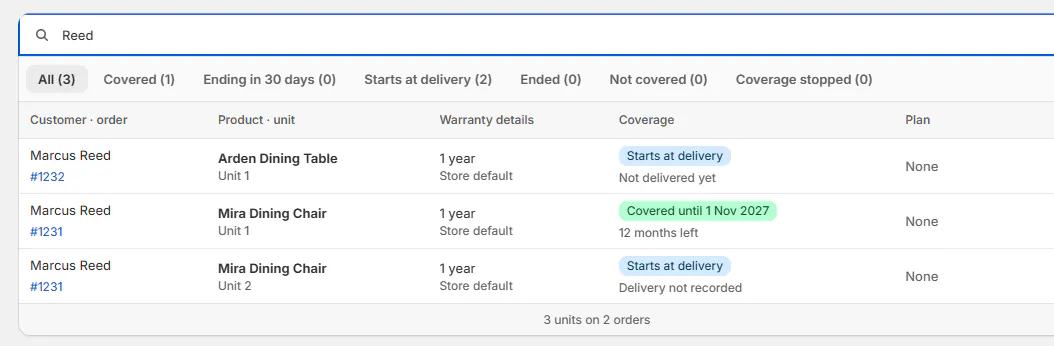
Coverage look-up searching Reed with the status pills. Step 2: Filter and inspect units
Choose All, Covered, Ending in 30 days, Starts at delivery, Ended, Not covered, or Coverage stopped. Read the customer, order, product, unit, details, coverage, and plan columns.
Use Newer orders or Older orders to move through results. Search by a serial when several identical chairs appear.
Step 3: Choose the next action
Click Start a claim on the unit's row, or open its ••• menu for the coverage actions. The header's Claims and Start a claim controls follow your permissions.
Check the unit and its dates before choosing an action. A coverage lookup is a way to identify the purchase, not evidence that every reported issue is covered.
What happens next
Edited line terms appear in the line chips and customer documents. Once the sale becomes a Shopify order, those terms stay frozen and later changes concern individual units.
Use the panel's history to explain how a unit reached its current state. Avoid relying on today's catalog rules to describe an older sale.
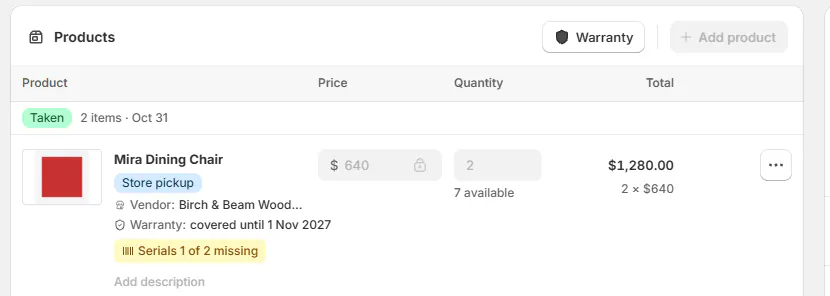
Example: identify Marcus's chair and Olivia's term
Example · Harlow & Finch Interiors
Check the correct unit and source
Sam Ortiz helps 2 customers at Harlow & Finch Interiors.
- He searches Reed in Coverage look-up.
- He identifies Marcus's Mira Dining Chair units and sees that only one is delivered.
- He opens Olivia Bennett's Linden Sofa quote before placement.
- Coverage source shows the 24-month Atelier Homeworks term.
- An authorized colleague lifts Fabric's exclusion for the sold plan where that exception was agreed.
If something goes wrong
Review warranty is missing
The line may have no warranty view or saved coverage to show.
Warranty is missing from Products
No line carries warranty.
Terms cannot be changed
Check edit permissions and whether the sale is already a Shopify order.
Search finds no purchase
Try the order number, customer's last name, or a serial.
Was this guide helpful?
Thanks. Tell us what was missing at support@meetorderpilot.com.