Set up portal access and message alerts
Related guides
- The customer portalCustomers and portal · 5 min
- Help a customer who can’t open, sign or payCustomers and portal · 5 min
- Reply to customers from the InboxEmails and messages · 5 min
- Run the Inbox for a team: assign, quick replies, reply goalEmails and messages · 4 min
- Set sender details, replies, and email copiesEmails and messages · 4 min
Control whether customers can open the portal, and disable existing links when you need to stop access. Message alerts then help customers and staff notice conversations they haven't read.
The portal starts on. Turning it off and disabling links are separate actions with different effects.
Before you start
Understand the customer view
Read The customer portal before changing access.
Check your permission
You need Manage shop settings to change Customers settings.
Check recipients
Anyone copied on a customer email receives its portal link and PIN. Review copies when investigating access.
Turn the portal off or on
Step 1: Open Portal access
Go to SettingsCustomers. In the Portal access card on the right, find Let customers use the portal and the separate Portal links area.
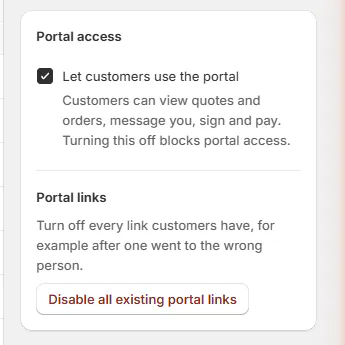
Settings › Customers › Portal access with Let customers use the portal and Portal links. Step 2: Choose whether customers can enter
Turn Let customers use the portal on or off, then save. The setting controls whether customers can view quotes and orders, message you, sign, and pay through the portal.
Warning
Turning the portal off changes customer contact
Portal links show This page is not available. Contact the store. Customer portal alerts stop, staff replies go by email, and the receipt's portal QR is unavailable.
Emails use the signing link while the portal is off. My orders uses its separate customer page, which directs customers to reply to the store's email.
Disable all existing portal links
Step 1: Open the link confirmation
Under Portal links, click Disable all existing portal links. The confirmation explains that existing links will stop working and customers can request new links by email.
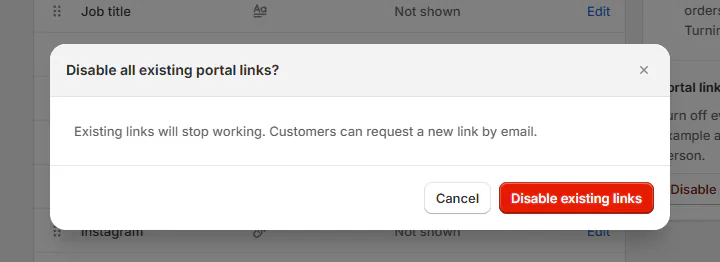
Disable all existing portal links? confirm with Disable existing links. Step 2: Confirm the store-wide action
Click Disable existing links when you intend to revoke every existing portal link. A message reports Disabled 1 portal link, the number disabled, or No active portal links to disable.
Warning
Every existing portal link is affected
This action reaches customers across the store. Don't use it as though it targets only the quote you were viewing.
Know who gets message alert emails
Customers receive an alert for unseen store messages after 10 minutes. The wait is 1 minute when they have never used the portal or last wrote by email.
The email includes the newest 10 unseen messages, Open your quote or Open your order, and their PIN. Attachments are summarized with wording such as Sent 2 files.
Staff alerts wait 5 minutes. The recipient is the Inbox assignee, then the order's owner (its primary salesperson), then the other credited salespeople, then default copies. Only staff who can currently answer the order qualify.
Reading or answering within the waiting period cancels the alert. Emails sent by staff don't queue another portal alert. Use team Inbox settings to keep responsibility clear.
Check SettingsMessages & notificationsDelivery activity when investigating an alert. A reply in the conversation and an alert email are separate events.
What happens next
Disabled links stop working: they open This link has expired. Customers can use Email me a new link there to request a fresh link to the address on file. New customer emails carry new links.
With the portal on, a staff reply goes to the conversation. The alert rules decide whether an email is also needed.
Example: replace a misdirected quote link
Example · Harlow & Finch Interiors
Olivia gets a fresh portal link
Sam Ortiz discovers that Olivia Bennett's Linden Sofa email went to the wrong address.
- Nora Ellis corrects the customer contact information before arranging another email.
- She opens Portal access and reviews the store-wide effect of disabling links.
- She confirms Disable existing links and reads the reported count.
- Olivia uses Email me a new link after opening the old link.
- The replacement goes to Olivia's corrected address on file.
If something goes wrong
The customer sees This page is not available
The portal is off. Check the access setting before asking them to retry.
There are no active links to disable
No live links were found. The message doesn't indicate a failed revocation.
Staff received no alert
Someone may have read or answered in time, or no eligible recipient was available. Check assignment, access, and Delivery activity.
The customer received no alert
They may have read the message during the wait, or the portal may be off. Check both before sending another message.
Was this guide helpful?
Thanks. Tell us what was missing at support@meetorderpilot.com.